
How to Change a Photo’s Date in iPhoto to When the Photo Was Taken


It's very likely there are a bunch of photos in your iPhoto collections that are displaying the incorrect date and time when the photos were taken.
And this isn't just a problem when your photos won't sort chronologically. This will also be an issue for you every time you create a new Event or album inside of iPhoto, and it constantly tries to identify them using the wrong date.

Maybe the date and time weren't set correctly in your digital camera before you took these photos. Or it's possible you scanned a bunch of prints or film negatives, and they are still reflecting the dates and times when you actually scanned them.
Note: If you aren't seeing the vertical panel on the right side with the time and date information you see in the image above, you will need to first click on the Info button in the bottom right of the application to open this “Info” panel.
How to Change the Date and Time Metadata in iPhoto
| 1 | Select the Photos / Videos |
| Select the photo(s) or video(s) that you'd like to adjust. This can be done by selecting them inside of a single Event or album or by selecting multiple events or albums at a time — on those rare occasions when you want to change large groups of them with the same time or date information.
|
|
| 2 | Click Photos > Adjust Date and Time |
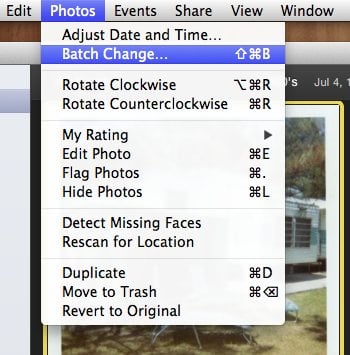
Go up to the top menu, click on “Photos,” and then select “Adjust Date and Time” from the top of the list. If you want to change the date and time for multiple photos, but you also don't want to give them all the same exact date and time information, consider another option of “Batch Changing” them. Instead, click on “Photos > Batch Change.”
|
|
| 3 | Type in the Correct Date and Time |
| In the new window that appears, click in the white “Adjusted” field and change any or all of the date and time information. Use the tab or cursor keys to move from one number to the next. If you aren't sure of the actual time the photo was taken — as is usually the case with older photos — you will have to just do your best to approximate it. Put a check in the box “Modify original files” if you would like this new date and time to overwrite the date in your master image file(s) as well. Unless you aren't confident even this new date and time is more accurate, I would recommend that you do “Modify original files” so that your original images, as well as the database, are kept up to date — so to speak. 😉
If you are “Batch Changing,” your window will look slightly different. Select “Date” from the first pulldown menu at the top of this window. Then, modify the date and time in the date field. What makes the “Batch Changing” option different for changing the date and time is that you can put a check in the box and then add a consistent amount of time in between a selected photo. This would be useful if you have a group of photos that were taken at an event that took place over the course of time — such as a sporting event, and you don't want each photo to be given the same exact time, but you aren't sure of the unique time for each photo.
|
|
| 4 | Apply Changes |
| Finally, click the “Adjust” or “OK” button (depending on which window you are in) to close the window. Your photo(s) and video(s) will now be adjusted with the new date and time. That's it! Pretty easy, huh? 🙂 |



Verifying the Changes Were Applied
You can see that your dates have been updated by selecting one of these photos or videos and reviewing the information near the top of the Info panel on the right of the application.

Additionally, you could also open one of these photos in a third-party program that is capable of displaying this type of date and time information (technically called EXIF and IPTC metadata).
One way to do this is to select a photo in iPhoto and then click File>Reveal in Finder to bring up either the “modified” (edited in iPhoto) or “original” (master) photo in a Finder window. Then right-click (control-click) on it and then select “Open With” and choose your application of choice.
Note to beginners: be careful with the images you are pulling up. These photos may fail to load correctly in iPhoto if you alter or — yikes — delete them. So be careful and just view them. 😉
In the screenshot below, I've opened the photo I changed in this tutorial using a lightweight program I bought in the Apple App Store called iExifer. I highlighted in blue all the places where the updated date and time are reflected in the metadata information.

.
The instructions and screenshots were created using iPhoto '11 v.9.5.

Hello,
for iPhone and iPad, this is now possible to do straight from Photos app using a ‚Photo Complete‘ photo scanner app. A time and location of any selected existing photos or videos in Photos app can be modified using action extensions (using share button in Photos, similar to how one can edit time and location of photos on Mac) without having to go to any app.
I’ve found the solution after tinkering about. So I wanted to transfer my entire iPhoto library into photos. I exported the photos from iPhoto using export then when I imported the videos to photos the time stamp were today’s date. They were all wrong!
Solution: Create a smart library in iPhoto called videos then select all the videos in iPhoto and “Drag and drop” the videos from iPhoto to an empty folder on your mac.(Do not use the export function from the menu)
Next open photos and import the videos and that’s it you will see that the videos have the correct time stamp.
You’re welcome. :))
Hi, I want to change the date and the time taken of a few photos on my iphone that are on my camera roll. Is that possible and if so could you help me out cheers
Can you do this with videos also
I have a similar problem, but mine defies Science, as I seem to be able to take photos into the future. New ones taken on my iPhone 6, which has the correct date set on it, show January 2016 !!
It’s not the end of the World, but it is irritating if I am trying to find specific photos.
I don’e want to Batch change as most of the photos (70,000+) are historic.
How do you do that if you don’t have iPhoto? I’m using a windows computer. Thanks.
It really depends on what software you are using on your Windows computer to manage or edit your photos. I wrote a post how to change the date and time in Picasa, that you might want to check out. That’s a wonderful and free app to get started with for the PC.
Additionally, I also just created a small chart full of applications for Windows users that can change photo metadata — like a photo’s caption or a photos date and time it was taken etc (IPTC & EXIF metadata respectively). The chart is near the bottom of a Q&A post I just published.
So, I would start here and check out these two posts.
Hi Curtis,
Same question with Samantha, is there a way to update the date in the events ribbon as well?
Thanks
Hi Chris. Are you still having problems with the date under your events? (Sorry I’ve been a little swamped answering questions after the holidays)
I just tried to duplicate the issue you and Samantha (comment above) were having and it seems to be working fine for me.
Under each event, there is a little date below it that represents the date of the photo(s) inside. If there is more than one photo with a different date than the other(s), then the date under the event is a date range. I tried to change the date of a photo using “Photos > Adjust Time and Date” from the menu at the top and it worked for me. It changed the “date taken” of the photo in the info panel on the right, as well as changing the date (range in my case) under the event.
Is this how you are manipulating the dates for your photos? If not, this could be the reason it’s not working.
I’ve successfully changed the date for some of my photos….Thank you for the tip! However, the date that appears on the ribbon with the Event name does not adjust with the dates of the photos included. Can you help me change it? The date range of the event determines the order of the events. Thanks for any help you can offer!
Hi Samantha. Are you still having problems with the date under your events? (Sorry I’ve been a little swamped answering questions after the holidays)
I just tried to duplicate your issue and it seems to be working fine for me. Under each event, there is a little date below it that represents the date of the photo(s) inside. If there is more than one photo with a different date than the other(s), then the date under the event is a date range. I tried to change the date of a photo using “Photos > Adjust Time and Date” from the menu at the top and it worked for me. It changed the “date taken” of the photo in the info panel on the right, as well as changing the date (range in my case) under the event.
Is this how you are manipulating the dates for your photos? If not, this could be the reason it’s not working.
Hello Curtis, thank you for this Tutorial!!!
But I have on more problem, I did this and it worked but now I need these changes to show up in the iPhone. Do I have to export all the photos to the computer and the export them back to the phone? Please help!!! Hehe. Thannk in advance
Juan
Hi Juan. Sadly, I think you might. It’s been a little while since I did a thorough test, but the last time I tried it, I couldn’t get the metadata I wanted to show up on my iPhone. It’s still just not a universally accepted thing that people like you and I and others reading this website that we actually CARE about our metadata. It’s just not being written in too many applications yet to display this metadata.
In the case of the iPhone though, it’s most likely that iPhoto is just too “basic” and doesn’t add your metadata you typed in to your master images as they are being “exported” out to your iPhone. There are export procedures that allow you to marry this information to exported images, but it doesn’t appear to be happening through the iPhone syncing channels.
It’s very possible the new iCloud/iCloud Drive/Photos with iOS8 and some day “Photos for Mac” might solve this dilemma we are experiencing. Maybe this will be more inclusive of metadata support all the way through the trip of devices. In the meantime, if you have Aperture, loading your iPhoto collection in it might work because you can force it to write metadata to your master images and it’s possible then when you sync to your iPhone, that metadata will now have to be in the images that will end up on your phone. So, now it’s just a matter of finding an application on your phone that will display the metadata!
Another option with iPhoto is to export out with metadata to a cloud storage service like iCloud Drive or Dropbox that the iPhone App version can read. That should work, again, as long as you can find an App for your phone that can display the metadata.
Hi
I’ve done what you have explained above. However, even in iPhoto the event and the pictures show a correct updated date (that is the new date I have entered), it doesn’t in the iPhone.
iPhone app Photos has 3 options to display the pictures. Those 3 options are the buttons at the bottom of the app, namely: Photos, Shared and Albums. When you go to the tab Photos, you get to Moments, from there you can go to Collections, and from there to Years, and here is my problem. Even the date has been changed the phone keep on displaying the picture in the wrong year.
So, kindly, do you have a solution for that?
Thank you
B.
Hi Ben. Can you tell me what your workflow was. Are these photos you shot with your iPhone that have the wrong date? Or are these other photos that you changed the date in iPhoto on your Mac and then synced back to your iPhone?
I really haven’t done a lot of testing with this, but in theory, if you have photos in your iPhoto on the Mac, and you change the date to the correct date, and then sync them back to your iPhone, the iPhone should display the correct date. If it isn’t, then I would try exporting them from iPhoto to make sure the correct date has been “married” (written into the metadata of the file) and then copy that to your phone.
Other than this, I can’t really think of another option. I am not aware of an app for the iPhone (off the top of my head — maybe one exists) that allows you to change the EXIF metadata of photos (which includes the taken taken info) stored in your camera roll.
What I am hoping is that the new Photos app for Mac that comes out sometime next year will solve this problem for us — this huge problem of getting photos corrected in one place, and then have them accessible in all places.
Hi Curtis, So glad that you make so much of this information available and share your depth of knowledge freely. I am certainly considering subscribing. Like many others from my generation I have boxes of photos that I want scanned so my children will be able to access their history and heritage.
I have a special problem that I have yet to find a solution for — feel free to move this question to a more appropriate place on your site.
I have some photos of legal documents and need to make sure that the Date Time Stamp showing progression follows the photos when I export them from iPhoto to a folder on my desktop. I followed your tips to make sure that the name and description are intact but when I looked at the Jpegs in the destination folder I could not see if the original date/time the photo was taken was still accessible or even if it was copied over at all.
Any suggestions here? I will continue to search. We have several photos to move and I would hate to have to go through and cut and paste the original time stamp info.
Thanks again for your help.
Hi Bob. Glad you are considering being on my list. I promise, I don’t oversell my subscribers (or at all yet). If anything, you will wonder why I don’t email you more! 😉 I respect people’s inbox so much that I hesitate to send many things out that I probably should.
Ah, your situation is very much like Lynn (right above you here in the comments) that I wrote to yesterday. The problem is, the Finder application doesn’t access the IPTC metadata in photos. So, when you are sorting or just looking at a list of photo files in Finder, it’s only going by the date the file itself was created, not the image inside of the file that you see if you open or view the file.
It would be nice though, if Apple added the option to list/sort by “Date Photo Was Taken” or other embedded IPTC metadata. It’s just that this bit of information would only apply to certain file types. So for those file types that don’t have that type of metadata, the column would then be left empty.
So, if you want to know that the “Date Taken” information is in fact inside of your exported images (legal document photos in your case), you need to use another piece of software to load them up, that is capable of accessing and displaying this metadata.
In my post above these comments, at the very bottom, I showed you how I personally like to do it. I use a fairly inexpensive program called iExifer to see if the metadata was written correctly to my files. It’s very lightweight and fast. It does this one thing very well. I’m sure there are other better programs out there — I just haven’t looked recently.
Also, a free way is to use the Preview application (the app built into OSX). It’s a little clumsy though, but it will show the info if you are willing to jump through the steps.
1) Load image into Preview. (double clicking file usually loads in Preview by default)
2) Tools > Show Inspector (Command-I)
3) Click the (i) tab in the new inspector window that comes up.
4) Choose either EXIF or IPTC tab below that tab.
5) You should see simple amounts of metadata here, including “Date Time Original” and “Digital Creation Date.” These should reflect the date you adjusted in iPhoto to be the shoot date.
* If you don’t see the correct date, it’s possible when you followed the instructions in this post to change the date, you didn’t choose the box that says, “Modify original files.” This writes the metadata to your master images on your hard drive, but it also seems to have an effect on files right before you export them to make sure they have the latest updated data you have entered in for an image.
I have done all this. I have even moved scanned and internet downloads in order in my album with the dates changed to fit in, but when I download the pictures or burn to a disc, the pictures from my camera come out first and then all the scanned ones and the ones downloaded from the internet come at the end. Why is this?
Hi Lynn. I’m not sure what you are using to “see” all of your photos in the wrong order here, but it’s probably safe to guess you are looking at a list of your files in a Finder application window. Finder is the application built into OSX that allows you to click around your hard drive and see files and how they are stored etc.
If this is the case, the problem is that Finder isn’t written to display images in any kind of order to when a photo (inside of the image’s file) was taken. All that Finder does is displays and sorts files based on criteria to when the “container” file itself was created. To be specific, there isn’t a column of information such as “Date Photo Taken” in Finder to sort with. Finder has “Date Created,” “Date Added,” and “Date Modified” however. But, all of those still pertain to when the file itself was created on your hard drive or SSD, not when the photo inside of the file was created (taken).
Here’s another way of explaining it. If you take a photo today with your iPhone or another digital camera, but you don’t import it into your computer in iPhoto until a month from now, the date the photo was taken will still be today’s date, but the date the file was created, modified and added, will all be that date a month from now when you imported the photo. That’s the date when the file, with your image inside, was created and written to your computer. THAT is the information Finder (unfortunately in this case) is only interested in displaying.
So, if you want to sort your images in Finder, by the date the photos (inside the file) were taken, you have to name your files in a way that they can sort in that order. Such as adding the shoot date at the head of the filename, or just adding a sequence number to the images based on their order in your album, for example, in iPhoto. One way to do this is when you export, use the “Prefix for Sequential” field.
Examples:
2014-04-01 Trip to Zoo.jpg
2014-04-02 Trip to Grand Canyon.jpg
photo-1.jpg
photo-2.jpg
Hope this helps!
Thanks so much for this. I have stumbled upon this exact issue. I figured there was a way to do it and thanks to you I didn’t have to look very far!
You’re so welcome Cecilia! Glad I could help you out. :thumbs:
Thank you so much for the information. I hope I can have the file back in the computer. Again, thanks!
You’re welcome Andy — glad it helped you out! :thumbs: