
Q&A: How Can I View My Picasa’s Photos Captions Using Any Windows PC?



Entering photo captions inside a photo managing application can be a very liberating experience. These programs make it so easy to keep track of your photos' captions — basically the information you or one of your family members may have taken the time to write on the back of your prints that explains if nothing else, what and who is in the photo you're holding.
But, once your photos are being viewed outside of your favorite photo manager, how do you then see and possibly even edit this same caption information?
This is a question I get asked a lot, and in the video below, I answer Sylvia who specifically wants to know how she can view the caption information she entered in using Google's Picasa photo manager while using a Windows PC.
So check it out.
(Problems playing video? Click here)
Hi Curtis,
Do you have any suggestions for captioning digital photos (uploaded from my camera) so that the information stays with the photo file, even if it is copied and opened on another computer?
I've found that the captions I've created in Picasa can only be viewed in Picasa on the PC on which they were created.
If I copy my ‘My Pictures' folders to a new computer, I fear that all the captioning work I've done will be lost unless the information can be embedded in the individual photo files.
Perhaps I should make my next computer a Mac?
Sylvia Wales
Christchurch, NZ
Video Notes

The program I used in this video was called PhotoMe. They also have a nice “How To” page on their website if you would like some more help how to do basic operations once inside.
I didn't choose to use this application in the video because it's totally free, or because it was best one out there at the time. It just happened to be the first one I thought of that I already had installed on my computer and could be used in the demonstration.
There are a lot of other great programs out there with different price points, features, user interface qualities, and levels of difficulty to use. Some are lightweight and are easy to use just to view metadata quickly. Others can be massive and will require a little bit of time to get acquainted with.
Below is a chart with additional applications that I invite you to look over. Possibly try out one or more of them until you've found one that you like. They are grouped by type and then ordered alphabetically.
And thank you, Art Taylor, for helping me get a start on this list.
I will continue to update this chart as I learn about more applications worth your time, or find out one is no longer available for download.
Other Applications For Viewing and Editing Metadata in Windows
Here are some additional applications written for Window PC's to view and edit IPTC Metadata fields.
Some of them are lightweight programs just meant for viewing and editing photo metadata only, others are fully functioning image managers meant to organize as well as edit your photo collection.
Metadata Viewers & Editors for Windows
| Viewer Only | Viewer + Editor | Image Manager(Organizer + Viewer + Editor) | Screenshot | Price (USD) | Compatibility | |||
|---|---|---|---|---|---|---|---|---|
| Irfanview | Irfanview | Freeware | Windows 9x, ME, NT, 2000, XP, 2003 , 2008, Vista, Windows 7, Windows 8. | 2015-02-26 | ||||
| iTag | iTag | 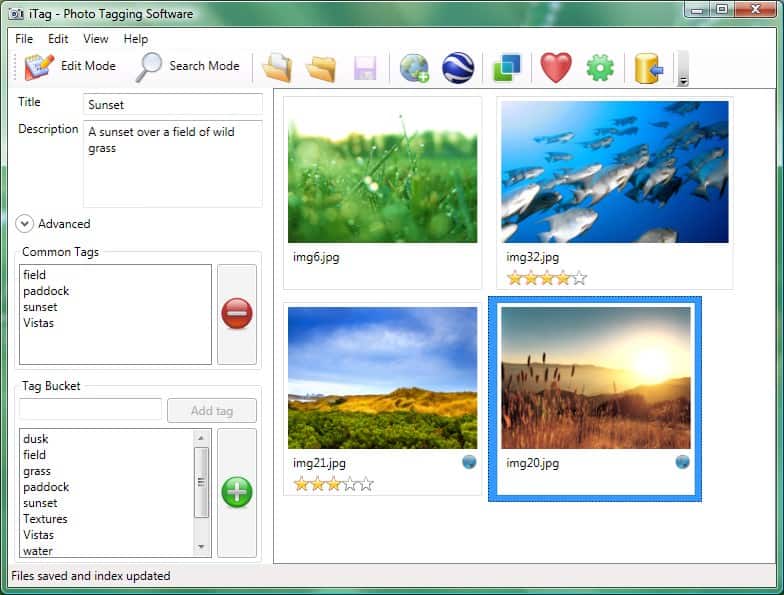 | Free / Premium ($19) | 2015-03-06 | ||||
| PhotoMe | PhotoMe | Free | ||||||
| Photo Mechanic | Photo Mechanic | $150 (Free Trial) | Windows, Mac | 2015-03-23 | ||||
| XnView | XnView | Freeware | [NA] | 2015-03-06 | ||||
| Adobe Bridge | Free | |||||||
| Breezebrowser | BreezeBrowser Pro | $69.95 (Free Trial) | Windows 8, Windows 7 or Windows Vista | 2015-03-06 | ||||
| Photoshop Elements | Photoshop Elements | $79.99 (Amazon) | 2015-03-06 | |||||
| PicaJet | PicaJet | Free / FX ($59.95) | 2015-03-06 | |||||
| Picasa | Picasa | Free | 2015-03-06 |
If you already use an application that you think I should add to my chart above, please let me know in the comments below. I would really appreciate that. :coffee:
Furthermore, if you have any questions I didn't answer in the video or in the notes below, please feel free to ask them below as well, and I will do my best to answer them for you.
Cheers!

It seems that different parts of the .JPG file are used by different cameras. All photos originating from my Samsung phone have Picasa captions that are visible in the Windows Explorer Properties box, which can also be displayed in Windows Explorer by creating a column under the heading “Title”. But photos originating from my Canon camera don’t have their Picasa captions visible at all.
Further to this – Using PhotoMe, I see that an image taken on the Canon has a field “Image title” whose content is empty. (Tag-ID 010E, Tag name “Image Description”.) The Picasa caption in the “Caption/Description” field is there, but when Explorer sees the field “Image Title” it will only display this – which is nothing.
The Samsung images don’t have that “Image Title” field at all, and Explorer instead displays the contents of the “Caption/Description” field which has been inserted by Picasa. The “Title” field as displayed in Properties contains this Picasa caption.
PhotoMe doesn’t seem to be able to edit that empty “Image Title” field in the Canon images.
And Properties in Explorer won’t display the Picasa caption if the “Image Title” field exists – even if it is empty.
I also notice the same thing as Bob. I have tested with JPG files and as of today’s latest version I don’t see what the video shows earlier on this thread. Now at one time it did, but around 2012 my Picasa captions stop showing up in Windows Photo Gallery. Prior to that they were fine and you would see captions in explore details as well as Photo Gallery.
I hope Curtis eventually answers this question posed by Bob and noted by others. I thought I was experiencing the same thing as Bob, with captions now appearing only in a “Caption” field in Picasa properties, but not appearing (as in the video) in the “Title” field on the photo properties. However, I’ve noticed that this depends entirely on the camera I use to take the photos. When I label jpegs taken with my Panasonic camera today, the captions show up just fine in the title field. But when I do exactly the same thing with my Canon jpeg’s, they appear only in the Picasa Properties. To make things even more confusing, I started looking at pictures I’d labelled in Picasa in 2008, and captions for those pictures taken with a Nikon D70 appear in BOTH places, whereas captions for pictures taken with a different Nikon camera only appear in Picasa Properties. Any help?
I have noticed the same thing as Bob. If I go back to photos that I added captions to previously in Picasa, the captions show up in properties. However, my more recent captions for photos no longer show up. Did Picasa change something? I know it is no longer supported, but I agree with Bob, I don’t want to lose the captions I have added.
Hi Curtis and thank you for all of the above information. With Google having announced that it will no longer support Picasa, am looking at migrating to Windows Photo Gallery or someother photo organizing software for a Windows PC. When I follow your instructions in the video for a picture that I have used Picasa to add a caption, and look at the Detail in the Properties screen, both the Subject and Title fields are blank. However, when I look at the same picture in Picasa, and bring up its Properties, the caption shows at the bottom of the list of fields in a field labeled “Caption”. My goal is to migrate my pictures to another photo organizing program that allows me to share selected pictures and/or albums via the “cloud” without losing all of the captions I have entered using Picasa. Any suggestions? Thank you for your assistance, Bob
Curtis,
I have just started scanning my collection and your website is a treasure trove for me. I am such a newbie that it never even occurred to me that I could scan negatives instead of photos, so you have aided me immensely already. I have scanned in just a few negatives and am experimenting with labeling, etc. I am using a PC with Windows 7 Home Premium. It turns out that .tif files do NOT carry their captions with them, whether going from Picasa to File Manager or putting a title in File Manager and then viewing as a caption in Picasa. .jpg files work fine (as shown on your video above). Any tips for how to get captioning to work for .tif files?
Hi Liz. You seem to be absolutely correct. It appears to be an absolutely LAME situation with Google and their Picasa program to not play well with .TIFF files. I tried this in the most up to date version of both the Windows and Mac version of Picasa (as of today) and neither one will save/overwrite the caption information into the Tiff file’s IPTC metadata.
The only way I was able to “make it work” in the time I spent, was to make the changes in Picasa to the caption, and then export the file out. This forces Picasa to write/update the metadata into the new version (file) it creates.
It’s not completely unusual that the caption information doesn’t update instantly to the master .TIFF file, but, in more advanced software like Lightroom and Aperture, there is a pull-down option to do a “write to master” (each application words is differently) that will update the master(s) manually when you are ready for the update. And, Picasa seems to be lacking this ability.
Captions are so important when dealing with your photos. It’s just sad how few applications seem to get this write with the workflow in and out with the IPTC metadata.
Thanks, Curtis, for checking that out for me. It looks like Picasa has taken my “title” metadata field and put it into “camera ID” in the photo’s properties in Picasa. I am not sure why it is there and I can’t display that field in a slide show, so it is not very helpful.
You are correct about exporting, but that creates a separate JPEG file with the caption attached to the .jpg image, and does not put the caption from Picasa into the TIFF metadata field.
So, this leaves me either having to enter caption data twice: once into the properties of the .tif file and again into Picasa (ain’t gonna happen) or I just won’t be able to see my captions in Picasa slide shows or if I export from Picasa without manually adding the captions. Bummer!
Is there another program that will display a slide show from my file manager that will show my “titles” as captions?
I’m pretty limited on the choices I’m aware of. I know Photoshop Elements (Amazon) does a pretty slick job at producing slideshows and also has the ability with many of their themes to also display captions.
Moving up to Lightroom might also be an option for, and will give you other advanced features like this that you might be looking for.
Irfanview has a slideshow mode, but I don’t think it has the option to do captions though.
Does anyone else know of any additional options for Liz?
I got IrfanView to show me captions! In the slideshow dialog box, there is a white box with a check box for “Show Text.” In the white box, erase what may be in there and type in: $E270 This tells the program to display the EXIF data field for ImageDescription. If you click the Help button under that white box, you can see a list of many types of text you can display during the slideshow. I had to add the IrfanView PlugIns download for this to work.
I just found this brilliant website and, after years of using Picasa, and scanning and organising thousands of slides, I’m still learning lots of new tips ! I caption my photos in Picasa but wanted to produce a slideshow in Irfanview so I tried Liz’s tip above. The method was perfect, however $E270 wouldn’t work for me because the captions are in the IPTC data, not the EXIF data, but I found that using $I120 solved the problem. Hope this might help somebody else.
Now I’m going to give a lot of captioned photos to a friend (who doesn’t have Picasa or Irfanview) and I need to recommend a viewer for Windows 10 which will display the captions during a slideshow. Any suggestions gratefully received !
I’ve gathered and scanned 2000 old family photos as jpegs. I want to make these available to scattered family members on a web site. I can write captions and keywords in IPTC fields using Graphic Converter and create an online Album using Picasa. Free! I can search the Album online by keyword and up come the corresponding images on screen. Marvellous! Just what this family historian has been looking for.
But how do I get each image to show with my original Caption underneath? I would like a Description there as well. I would like a simple screen uncluttered by other Picasa text, features and options.
Didn’t know what section to put this under so I thought maybe here would be ok. SO MUCH WORK!!! I was enjoying the scanning process but it is so much work to write everyone’s name in each picture. Does everyone do that? I just did pictures from my wedding and it took such a long time. I’m using Lightroom and I’m adding all this information under the caption for future searching, etc. Along with trying to write something about the picture so that it has a bit more meaning. I feel like if I keep doing this or just the pictures I’ve already done I will be typing forever and never get done scanning the pictures in.
And of course since most of these pictures I’m scanning have me in them I feel like I’m typing my name, my husbands name and my kids names over and over. And I know about the keywording thing that I can just click on the button and thats ok for Lightroom but I want something that will stay with the picture/metadata for any future programs so I believe the people need to go in the Caption area and not just the keywords?
I’m renaming the pictures, then putting in a title for the pictures then putting in a caption for the pictures where I am adding all the above information. I’m guessing there is no easier way to do this?!?
Just figured I’d throw it out to the experts in case I’m missing a shortcut or two. Ugh, my arms hurt and that was just one folder! I’m almost up to 17K pictures scanned into Lightroom.
Hi Stacy, since no one else has jumped in to answer you, I will take over. 😉
Technically, keywords are part of the IPTC metadata standard. So, keywords (tags) will show up in other programs that are written to read/write IPTC metadata. But, if you also want to place names in your caption information, don’t let this stop you. You could even do both.
One thing I use that helps me is a shortcut application or modifiers built into the OS, so that when you hit a key you’ve modified, or a short combination of letters, a longer string of text comes out for you.
For example, I love using TextExpander the most for this. By default, it has combinations like “ddate” already setup so when you type these 5 characters in anywhere on your computer, today’s date pops into place (replacing “ddate”) where you are typing. But, in this case, you could program in a unique combination like “mfk” to then type out you as the mother, your husband as the father and kids all at one time. The combinations are unlimited as long as you create a unique string each time. There’s also an iOS version that syncs so I can use these combinations on my portable devices anytime as well. 😉
Additionally though, your OS probably has keyboard shortcuts built into it as well, so you could program say, unused function keys like F7-F11 to type this type of information out as well for you. And it might even do the keyboard letter combinations as well. I know iOS lets you do this natively (without the use of a 3rd party iOS app like TextExpander)
Hi,
Your video is brill. I especially like the diagrams.:)
If I down load photome will I be able to print the captions that I’ve made in Picasa?
I need the captions to be underneath the pictures, like in Picasa.
I’d really appreciate any tips on this please.
Thank you.:)
So, Curtis, if you are using Picasa (on your list above) as your organizing program, you wouldn’t need any additional programs to read and edit metadata. Is that correct?
Ron, Picasa actually does a good job with the extreme basics of metadata even though they aren’t all listed in one tight little window like some advanced applications. You can access basics like time and date the photo was taken, filename and caption (description) of the photo. These cover the bases for most users and what they would want to do.
More advanced users like a bit more control to access more of the IPTC metadata standards fields, such as the copyright fields (who took the photo) and location information where the photo was taken (which was really important before GPS coordinates were added by cameras). There are actually a lot of fields in the whole set, but many of them are only important to the workflow of professionals who are passing on their work to media outlets etc.
So, if you are just interested in the basics, Picasa could work for you — at least for the time being. Some day you could compliment it with a program on the side to handle more of metadata, or even move your collection into a more advanced program like Adobe Lightroom to give you more control.
Thank you Curtis and Art. I just watched the video and I’ve been struggling. I just uploaded a bunch of photos and I’m a PC person so they’re going into a folder and then I am renaming them in putting them in folders in Windows Explorer. I downloaded Lightroom and started to use that but then I was finding that if I made a change in Windows Explorer when I opened Lightroom it was uploading but something wasn’t translating and then I was having 2 different pictures and I was getting confused. So I’ve just been working mostly in Explorer.
I wasn’t doing this step “In Lightroom, all of the IPTC information you enter, caption, description, keywords/tags, etc. gets written only to the Lightroom catalog or database unless you go to the Photo menu and choose Save Metadata to File. Without this step, your data will be visible only within Lightroom because it’s stored only in the Lightroom database”. I have to look into that. Maybe that’s where the disconnect is.
I’m trying to stay organized so I have a system in Explorer where I scan in all my photos to a folder called
New Scanned Photos
Then I have folder system underneath for each year/event
-1999
– 01-01-99 – New Years Day
– 02-07-99 – Ryan bday
etc…..
But when I found I made a change to a photo in Explorer – changed the date on a picture or added a more detailed description that when it uploaded to Lightroom things would get messy.
I want to write more details into the metadata and I struggle with the easy way to do this. Maybe I’ll try Lightroom again.
Stacy, yeah Picasa actually has these “watch always” folders that will always be looking for new images to be added to the folder and I believe even filename changes etc. So if you drop a new photo in a folder in Windows Explorer and then load Picasa, that new photo will automatically be added to Picasa’s folder as well. That’s definitely the coolest and unique thing about Picasa.
But, Lightroom and many other applications work more on an internal database system where Lightroom’s Organization is pretty much your main set you are updating and then you tell Lightroom to write those changes down to your master images being referenced down in the Windows Explorer folders. The advantage of this is knowing that you alone control what happens inside of your Lightroom collection and nothing you or anyone else does in Windows Explorer could potentially “mess” that up — well aside from moving or deleting your master images!
With Aperture for the Mac, it works the same way. So, when I need to do changes to my collection, I do them all in Aperture or through aperture (such as moving photos to a different location on my storage drive), so that Aperture is aware of everything. Then I can do a command and save additional changes like filenames and metadata updates back to the master images. You can highlight an entire folder full and then tell it to save them back to make it easier on yourself.
I no longer have a Windows computer to test, but since the caption value is available in file properties, couldn’t you also customize your file explorer tabular view to show that value? That way you could see many captions at once…
Dedra, what an excellent idea! Brilliant. :thumbs:
I’m not using Windows day in and day out anymore, so that was something that completely escaped me as something I should look into seeing if it can do. Boy, Microsoft has really added a LOT of data in Gile Explorer now (to at least Windows 8+) that you can display.
So I did “Details” view, then selected “More” from the bottom of the short quick-list available, and that brought up the complete list of optional data to add to a column. I had to go through the list and try a few more logical options to then end up with the least logical option to get it to work. So in the end, selecting “Title” is what allowed me to see my caption (sometimes called description) metadata. So there you have it! But, it worked!
Maybe I should make another post out of just this sometime to show people in more detail — screenshots or a video.
Thanks for the idea Dedra!
One other thought about your chart: add a column to indicate which OS each program is available for. Some may be available for Windows, Mac, or Linux or for any one or two of those three systems. It would also be helpful to include a column with the URL for each program so your readers could easily find more info about programs they may be interested in.
Art, I thought about that. In the end, I decided that it would be better to create 1 chart for Windows users, and 1 chart for Mac users.
Overall, I’m really worried about “taxing” readers with too much material to sift through that doesn’t relate to them and the OS’s and applications they use. So, by keeping this post just about Windows, people hopefully will appreciate how simplified I have kept it.
Though, you did cause me to pause a bit and think maybe it’s worth it to include that information to allow people who do use both OS’s, or those that are thinking about switching from one OS to another in the near future, to see that some applications can work with both (multiple) OS’s. But, it comes at the expense of making a more complicated chart and a wider one that may not fit as well on mobile devices. Maybe I can try the column and just use little icons instead of words to keep the width less.
As far as links, I’m a bit of a neat freak so I didn’t want to include full links written out to click on. I do have all of the application names hyperlinked to their respective websites. So all you have to do is click on the name and it will take you there.
Is it possible this would be overlooked by some people that they are clickable? If so, maybe I should include a short sentence under the chart to say something like “Click the application name for more info” etc.
Hi Curtis,
Thank you for your acknowledgment in your post.
One thing that should be confirmed before making a serious commitment to using any program as suggested is: Does it write the caption, description, and/or any other IPTC data to each image file automatically, if at all, or, as with Lightroom, only when you choose a specific menu option to write data to the image file? In Lightroom, all of the IPTC information you enter, caption, description, keywords/tags, etc. gets written only to the Lightroom catalog or database unless you go to the Photo menu and choose Save Metadata to File. Without this step, your data will be visible only within Lightroom because it’s stored only in the Lightroom database. Other programs may perform the same way. If any such program eventually becomes unavailable, as programs have been known to do as hardware and operating systems are upgraded, your data may still be in the database but if you don’t have a program that can read that database, it may as well never have been written. If you think this possibility is unlikely, think of the people who saved word processor documents (Word Star) or spreadsheets (Lotus 1-2-3) or presentations (Harvard Graphics) in programs that did not survive beyond the DOS or Windows 95 or corresponding Mac OS versions. They may have diligently archived their important documents, planning to be able to access them years later but such documents are now just as inaccessible as if they were saved on 5.5 inch floppy disks.
Although it will increase your file size, one sure way to be sure your IPTC-type information stays visibly with an image, regardless of what program the program is subsequently viewed or edited in (some editing programs will not only ignore embedded IPTC and EXIF (camera data), they will lose it when you edit and re-save your image), is to Resize Image Canvas to add blank space to one side (usually to the bottom for horizontal/landscape format images, or to the right for vertical/portrait images). Most good image editing programs will let you add text to the image. Enter your data as usual in whatever text boxes/text fields your program offers, then copy it to the clipboard and use your editor’s Text tool to paste it into the blank panel you added to enlarge the image canvas. Save your image, as either TIF or JPG, with the added text, probably best done after giving the file a new name so you don’t over write your original in case you want to use your original for some other purpose where the text is unimportant, such as making a large print or poster for framing. If you use the original image’s file name but add “caption” or some similar word to the end of the name, you can keep the two versions so that they sort next to each other and you’ll be able to easily find either version in the future.
Another possible advantage to doing things this way is that, if you post an image to a social media site where all EXIF and IPTC data is removed by the operator of the site, your data will stay with the image. On the other hand, if some of your data should remain confidential for some reason, you can post the version without the data but retain the version with your usually hard-earned information that you may have spent hours or days researching to get accurate data.
Art