
Q&A: How Should I Modify My Current Scanned Photo File Naming Structure?


Choosing an appropriate filename for the photos in our digital photo collection is something we all have to deal with. And not being able to come up with a consistent system that we are happy with turns out to be one of the biggest reasons we put off starting the entire project.

To help you get past this hurdle, I created a 3-part series called “What Everybody Ought to Know When Naming Your Scanned Photos” that walks you through the system I came up with and use to name my own photos.
Even though I am satisfied with what I came up with, this certainly doesn't mean this is the only system out there, nor does it mean you have to follow any of it.
Dan Keiper had already been working his own naming method when he came upon my 3-part series. After a bit of thought, he wrote me to see if he should make changes to what he had already been doing, and to seek answers to additional questions he had.
Hi Curtis,
First of all, I want to thank you for putting up this AWESOME website! Seriously, a lot of your archiving tips really helped me out.
A few years ago, I’ve gained a passion in archiving and preserving my family’s vast, scattered photo, slide, & negative collection. Being a dental student now, it’s increasingly hard trying to find the time to do this, but with this summer off I’m trying to spend as much time as possible continuing this project.
After wrestling for a while on the file-naming concept, I originally decided to organize my photos chronologically. I researched different methods on how I could best name my photos and came up with this structure, which is split into 3 parts:
- 1st – grouping # out of total photos in album (i.e. 01 indicates range possibility of 1 to 99 photos, 001 can go up to 999)
- 2nd – descriptive title
- 3rd – year:month:day date format.
For example:
After buying a new Epson V550 scanner this year, I’ve only recently started scanning in 35mm slides and negatives onto my Macbook Pro. Now after reading your 3-part article on naming scanned photos, I’ve begun to analyze and rethink my classification system.
I also purchased 2 album binders and am currently putting my slides & negatives physically into PrintFile archival pages. I like the idea of using a 5-digit numbering system to identify all of my pictures… but the task of implementing that seems daunting to me.
- The main question I want to ask is how can I modify my current naming structure?
- Also should I eliminate spaces and insert more hyphens/underscores?
- Where in the file name is the best place to insert the 5-digit number with added scanning detail?
- Should I organize and label all of my physical pictures first, then sort through and organize them digitally?
I just wish there was some standardized method of naming that could be universally accepted.
Hopefully I didn’t overwhelm you with my questions. I’m sure you have been doing this way longer than I have, so I’ll take any tips or advice you can give me. Thanks!
– Dan Keiper
Thanks Dan for your compliments of my website. I'm glad to hear some of my tips are helping you! :coffee:
It sounds to me like you have an excellent start with your photo collection, and a respectable grasp of what you are doing. If you kept moving forward with your current naming method, which I know you said you aren't completely sold on now, you would still have a very informative collection to enjoy and eventually pass on to your family.
Yeah, Dan's right — wouldn't it be nice if there was a standardization with photo naming? I think if it was the right one, it certainly could make things a lot easier.
But, at least we currently have the standards available to us with IPTC and EXIF metadata fields inside of our photos. I just wish more photo applications would utilize this information in a way that we can all benefit from it — especially mobile applications that so far have done a horrible job.
So now, let me get to Dan's questions. I actually think there's a good flow if I answer them from bottom to top.
Organize Your Original Photos First or Later Digitally?
Whether you should organize all of your physical prints, slides, and negatives first or later digitally once you've gotten them inside your photo organizing software, I believe, really comes down to your skills on a computer and your grasp of the capabilities of whatever application you are using.
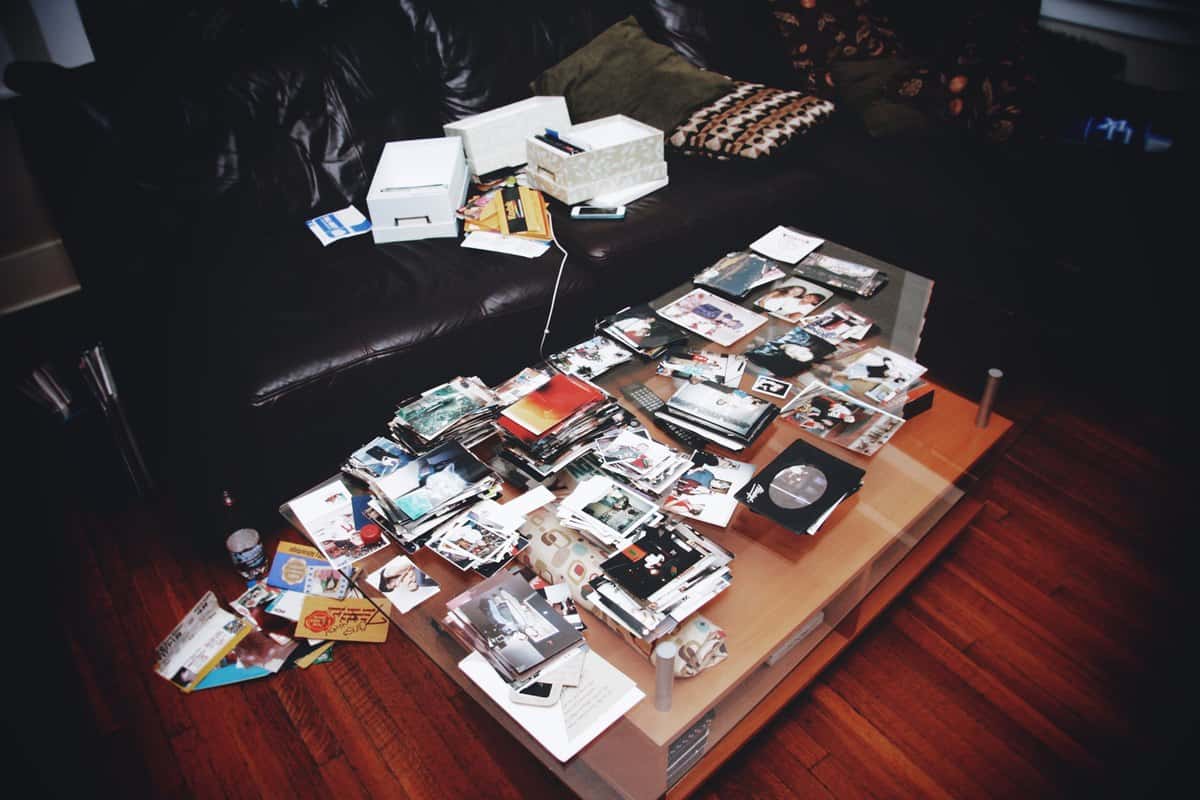
Our house is kind of on the small side when it comes to room for creative projects. So like many families, my wife and I have limited table space where I would feel safe having irreplaceable prints sitting out for an extended period of time.
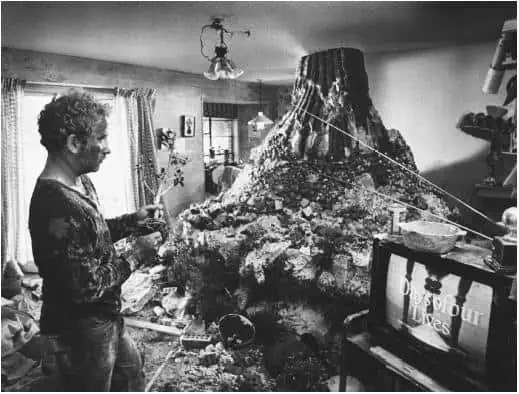
And I can see how this situation could easily become out of control. It could end up being like the scene in the movie “Close Encounters of the Third Kind,” where Richard Dreyfuss' character has taken over practically the entire house with his new “hobby” obsession!
Additionally, I didn't physically have all of the photos that make up my family's photo collection here at my house when I started. Over the time span of several years, I have been bringing chunks of it home each time I visit my parents. So, my ability to organize the entire collection in some kind of logical order all at once wasn't even possible.
Then if you add the fact that most of my life has been spent breathing and eating in front of a personal computer, the choice becomes even clearer. I consider myself very quick and extremely comfortable in the digital environment inside my computer. So for me, the scales easily tipped to the side of organizing digitally being the better choice.
However, you might prefer having more of a real physical connection with your original photos, where you can place them out in front of you and move them around with your hands. Or maybe the answer could be a little bit of both, organizing some of it while your prints and slides are sitting in front of you and then doing the rest in your software.
And if you're still on the fence, looking for a reason to decide one way or the other, a good reason to scan first and organize digitally could be just for a feeling of safety. For many of us, that single copy of our prints and slides are the only ones we have. The longer we wait to digitize them into our computers, the greater the chances that something might happen to them before we get to scan them (e.g. being misplaced, “theft” by a family member who said they would bring it “right back”, floods, fires) or the greater the likelihood we might continue making excuses and put off the job entirely.
And once your photos are in a digital medium, it can be a lot easier for some people to get help from family members and friends identifying people and places in each of the photos. Whether this is done by emailing the photos in question, doing a screen-sharing show and tell session, or even bringing a laptop computer with all of your images loaded on it for an in-person one-on-one session.
One plus I discovered when scanning our photos in their un-organized manner they had randomly fallen into over the last 30-50 years of being stored and moved around to different places, is that it's often extremely fun to discover what you are about to scan next!
If your photos are anything like mine, one moment you are scanning something you might find boring, like your parents at a 1970's weekend office picnic, and then the next you might hit a bunch of photos of you and your siblings opening Christmas presents the year you got the Millennium Falcon (action figure toy) that you had wanted more than life itself!!
I've found photos I haven't seen for years — or possible ever at all! It's fun mixing that surprise with the possible monotony of scanning.
Where is the Best Place for the 5-Digit Number?
The 5-digit number that Dan was referring to is a system I implemented with my own photo collection to physically tag each photo with a unique identification number — like a “tattoo” — that will live with not only the physical print or slide, but also in the filename of the corresponding digital image so that you can later match up the two up if needed.
Here's a simple example of how this might be implemented in the filename:
As Dan pointed out, this certainly can seem daunting to anyone who's considering whether they want to add this to their own collections. Really it's not complicated, it just adds a little bit more time to the process.
Thankfully, I wasn't very far into scanning my collection when I started adding these numbers, so I didn't have to go back and modify a lot of my previous work. For new scans, I always add these numbers while I am doing the scanning so this “bookkeeping” is done at the same time I am focused on scanning the photo. To me, it's just another task I've added to my checklist of things to complete for each photo before I'm done and can move on to the next.
In the simplest way, having this number on your original photos will quickly verify to you that a photo has already been scanned. This happens to me all the time where I wonder if I had already scanned a small stack of photos or slides. By just seeing that number I know I've already scanned it. (Just wait, if you've just started scanning, you'll find it will happen to you too!)
In more complicated times, you will love having these numbers when you are searching for specific photos in your digital collection, and when you are trying to do any kind of organizing with your originals after you've organized them further digitally. (Hint: the two don't sync up automatically!) 😉
There are just so many ways these little numbers pay off. I'm so grateful I made the effort to apply them.
The scanning software Epson Scan that came with my current scanner, and that I've used up until this point, has a neat little feature in the “File Save Settings” window that allows you to set a prefix field (anything you want it to be), followed by a three-digit “Start Number” that is applied to every filename it creates as it finishes up scanning.

I use this 3-digit number, that counts up by 1 after each scan, as the last 3 digits of my 5-digit “tattoo.” This all but automates the numbering process on the digital side, and just leaves me with making sure I hand write that same code on the bottom of the slide or back of the corresponding print I just scanned.
Since Epson Scan adds this “Start Number” to the end of the filename. And since I am scanning all of my photos out of any kind of logical order, there would be no reason for me to have this number at the head of the filename for sorting.
I really can't think of any reason why having this 5-digit number anywhere else in the filename would be any better than having it at the end. And to me, it makes sense to have this number at the end anyways.
If someone was looking at your filename, reading it to obtain useful information, the description and the date the photo was taken would be considered (in almost all cases) more important than this ID number. So, to me it makes sense to push it down to the end. It's important yes, but I don't think it's necessary to have it front and center over other information.
But, this certainly doesn't mean you couldn't put it any other place that you wish — for example right after the date at the head of the filename.
It could look something like this:
Eliminating Spaces and Adding More Hyphens?
I think spaces are fine. New operating systems on computers have accepted spaces very nicely as they have matured. I know there are some (older) versions of Microsoft Windows that still doesn't allow really long filenames. All of the Mac OS X that I've used seems to allow an almost unlimited length and a lot of unusual characters before it gives you any issues.
These machines are working for us, not the other way around, so I like to think sanity and legibility for humans is fair to be a top priority when labeling our photos, over the slim chance your photos might return to an ancient form of OS years and years from now that (still) doesn't accept spaces in file names.
I think the need for more hyphens and underscores or less spaces just comes down how legible you want your filenames to be for others.
The reason it might be good to add (normal) dashes, long dashes (em dashes: “—”), or even parenthesis (if your current operating system allows it) would be because it could possibly break up the sections of information and make it easier for people's eyes to glance at the file names and quickly figure out which information belongs to which. Looking at one filename usually isn't too challenging, but consider times when you or someone else might have hundreds of them in a single dense column.
Here are some possible variations you could experiment with:
I don't think one way is more right than the other. There's still a lot of personal taste that can go into this. You as the family archiver will have to work with this all the time, so it's important whatever method you end up choosing feels right to you.
I think what is important is to be extremely consistent with whichever method you go with.
I believe I can speak on behalf of those that have some degree of OCD. I personally require a large amount of consistency or I will flat out lose my mind. Yes seriously. I will be the one to go in and change that “_” to a “-” if every other time a “-” is being used!
1978-01_06 Bill Last Halloween Party.tiff
1982-05-27 Bill Paints the House Pink.tiff
So see this example above? Yeah, it's practically making my right eye twitch uncontrollably. I feel the need to fix it — like immediately.
But it's not just the looks. Often typos and inconsistencies like this can cause groups of photos (or any file) to sort improperly because the computer considers every character differently when applying the algorithm. One character even slightly different could cause one photo in a set (album) to sort out of order.
To Modify Your Current Naming System or Not?
Finally, as far as a critique of Dan's current naming method, and what I would suggest he possibly change, I really think there's only one thing that got my attention.
Like I said at the beginning, if he was to continue using his current method, he would still pass on a collection that is full of a lot of great and useful information.
I mean, imagine how left out someone's going to feel many years from now when they inherit a massive collection of photos still labeled as something like “DSCN2462” that wasn't changed from the day the digital camera labeled it that! (sigh) Anything someone does to improve this situation is going to be a drastic improvement!
The only thing that jumps out at me is that he decided to list the date the photo was taken at the end of the file name. And in the front, he has a 3-digit number that can be used to manually order a group of photos that belong in a virtual “album” — such as a series of photos from a single event like a birthday party:
002 Bill’s 20th Birthday at Smith Home 1977_03_12.tiff
003 Bill’s 20th Birthday at Smith Home 1977_03_12.tiff
For the good or bad, he's traded the ability to sort for example, a folder full of thousands of photos by the date they were taken, for the ability to sort them by this order he wants them to be in for a grouped “album.”
So if an entire album's worth of photos are the only photos in a given folder, then this method works out well, because like in the above example, the photos will sort in that perfect order he want them presented in. And this particular group or album of photos could in fact be in chronological order.
However, the problems could start to occur if someone were to ever mix even just 2 “albums” worth of photos in the same folder. Now the photos will instead sort with the first photo from each album first, then the second photo from each album second.. etc. like so:
001 Bill’s 20th Birthday at Smith Home 1977_03_12.tiff
002 Bill Paints the House Pink 1982_05_27.tiff
002 Bill’s 20th Birthday at Smith Home 1977_03_12.tiff
003 Bill Paints the House Pink 1982_05_27.tiff
003 Bill’s 20th Birthday at Smith Home 1977_03_12.tiff
If you want my personal thoughts of how I came to the method I chose, I would tell you I decided from a historical point of view. I wanted to label and archive my photos chronologically at all times.
Having all of my photos tell the big story from beginning to end, in the order in which they occurred in the past, is what's most important to me.
Once I have passed on, I will have no control over how all of these photos are organized and how they will be used and shared.
So, if my heirs decide one day they want to do something like take every single one of the photos and put them into one massive folder (like I mentioned above), all of the photos would still theoretically sort by the way I want them to — in the order they actually happened — because I have the shoot date first in the filename and in the year:month:day layout.
All humans can grasp the concept of stories having a beginning through to an end. So chronology is an excellent method of sorting because it easily communicates an implied order to anyone, without having any kind of “legend” or “key” written out (and possibly translated in another language) to pass on letting our heirs know how and why they were organized in another fashion.
A method you could use, if a three digit “album” order is still very important to you, could be to add this number after the date, or even after your description. This is still more limiting than Dan's current method, but it still will allow you to manually order an event (with similar description naming) that took place on the same day.
1977_03_12 002 Bill’s 20th Birthday at Smith Home.tiff
1977_03_12 003 Bill’s 20th Birthday at Smith Home.tiff
1982_05_27 001 Bill Paints the House Pink.tiff
1982_05_27 002 Bill Paints the House Pink.tiff
1982_05_27 003 Bill Paints the House Pink.tiff
1977_03_12 – Bill’s 20th Birthday at Smith Home – 002.tiff
1977_03_12 – Bill’s 20th Birthday at Smith Home – 003.tiff
1982_05_27 – Bill Paints the House Pink – 001.tiff
1982_05_27 – Bill Paints the House Pink – 002.tiff
1982_05_27 – Bill Paints the House Pink – 003.tiff
It just becomes a choice of what's most import to you and your collection, and what you need to add to the filenames to make them easy to create and read.
Alright Dan, I hope this helps you with all of your questions.
If you've already started scanning and organizing your collection, what file naming method are you using? Or if you haven't, what variation are you considering to use when you do get started?
Just let me know in the comments below. We can all work together to improve the usefulness of our own collections.

Hi. Thanks for this article and your thoughts on file naming convention. Actually I just happened to chance upon your website while searching for the most appropriate photo management and editing application I could start using that also incorporates DAM functionality as well. (Zoner Photo Studio, ACDSee, DigitKAM, Photo Mechanic, etc.) But, that is another story in and of itself which can be a full lengthed discussion / article.
File naming convention. Having well-over 100K digital assets already combining the full AVI spectrum (Audio, Video, Images) file naming convention is something that has plagued me more then I care to think about. What I’ve come down to it this. First folder structure:
YYYY
MM
file1.jpg
file2.jpg
file3.jpg.
Now the file name convention I use is something like this:
YYYY-MM-DD@HHMMSS My Description.jpg
My thinking is, time is a continuum and any specific point in time is absolute, from our finite existence and point-of-view, never ever to return. So, for any particular photo/video clip I shoot, the camera is going to define that asset with a very specific date/time stamp as I expressed above. What I have been doing until now, different to how you do your naming convention, all the digits are upfront. Also, instead of a numerically sequenced number 001, 002, 003, I add the HHMMSS time stamp appended as well. in this sense, that same exact 14-digit sequence will never ever be repeated again and that is my unique identifier at a specific point in time, forever and ever, amen! So even if one does high-speed sequential shooting each photo is going to have a uniquely assigned number. In the case where the sequential shooting is quite high (more than 1 image per second) then the camera should append the alphabet at the end of the time as a differentiator. (i.e., 154745a, 154745b, 154745c, etc.) All my assets will be chronologically sequenced down to the second and multiples of a second. The Achilles’ heel or one weak point in my system though is, the numbers will not be numerically sequenced and there will be gaps between numbers.
2020-01-15@151020
2020-01-15@151045
2020-01-15@151347
…. versus 00001, 00002, 00003.
Even if I were to adopt your 5-digit numeric sequencing, it would not suffice for me. It would collapse after the 99,999th asset. I easily have over 100K of media, so to do that, I would minimally have to adopt a 6-digit numeric sequencing which effectively I am already doing with YYYY-MM-DD@HHmmss.
As an aside, I already signed up for your newsletter.
Cheers,
Jerry
Tokyo, Japan
Hi,
Love the picture from “Close Encounters.” That’s what my room at the top of the stairs looks like now (and for some time), with scanner and piles of slide boxes, etc.
I also like your notion of sequential numbering, because I’ve wondered, if anyone cared to find the original, how they’d locate it in the physical collection. But at this point, I have already scanned quite a few, so now I’m stuck at wondering whether to go back and re-name/number those pictures. Plus, I had scanned even more before I realized I needed to scan at much higher resolution for slides, if they were ever going to be good for anything.
A couple of questions:
– Many, many of my family photos are quite old and of indeterminate or approximate age. I’m lucky if I can attach even a guess at a date, based on subject’s age and clothing. Do you have any suggestions about including a guess, like “1890abt”?
– In a box of my dad’s slides, he might have taken several shots of the same subject, to hit on the best lighting, etc. After scanning, I’ve wanted to mark what I think is the optimal shot…in case someone wanted to ditch the rest of the box. Or maybe I should be ditching the rest of the box and only storing the best. Any thoughts on identifying the best? And what to do about the others?
Thanks,
Elda
Curtis – The information you and your followers are providing is very valuable.
I would recommend hyphens as separators everywhere for the following reasons.
In hyperlinks or URLs, spaces turn into “%20” – which is very hard on the eye (or spaces are turned into a “+” symbol). I think the geeks call this “percent-encoding” if you want to look it up.
Underscores and spaces are almost indistinguishable in the display of hyperlinks in some applications. Spaces, underscores, and hyphens all sort differently. So if you are not consistent with your separators – you will run into unexpected sort issues.
If multiple people are involved in file naming – making spaces and hyphens and underscores optional runs into these sort problems. My experience has shown that a policy of “nothing but hyphens” makes the problems go away.
There are some scripts that do not play nicely with spaces. (For instance, PowerShell file renaming functions fail to recognize spaces – unless you get tricky with quote marks). I am on a iMac at home but use PCs at work.
A good option is to augment this hyphen convention with “camel case” to break up file names into segments Camel case is like BarneyRubble-BrontoBurger.jpg. Or… wait a minute… Curtis would rename that file to 10000-BC-BarneyRubble-BrontoBurger-00302.jpg
Have a nice day.
Bruce, thanks for the heads up on spaces versus hyphens. I personally have often switched back and forth between both, thinking there was no real reason to bother with hyphens when spaces work just as well if not better. But now, having clarified the %20 (percent-encoding) in lieu of spaces would make filename reading awkward, or difficult in some scenarios. I have already been using regularly the Camel case technique as well. It shortens the file name length a bit and is still also legible for reading. MerryChristmas-HappyNewYear.jpg. 😉
Give this a try, works well!
http://www.bulkrenameutility.co.uk/Main_Intro.php
If you are adding files into a particular folder(ie: 20050815_Bill Paints the House Red_xxxxx), save time by copying the entire string and pasting when Saving As. Then just increment the file name by 00001. No sense in typing the whole string in, and it will minimize typos.
Unbelievable great info. The file naming (date and 5 digit unique) suggestions will save many people from going crazy or giving up.
I am just starting/staring at my families 50 picture albums with an estimate of over 10,000 pictures. I found your site while searching what pen to use when writing on the back of the pictures with. I’m so glad I found your suggestions before I got started. I was depressed at how to start and not have to change my approach 10 times over the time it would take to finish. Now I know it will be slow with stops and starts but using your method gives me confidence that I have a good plan to take me thru, no matter how long it takes.
One thought I had is my pix’s are in albums so what would you think about adding the album number to the file name?
I had previously numbered them 01 thru 50 on the spine of the albums It would be an optional field. I think I’ll also put the info embedded in the description field of the file.
I definitely have pictures not associated with an album but it might help with my personal family albums if people want to pull out the physical album when looking at the digital scan.
So maybe add “-Axx-” after the unique number where Axx is the album number A01…
Thanks again for giving me hope and saving my sanity!
Go up a few posts and read my post about my convention – I incorporated an album ID like you are wanting to do. It might be something like you want.
Great blog entry Curtis 🙂 I was up WAAAY too late last night reading up on your website, comparing notes 🙂 I’m happy to say we are on similar pages, and, in the case of this entry, right on. Although I don’t think I’ll ever go back to including descriptors in individual filenames (for several reasons, some outlined here by one of your respondents), I’m definitely going to make adding the dates to the beginning of my digital photos a project to do after my current set of tasks. The more I read the more excited I get about it 🙂 I’ve been placing the date (yyyy-mm-dd) in the title of my photos, and fortunately, using Lightroom, I just picked up a plugin that should allow me to search/replace that into the filename. Wish me luck!
I’d started using the date to organize my pictures chronologically a while ago, the only difference being I used periods instead of underscores, i.e. 2015.10.24 etc Is there any advantage/disadvantage to using dashes, underscores, or periods or is it a matter of preference? Will I run into problems if I download the collection onto dvds, thumb drives, or other storage media?
I’d advise against using more than a single period in a filename. It’s not as big a problem now as it used to be, but if your data ever ends up going onto an OS similar to Windows XP, you will have issues because the period is seen as a separator between the filename and file extension.
Dashes and I underscores are, in my opinion, the better choices. I use them both (see my prior post) to separate different parts of the filename.
But, the most important thing is that whatever you choose, be consistent in your convention.
Dear Curtis
Thanks so much for your distribution of all of this really useful knowledge. It’s so great finally to know that organizing photos are important to other people as well 🙂 And I get really motivated to starting a big project of organizing after browsing your website.
I have spent the last two years being frustrated of how to organize my pictures, especially due to them being managed in iPhoto on my girlfriend’s computer. After lots and lots of hours “unfolding” pictures from meaningless folders created by iPhoto, i.e. deleting folders and there were really many and before I knew that Aperture could do that job for me, and then organizing my pictures on an external harddrive in folders sorted only by year, I need now to start from the beginning of organizing. I have found your posts and ideas of organizing and naming extremely helpful and want to implement those ideas myself. I have chosen Picasa for a start. What I would like to do first is naming each picture in my collection by year and some of them by event/location/person when I find the time for it. However, Picasa can do some of that for me rather quickly it seems, but not all as far as I am concerned. Picasa can rename several picures at once, which is good when I for instance want to give the same name to 100 pictures from a vacation in France. There are howevever some things that I cannot make Picasa to do:
Picasa has a date box that can be ticked off/on when renaming apicture or several pitures, that is rather good I think and that name is being attached to the picture file itself and not stored in the Picasa program. However, the date is being put after and not before an eventual description as well as in this order: dd-mm-year. Plus the way Picasa differentiates the names is by giving each picture some odd numbers. When I for instance allow Picasa to show date and assign a description to two pictures, they come up like this.
Holiday France Ingrid – 08-01-2011 17-39-55
Holiday France Ingrid – 08-01-2011 19-00-35
The last six digits used does not make sense to me, instead I’d prefer just chronologically numbers, I’d rather want it to like like this:
2011-01-08 Holiday France Ingrid – 1
2011-01-08 Holiday France Ingird – 2
I could of course type in the date myself but then I’m facing many hours of grouping pictures and naming them and I’d rather to just have Picasa naming all of my pitures in my entire collection in a few click by the date they were taken and then I can name them myself by description and eventually making folders sorted by events. Does this makes sense, hope you can help me out.
Best regards Kasper
Hi Curtis
I came upon your post regarding how to change a date in Picasa and I think that I have enough knowledge of the program now to go on on the project. It seems that Picasa doesn’t offer the opportunity of attaching a date in the file name in other date formats,but that’s a detail though I guess. But thanks though.
Best regards
Kasper
Kasper, that’s great to hear you are ready to start your project with Picasa!
I just revisited the “Batch Edit > Rename” menu item in the latest version of Picasa (3.9.138.202 Mac) and you’re right, it seems that if you try and use the automatic route of selecting “Include in filename: date” (checked), it won’t let you modify the order of the date to YYYY-MM-DD. Instead, it forces the date metadata in the formatting of MM-DD-YYYY — not quite as useful is it? Hmmm. That’ too bad.
The workaround that did work for me was to keep that box unchecked and just manually added the date to the head of the filename. I know this will take longer, but know this is often what most of us resort to doing in other software where there is no automated box to check. I personally try and get my filenames fairly close to how I want to them to eventually be before I import/add them into my program (Aperture). I can often do it faster that way.
Good luck on your project! Keep a steady pace. Don’t try and do it all too fast or it might burn you out. I scanned 30 or so photos a day and before I knew it, I was way in the thousands!
My convention is very similar to yours, and in large part, is based on yours. I use the following:
yyyy_mmdd-FML-Gnnnnnn-Snnnnnn-nnnnnn.jpg
I prefer the yyyy_mmdd over the xx that you use simply because it seems more self-explanatory to someone who’s never seen the system before.
I don’t use spaces in filenames as a general rule simply out of habit. And I don’t feel the need to put a description in the filename because all of that gets embedded in the exif or iptc metadata. Besides, descriptions would be of varying length and that can lead to problems later.
I use dashes as separators between filename segments and underscores as separators within segments. This makes for simple copy/paste of a directory listing into something like Excel since the dashes are easily parsed on import.
The FML portion is unique to my situation. It represents the First, Middle, and Last initials of the contributor. In my case, I have multiple family members providing photos and I want to be able to group them accordingly.
The Gnnnnnn portion is a simple Group (or Album) sequence. I use this to capture which photo book, envelope, or box a set of pictures came from. This is just another way of knowing which set of photos were placed adjacent to each other in their original hardcopy form.
The Snnnnnn portion is largely unused, but is a placeholder for sequencing if it should be needed. For example, I may be scanning an album that has pages where the photos have become detached and are just loosely thrown in the back of the binder. So, by using this extra bit in the filename, I can just scan in any order and then set the sequence order later if needed.
The nnnnnn is the unique photo ID – same as yours – and very large tip-o-the hat to you for that gem!
Notice that all of my nnnnnn sequences are exactly six digits long. This is for aesthetics when looking at a filename list (as you pointed out in one of your articles) plus, it makes parsing the filename much simpler programmatically.
Which leads me back to why I don’t use a description with spaces in the filename. The varying length of descriptions becomes a programmatical parsing nightmare if it’s not done carefully or if it is not readily apparent where the description begins and ends within the filename. And besides, it’s aesthetically disgusting.
On another note, do you know of any online photo sharing application that would let multiple individuals update the exif/iptc info on photos? I’m really looking for something that my (older) family members can easily add notes/captions/tags to and then have the application embed that data into the photo itself. I can do this locally, but to get others to do it would be an insurmountable learning curve for them.
Curtis,
You certainly touched a nerve. File naming my photos is the biggest obstacle to not only scanning, but importing my digital photos as well. I attempted numerous file naming schemes only to find out later that there was some inherent weakness that caused me lose motivation to continue with the project.
I too want my images in chronological order for the reasons you mention here. Again, this creates another obstacle since many of the people in the photos have passed and all I could do is make an “educated” guess as to when the photo was taken. Then later I stumble across either newer or older photos that contradict my original guess.
Overall, I think I just need to sit down and map out a file structure and naming scheme that will work for the long haul. I’ll use your advice and suggestions. Thanks for another great article.
I can completely understand how the goal of having photos chronological is very challenging for some people. Some of us in here aren’t as lucky as others as far as having living relatives with great memories for time and place, or having a photo collection that is already logged and/or captioned.
Something that has worked well for me has just been creating “misc” type folders inside of my photo manager for each year, and then one for each month. And then inside of each year I have another that represents misc for that year. Then as I find photos that am not sure when it was taken, I still import the scanned version into my manager, but I place them in one of these misc folders.
This lets me know that even though I am not sure when the photo was taken, this is the approximate time that I think they might have been taken. Then as I scan more photos that might carry clues — such as another photo taken in that series that may have had a date written on it etc, or I run into a family member that might have information about one of them and the date it was taken — I can start to move those misc photos around inside of my manager from one “misc” folder to another until I am quite sure I know when the date is that it was taken.
Then at this point, I go to the trouble of actually labeling the filename for the photo inside of my photo manager. This saves me time in the beginning of labeling the filename and then relabeling it over and over with a date I am not at all sure of. And more advanced applications (such as Aperture) will allow you to write this filename down to the master file so that it renames the master image as well to keep it current with the one you just changed inside of the photo managing software.
Thanks for the compliments of my article Jim. I appreciate that! :beer:
Good post, Curtis. One thing you touched on that could be very important to others searching or using your collection, now or in the future, is to provide a hard-copy, printed explanation of whatever filing/naming/numbering system you decide to use. Having worked with your own system for any length of time, you’ll soon be so familiar with it you’ll not need any guidance as to how to use it. However, it might not be immediately clear to anybody else (spouse, other family member, etc.) now or in the future. How about whoever inherits your collection(s) in the future? Will they know how to interpret your system? Will they know what hardware and software were used in the creation of the digital collection(s) or what hardware/software they’ll need to be able to access your collections? Including such information in both a hard-copy guide AND a digital guide included with your collection(s) may make the difference to someone in the future when deciding to keep or scrap their inheritance. If you contemplate donating your collection(s) to a genealogy or historical society or museum, such information will likely increase the chances of your donation being accepted and used, instead of being trashed. If you are planning to donate your digital files to some such organization, check with that organization in advance and learn what their preferred conventions are and use their favored method to be compatible with their system.
When considering the use of underscores (_), hyphens (-), or spaces in file names, don’t forget to consider possible limitations of other operating systems such as the various flavors of Linux that are commonly found on web servers, especially if you anticipate any of your files being posted in blogs or on web sites. If you want to exchange digital copies of photos with family members who may be using a different operating system (Mac or Windows), the allowable special characters of both systems should be considered. The Mac OS may allow different special characters than Windows does and the use of illegal (not allowed) characters may make a file name unrecognized or unreadable on a different OS. It’s true that modern OSs are more forgiving than older ones were, but there may still be some incompatibilities. Another factor to consider is the number of characters (including spaces, hyphens, underscores), any particular OS permits in a file’s name and path. Granted, the days of the DOS 8.3 character naming rule (8 letters or digits, a decimal point, and a 3 character file extension (.doc, .xls, .jpg, .tif, etc.) are pretty much history, contemporary OSs still have a finite number of permissible characters in any file name. This also applies to file systems on CDs or DVDs if you want to archive copies of your files to such media. For more information about ISO 9660, Joliet, and UDF optical disc formats, visit http://msdn.microsoft.com/en-us/library/windows/desktop/aa364836%28v=vs.85%29.aspx. These systems, in increasing order, can support the oldest 8.3 naming structure, file names up to 32 characters, and up to 255 characters.
Art
Thanks Art!
Yes, you know I work hard to improve my suggestions to others, as well as the system I implement myself, to be as straightforward as possible to anyone who might inherit or look into my collection after I pass on. I certainly don’t want to do all of this work and have a lot of it overlooked because it’s not clear what my intentions were or it’s just too confusing to even access!
But yes, I think you’re totally right, I think even the most basic of collections needs to have a digital copy and something written or typed out that can be saved in a safety deposit box, or wherever other valuable documents that will be passed on are being stored, so that others will know how to access and interpret our collections. The more I think about it, even just passing on the simplest of information like: “My collection is approximately 4,750 photos and it’s all in xxxx folder” would go a long way. This will let your family know there isn’t more to your collection somewhere else in a file they haven’t found yet. This could save a lot of time and stress on your family later by giving them peace of mind they are starting at a point of completion and can then focus their attention inwards towards the refinements you’ve done with organizing and labeling favorites etc.
Art, you’ve spoken a lot about passing on collections to different organizations. I really know little about this. Do you know, are there organizations that would want any family’s collections, or is this mostly for family’s that have some lineage to historically “important” family names etc.? What would these organizations do with them exactly? Would they have rights to then use or sell them for any use they would like? These are the first questions that come to my mind when reading about passing a collection on outside of the family.
Curtis,
Many local Genealogy Societies, including the Mormons (Church of Latter Day Saints), in Salt Lake City, Utah, are genuinely interested in acquiring family archives and genealogy research data. The donor could most likely specify in writing, before making a specific donation, what rights were being assigned or transferred to the recipient organization. Potential donors should contact any prospective recipient in writing before making a donation, to see what, if any conditions are required to be met before a donation can be accepted. There might be a clause in the recipient’s donation form that specifies precisely what rights it requires to be included with a donation. If the donor doesn’t wish to agree to that requirement, there’s no need to make a donation to that particular organization. Each organization is likely to have its own acquisitions policy in place, and is most likely willing to forward a copy of it to any prospective donor. Such a policy may already be available on the organization’s web site. Genealogy societies or local history societies are likely to require that any records, documents, photos, etc. pertain to one or more local residents from their specific geographical area or be donated by someone who has personal ties to that area. In my own situation, since I grew up in Waterloo County, Ontario, Canada, and my family lived there for most of the 20th century, any family documents I might choose to donate to the local genealogy society would probably be welcome there. Since I now live in Sudbury, Ontario, as did my Mom for several years, I have definite ties to the local genealogy society here so could donate documents here. On the other hand, our local railroad museum, has a policy in place to accept donations of photos and documents from the Northern Ontario region only. Since many of my train photos were taken elsewhere, the museum might not be particularly interested in accepting them as the only connection between them and this area is the fact that, I, now a local resident, took those photos during my lifetime, regardless of where they were actually taken.
If you, or any of your readers, is considering donating family collections to a specific organization, check with the organization(s) you’re considering, give them an outline of what you’d like to donate, and learn if they’d be interested. If they are, then you can ask about what rights they require, if they require any. Also ask about their policies for using those donations — are they available for sale to the public, are they available in a central location for researchers to visit in person, or will they be made freely available online to the general public? You might also want to ask how they deal with records or photos pertaining to currently living people, rather than only people who are now dead.
To find local genealogy or local history societies in any particular geographic area, just google “genealogy society” or “local history society” and include the specific geographic area you’re interested in as part of your search term. You could also check with the Reference Dept. or Local History Dept. at your local public library to see if either the library would be interested in your collections or if they could put you in contact with a group that would be.
Thanks for that Art! That’s all very interesting.
I think maybe I’ve expressed this before when we’ve talked briefly about donating collections, but my mind seems to automatically think about what I like to “assume” makes up most people’s photo collections, and that is photos inside of their houses or apartments of their family, and then I wonder why an organization would ever want these.
If this is true that they wouldn’t be interested in that type of photograph, it does make sense in what you just said, that a local organizations would in fact be interested in photos that contain local landmarks, “objects” and events important to their history. (e.g. your train photos, and photos of buildings as they have changed through the years etc.)
As my website grows, I would be interested in getting interviews or guest posts with some organizations to explain it from their side everything you just wrote out. What they are looking for and how to go about sending your contributions in. I think that could be really cool and might really add to someone’s motivation to work with their collection with an additional “end goal” in mind. 🙂
Lots of organizations would love the mundane family pictures. Costume historians are always looking for photos of people in actual worn in the period clothing so even the pictures of you and your family on normal events is useful. I live in a small town and we love to get nearly anything we can from anyone because the story of the ordinary people is so often lost in history. The less famous you and your family are the more of interest your pictures are to historians, researchers and most organizations. A well organized digital collection is a bonus.
I also agree that you need to make names consistent with Linux systems. I am in the midst of converting my filenaming system for thousands of files and roughly 50,000 pictures to one that will be consistent for Linux not just Mac systems.
The idea to also document your work is critical. I am currently scanning a huge glass plate negative collection for our local historical society. I started the project about 3 years ago, then had to stop for a couple of years while we cleaned and conserved the plates and am only now just starting the scanning up again. Fortunately I had documented all my procedures in excruciating detail including all settings on the scanner software and so on and I was able to pick it all back up ad get going again with a minimum of fuss.
Lastly think about how you will backup and archive your collection and changing file formats. Optical media is going away in favor of large hard drives but they are at risk so plan on moving the files, using software that will verify file integrity, to new storage media every few years or so.