Use 1 of These Photo Managers If You Care About Your Photo Collection
It was seriously a life-changing day when I discovered the magic of a “non-destructive” photo managing computer application.
Like many of us, for the longest time, I just had photos stored all over my computer's storage drives, in multiple folders, with only a reasonably decent approach at a useful organization.
But, when I started using an outstanding photo manager, I began to see how easy and fun it is to bring all of my photos together into one centralized location.
And then there's the ease at which we can now make fixes to our problematic photographs.
Non-Destructive Image Editing
Even if you have little desire to do a lot of complex color correction that professionals take pride in doing, you will be surprised at how many minor changes you may want to make to your photos that are technically still considered edits.
When a photo manager is at its greatest, it's tapping into all of the information invisibly stored inside your photos. This information, called metadata, speeds up what was once a much more laborious task — the organization and identification of photographs. Calendar dates the photos were taken and GPS locations, which are embedded inside of almost current photos, now make it an almost instantaneous and automatic procedure to see your photos grouped by event and location.
Other common edits — especially ones done to scanned photos — are straightening, cropping, and manually “painting out” small amounts of dust and scratches or blemishes.
Up until we had non-destructive image editing, if you wanted to do one of these edits to one of your photographs, and you wanted to be able to keep the original un-edited version as well, it was up to you to manage both — the original and then the edited version.
You had to take the photo into a photo editing program, make the changes, and then do a “Save As” command from the “File” drop-down menu at the top. This would then create a wholly new and separate version of the file. And worse, you had to be extremely careful because if you forget to give the new version a unique filename, it would completely overwrite your original master. Yikes! That's what's technically called destructive editing.
With non-destructive editing, all of the edits (or enhancements) to your photographs are made without ever being able to affect the original copy of your photograph. Each program handles the magic in one of several different ways, but the end result is that no matter what you do to change your photo during editing, you will always be able to click an “undo” button, and your photo will be returned to the original unedited state.
In more advanced editors, you will even be able to selectively “rollback” edits you've made. So, instead of removing the color correction, crop, dust removal, and straightening you did to a single photo, you could just undo the crop but keep the other edits. Even if you made the crop months ago, it doesn't matter! Your image manager will have the information it needs stored away to be able to put your image back the way you originally had it.
It's like having a guardian angel that protects your master images at all costs. It's brilliant and is 100% absolutely indispensable to me now.
What's Important in a Useful Photo Manager
I find that a lot of photo managing programs being developed today seem to be highly focused on handling primarily the needs of photos recently shot with digital cameras. This makes sense when you consider these companies are trying to help us from drowning in the thousands of photos we are casually taking monthly with our smartphone cameras of our children, pets, and plated food at restaurants.
But what about our scanned photos? What if we care about them, too?
Scanned photos have unique needs, especially in the beginning stages when you are trying to organize them, figure out when they were actually taken so you can assign the correct date to them, and possibly even assign a very useful filename to each of them.
Criteria Covered for Each Recommended Application
In my experience working with my own digital photo collection over the last couple of decades, as well as helping people like yourself here on this website, I've developed a list of criteria that a photo manager needs to meet in order to be good at handling all types of photos collections.
Many of these points you may never realize were so important to you until you are deep into using an application, and then you, unfortunately, discover its limitations.
I will be doing my best to cover how each application I recommend handles all of the following questions:
- Organizing Photos — Is there a database that keeps track of each and every photo you bring into the application? How do you choose which photos the application manages?a7a7
- Photo Storage — Where will your original master images be stored (saved)? Who's responsible for protecting them from being moved around or deleted?
- Non-Destructive Editing — If it handles photo editing, will the application write over (delete) your original versions with your new changes?
- Filenames — Can you view and edit the original filename while inside the application?
- Metadata — Can you add and change useful information about each photo such as the date the photo was taken, written descriptions (captions), and identifying information (keywords, ratings and labels)?
- Portability — How easily can you leave this application and move to another one and have all of your work (edits and metadata) go with you. Will it feel like you are now trapped using this application indefinitely?
How to Choose the Best Photo Manager For Your Needs
The list of photo managers below is going to be listed more or less, in the order of those that serve the needs of those with basic goals and skills first and work its way to the bottom with those handling advanced goals and skills.
At the end of each review, I will do my best to explain who each application is best suited for. This will hopefully make it easier for you to make a decision if you're having problems choosing.
All of the applications that aren't free still offer a free trial period where you can download and use them for a set period of time at no cost. I would highly recommend you read through all of my suggestions below and narrow it down to at least a couple, and then try them out for a little while. I think you will love how much easier it makes your life once you learn how to use them.
Adobe Bridge CC
Adobe Bridge is a fantastic and now totally free application. After you create and sign in to your Adobe ID account (also free), you are then able to download the latest version that never expires and now doesn’t require one of their paid subscriptions to their Creative Cloud (CC).
Adobe Bridge CC, as it’s formally called, is a desktop digital asset manager. This is a fancy way of describing what its purpose is, and that is as a visual hub for all of the files you use for your creative projects.
Other than being able to rotate images, it doesn’t have any other editing capabilities. You read that right. It's not a photo editor. So you won’t be able to do color corrections, crops, or remove dust, scratches or blemish removals from any of your photographs. This also means this isn't a non-destructive photo editor.
I like to think of the analogy that Bridge is like a beautiful massive dining room table top where you can spread out all of your photos and easily get to work, moving them around, sorting, renaming, and captioning them.
Especially when you are working with newly scanned photos, much of your early work revolves around these organizational processes and detective work learning when your photos were taken and who's in them. This application is perfect for this period of time because the program isn't cluttered by the controls in a user interface also expected to handle visual editing.
Organizing Photos in Bridge
Bridge doesn’t use a centralized database to keep track of each photo you want to manage. So, there is no import process at all to gain access to your photos and videos. Instead, you will be working with them where they are currently being stored on your storage drive(s).
Up in the top left “folders” and “favorites” panels, you simply choose which folder of photographs you would like to work with. And with seven different displaying modes — Essentials, Filmstrip, Metadata, Keywords, Preview, Light Table, and Folders — you are very likely to find a view of all of your photographs you will find to be perfect for the task at hand.
From within Bridge, while organizing your photos, you can easily create folders and then move your photos around from one folder to another. Since there is no centralized database, you won’t be just moving them around inside the application. It mimics the folder and file structure in Explorer (if you’re using Windows) or Finder(if you’re on a Mac). And if you were to update the content of your folders and file order outside of Bridge, the next time you launch Bridge, since it’s accessing your files live, all of your external updates will then be reflected inside the application as well.
Bridge also allows you to rate your photos with stars, add keywords, assign text/color labels, create stacks, and generate slide shows.
Photo Metadata and Filenames in Bridge
Metadata is definitely a strong suit for Bridge. Between the built-in Metadata Panel or the floating “File Info” Window, you will have complete control over all of the metadata fields you could possibly imagine. (Such as Camera EXIF, IPTC, Video and Audio Data, GPS, etc.)
For most people, the majority of all of these available metadata fields will be unused. However, it’s nice to know you have access to them if you ever want to use them. And to make things easier and less cluttered from all of these options, you can create your own metadata template that will then hide all of the unused options and only show you the fields you will be using regularly — such as the date the photo was taken and the caption (description), etc.
In most cases, Bridge stores this metadata inside your master image files (using the XMP standard). If it isn’t possible to store the information (invisibly) inside the file, metadata is then stored in a separate file called a sidecar file.
Bridge’s Batch Renaming process is far beyond what we normally get in photo managers. If you’re ever seeking out a stand-alone batch-renaming application because you need access to advanced features, you may find you no longer need to after seeing what’s already built into this application.
You can literally build out a “formula” for your perfect filenames by adding and removing bits of information such as additional text, sequence numbers, dates, camera information, metadata, and then apply your custom formula to all of the photos you have selected. A nice touch is the option boxes for Windows, Mac OS, and Unix to ensure operating system compatibility with your newly renamed filenames.
Since there is no central database with this application, Bridge will instantly save any filename and metadata changes you make right to your master images files. So, this means your revised photos will be available to other photo managing or editing programs immediately, and you will have access to all of this new information.
Who Is Bridge For?
Adobe Bridge is easy enough to use once you get the hang of it. I think even if you have basic goals and skills, you will enjoy using them.
Since it accesses your photos on your storage drives live and writes all changes immediately, you aren’t locked into using only this application with your photos.
Bridge makes an incredibly powerful organizer and labeling application that will handle a large portion of your duties. And then, you could use another application at any time to handle any visual edits you want to make, such as color corrections, crops, dust, and scratch removals.
For those possibly interested in using Adobe’s Lightroom at some point, Bridge could be a great starting point to see how you like working with a product in the Adobe Creative Cloud family. If you enjoy Bridge, you could then easily transition into Lightroom (now with less of a learning curve) or even the powerful editing capabilities of Adobe Photoshop.
Additionally, I think if you are already happy using a program like Microsoft Photos or Photos for macOS to handle all of your digital camera photos, Bridge would be a great additional application to use for your scanned photos. You could have two different collections of photos. And then, at some point later, when you are done organizing and labeling your scanned photos, you could merge your two collections into one — if you so choose.
Photos for macOS
Photos for macOS is a photo managing and editing application that comes free and pre-installed with every Mac operating system since OS X Yosemite in version 10.10.3 (April 8, 2015). It replaced iPhotos, which was then discontinued.
It's very clean and extremely minimal. So minimal, I find it’s at the risk of (still) not having features many have learned to rely on with previous photo managers.
After discontinuing their professional application, Aperture, Photos is now the only photo managing application Apple is currently supporting. And since the 1. release, they arguably haven’t been quick to update the application with very many advanced features previous iPhotos users are likely still clamoring for.
But, what you do have with Photos is a very solid photo managing application that makes photo managing easier to learn and use than probably almost any photo manager out there.
Organizing Photos in Photos for macOS
Photos uses a centralized database, so it's aware of and keeping track of every one of your photos managed inside. This means every one of your photos will first need to come into the application in one of two ways:
The first is through Apple’s internet “cloud-syncing” platform called iCloud. Most often, its photos are taken from iOS mobile devices such as an iPhone or iPad, and they are set to automatically sync with your desktop version of Photos.
The second method is through a standard import process where you specifically tell Photos which photos you would like to bring in from an attached camera or memory card or simply from a folder of photos on your Mac.
The default and generally recommended import setting (Preferences > General > “Copy items to the Photos library”) will tell Photos to make a copy of each, and every photo you import and store it inside your single “bundled” file (folder) called a Photos library file. This library file, by default, is stored inside of your “Pictures” folder, which is inside of your home user folder.
Your library file is like having a nearly-impenetrable haven for your photos. It’s like a protective egg, and all of your master image files are safely kept and organized inside for you. The only way you can access it manually is by control-clicking on the library file and choosing “Show Package Contents.” (However, I do not recommend the average user even set mouse in there, or risk doing damage that might cause your library file to never load correctly again)
What Apple has done with this “managed” style of organization is they have completely removed the need for you to understand how it all works. You just launch the application, import some photos, view them, edit them, share them with friends and family, and just plain enjoy them. You don’t need to know how and even where your original master images are being stored. You just know that when you load the application each time, your photos are going to be there — safe and sound.
It’s truly magnificent for many users — especially ones with basic goals and skills — who want the benefit of a photo manager, without having to learn all about file management, and fear each day they may accidentally push the wrong button and their life displayed in photos is suddenly now lost forever. I mean, you could use Photos for years and never even know what the Finder application is for on your Mac!
For those who want to do some manual photo organizing, you can still create folders (and put folders inside of folders) and organize photos how you want in them. But generally, Photos wants to do all of the organizing for you by sorting your photos by the date and location they were taken. And this is information already stored inside of your metadata for each photo.
If you take a lot of photos with digital cameras, where this metadata was created for you in abundance, you might love not having to worry at all about having to organize a good portion of your photos because all the work will be done for you!
But, for those trying to manage a scanned photo collection in Photos, it’s possible you are going to be very frustrated that in many of the views, such as “Collections,” “Memories,” and “Moments,” Photos will also be trying and organize and sort your scanned photos, but this time it will often be doing so using the only available date which is when your photos were actually scanned. This will be the case until you have taken the time to manually replace the scanned date with the date you know the photo was originally taken.
In the meantime, you can also create folders and albums to manually sort them how you wish. But, you will have to develop the ability to ignore seeing the “scanned on” dates that Photos will constantly display at the top of each folder of thumbnail images for you, believing those are truly the dates the photos were taken.
Advanced Tip: For those more adventurous, if you don’t want copies of your original master image files to be stored inside of your Photos library file, just make sure the import setting I mentioned above is unchecked before each and every photo is imported into Photos, and your master images will be stored and accessed by Photos in the exact place they were when you imported them — which means your photos will be “referenced” not “managed.” This, however, puts the burden on you to protect your master files and don’t move them at the risk of the application not being able to find them anymore.
Editing Photos in Photos for macOS
Photos for macOS makes it extremely easy to do basic editing. They have done a wonderful job of making this desktop version of Photos match the interface of their iOS version of the same name. You will feel right at home doing the same processes on your iOS devices as you will here.
They’ve made what used to be fairly multi-step corrective operations by making unthreatening-looking sliders with names such as “Light” and “color” that each does complex calculations “under the hood.” And if you're seeking more manual control, you can click on the downward-facing triangle icon, and individual slide controls for more granular manipulation will be at your disposal.
Pretty much any basic correction tool is already in the feature set, including a really nice implementation of “dust and scratch removal” by what they call Retouch (a bandaid icon). Anyone who scans photos and has a desire to remove as many pieces of dust remaining from the scanning process will learn to love this tool.
Photos for macOS is non-destructive. If at any point you are unhappy with one or more of your edits, you can click the “Revert to Original” button at the top of the application, and all of your edits will be rolled back, and you will return to the original “untouched” version of your master image. So it will now look the same as it did the moment you imported it into Photos — possibly years before.
Photos also gives you access to extensions, allowing you to use other applications inside Photos. This gives you the ability to expand the editing capabilities of Photos.
The cost of all of this “magic” and “lack of required knowledge about file management” that I spoke of earlier comes at the expense of portability. All of your edits are stored as alternate version files or merely as data in its databases that Photos recalculates live anytime you click on a photo you’ve made changes to. Apple has chosen not to write edits and changes directly to your master image files.
This means you can’t easily access your Photos for macOS collection by another application. Even if your photos aren’t stored in the default “managed” method inside of the library file and are being “referenced” instead of in Finder folders, you still won’t be able to access your edited versions in another application.
Really, the only way to access your collection with most other “non-Apple” applications — especially your edited ones — is to share your photos (email, social share, message, etc.) or manually export your photos out of Photos (File > Export). This causes all of the edits you have made to be consolidated down into a new file version you can save anywhere you would like. From there, you could then load them into any other application. But, you've lost the ability to undo previous edits at this point.
Photo Metadata and Filenames in Photos for macOS
For a photo manager aspiring to cater to those with basic goals, Photos for macOS is actually fairly decent with the basic needs of photo metadata. You can give your photos keywords, a caption (description), and even change the GPS coordinate where the photo was taken. And you can also change the date when the photo was taken — which is a must when dealing with scanned photos. That’s pretty much it, though.
And the interfaces you change this data in are kinda clunky — a tiny floating file info panel and a separate “Adjust date and time” window that slides down from the top.
There is currently limited support for batch processing in Photos with much of this metadata. However, it’s not obvious how to do it. But, at least you can do the basics to get by.
Once a photo is imported into Photos, you no longer have any control over the original filename. Even though you can see the original filename in the File Info panel, you don’t have the option to edit it or even display it anywhere else (such as below the image thumbnails, where many might find it to be very useful).
However, you can give each photo something Apple calls a “title,” which you then basically treat as the new working substitute for the original filename. But, the title field always starts out empty, so, unfortunately, you will have to copy and paste your original filename into the title for every single photo.
There is a silver lining here. When you export out a photo, you will have the choice to either use the original filename (which it had at the time of the import, and you haven't been able to change all this time) or the current title you may have added and been working with. Whichever you choose now becomes the new exported version’s filename.
Who is Photos for macOS for?
Photos for macOS is a great application that's only going to get better in each release. And there's no doubt in my mind how powerful Photos is because of the synergy Apple has given it with corresponding Apple applications for each of their devices. If you are deep into the Apple Mac/iOS ecosystem of products, there is a lot to gain by taking advantage of the leverage they have by controlling the operating systems and the photo managing application at the same time.
If you have basic goals for your collection, and you don’t believe you will be in a hurry to “jump ship” and move to another photo managing application once you’ve put in editing work to a lot of photos managed inside of it, Photos could be the amazing photo managing solution for you.
And if you love Photos but hate how little control you have file renaming and additional metadata fields, you could easily have two collections — your iPhone photos in Photos and your scanned photos in a more advanced piece of software.
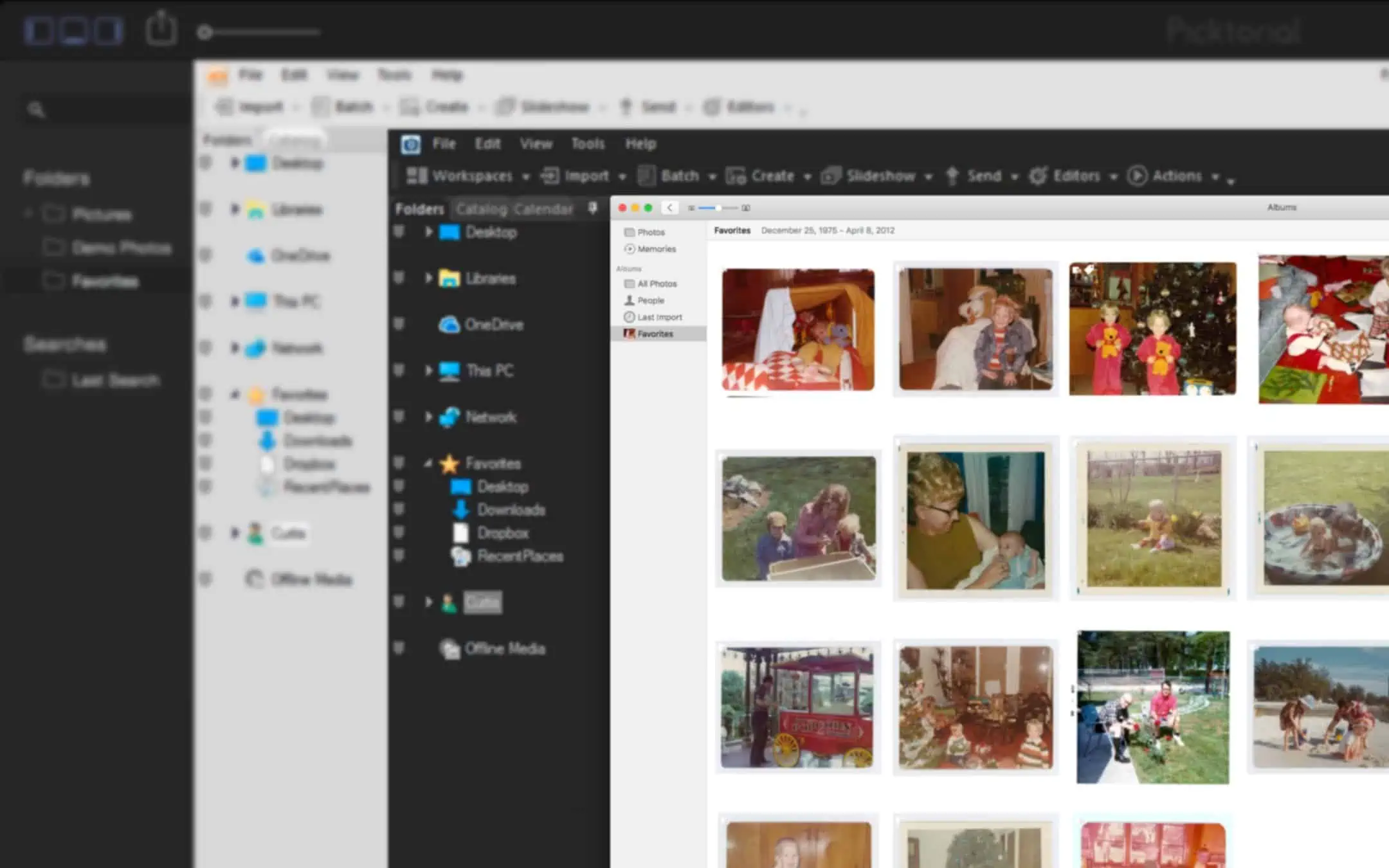
Picktorial
Within minutes of using Picktorial for the first time, I knew this photo manager was something special. And by the second day of my trial, I already had my credit card out and found myself purchasing a license for it.
Picktorial sports a dark-colored interface, which in the past has usually been reserved for applications only advanced users were able to use. It's modern, minimal, and, unfortunately for Windows users, is only for the Mac.
My first impression was that Picktorial feels like what previous devotees of Aperture have been hoping Photos for macOS would have already become by now. And this seems to be proven when you take a look at their aggressive update timeline, with version 1.0 coming out in just March of 2016.
I'm normally not so easily drawn to applications that have so little time out in the market, but I admit, I was dazzled by how polished and complete it already feels.
It's incredibly easy to use, so those with basic goals and skills will probably take to it easily. Yet, Picktorial is also adding advanced features so deceptively that it's easy to forget they are also trying to satisfy the professional users.
Not only is Picktorial a standalone application, Photos for macOS users can also use Picktorial as an extension. This gives you access to the full range of editing tools from Picktorial while inside of Photos for macOS.
And those still looking for the right time and place to abandon their Apple Aperture libraries, you will be happy to know Picktorial allows you to natively read your current Aperture libraries — even multiple libraries at the same time.
Picktorial can’t modify Aperture edits but you can choose between viewing the original file or the preview, and make new edits to the original file or additional edits on top of the preview file.
Organizing Photos in Picktorial
Unlike photo managers that use a centralized library database, such as Photos for Mac OS or Photoshop Lightroom, Picktorial instead is “catalog-free” and uses your Finder hierarchy to organize your photos. But, instead of possibly overwhelming you with access to every single one of your folders, throughout all of your attached devices, the interface stays nearly “stress-free” by only showing you just the folders you have chosen for it to monitor.
And, similar to how Google's Picasa worked, the folders you tell it to monitor are constantly being watched. So, even if Picktorial isn't running, if you add or remove photos from your Finder folders, the next time you launch Picktorial, it will instantly show your revised folder contents of photos. Likewise, If you move a photo from one folder to another in Picktorial, it's actually moving your master file in Finder from one folder to the other. This means total organization freedom.
This freedom, of course, comes at the cost of accountability. Without a centralized database, Pictorial will be relying on you not to accidentally tamper with your desired folder organization. For example, Picktorial is not going to take any responsibility for remembering where you had certain photos stored two nights before you moved them around using another seemingly harmless application.
Something I'm still not very happy with though is the lack of a full-height view of all of your photo thumbnails. It appears the creators of Picktorial are trying so hard to keep a minimal and easy to use interface — with what they call their “Single-Space Workflow” — that the center area of the application has to share the space not only with your thumbnails but also with a preview window of the image you've selected. Even though there is a slider to change the height of the separator between the two, there doesn't seem to be a way to fill the entire area with just your thumbnails, which I seem to sorely miss.
Editing Photos in Picktorial
If you're familiar with the editing tools in Photos for macOS, you will feel right at home with the adjustment panel in Picktorial. Not only is it in the same location, with a similar look and feel, but it also has an abundance of easy-to-use tools above and beyond what Photos offers.
The controls are so clean and minimal you almost forget how powerful Picktorial is. It has a RAW processing engine built in to work with your raw image files and currently supports 500+ cameras.
Picktorial doesn't use layers and instead has gone with a method where your edits are applied in areas, such as “patches,” which gives you more precise control with each tool instead of affecting the entire image.
Because it's non-destructive, it never makes changes to your original master images. And any edits you make can be undone anytime you wish.
What almost seems like magic is how Picktorial actually handles all of your edits. Since it doesn't rely on a library database to store all of the incremental changes, it instead cleverly saves all of this data invisibly right inside your master image files (as XMP formatted metadata) for formats such as JPEG, TIFF, and DNG files. If your masters are in the RAW format, the data is stored in an accompanying .xmp sidecar file.
Because there aren't any preview or alternate version files generated and accessed by a database, each time you click on a photo with edits previously made to it, there is likely to be a slight delay while the edit information is read and re-processed to generate a live version for you. You'll instantly see the original version, and then it's replaced by the fully edited live version about a split second later — the delay time depending on how fast your computer is and how many edits you've made. It's maybe slightly off-putting as you first get used to this phenomenon, but it seems to be a good tradeoff for those seeking the perks of a database-less photo manager that doesn't leave a lot of extra (redundant) version files in folders all over your storage drives.
What this means, again, is freedom. For example, you can copy and move any photo edited in Picktorial to another Mac running Picktorial, open it and see all of your edits! You could even use a cloud platform like Dropbox or Google Drive to always keep them in sync between the two. And theoretically, you could also open them in any other application — now or in the future — that is capable of reading photos with edits saved with this same embedded XMP metadata process.
Photo Metadata in Picktorial
The amount of metadata you can currently add and edit is fairly limited. Some of the key EXIF camera metadata is viewable. And thankfully, there is already support to add and edit the important ones for scanned photos, such as a title, keywords, and a caption. Again, because there is no database, the data you add is saved immediately and automatically into your master images.
Additionally, in response to a question on their Facebook page I found, I know they “are working on adding support for editing IPTC metadata fields as well.”
Batch processing, I believe, is also on their list. So, the future looks promising here for those who rely on adding a lot of additional data.
Who Is Picktorial For?
Picktorial feels as easy to use as Photos for macOS, yet has a development team proving to add features to it at a pace Apple seems uninterested in even attempting.
If you are a Mac user, who loves the aesthetics and workflow of Photos for macOS, but would love to have some more advanced features, then Picktorial is something you might really want to take a look at, especially if you are at all intimidated by the looks of the alternatives such as Photoshop Lightroom or even ACDSee Mac Studio.
And because it doesn't use a database, you won't at all be locked into this application. You can even use this alongside others photo managers you like as well — such as Adobe Bridge to take advantage of all of its metadata capabilities.
If Picktorial Innovations continues to improve this application with features professionals rely on, at some point, I won't be surprised if it becomes a serious contender in the professional field with those seeking a “lightweight” and less cluttered interface that's also a lot of fun to use.
Lightroom (Classic)

For Windows users who feel held back by the simplicity of the Photos application in Microsoft Windows, Adobe's Photoshop Lightroom is currently the best choice out there.
Sure, there is Adobe's lighter-weight Photoshop Elements, but it lacks the necessary feature of “non-destructive” editing that I suggest.
Additionally, this will be great to use if you are loyal to their flagship standalone professional photo editor Photoshop. Both programs work extremely well together.
Try not to be intimated by the sales literature suggesting this is only meant for professional photographers. Yes, many of the features are intended to aid the needs of professional photographers and their hectic post-process. But this doesn't mean you can't take advantage of its feature set to organize and edit your entire collection of scanned photos “destruction-free.”
But I won't lie; this is quite a learning step-up from Photos in Windows. Its dark gray default palette is very slick-looking, but with all of its information jammed into every square inch of application real estate, it does a great job of making a “newbie” feel like you have no idea what you should be doing next.
On the bright side, if you are familiar with how to use Photoshop Elements, you will find the learning curve will not be as steep. Otherwise, you will definitely want to spend some time getting to know the application before you commit to any kind of workflow, importing your photos, and beginning to edit them.
Lightroom manages photos from ordinary folders on your hard drive. You select which folders you want to be included, and Lightroom goes to work to import the file information for its database. This gives you the freedom to organize your masters the way you see fit.
But of course, like other programs working in the same manner, this will also put more pressure on you to make sure you don't accidentally delete or modify your master images while working with other software on your computer.
For this added level of file protection, you should look into using either iPhoto or Aperture (both only available for the Mac).
Lightroom's strength isn't so much its ease at organizing your photo masters. Aperture seems to have that duty won hands down, in my opinion. But instead, it's a workhorse image editor with so many sliders, hidden panes, and buttons that you will probably hear yourself say you may never have a need for the likes of Photoshop Elements or Photoshop CS again!
Final Thoughts
Something important I'd love for you to keep in mind is like I hinted at in several of the reviews above, it's possible the best solution for you and your entire diverse photo collection might be to use more than one photo manager at the same time. It's likely one application may not currently do everything you want it to do to handle every type of photo you have.
You might decide what's best is to use one application to organize and sync to your mobile devices all of your recent digital camera photos. And then, you could use a second application with more robust features that will better help you while you work through the stages of scanning, organizing, and labeling all of your scanned photos. At the end of your project, you could then combine the two photo collections into one if you wanted to, and then use your favorite photo manager with it.
Please tell me what you think of this article. Which photo managing program do you use and why?
And if you aren't using one already, what about this article might be making you think you ought to start using one?
Let me know in the comments below.
Cheers!


Thanks Curtis for the very informative article. I am currently using Apple photos on a MacBook Pro. My pet hate – after downing/syncing photos from my iPhone, I do like to try to put them into folders. But the photos have to stay in the Library, so in my mind that means that there are two copies of the photo. I want to get away from that situation and still be ablt to get rid of duplicates, as well as being able to name and write info about each photo.
The article is very Mac focused with very little in the way of Windows, glossing over Lightroom (Classic). And not a single Linux app to be found! (which I’m confident there’s plenty out there).You can probably do most of the basic stuff that Adobe Bridge would do in your regular file explorer (rotate and metadata). Turning up the icon size to large you can preview whole directories to help sorting. No app required.
Personally, if I have to do some quick editing I’ve used Irfanview for years. It’s light, quick and easy to use, can convert to any format. The only caveat is you need to be aware of the compression ratios you’re using otherwise you might end up with less than. Works on Win and Mac
Epsons Scansmart software is also pretty easy to use with basic editing, organise photos and update meta data. I have an epson scanner, but I think it works with others too. It works on Win, Mac and Linux installs.
My interest is in finding a program whereas I could caption the bottom of the photo describing the photo or what is written on the back. As well as sharpening the the photo. Not just facial images as AI does, but hopefully the whole photo. Photos I am doing first are old dating 1890-1960and are from anywhere from thumbnail size to 5×7 Can you suggest a program or software?
You can try Peakto, a photo software oragnizer that gather photos from different sources with an AI able to recognize the content of your pictures.
I’m trying to find out what Metadata goes in which fields. Are there standards? Under what goes the names of the people in the picture for easy searching and where do you describe the picture?
Great information, even if a bit dated. Many thanks to Curtis and the other commenters. Our family has both Macs and PCs, and a lot of photos only on Google Photos (because we have Pixel phones). I’m guessing that the cleanest way to merge and simplify our various pools of photos is to (a) download/copy them all to a central drive, (b) use a tool like Bridge or ACDsee to tag photos via EXIF metadata, and (c) copy any that need to be on a particular machine back from the central store. Presumably then using Bridge/ACDsee on that particular machine will then correctly see the tags added in the central store.
Doing this because I got burned by Google and Picasa – spent years on a PC tagging via Picasa, only to have google wipe it all for me.
Can someone recommend an organizer that allows simple edits (rotate, crop, maybe brightness) and stores those edits as only a ‘sequence of operations’ in a database or file without creating copies of edited image?
This was a feature I really liked in Picasa. It didn’t create duplicate or working images that eat up hard drive space. I’ve looked at several programs, but it is often hard to tell the storage details from the documentation.
Thanks!
Bill (Windows 10)
Hi Bill,
I use Lightroom Classic with Windows 10 to accomplish what you want. It’s a nice and powerful digital asset manager and does great non-destructive editing to my photos. The editing steps are saved within the Lightroom database and I also have it set to optionally save the editing steps within the image file themselves. In other words, the original image is still there, but the steps I used to process the image (exposure/contrast changes, cropping, etc.) is also written within the image file, whether it be a RAW / DNG, JPEG, or TIFF file. So no copies of the edited image are created. It is easy to go back to the original image this way although it is always good practice to save a copy of all your original images to a separate backup drive.
While $10/month isn’t terribly expensive for Lightroom (which also includes Photoshop), a free alternative is to use Adobe Bridge as your digital asset manager and download the free Adobe Camera Raw program to do your editing. This combination works the same way as Lightroom, but while in Bridge, you need to load the picture you want to edit into Camera Raw with a simple mouse click rather than having everything in one program. Camera Raw does very nice editing to JPEG and TIFF files in addition to RAW / DNG files. In fact, it’s very similar to Lightroom in the menu layout (both being Adobe products).
I’ve also used ACDsee in the past. It does some non-destructive “developing” but saves the editing steps into a separate side-car file that sits in the same directory as the original image file rather than writing the steps into the actual image file. It also does destructive editing (more elaborate stuff using layers etc.) and will automatically make a backup copy of the original image before saving the destructive edit. I don’t like these copies and side-car files lying around, so I don’t really use this program any more.
I know there are several other programs out there that do digital asset management and non-destructive editing (ON1 Photo Raw, Exposure X5), but I don’t have experience with them. Good luck in your search. – Dave
Is Bridge the answer to managing hundreds of thousands of photos? Lightroom “catalogues” slow down after 200,000 and becomes unusable. I dont need to edit much, just organize. PLEASE HELP!
I have been trying the ACDSee Photo Studio trial version and unbelievably, it deleted my photos when I batch renamed them. Very confusing and it’s put me on edge. They didn’t go missing – they got wiped out.
Photos is good but I’ve stopped using it because it doubles the amount of hard disk storage needed for your photos and makes it hard to find in the regular Finder.
With Apple Photos, it only doubles the amount of hard disk space (copies photos into your library file for protection) if you leave the import setting set in the default manner. Even though this was written about iPhoto, check out this article with a video I created that describes the same exact setting that’s in Photos as well that will solve your problem.
That really sucks!
I use ON1 RAW, which does not move or modify your photos in any way, unless you explicitly ask it to.
I keep my photos in a YYYY/YYYY-MM-DD folder structure, and all I have to do is tell ON1 where they are.
It can be configured to store non-destructive changes in the file’s metadata, or better (for the paranoid) in separate .XMP “sidecar” files.
Thankyou very much for this article, I have been ripping my hair out in dismay over Apples decision to send Aperture to oblivion – and no thing to replace it. Photos is good, BUT, cannot export it’s folder hierarchy to iOS, yep, no sidebar which means no way to display and find images in a logical manner. In Aperture its a breeze, and now that I read your article I was amazed at the abilities of Bridge. Have had it for years but not used. Now organiser of choice.
Only downside is, not able to port to iOS. Was going to use Lightroom, no ability to port to iOS.
I want my library of images to be ported to iOS in an orderly Apple finder way.
I know I can do it with file sharing in iTunes (but fear this is going to disappear with iOS 13), is there an iOS app that could access these files and in such a way that they can be viewed in their original hierarchies, ie folders.
Look forward to your reply and suggestions
Best regards
Ron
I am an amature photographer taking 1000s of family photos over the years (50,000+ and counting). I have been using Creative Memories Memory Manager and unfortunately it finally crashed. All my photos are saved to my backup dirve, but are in randomized folders. Plus, I have quite a number of photos I’ve been saving recently on my PC and many photos that I would ultimately love to scan. I am looking mostly for a photo manager/organizer so that I can sort, tag, and find the photos I’m looking for and would love to have them all in one location either on my PC or back up drive (or both). Plus am open to backing up to the cloud after I get things in order. I loved how Memory Manager cataloged chronologically. I’ve been thinking about ACDSee, but I’m not sure. I also love the idea of being able to upload photos from my phone. And I’ll probably use some basic edited tools, but nothing fancy. Any suggestions would be great!
ACDSEE has a sale running right now. It may not be a bad choice for your needs.
The latest version of ACDSee is a very realistic alternative to Lightroom, at least in the PC version. Not being a Mac user, I can’t speak about the latest Mac version. It works well with the free Adobe Bridge with the free IPTC Photo Metadata plug-in that adds extra fields that are particularly useful for archivists, museum curators, and librarians, including family historians. They make a highly recommended combination. I’ve read favorable reviews of Photo Mechanic, but its specs seem to be very similar to those of Adobe Bridge. Since PM costs over $150, and Bridge is free, I haven’t rushed to try PM.
Question. Apple specifically advises against storing a Photos Library on a NAS device, for fear of corruption.
Many people in various forums are quite vocal in sharing that idea, that if you value your photos – you should not store your Photos on any network share (even if that “share” is private). The issue seems to stem from the fact that Photos expects the underlying file store to be a properly formatted APFS or MacOS Extended partition.
In light of this.. will any of the above mentioned applications support library storage on a NAS device, without issue?
It’s rather common to use Lightroom with a NAS, do that you have the photos on the NAS and the catalog on an internal SSD.
If you have a lot of photos – especially photos with different family members, timeframes, events and locations, consider Photo Mechanic. Photo Mechanic – from CameraBits – is a browser that allows you to rate photos, add keywords, descriptions, and captions, and many other features to your photos. It’s not an editor, but it works so quickly that is will streamline what you edit and help a lot with organization. For example, you have a group photo with several family members, so you want to add individual names, relationships, etc. Where does the photo go so you can find it? With keywords, you can search for the terminology – Smith, Brown, wedding, new york, westchester . The keywords, captions and descriptions are carried in the file in a standard format so they will remain after using the editor of your choice. The biggest advantage is speed – and Photo Mechanic was developed for use by AP photographers who needed to turn around large amount s of photos on very short timeframes. The product is a little pricey – $159 – but for a large volume of photos it is far faster than keywording using other tools.
I have had Photo Mechanics on trial, and I find it somewhat more transparent to use for browsing and editing metadata than Adobe Lightroom, because it lets you work directly on the files, without a catalog.
However, I also have Adobe Bridge, which I believe is still free, and which does essentially the same as Photo Mechanics. Lets you browse your photos directly on disc and edit metadata. Hence, I’ve found it difficult to justify paying money for functionality that you can get for free.
Or did I miss something?
Hi Eric,
How did you choose keywords/tags for your family photo collection? Do you use a hierarchy or flat keyword list? Since I’m preparing a webinar on “Build a Custom Keyword List for Your Genealogy Files”, I’m interested in learning about your experiences in this area.
Hi Art,
When you complete you webinar, is there a way my wife, who is the genealogist in the family, or I could view it? I’ve begun to build a keyword list for my family photo collection in Lightroom Classic CC. It is hierarchical and the parent keyword is People. Current sublevels are: Family, Friends, and Vietnamese Language School Classmates. Peter Krogh in his “Digitizing Your Photos” book has Colleagues under People and under Family has “lastname Branch” for various family branches.
You mention the IPTC Photo Metadata Panel that has a date field where circa 1920 or summer 1965 could be used. I’ve looked at the IPTC-Plus Metadata Panel, which I believe is the IPTC Photo Metadata Panel, and haven’t located the field. Is there a specific name for it or am I looking at two different panels? Lightroom Classic CC is using IPTC Extension PLUS Version 1.2.0, and I don’t see a field where I could enter a date like circa 1920. Is this panel only available for Adobe Bridge? Thanks for your help.
Hi Gary,
Thanks for your reply. On Thursday, 7 March 2019 at 7:00 p.m. Eastern Time, anybody can log in to view the live webinar. Check the Ontario Genealogical Society (OGS) at http://www.ogs.on.ca for the sign-up link. The OGS is still finalizing webinar dates with presenters for the rest of the year, so it may be a few days until the sign-up page is available. Just keep checking back until you find it. After the live webinar, a recording will be available on the OGS site but available only for OGS members.
Last June, Peter Krogh did the OGS webinar on “Camera Scanning” and the recording is still available to OGS members. You may want to browse the list of recorded webinars as well as the list of upcoming ones and maybe decide to join the OGS for a year to gain access to them.
If you’d like a pdf copy of last year’s webinar I did on Using Adobe Bridge, email Curtis and ask him to forward your request to me via email. That way, he doesn’t breach any privacy terms of the blog or its users but we can correspond directly, privately.
The IPTC Photo Metadata Panel is a plug-in for Adobe Bridge. Bridge is available for free from Adobe and works well with Lightroom. The “IPTC Photo Metadata Panel” is correctly known as the “IPTC Cultural Heritage Panel”. That was my error. You should be able to download it at https://iptc.org/standards/photo-metadata/guidelines-support/
but you’ll likely need to scroll a little more than half way down the page to find the link. Save the ZIP file to disk, then open it and follow the installation instructions in the IPTC-CulturalHeritage-PMDpanel-Guide.pdf file within the ZIP file. I think you’ll find it worth the effort to download and install both the Bridge (if you’re not already using it) and the IPTC C H Panel.
Art
I am a lecturer so I use my photos mostly for information – that means I don’t need to edit photos much but I REALLY care about having key words that will help me to find the subjects I need. Also I like to group some photos into subject related folders for quickly finding things. I found that LightRoom drove me insane because no matter how careful I thought I was being about moving photos into the correct folders they wound up all over the place. Seriously I am an organised person and this does not happen for me with other applications! So I got Piktorial because I really wanted a catalog free photo manager – easy, straightforward, information focused. So imagine my frustration when I found Piktorial does not allow me to add key words to a whole bunch of photos at the same time. I mean really??? Who wants to label EVERY PHOTO individually?
Sigh – I was so happy with Piktorial otherwise, but this is a deal breaker for me. I am now looking for a catalog free alternative that allows me to batch edit metadata.
You might consider GraphicConverter.
It started out ages ago as a graphics format conversion program, but has grown into a full-fledged image editor and image management system.
It is the only such application I know that allows you to change all the metadata.
I’m using several editors/managers, and they all fall short in various ways, most notably, none of them allow you to edit all the EXIF data!
I have old film scans that I know the date, but ON1 won’t let me set the EXIF date. I have cameras that, for whatever reason, show up with different names, but Mylio won’t let me change the EXIF “Maker” tag. I love Luminar’s editor, but its new version with image management support doesn’t even have keywords!
So, I often keep GraphicConverter open, just because I can edit any metadata with it.
Why not just use it for everything? Well’ it’s pretty geeky, and not as simple to use as other image editors. But I’m seriously considering giving it a chance at being “one and only.”
Why “catalog free?” The only image managers I use all leave the location of my photos alone. I got seriously burned by Apple’s dumping of Aperture, to which I foolishly turned over my photos to, so it could “manage” them.
But a “catalog” generally means nothing more than an “index,” for speedy access. I think what you really want is something that uses .XMP “sidecar” files for metadata, rather than storing all metadata in some database.
Try Adobe Bridge, free from Adobe for Windows and Mac.
I’ve been using Faststone Image viewer for years. It’s easy to use and free. There are many useful editing options and it is non-destructive. You can view a multitude of file types including raw formats of the major manufactures.
Thanks for all your efforts and considered reviews. I had been using Aperture and found it just ideal for my needs – a keen amateur. I found the replacement with Photos a real drag. Whenever I try to do anything with a large collection it falls over. Its editing features are also limited and, from my point of view, its organisational features are clunky and too regimented.
I’m going to try a couple of the other programs that you mentioned and I agree that for many of us, a management tool and an editing tool will be the way to go and not try to do all with one program.
Your article has given me much to think about, raised points that have touched raw nerves in relation to my use of iPhotos, Aperture, Photos, and the old version of Bridge, and THANKFULLY given me hope and ideas that may result in an end or at least diminishment of my photos. This is great for me right now because just this afternoon, after Photos fell over 3 times, I began to think “to hell with it, I’m the only one who likes these photos anyway and i’m close to the end of my days so why am I wasting my time?” I feel hopeful now and encouraged to continue.
Thank you for your generosity in sharing what must certainly have been or be an involved, dedicated and sincere effort to comment with reason and objectivity within an appropriate context for the user – the latter something that many reviewers overlook.
Just THANKS.
And WidsMob Viewer does a good job in photo management too. You can browse and edit thousands of images effortlessly. Once you free download it, you can access all features without limits.
Okay. I have some questions. First thank you very much for your in-depth and knowledgeable articles. They are answering many of my questions which have nagged at me forever.
I use an iPad and a Win7 desktop computer. I am very familiar with photoshop CS6 and use it almost everyday on my Windows desktop as well as Procreate on my iPad. I also use Picasa on my Win7 which I guess is considered an organizing program.
I have thousands of scanned and digital photographs in many files on my Win7 desktop computer. I also have about 5K photos on iCloud from my iPad and my iPhone. I think all of the files on my computer have been incorporated into Picasa but I”m not sure.
Background:
I would like to have an overall ‘system wide’ photo organizing program to catalogue each and everyone of my scanned and digital images (from the cloud, from storage devices etc). I can access the Cloud from my Win7 and download those photos to my desktop which I try to do on a regular basis. (I am noting this because I am aware that I am using two different os, Win and iOS).
Most of these photos are already in some type of file folder.
Questions:
Do these organizing programs ‘find’ all these photos wherever they are (inside files, folders) and display them in one location?
Are the photos ‘physically’ moved to this location or are they duplicated and recreated in new files?
Can I then go through these thousands of photos and input data regarding them so I can then find/sort them? I understand the metadata fields that are present in photos.
IS this the type of thing that Adobe Bridge would do?
Sometimes just thinking about this give my brain a huge cramp and sends me to the twilight zone of never ending photographs piling on top of photographs, never to be found again. Then I do something else.
Thank you for an advice you can offer.
MaryAnn
Bridge should let you do what you want to.
For your first question: In Bridge, you can search your root directory on any disk (I’m not sure about any cloud storage) for files of any specific type by entering *.jpg or *.png or *.tif or *.psd or *.pdf or any of a number of other file extensions in the search box within Bridge. If you know specific file name(s), or have entered any keywords, you can search by multiple criteria for that specific data. Bridge will need to be directed to the root directory of each drive, but once there, it will search sub-folders, sub-sub-folders and find any specified files. The search results will show the complete path to each specific file.
If you want to, you CAN copy or move all of your images to a Photo Hub, such as Windows “My Photos” folder, although I recommend you set your Hub on an external USB hard drive in case your system disk ever crashes and so you don’t fill it up with images. If you prefer to leave your files wherever they are, you can do that instead.
You can add as much metadata to your files, wherever they currently are, within Bridge and the data is written directly to each file. It is NOT trapped in any kind of proprietary database and your files DON’T need to be copied or moved into any specific location accessible only to Bridge.
Once you’ve added Title, Caption, Description, Author/Photographer name, or any EXIF data added by digital cameras, you can do a search of any text found in any field with metadata, including the file name. You can search by Create Date, Modified Date, camera make, camera model, lens name, lens focal length, f-stop used, shutter speed used, ISO used, or any other EXIF data added by a camera or scanner.
The IPTC Photo Metadata Panel, a free plug-in for Bridge, available from IPTC.org, adds additional fields for use by professionals in libraries, archives, and museums. Particularly useful for older images shot on film or scanned from prints, is a second date field where you can enter terms such as: circa (about) 500 BC, summer 1965, between 19xx and 2xxx; before xxxxxx, or after xxxxxx.
Bridge lets you use folders and sub-folders if you want to, but when you add appropriate keywords, captions, or descriptions, you can leave your files in whatever folders they currently reside in or dump them into one folder on your Photo Hub. When you search for specific metadata, Bridge will find all the appropriate files, wherever they are. That means you can have much shorter path lengths and can more easily copy or backup files without encountering any OS limit on number of characters in paths. Beyond specific limits, Windows and macOS won’t copy or move (as in burn to CD/DVD/external hard disk) some files so they won’t be backed up as you might expect. Appropriate keywords also eliminate the need to save multiple copies of a particular file in different locations — a group shot of a family could have keywords of each name shown in the image and filed as a single copy in your Photo Hub. To find all files showing any specific family member(s), simply search for the name(s) you want and Bridge will find all appropriate files.
Download the free version of Adobe Bridge and the IPTC Photo Metadata Panel, install them both, add some metadata to a dozen or so random images in your collection, then do several searches using the various options in Bridge. If you’re satisfied with the results, work on the rest of your files. If you’re not happy, you’ve spent only whatever time you’ve invested in this testing but you’ve spent no money on software.
There Youtube videos on using both Bridge and the Photo Meta Panel so you can check them out if you want.
The IPTC Photo Metadata Panel is a plug-in for Adobe Bridge. Bridge is available for free from Adobe and works well with Lightroom. The “IPTC Photo Metadata Panel” is correctly known as the “IPTC Cultural Heritage Panel”. That was my error. You should be able to download it at https://iptc.org/standards/photo-metadata/guidelines-support/
but you’ll likely need to scroll a little more than half way down the page to find the link. Save the ZIP file to disk, then open it and follow the installation instructions in the IPTC-CulturalHeritage-PMDpanel-Guide.pdf file within the ZIP file. I think you’ll find it worth the effort to download and install both the Bridge (if you’re not already using it) and the IPTC C H Panel.
Is there a cloud-based digital asset management solution that would allow me to share photos and movies with others so that they can add meta data? It would help my family capture the memories and knowledge of elderly members before they pass away. Many of our photos and old super 8 movies contain people, places, and locations that are unknown to me.
I have been searching for a similar solution for my own family archives with no luck.
I have tried various workflows where I scan locally, manage with an app like Bridge or Lightroom, and then sync the photos to the cloud for my family to access. I would like them to tag faces and add comments, identify people and places and information about each photo.
The problem is that I cannot find a way to keep the copies in the cloud in sync with the local copies. Metadata added in one location doesnt sync to the other, and Ive tried Dropbox, OneDrive and Google Drive/Photos. So I could sync my photo archives to the cloud and have family add information, but I’d have to manually re-enter all that information myself on my local copies.
If anyone has a solution for this please let me know!
Matt, I am equally frustrated too. I’ve referred to this as the “Holy Grail” for me several times now throughout this website. This post comment reply to Rebekah being one of the few I can find and link to at the moment.
Sorry if I come off as a cynic here (because really I’m quite a positive optimistic person overall), but it just (still) doesn’t feel like the companies that make photo storage/managing/editing software care at all about this workflow. In fact, they likely must think only about 1% of us ever take the time to type in captions — because often caption (metadata) seems to be an afterthought. At least, it’s usually not an easy process with a very clunky interface. Everything seems to be moving towards “automation” with AI in face detection and in sorting by EXIF metadata (in lieu of manually organized folders etc.) with digital camera photos. Compatibility and the needs of scanned photos (without automatically embedded camera EXIF metadata) doesn’t seem to be an importance (anymore).
About a year or two ago I thought I was making progress on this dream workflow using Adobe Lightroom and Adobe Lightroom Classic. They’ve implemented some “crude” syncing between the two, so the thought was if family members could get the cloud version of Lightroom on their iPads, then there was a possibility to get it all to sync back to my Lightroom Classic library. I’m sorry, I can’t remember now how successful I was. I think I made it further than I had with any app combination I had tried, but it’s been a bit too long now for me to remember. At some point, I like to make some time and try these out again and see if any recent updates have possibly improved the process.
However, a solution that I have made work (more dangerous but still doable) is syncing the library file through cloud services and sharing it with family members. 😉
DBGallery is what I have been using to keep my photos organised. I dare say it is worth every penny spent if utilzing it.
I have less fear now of losing important pictures than I had before.
I’ve been using Photoshop Elements for years but am thinking about switching to a program with non-destructive editing. Does anyone have experience switching from Elements to either Lightroom or ACDsee Photo Studio Ultimate?
I downloaded a trial of ACDsee and right away I really like how you don’t have to import your files into it. I don’t like how PSE “loses” files if they are moved outside the program. However, I haven’t found ACDsee intuitive to use, so I’m concerned about the learning curve to switch. I’ve read a number of reviews that mention it’s overloaded with features that aren’t too useful and isn’t well organized. Since I’m using an Adobe product already, I’m thinking Lightroom may be easier for me, but it doesn’t seem to have all the features of ACDsee.
The main thing I like about PSE is its organizer. I do use the editor, but only do pretty basic stuff. I do like the clone stamp.
Trying to scan my entire life, plus organizing a ton of digital photos, the idea of spending a lot of time learning a new program isn’t high on my list.
Alternatively, how complicated would it be to use PSE to edit non-destructively?
PSE is a destructive editor. If you want to retain the original, you must always save your edits under a new name. If you save the edits under the same name, it is impossible to retrieve the original.
I started with Adobe Elements way back when. After trying several photo editing/organizing programs, including Lightroom, ACDsee Ultimate, and Zoner Photo Studio X, all of which I purchased, I eventually settled on Lightroom. There is nothing inherently wrong with any of these programs, I just find Lightroom somewhat easier to use. ACDsee was the most difficult for me and it always seemed to take me longer to do anything in that program. Lightroom has more features than I typically use, but if I ever want more (such as layers), I can always delve into Adobe Photoshop, which is also included with the subscription. If you do decide on Lightroom, I found the book ‘Lightroom Classic CC – The Missing FAQ’ by Victoria Bampton to be very helpful in learning the program. When I was at a loss as to how to accomplish a specific task in Lightroom, it was easy to look up the question in this book and find a quick answer. Since Lightroom is so widely used, there is also a ton of helpful information on the web.
I also placed a high priority on being able to non-destructively edit. While I still like this feature, I find that I rarely ever “re-do” a photo that I’ve edited. Once you’ve put all that work into it, you don’t want to start over, especially if you’re working on lots of photos. That being said, there have been a very few times where I went back and re-tweaked a favorite photo to try and make it even better.
I use ACDSee Ultimate as my primary photo program, especially because it lets me use layers and edit non-destructively. I also have Lightroom, PSE, PaintShop Pro, and Zoner Photo Studio Pro available and will use whichever of them seems to best let me do whatever I want/need to do with a particular file. I’ve found the file organizing and cataloging of ACDSee to be far superior to that of PSE, since the latter doesn’t always use the standard IPTC standards. Neither ACDSee nor Adobe Bridge, also excellent for cataloging images and adding metadata, requires that files be “imported” before you can work with them and neither traps your metadata within its own database. Both write the metadata directly to the relevant image files. I’ve been using ACDSee for at least 5 years, and found it to be relatively easy to learn. They offer lots of instructional videos on their site, and there are many on Youtube also. Adobe Bridge is FREE, available for both Windows and Mac, and does not require any Adobe subscription. It is not intended for any kind of image editing but does let you use any available image editor if you want to do any more than add/edit metadata. Bridge works well with the free IPTC Cultural Heritage Panel, available from http://www.IPTC.org. This plug-in adds additional metadata fields designed in cooperation between IPTC and professional archive, library, and museum staff to enable additional information to be preserved. There fields to let you choose from a list of “scanned from positive transparency”, “scanned from negative transparency”, “scanned from reflective original”, “created by a digital camera”, or “created entirely in computer software”; where, when, how, from whom each original came into your possession; current physical location of both the digital image and the original from which it was created; and more so you can document as much of the history of your photos as you know. There is virtually no limit on the number of characters you can enter in most of the fields, particularly the Caption and Description fields. Some other programs use an older metadata standard which imposes strict limits on the number of characters in each field. There’s good info about how to use the Cultural Heritage Panel on the IPTC site, including how to import and export your metadata to/from a spreadsheet. There are also videos about using it on Youtube.
Thanks — I’m confused about one thing I’ve read about non-destructive editing, however. I found this on fstoptraining.com’s website.
There is a disadvantage to a non-destructive workflow. The sidecar files that are produced and updated by the software can only be read by that one particular software package. If you stop using the software and switch to another brand, you will not be able to see the adjustments you spent so long producing and perfecting
What are the ramifications of this if I’m saving images for my kids, grandkids, whomever, to look at years from now if they don’t have the program I used? Will they only be able to view the original image? Let’s say I just want to send someone a digital copy of the image … is the “sidecar” file automatically included in that? I don’t really understand the “sidecar” concept.
The “sidecar” is a separate file that is not included if you drag-n-drop from your computer’s file system interface.
If you “export” your photos from your photo editing software, the resulting file will have the sidecar changes applied, but you’ll lose the non-destructive aspect of it.
When you perform a non-destructive edit in one of these image editing programs, the program makes a list of all the changes you’ve made to that photo. Most programs will save this list to an internal database. In addition, you can also save this “change list” with the image files. Many image file formats (DNG, JPG, TIFF, PNG) allow the data to be stored directly within the file, so no sidecar file needs to be written. Proprietary image files, such as RAW files from your camera don’t allow such data to be stored within them. If you edit one of these, then you need to write a separate file that contains the “change list” that sits alongside the image file, hence why it’s called a side-car file. In the Adobe world, this is known as an XMP file. This “change list” is proprietary for each image editing program, so if you have a DNG file that was edited in Lightroom with the “change list” saved inside that DNG file, only Lightroom will be able to use that change list to automatically re-edit the original image data (which is non-destructively saved).
So you are right, non-destructive editing is a two-edged sword. It does allow you to easily go back if you want to re-do your edit, but once you’ve finished your editing, it remains a proprietary “change list” either within the image file or alongside in a side-car file. The original image remains unchanged. What ramifications does this have for your grandkids? Probably not too much. Once you’ve finished all your editing in Lightroom or whatever program you choose, you should eventually export the completed photos in either TIFF (preferred for archival) or JPG (better for social media) formats. When you “export” the photos, the program uses the “change list” to permanently make your edits to the picture. These exported picture files have been “destroyed”, but in a good way. It is the exported pictures that you will be passing down to future generations.
ON1 Photo Raw 2018 creates files with the XMP extension in their name, that look like standard XML, which this comment editor won’t let me paste here.
But this particular file had been edited, and the XMP file doesn’t appear to contain anything specific to editing, just keywords and such.
When you export the file to make the changes permanent, save the file with a different name, then you have both the original and the edited file. The original file is what you will keep to enable future editing, while the exported file is what you will send to others.
Thanks everyone, this is all very informative and I think I get it now. Just one more question … if I’m doing minimal editing and don’t really think I’ll ever have a need to go back and incrementally change whatever edits I’ve made, is there any reason I couldn’t just keep using PSE and simply choose “Save As” a different file name for pretty much the same effect? In other words, PSE is not actually destroying any file data other than the edits I’ve made, so it’s not losing anything from one version of the file to the next other than those changes?
BTW, I never use RAW anyway; I pretty much use TIF as is recommended elsewhere here.
Deborah, the nice thing about any of these programs is that you can make them to fit into your particular workflow. Yes, you can definitely keep using Elements (which is a great program). As you say, one way is to save the edited TIFF file with a different name. Another approach would be to keep a separate collection of unedited photos in a different directory outside of Elements. In other words, after scanning a photo, place one copy of the original scanned file into your PSE directory and a second copy of the original file into a different directory – perhaps called “Digital Negatives”. This could even be on a different hard drive. Now you can go ahead and destructively edit your photos in PSE as much as you want. You’ll always have a copy of the original scan file in the Digital Negatives directory if you need it. Sounds like you won’t need it very often.
Not unless disk space is an issue for you.
The nice thing about non-destructive edits, as opposed to repeated saves to new names, is the “edit list” is generally much smaller than entire copies of your image.
Another advantage is you don’t have to come up with meaningful filenames for your repeated saves. If you later go back and find a bunch of images named “…-1”, “…-2”, “…-3” (for example), you probably have no idea why you thought all those copies were worth saving.
Hi – could you all please give me your top three favorite cloud based photo managers? I am a novice at this so I am guessing that the advantage to a cloud based program is that I can access it on any device and the data is “safer” then simply having it on my hard drive. Thoughts? Thanks – Kaley
Organizing your photos is the key issue of photo management. If you have dozens and hundreds of them you face the same problem we all do.
I have tried different software to operate with all these gems but I cannot say that something is better than another.
Peter has risen an interesting issue with saving various versions of edited photos in LR. It’s a complete madness to preserve all this only in the Lightroom surrounding and have no possibility to move it to another space. In my opinion, it’s really inconvenient feature.
Has anyone experienced such troubles?
I’ve considered this very question when I decided on Lightroom. How do you handle the edited photos outside of Lightroom? While I can easily find and view photos within Lightroom on my home computer, my wife often complains that she never gets to see them and would like access to them outside of my computer. I have so far handled this by exporting key photos in JPG format and uploading them to albums in Google photos. From there, she can easily bring up photos on her phone or we can show them on our TV via Chromecast.
I still want to “export” all my key photos out of Lightroom into either JPG or TIFF formats (or both) to a different hard drive and keep them organized using the same folder structure that I use in Lightroom (Year – Month). This would allow me to use any photo viewing app and I could still search for specific pictures using the metadata embedded within the files. It turns out there is a free Lightroom plug-in I just found that allows you to do exactly that. Folder-Publisher I have not used it yet, but plan to play with it when I have time. This seems like it should fulfill all my requirements
This still means that you separate the “desktop-bound” editing work in LR, and the viewing experience through GP.
That’s a shame. Often, the two are intertwined. While viewing the photos you (or your wife or somebody else) might get inspired to add descriptions etc for the photos. You can do that in GP, but then they aren’t attached to you “master archive” in LR.
I think it’s a serious limitation that all metadata enrichment, sorting into albums/collections etc must be done at your desk in LR, and re-exported in order to appear at the version that is indeed accessible for your wife and others.
I agree with you 100%. Ideally I would want my master archive to sit in the cloud, with selected photos easily accessible to any that I give access. If given permission, they should also be able to edit the metadata. I have not played around with Lightroom CC enough to know how feasible this is. I just use the Classic version. I don’t yet have the bandwidth or cloud storage to handle my close to terabyte of photos.
Maybe Lightroom CC would be an option. But then you’re indeed locked into Adobe’s grip. It won’t you have a synchronized copy on premise, as far as I understand. Then it’s ONLY in the cloud. In Adobe’s cloud.
I have been using Picasa for years now, still will until the proverbial wheels fall off. However, aside from ease of use, the main thing keeping me here is the ability to scroll through the thousands of folders I have WITHOUT having to click on them (either single-click or double-click). Basically, scroll through photos which takes you from folder to folder.
QUESTION: Has anyone found a supported photo management program that allows you to do this?
Please can someone advise me as to whether ‘events’ folders from iPhoto would be retained in sequence if I export my photo library to Picktorial?
The last few years Ive stuck with OS 10.9.5 so as not to lose iPhoto, but can’t do this much longer.
By default, iPhoto organises photos into ‘event’ folders: within each folder the images appear in chronological order, and the event folders themselves are sequenced in order of the earliest image contained within each event.
To organise my photographs my own way, I have created new event folders, within which I group the photos I want together, and have added to each event folder a blank image, falsely dated earlier than any of the other images within the folder. This has the effect of dictating the sequence in which the events are displayed in iPhoto regardless of the dates of the real photographs contained in them: ie: I control the sequence in which the events are displayed by the dates I give to the blank images.
I do not want to lose this organisation. Photos for Mac does not appeal to me, but Picktorial sounds very interesting. If my collection were exported to Picktorial, would my thousand or so ‘event’ folders be retained, with their titles, and remain in sequence?
I scan my photos with a Fujitsu ScanSnap document scanner and a high end Edson desktop scanner for older flat prints and negatives. All are backed up to Google Photos. It lets you do minimal editing but has been great for retrieval requests, I.e., Rich, do you have that old photo of Dad from the 1960 something Memorial Day parade. I can find it quickly via a number of ways. Search photos of Dad, search for photos of parades, search for Boy Scouts, search for soldiers. It generally works quickly and is a good way of finding and sharing photos with relatives which is the reason I am doing this whole effort.
I would like photo organizer where all photos are put in labeled albums and not have to scroll through thousands to find the one you want. When I had to migrate from iphoto to photos everything is jumbled. Albums, shared albums, photos etc.
I just want a clean system where I can download photos and put them away where I know where they are and have a clean slate waiting for the next download.
Hi Shannon,
If you’re a Mac user, you may find this blog post of interest. https://www.organizingphotos.net/big-mean-folder-machine/
If you use the free Adobe Bridge program to add keywords, descriptions, etc., you don’t need to bother with albums. Each time you transfer files from a camera, scanner, phone, etc. to your computer, add appropriate keywords, such as the name and date of a particular event or vacation trip to each relevant file. Bridge lets you search for any file with dozens of options, such as the camera make and model used, the lens focal length, the camera’s location, the date the image was created, any person’s name entered anywhere in the caption, description, file name, etc. A search for your name, for example, would quickly find any image with your name anywhere in its metadata text fields. You could refine your search by adding the name of a place you’ve been, a date when you were there, the name(s) of one or more other people shown with you, an event’s name, etc. Once you’ve found a group of related photos, you can save them as a collection within Bridge. You don’t waste disk space by saving multiple copies in multiple albums or folders, since Bridge creates only a link to each file in the Collection. With traditional albums, there’s often a question of: which album should a shot of Shannon, at a friend’s party, held on Malibu Beach, in 2018, go into? Should it be an album of Shannon’s pictures, the album for the particular friend, a Malibu Beach album, a 2018 album? Should you put copies of each photo into each relevant album, even though that wastes disk space and makes it difficult to be sure you’re always looking at the most current version of edited shots? With appropriate metadata, you can create a collection instead of an album for related shots and save only a single copy on your disk (in addition to at least two separate backup copies kept elsewhere, of course). A search for any of those collection names will quickly, usually within seconds, show all of the relevant photos, regardless of where they physically are located on our computer. Bridge also lets you create and print “contact sheets” showing thumbnails of all the images, and if you wish, including some or all of the related metadata.
@Art – What you write is that it’s actually possible to organize and retrieve photos through Bridge, using only the IPTC metadata in the files ? However, that wouldn’t imply non-destructive editing, only the edited TIF/JPG version of the files? Do you still have the challenge keeping double versions of your files?
I wrote a comment yesterday, but it seems to have disappeared. Basically what I was asking: for Lightroom and other catalog-based programs – don’t you find it problematic to be “locked” into a proprietary system? It’s nice to be able to redo your editing – but after all – isn’t the finished versions of your photos the most important – the version that you want to watch on several devices (independent of LR), the version that you want to share, and the version that you want people to find 100 years from now? Basically, the edited version of your photos will be inaccessible once LR is gone. Wouldn’t that be a shame?
I know that you can export – but from an archiving perspective keeping two (or more) versions of each photo – keeping up to date naming, date, metadata – would be a nightmare.
I really tried to come to grips using LR in my workflow, but I become so confused.
/Peter.
You raise a very interesting point. I also use Lightroom because it provides both great digital asset management and photo editing in one package, and is backed by a large, well known company. I archive all my native images before importing into Lightroom, so I always have my original data. I call these my “Digital Negatives” which give me piece of mind even if I rarely access them. From an archiving perspective, only a small percentage of my photos are what I consider “keepers”, photos that I want accessible 100+ years from now. These keepers (which I label with 3 stars or above in Lightroom), I export into a TIF format archive (and also upload in JPG format to an online photo site) after I’ve completed all editing and metadata input. If you ever update any of your keepers, you can always re-export those and overwrite the first export (easy to do if you never change the file name). So it really doesn’t matter if I have Lightroom in the future as long as I secure my archives. In fact, most of my family photo viewing occurs via Google Photos since it’s so easy to Chromecast the pictures to a TV. Since Lightroom is critical for me at this point in time, I always make sure I backup my Lightroom catalog multiple ways so I don’t loose my hard work.
Dave, thanks for sharing this.
If as I understand you correctly, you have your savers in 1) your “negatives”, 2) your Tiff archives 3) GP. Doesn’t that confuse you? If you need to add metadata or something, you actually change it in your “negatives”, and then export the affected file(s) to your TIFF archive and re-upload to GP?
Hi Peter. My ‘digital negatives’ contain no added metadata or alterations. These are the files as they come directly from the camera/scanner and are my digital equivalent of a film negative. After importing into Lightroom, my first step is to delete any pictures that are sub-par (poor exposure, blurry, etc.) and I also delete groups of similar shots after picking the best one. I do this without trepidation since I know I can always go back to my digital negatives if something gets deleted in error. So far I’ve rarely if ever needed to retrieve a digital negative. [I keep my digital negatives sorted by camera and then by year/month. If a scanned photo, I keep them sorted by scan date/grouping name since I tend to batch scan photos that have been pre-sorted into groupings].
I don’t export a picture from Lightroom into my TIFF archive until I’m pretty sure I’ve completed any photo editing and have added all my metadata. There is really no hurry to export to the TIFF archive, since it’s main purpose is to provide long term archival storage of my ‘keeper’ photos outside of Lightroom. I sort this archive by Year/Month. I’ve decided to set the color label to Green on any photo I’ve exported to my TIFF archive, so I know that it is in it’s ‘final’ form and archived outside of Lightroom. If I do perchance update that photo in the future, I know I may want to re-export it to my TIFF archive (or not, depending on how fastidious you want to be).
I’m less formal with my Google Photos uploads. I try to get all the metadata in before exporting and uploading these JPG files, but sometimes timeliness is more important than thoroughness, particularly if I want to show off my recent vacation photos. If needed, I can just add additional caption data online. These pictures get organized into Albums largely based on event, but some are content based, such as my Album of Macro shots.
Hi Dave – thanks so much for taking the time to explain your workflow in depth. It is most useful – and very interesting.
Do you just use “add” in LR, so you indeed reference the “negatives” – and then just don’t write the metadata to the files but only store the metadata in the catalog? Or do you actually keep BOTH your untouched Negative files AND then import them to Lightroom, copying them to a separate location?
How much of all this do you back up? Digital negatives, images imported into LR, TIFFs, LR catalog files.
Do you have only one catalog file?
For myself, when I started organising my photos I didn’t even have LR (actually I didn’t know what LR was exactly), and it was a great achievement for me to get all my 40-50,000 digital photos in one place, renamed to YYYY-MM-DD-HHMMSS and sorted into folders by year and month. They’re all JPGs from digital cameras and smartphones. At that time I didn’t know that editing and re-saving JPGs would affect the quality. This was the perfect world for me – I was so proud! All my photos in ONE place – gathered from computers, old hard drives and smartphones. I made a folder on my dropbox called Memories with two subfolders: Photos and Videos – and then again by year and month. Coming from the Information Management world, this was a perfect setup – only ONE copy, stored in a structured way, and being synchronized automatically between my pc and the cloud. I also kept a copy on my NAS and on an EHD which I stored at another location.
I used various software to help me with this process – renaming and moving the files in an automatic way. Bridge, PhotoMove, Advanced Renamer.
But then I heard about LR and nondestructive editing. At the same time, I started scanning my paper photos, slides, and negatives. And I reckoned that organising scanned photos is a quite different process than organizing natively digital photos. No exact date, using themes and locations for organising, the need to add metadata and (very important!) change the date (so that it will display correctly for instance in Google Photos).
I like having my photos only one place – and I like to make the edits directly to the JPGs. But of course it’s a shame to inflict lower quality on the photos when editing them. And of course it’s nice to be able to change your mind, in case you regret an edit – and come back to the original.
But I’m afraid that I wouldn’t be structured enough to follow a workflow like the one you describe. I think it’s a very interesting discussion – I’d like to find the “perfect” way to manage photos – both to have nondestructive editing – and to have only ONE version of the photos (plus backup, of course).
The way I look at my setup, I only really have one version of photos that I really care about, the photos that I’ve imported into Lightroom. I consider these my main photo collection. My ‘digital negatives’ are simply a store once and forget type of arrangement. I know they are there, but I never really look at or manipulate them after I’ve copied them over from my camera’s SD card.
I import all my ‘digital negatives’ into Lightroom, so I am making a completely separate copy in my Lightroom folder (organized by year and month). I take most of my photos in RAW format, so I use Lightroom to convert these into DNG format when I import them. Any JPG’s I just copy when importing and leave them in JPG format. I have about 70,000 photos in Lightroom so far, all of them in one catalog. I have it set so that all metadata is stored both in the catalog and also immediately written to the image file.
I’m just getting started on the TIFF archive of my ‘keepers’ (my most important photos). As I mentioned previously, this archive is not something I plan on using on a regular basis for viewing. It is mainly a backup to ensure I have a set of edited high quality pictures complete with metadata in a “standard” format that can be accessed far into the future. I plan to treat this as a store once and forget type of arrangement for the most part. I’ll probably batch archive pictures into TIFF about once every year or so.
All of my photos (digital negatives, Lightroom photos, Lightroom catalog, TIFF archive, etc.) get backed up on a daily basis together with everything else on my computer. I use a free program called FreeFileSync to keep a duplicate of all my important files on an 8 TB external hard drive. I also use Window’s File History to keep a duplicate of everything on a secondary internal hard drive. In addition, I make a backup of everything onto a portable hard drive about once a month and keep this drive in a fireproof safe. I know I should really be keeping an offsite copy as well, but for now I rely on Google Pictures for that.
So from my point of view, I only have one set of photos – my Lightroom photos. My Google Photos are just for sharing with family and friends, as well a convenient way for my wife and I to view our pictures (she hates having to go to my computer to see anything). Not everything gets sent to Google. Everything else is just archives.
Dave, if I could come back to our conversation, I’m wondering: if you keep all your digital negatives, which means that you can always come back to the originals, then why is non-destructive editing important for you at all? Why would you want to lock yourself into a Lightroom catalog, rather than just working destructively on the copied images in lossless tiff/dng or even in jpg 100%?
(I’m not questioning your workflow, just trying to understand what makes people use Lightroom, accepting it’s rather complex setup with catalogs etc,, when they could just work directly on copies of the files, which in my eyes would be much simpler and more future-proof).
I find that the Lightroom catalog provides a very convenient way to keep tabs on all my photos. Between having them filed by year and month, as well as having descriptions, keywords, and ratings, I can fairly easily find any photo I’m looking for out of my collection of 70,000 so far. In addition, Lightroom lets me easily edit my photos. I almost never have to go to an outside editor especially now that they have panorama stitching and HDR stacking. The fact that it’s non-destructive is not as important to me, however I do find it reassuring. I tend to go back to a photo and re-tweek it, sometimes multiple times if it’s a favorite shot. It’s convenient having the original right there. So to answer your question, Lightroom is a one-stop shop that lets me do pretty much everything I need in managing and editing my photos. Once I learned the basics (Victoria Bampton, the ‘Lightroom Queen’ helped me out there), it’s been very quick and easy for me to use. The limitations I find in Lightroom is that it is not very good for sharing photos, so I will export selected pictures in JPEG format and upload to Google Photos for sharing. Also, Lightroom is not a long-term archival standard, so I will want to export my “keepers” to TIFF format for future generation archival. No hurry on that though and I can always modify how I archive to keep up with evolving standards.
As I mentioned before, when I first import pictures into Lightroom, I will delete any sub par ones or duplicates. It’s because of these deletions that I maintain my “digital negatives”. I can always restore any that I accidentally delete. It’s also a crude “backup” (although I’d hate to have to re-edit all those pictures).
DATELINE: MAY 2118: “Hal, where’s that wonderful photo from the 2018 Grand Canyon Trip?”
“Hi Dave. That was lost in the backup failure of 2021, but from probing your memory, I have re-created the exact pixels, including your last edits.”
“Thanks Hal! Good work! You should give yourself a pat on the back! And bump up my next rejuvenation by ten years, would you?”
“I’m afraid I can’t do that, Dave.”
Ugh. I’m exactly the opposite. I don’t do monopolies. The only Adobe stuff on my computer is Acrobat Reader, and that’s only because the government insists that I use it for certain forms that use Adobe proprietary features, so other PDF programs can’t open them.
I like “ON1 Photo RAW.” It has a nice, rudimentary file browser with keywording stored in standard “side car” files that can be read by other programs, including Lightroom. When you export, you have the option of bundling the side car data into the image metadata. The non-destructive edits are all stored in standard Photoshop layers.
There are a growing number of alternatives to monopoly products these days, that offer a richer feature set, simpler user interface, or both. At some point in their life-cycle, companies like Adobe and Microsoft switch from providing value for their customers to defending their market share. At that point, I go looking for the scrappy, hungry, upstart.
Hi Jan. I tried very hard not to like Lightroom and am not a fan of subscription software. After trying several competing software products, I came to the conclusion that Lightroom just did things better and easier for me (I’m sure it’s not the same for everyone). The fact that many other programs have the ability to import Lightroom catalogs speaks volumes about the size of the Lightroom userbase. At this point in time I am very comfortable using Lightroom and would not relish having to learn a different program. Kudos to those who can live with something different.
Jan, actually I purchased ON1 when the new version was released recently, but I haven’t installed it yet. As I understand it, ON1 doesn’t use a catalog, but rely on the metadata and sidecar files for organizing and nondestructive edits. That means that instead of one catalog file you need sidecar files for each image find. Doesn’t that quickly become a mess? And you still need to export in order to share them and getting them off the computer. So basically you still have to keep two copies of everything. Our actually three: the original files, the sidecar file and the exported jpg file.
I don’t think that’s exactly right, although I don’t know for sure.
All I know, is when you quit ON1 after doing a bunch of work, it can take several minutes to finally quit, meanwhile displaying an “Updating catalog…” progress bar. This sounds to me like they do use a central catalog.
Another bit of evidence in that direction is that when you add or modify your monitored file structure in the Finder, ON1 will take notice, and will display a tiny pie graph next to the modified folder, while it does something similar to updating a catalog.
But I haven’t actually identified a “catalog file,” although I haven’t looked very hard.
I don’t find it to be obtrusive. If you want to juggle things around in the Finder, you either have to juggle the .XMP file as well, or let ON1 create a new one, in which case, your original keywords, etc. are lost.
Not quite.
Like Lightroom and Bridge, ON1 uses your file system, rather than an opaque library. This means you can move files in and out of a cataloged hierarchy at will. ON1 later notices, and re-catalogs the new structure in the background.
I believe it also has a bunch of menu items for exporting to FacePlant, etc., but I haven’t tried to use them.
If I am changing the image’s pixel dimensions, I export to a separate, non-cataloged folder. I’d do this for posting on social media, for example. You can save named export presets, and each one can be to a different folder, if desired. I have presets for posting to mu-43.com, for pushing to my Mom’s cloud-based photo viewing frame, and for storing in database fields, for example. I then periodically delete these re-sized images, knowing they can be easily re-created.
Incidentally, ON1 licensed or purchased Genuine Fractals up-rezzing technology, and I find ON1 up-sampled images to be vastly better than what you typically get out of Photoshop or other image editors.
I was about to buy Lyn when I came across your website and have been reading your many articles all afternoon. You don’t mention Lyn in your reviews. Are there things about it that would make it a bad choice? Thank you.
Vicki, what is “Lyn”? Is it a Mac program?
Correct. Lyn is actually referred to as “Lyn for Mac” at the top of their website.
And interestingly, they call it a “lightweight and fast media browser and viewer.” But then down the page, they list “non-destructive editing” as a feature. I guess maybe a browser could offer editing, but it was always my understanding the second you offered higher-end functionality like this, you really should consider yourself a photo or image manager or editor.
Hi Vicki. I looked into Lyn a couple times through the years, and if I recall, I was always very impressed with the nice clean look and simplicity of the application, but found there were features missing that would make me want to recommend it to be someone’s primary photo manager.
But, now that your bring this application up to me today, and looking through their current list of features, it seems like maybe it’s worth my time to see if their updates have really made a difference.
Thank you for getting back to me so quickly. I’m trying out the trial versions of 2 of your recommendations-ACDSee and Picktorial. One thing I look for is what kind of support they give because none of these programs are at all intuitive for me. I look forward to your Lyn review.
I just downloaded Bridge and so far I hate it. when you scan to folder it scans as one document then there is no way to split the pictures. So I need to scan one by one. Ugh back to square one.
Hi Lynn. Yes, Bridge is a very powerful file browser and not an editor. So, you can’t edit a photo by doing crops and then resave them as separate images. Most if not almost all scanning applications have the ability to select which images you want to be scanned, and then scan and save them as separate files. You can go this route and then use Adobe Bridge when you have separately saved files.
I must say that PhotoViewerPro is the best photo editing software that I have tried. Aside from the fact that it is user friendly, they have a wide array of tools that I can use to beautify my photos.
Affinity Photo and Designer is all you need to know
I’m sure the above has the information but as several review updates are yet to be posted, I am asking here.
I wanted to know if any of the above (or others you would recommend) have a “find similar” search function with some flexibility (i;e, find similar photos generally, find similar colours, find similar formats and resolution etc).
I also wanted to ask if the above or others you would recommend have a reasonable footprint. Having tried to use Lightroom for managing a huge library, I ran out of disk space just with the sheer side of the thumbnails database. I know Bridge, for example, does not import anything, but I am still curious to know which software is best to minimise its footprint once a whole collection is catalogued (about 100k photos, possibly more).
Thank you for your comments and suggestions.
Chris
I’m not a Lightroom expert, but I believe you’re doing something wrong and ending up with duplicates of your photos. Lightroom doesn’t import anything either, as both Adobe Lightroom and Adobe Bridge use much of the same software code. The catalog itself is typically quite small. Google it. There are properly functioning Lightroom catalogs with over 6 million images under management!
As for finding similar images, try “Awesome Duplicate Photo Finder” and uncheck the settings box that says to find only 100% identical images. I’ve used this terrific piece of software for years and love it. It’s free and you can get it at http://www.duplicate-finder.com/photo.html.
Thanks a lot Jeff. For Lightroom, I just followed instructions from a training video. Can’t remember which. I did find quite a few problems mentioned online, referring to hugely bloated files. In the end, I just left it after deleting the caches. Perhaps I should revisit it,
Trying out Awesome Duplicate Finder. I wasn’t aware it had that feature, which is brilliant. Great tip, Jeff? Thank you.
I tried a number of these duplicate tools and I found Duplicate Cleaner the best. It’s really awesome and you can configure it to do basically everything you’d ever imagine.
Photos for macOS manages and play videos as well as photos. Do any of these other photo managers do that?
In addition to the features Curtis mentioned for Adobe Bridge, it will let you transfer files from a camera or card reader to two locations of your choice, in one operation. This gives you the option to create a second copy of your precious originals when you download them to your computer. During this procedure, you have the option to rename all of your files while retaining the original camera names in the metadata. This can be helpful if you ever want or need to retrieve the original file name(s). While downloading from camera or reader, you can also apply common metadata, such as your name as photographer, your contact information, and copyright information which should go to every file. Don’t try to apply captions, titles, or keywords at this stage because whatever metadata you add now goes to every file. As Curtis mentioned, it’s easy to create your own custom metadata template which includes only this common information. Save it with a name such as: Mycontactinfo in the default Bridge templates folder. You can make and save any number of custom templates, so long as each has a unique, meaningful name. When you already have files on your computer, you can use Bridge’s Batch Rename function to change existing names, using a procedure identical to that used when downloading from a camera. Bridge also lets you add metadata to any video format file it can find the necessary CODEC for on your system. You can also preview such video and audio clips within Bridge. If you have multi-page PDF files, you can preview every page in a selected PDF, going either from first to last or last to first. If you have an appropriate video player installed, double-clicking a video file (Windows) will open and play the file in the player program. Bridge does not feature a facial recognition option. If you add names in PSE, Picasa, or other program that lets you show the name near the corresponding face, IF that program also writes the names to metadata, probably as keywords, the names will be found by Bridge, but they will not be associated with the appropriate faces. In my experience, this is a common weakness among several programs and is not unique to Bridge. To overcome the limitation, use the Description to indicate: Left to right, front to back, etc. with the names in the correct sequence. One of the major features Curtis did not stress is Bridge’s ability to quickly search any hard disk, CD/DVD, or USB thumb drive to find any desired file or files. You can search by dozens of specific fields, such as lens focal length, camera serial number, camera model, f/stop used, shutter speed used, ISO, file name, title, caption, description, keyword(s), star rating (if used), color rating, or ANY text you can remember for the file(s) you are looking for. With appropriate file names, you can keep all your files in one Photos Hub folder or in sub-folders arranged by Date Shot, Event, or other group name. Bridge will search ALL folders/sub-folders for your custom search term or terms. As an example, I used the word “maple” in several file descriptions because there was at least one maple tree shown. in only two shots did I have a person known as “Pa”, as well as a maple tree. Searching ALL METADATA for “maple” showed me all of the files with that word anywhere in the metadata. I had results within seconds. When I added “Pa” as a second search term, Bridge found and showed me only the two files that had both search terms included. You can add up to 6 distinct search terms and if you decide you no longer want one or more of those terms included, a single click will remove the term from your search criteria. IPTC.ORG has released a free Javascript plug-in for Bridge. While designed by and for professional archivists, museum curators, and librarians, it’s useful for anybody who wants to record additional metadata for their files. One of its key advantages is that its XMP metadata format eliminates the character number limitations found in the older IPTC IIM metadata format. Some IIM fields have a 256-character limitation but those same data fields, with XMP, have a virtually unlimited number of characters available. This can be especially in the Keywords and Description fields. It also includes an Export/Import feature that lets you Export your choice of metadata fields to a CSV or TXT file for archiving or moving data to a new computer. You can Import keywords or other metadata from Lightroom, other programs, or Excel spreadsheets. Download and install the IPTC Cultural Heritage Metadata Panel once you’ve installed Bridge.
That used to be one of my peeves about ON1. But I just tried double-clicking a vid in the new (“2018”) version, and it pops up a window with minimal video controls that allows you to play it. But no editing.
Just read this. Have Apple imac and I have been toying with idea of a more complete photo asset management package for a while instead of the Apple photo app. In use (and as per the review above) the photo app does a very good job most of the time.
However things were getting very complicated especially on holidays where photos are from multiple sources but with same date and location, as in our family, I have a dslr, wife’s iPhone, my phone, daughter phone+ dslr+ friends phone, son’s phone. Etc.
However on the Apple Mac you can create multiple photo libraries name as appropriate. So I have set up multiple libraries based on the camera type.
In the case of the author, a library could be set up for the scanned photos and negatives, select multiple images assign key dates or other description to organize separately to other image sources.
So for all my family we know where their library is and they are backed up by time machine on external hard drive and also another ext hard drive. Hope this is useful.
With Adobe Bridge, there’s no need for multiple libraries, since Bridge recognizes the camera Exif data included with each file. It also recognizes Epson V-600 as the “camera name” for images scanned with that scanner, and probably does likewise for other scanners. You may work with multiple libraries (Bridge calls them Collections) if you want to, but they are not needed. You can create a Bridge Collection for the results of a file search if you want to. Once it’s been named, you can open a collection at any time to quickly see all the files in it. As in my previous comments about Bridge, if you have 2 or more cameras in use on the same day but in multiple locations, by including the location in the metadata, you can search for all images taken on the A-65, on 25 Aug 2017, in Aylmer; all images taken on the A-77, same date and location, or simply all images taken in Aylmer on that date, or all images taken in any location, with any camera, on any specific date. You can have up to 6 different search criteria at a time with Bridge. If 2 or more people have the same model camera or phone, it’s easy to add the names to the Creator field in Bridge’s metadata. By including the Creator name in your search criteria, even if everybody in the family used the identical make and model of camera or phone, you’d still be able to search for any individual’s photos.
Currently using Apple Aperture. Need a replacment.
Requirements:
### Server requirments
* Not cloud based.
* Runs on Mac or on local apache web server.
### Keyword handling
* Fast keywording. Aperture allows drag and drop from a list, multiple sets of hotkeys for words used frequently, copy paste of keywords from one photo to another, and keywords organized in folders. Other programs that have good keywording include IMatch and Photomechanic.
* Full access to standard metadata: EXIF, ITPC, subject to limits of the file format. (Additional fields are written to sidecars)
* Controlled vocabulary. I want an extra step to add a new keyword to my list of keywords.
* Hierarchial vocabulary. E.g. Separate entries for Birds -> raptors -> falcon and Planes -> fighters -> falcon. Parents are stored with keywords. Moving a keyword in the master list, or changing spelling, corrects all usage in photos. This can be done as a background task.
* Parent items are automatically entered as keywords. (With the correct database link, this comes free as a side effect of the point above.
* Synonyms — I can define “Picea glauca” as a synonmym for “White Spruce” entering one, enters the other.
### Searching
* Complex searches: Find all shots between 2012 and 2015 shot in December or January, shot with my Nikon D70, with keyword “snow” rating of 3 or better shot after 3pm in the day.
* Saved Searches. These are the equivalent of smart albums in Aperture. As new pix meet the standards they would be shown.
### Version Tracking
* Version tracking If a lower resolution, cropped, photoshopped, composited or a black and white image is produced from a master, the system should show that it’s a derived image, and allow access to the master. A master should be able to list derived images. Derived images are not linear but form a multi-branched tree.
* If my camera produces JPEG and Raw versions, I want the JPEG to be shown as being derived from the Raw version.
* Metadata applied to a master should propagate down to derived images.
* Some form of exception handling for this: e.g. -keyword to prevent a
people identifier being applied to an image where that person was
cropped out.
* Ability to track through external editing programs. E.g. If I edit a program in photoshop, it will mark the PSD file as being derived, restore as much of the metadata as the PSD format allows. If Photoshop is used to create a jpeg image, that too is tracked.
### Data robustness
* All metadata is indexed.
* Metadata is also written to sidecar files.
* Where possible metadata is written to the image file itself. (optional — can stress automated backup systems)
* Through file system watching, name changes and directory reorganization are caught. Relevant sidecars are also renamed, and the database updated with new file location/name.
* Should be possible to rebuild entire database from images + sidecars. Should be able to restore all file metadata from database. This requires a lot of under-the-hood time stamps to determine which has priority.
* All database actions should be logged and journaled, so they are reversible.
* Reasonable speed with catalogs of more than 100,000 images.
* Support for previews of all common image formats and most raw formats.
* Previews and thumbnails are treated as versions of the master. They inherit metadata.
### Nice to have:
* Simple non-destructive editing — crop, brightness, contrast.
* Rating system
* Smart albums
Suggestions?
So far:
* Nothing I’ve found supports version tracking.
* Lightroom: Doesn’t support PNG, very clunky interface, slow on large catalogs;
* Mylio home version doesn’t support hierarchical keywords; doesn’t index exif information, does not allow or syntax for searches,
* Photomechanic is fast for keywording and culling, but has very limited search capability.
* IMatch. Possible contender, Requires windows box.
* Photo supreme: Erratic quirks. Crashes. One man shop.
* Fotostation: AFAIK no underlying database. Has to read metadata from images/sidecar files on startup. Slow after 10K images. (They have server based software too that is big bucks.)
Enterprise level
* WebDAM No real information about capabilities on web site.
* Extensis. Expensive.
* Bynder. Joke program. Cloud based set of shoeboxes.
* WIDEN. Cloud only.
* Asset Bank. Starts at $500/month for up to 50 users.
To budnip answers of the form “This is impossible” here’s how version control could be implemented:
* For each master image generate a unique ID based on the content of the file. This could be a checksum of the file preview image, or Camera model+serial number + shutter count. The latter is preferred as it can be regenerated. In some cases previews can be modified which changes the checksum
* This ID is written to a set of fields in meta data that most editors will leave at least one intact. If the master is unwritable, it’s written to a sidecar file. The ITPC field “Title” is designed for this, despite it’s odd name.
* In addition all metadata in the file is slurped into a database.
* When a file is edited, a file system watcher notes that the file was opened. The file goes onto the ‘watch’ list.
* When a new file appears in a monitored directory tree, it’s noted.
* When a file is closed, this is also noted. If there has been a new file created it is checked for metadata. If the new file’s metadata has a match for an existing file, then existing file metadata is used to repopulate missing data in the file. (Photoshop is notorious for not respecting all metadata.)
* Database is updated with the new file being derivative of the original file.
* optionally a suffix may be added to the new file’s image number, showing whether it derives directly from the original or from another derivative.
Hi Curtis,
I just wanted to say your information is AMAZING and THANK YOU! I am just getting serious about all of the boxes of drives and CDs I have laying around my home and at this point I am more confused than ever, but in time I think I will be able to choose the best organization/backup/storage solution based on the info you provided. Unfortunately, I have photos stored from both Mac OS and Windows so I’m not sure how I am going to approach that issue. I guess my biggest gripe is why is it so difficult to find a solution when we have been capturing digital photos for over a decade? My second biggest gripe is that most companies don’t explain what is exactly happening to your photos when you use their software and/or how to get it out of their programs. Just an hour ago I was ready to buy PS Elements but have changed my mind based on your info.
All the best!
Karen
re: You might decide what’s best is to use one application to organize and sync …. And then you could use a second application with more robust features, that will better help you while you work…
so which two would you suggest or do you personally work with?
Hi Heiner. Have you read my comment below from Nov. 12, 2017 where I suggested Adobe Bridge for organizing? It’s free and available for both Windows and Mac. If you’re on Windows, you might be interested in ACDSee Photo Studio Ultimate 2018 for non-destructive editing. There is a Mac version but it has more limited features than the Windows version. ACDSee Photo Studio Ultimate 2018 is also an excellent choice for cataloging files. There’s a free trial version available, so you can try it for free before spending any money. It’s also available as a buy-once, use for ever version, but if you prefer to pay for a subscription, there’s also a subscription version available.
For non-destructive editing, I use ACDSee Photo Studio Ultimate 2018, Corel PaintShop Pro Ultimate 2018, or PhotoShop Elements 2012, depending on which has the feature I most want for a particular editing job.
Hello! This article is *very close* to what I’ve been looking for. I have a Win7 file server that I import all of my photos to (iPhones, iPads, DSLR, etc). Upon import, it’s pretty important to me to have all of the photos be put into folders that match the date taken. For example, if I’m importing pictures taken on November 11, 2015, I want them to create (if necessary) and go into the following folder: “C:\Users\Me\Pictures\2015-11-11\”.
Windows Vista’s built-in stuff did this with ease, and I just want to continue doing it like this, but everybody seems to be going to this managed database approach, which drives me nuts. I have a MacBook Pro also, and I can use that as a conduit to a mapped network drive if necessary.
Which of the above programs will do this nicely? I’ve been using this terrible program called Zoner Photo Studio. But it’s buggy and bloated to say the least.
Help!
My apologies! My server is Win10 now, not Win7.
Frank, it sounds like you just want a file management tool that reads the exif data and organizes into folders on your HD? Most photo management software utilizes a database in some form so as to manage/sort more efficiently. But, if you don’t want the front end organizer, then it seems as though you are content with just accessing the files that are organized by folder/date from any point – such as your Apple or Android device. I don’t use Windows at the moment, so I can’t say with any certainty that this program works, but it looks like this could be what you are looking for if I understand you correctly: http://www.mjbpix.com/automatically-move-photos-to-directories-or-folders-based-on-exif-date/
I know it’s not nearly as convenient as having it happen automatically when you do the import, but this might ease some of your organization woes.
Also – maybe look down through these threads. There’s one from Sherwood Botsford from a few years ago detailing a way to do some automation in the program he uses, but I believe that, too, is a photo management program.
Will be “scanning” about 7000 family slides in 2018 (quick digital snapshots of projected images; good scanning of the really good pictures). Digital snapshots will be good enough for perusing and viewing to evoke the memories. Do you or anyone else know of a photo file manager which would enable shifting pictures (metadata) around in time in a fuzzy manner such that I don’t have to assign a precise multi-field date (mm/dd/yyyy) and multi-field time (hh:mm:ss). Some images I will be able to assign a specific date to (e.g. shots around a birthday cake), but for others I will only be able to know they’re before/after some other image and will only know a fuzzy date like “summer 1975 or 76”. I will eventually be able to get them essentially chronological, but it will take some shuffling. I like using Photos for ease of use and synching to devices, but editing the date and time fields requires six separate entries/selections. Do you or anyone have any suggestions for software(s) or workflow(s) I might use? After reading your updated reviews/commentary, it seems that I might use one software to organize images in time and then let them live on in Photos (since most of the date / time adjustment and shifting will be on the front end of this). Thoughts? THANKS.
Hi, John. I have the same issue and I’ve not encountered anything in my evaluations. I don’t imagine there is any because the metadata attributes rely on the data being in a specific format; the datetime tag, in this case, is defined as a timestamp. I went to a method of using, say, 1/1/76, if I know the year only. For the time, I use a timestamp I know would be a data placeholder. For instance, 01:01:01. If you don’t care for my method, then you may need to assign custom tags, or organize into albums/folder. Then again, there might be something out there. But based on what I know of the data elements and their definitions, I doubt it. Good luck, sounds like you’ve got quite the adventure ahead with that many photos!
Thanks Troy. The placeholder date/time method sounds like the way to go after I get them into groupings by year/era. I plowed through scanning all of my print snapshots last fall, about 850 or so over two days which, of course, show up as two big lumps in Photos. I just wanted to get them in so was simply laying them on the glass in the order that I happened upon them from the box where they had lived, and have yet to try sorting them out. I now know I should do that before I try to do the slides so I can learn from the experience. I’ve never really used tags, but thanks for mentioning as that might be another or complementary way to help me organize. Thanks again. John.
John & Troy,
Have you looked into Adobe Bridge, free from Adobe in both Windows and Mac versions? You do need to establish a free Adobe account, but that just means setting up a User name and valid email address before you can download the appropriate version for your system. Once you have Bridge installed, you can download and install the (also free) IPTC Photo Metadata Panel from http://metadatadeluxe.pbworks.com/w/page/101139784/IPTC%20Cultural%20Heritage%20Tools This page includes instructions for installing and using the Panel, which does include two fields for dates. One of them is for specific dates, where you know the day, month, and year. The second one lets you enter approximate dates, such Between —- and —- or approximate dates, such as Before — or After —- or About —. Check Youtube for several videos about using both Bridge and the Cultural Heritage Photo Metadata Panel. There is also a place where you can indicate whether each image is from a digital camera, scanned from a film negative, scanned from a film positive (slide), scanned from a print, or created in digital software, such as a composite image created in something like Photoshop Elements or a graphics program like CorelDRAW. There are also fields where you can enter extensive information about the Who, What, Where, When, Why, and How of each image, if you know that info. Bridge will not let you edit your actual images unless you have one or more of the Adobe Creative Cloud (subscriptions) installed, but you don’t need any other program to enter or edit your metadata, such as the dates you are concerned with.
Some databases will let you enter purposely illegal dates, such as 2017-12-00 (for example), if you just want to indicate something happened in December. MySQL (and probably other SQL variants) does this.
I have not found a way to delete photo in Photos (when using not-imported library) in such way so it will be deleted in finder too. It makes Photos not useful at all in organizing photo collection. That is why i will try Bridge now. Thank you!
Correct Alexander. I think mainly for safety reasons, Apple didn’t want to write in that extra step of deleting the original image stored in the original source location. Their terminology in Photos’ preference menu says “Copy items to the Photos library.” So, it makes sense they almost see photos, when stored inside of a managed library, to literally be copies. Therefore, they don’t want Photos to be responsible to delete the original (and possibly only) version in a referenced library.
So yes, anyone else reading this, as Alexander pointed out, it’s an extra step to delete the photo as well in the source location outside of the Photos library, if your photo(s) you want to be deleted are being “referenced” and not “managed”.
But yes, Bridge is certainly a great organizer and manager if that’s all you need. Certainly worth your time to at least try it out if you don’t need to have the editing capabilities that also come with applications like Photos.
I’m more of a casual user trying to get a grip on all my vacation photos. I’m on a Mac, so naturally my entire collection was in MacOS photos. That’s a problem if you ever find yourself considering moving to another OS or you access the photos from another platform (i.e., my Mac desktop will eventually no longer get OS updates, but is still perfectly useable under Windows or Linux). Thus began my migration.
I’ve tried:
— Bridge, but it doesn’t have things I care about, primarily tagging faces and locations. It’s great, though, as you mention, as kind of an after-the-fact review.
— ACDSee’s beta – that seemed clunky to me.
— Adobe Elements – this is a love/hate relationship. I like the watered-down Photoshop, guided edits, and such (using the guided edits I was able to accomplish some really good changes that I’d not be able to pull off in a full-fledged Photoshop using my own skills). I really like the facial recognition – it’s pretty spot-on. I also like the smart tagging that aids in searches. For instance, I can search for ‘lotus’ and it pulls back all the images that have (or the software believes has) images of a lotus even though I have no actual tag called ‘lotus’. Unfortunately, you can’t add smart tags to a photo (but you can remove them). BUT … it’s limited on the metadata it can read and display. Plus, if I update any tags outside the Elements Organizer, they don’t carry over. That’s kind of a non-starter – I have tools I found that are much better at batch edits and updates to metadata. So if I were to purchase this, it would primarily be for the editing tools – but the vast majority are available (sans guided edits) on Android / iOS apps (that is, for the average joe like me).
— In the end, I like Digikam the most. It’s free and open-sourced, has skins to change appearance, has different views (I prefer the table view the most, something Elements appears to lack), and copy/pasting GPS data is easy as pie. It’s also available in both Windows and Linux flavors, and from what I understand is easily migrated to those platforms. Also, if I edit the metadata outside of Digikam, when I reopen Digikam it automatically updates. BUT … it’s bit buggy. I get crashes occasionally, but because it writes the tag updates directly to the files I have yet to lose data. It’s also pretty horrible in the facial recognition area. It has a limited editor, but for the most part, the editing I do these days is on my Android phone or iPad.
Overall, I’m resigned to the fact that I won’t ever find exactly what I’m looking for. So, it’s just a matter of determining which trade-offs I want to do.
Troy, that has been my feeling for the last couple years or more too — that I will never find the perfect image manager/editor.
For me, Apple’s Aperture was the closest feeling I’ve ever had to this, and then it was discontinued a while back. I still use it a lot, even though new features haven’t been added to it in some time.
Apple’s Photos is a viable option for “switchers” if you use the little-known feature to not store you master images inside of the enclosed library file. So, you can use whichever application you want at all times with your masters. But, you’re right if your point is that Photos is only for the macOS, and if you switch to a different OS, you will have to find a different manager.
I don’t believe I’m familiar with digiKam. Thanks for mentioning it. I just looked over their home page to get an idea what it offers. The UI looks pretty nice compared to a lot of open-sourced software I’ve tried to use.
It says it has editing capabilities, but it appears to be destructive. Do you know, does digiKam offer non-destructive editing when you try and make adjustments to your photos? I know this is a big deal for a lot of people who don’t want to risk writing over their masters when they go to do something simple like a crop.
Curtis, I looked at the manual as well as the preferences for digikam, and it does appear to have versioning. I really can’t vouch for the editor side of things other than a simple crop option.
I forgot to mention there was another open-source application called Darktable that I checked out. I can’t recall why I didn’t like it (I think it was organizational method/layout confused me, but not entirely sure), but it did get uninstalled. It might be another one for you to look into as time allows.
I have been using Picasa for years now, still will until the proverbial wheels fall off. However, aside from ease of use, the main thing keeping me here is the ability to scroll through the thousands of folders I have WITHOUT having to click on them (either single-click or double-click). Basically, scroll through photos which takes you from folder to folder.
QUESTION: Has anyone found a supported photo management program that allows you to do this?
I use PhotoViewerPro as an alternative. Works great in photo viewing and editing.
Hi Curtis,
Thanks so much for this informative review of the listed PhotoManagement software solutions out there.
Have a look at Snapper.Photo PhotoManager that has been designed from the ground up specifically for the purpose of Managing and Organising Photo’s from any source, including scanned photos…and its so cheap ZAR299 = approx.$13 once off payment + 20GB free personal cloud storage
I find this post very informative and helpful. You can also try KrojamSoft PhotoViewerPro. It’s user-friendly and very powerful.
~ UPDATE 2017 ~
All comments made after this comment reflect all of the changes made with the 2017 update of this post.
Three previously recommended photo managers were removed from my recommendations, and 6 new applications have been added.
Hi Curtis. A few comments about Adobe Bridge and ACDSee. Both of these fine programs write the added metadata of captions, descriptions, etc. directly to the image file, although you do need to use a menu option to do so in ACDSee so it writes your additions to the files as well as to its data base. Neither program requires files to be ‘Imported’ as Lightroom and many other programs do. If you create a Custom Metadata Template in Bridge, easy to do, if you explore the options sufficiently, you’ll find a place where you can set it to record whether a scanned image was made from a slide, a negative, a print, or originated as a digital creation (digital camera or created from scratch in Photoshop or other piece of software. A few months ago, ACDSee released ACDSee Photo Editor 10. It’s a separate program from ACDSee Ultimate 10 (which offers the option of using Layers, including Adjustment Layers) and non-destructive editing for a large number of camera RAW format files (including newer formats than the latest version of Adobe’s Camera Raw (ACR) in LR and Photoshop) as well as JPGs. ACDSee Ultimate 10 also works with many PS-compatible plug-ins, even if you don’t have access to Photoshop. ACDSee Photo Editor, as implied by its name, is strictly for editing digital images. There is no organizing feature in it. However, it does offer most editing capabilities most users are likely to want. It also has an interesting of effects filters included. At present, neither program is available for Mac OS, although a Mac version of the file manager ACDSee is in Beta development. At least one of your earlier commenters mentioned Zoner Photo Studio Pro. I have also used it since at least version 16 but with the release some months ago of version 20, the latest, Zoner have chosen to go with the subscription-only marketing model. Since I’m not keen on finding myself locked into the possible limitations of relying on a program which could die at any time, if my payments lapse for some reason or if Zoner decides to discontinue the program (as Google did with Picasa and Apple did with iPhoto and Aperture), Zoner is no longer my first choice of program. ACDSee Ultimate, with Bridge for it’s more extensive metadata handling capabilities, is becoming my primary solution. I’m also renewing my interest in the stand-alone version of LR since becoming aware of some free or inexpensive add-ons for it from Jeffery Friedl’s blog. See http://regex.info/blog/lightroom-goodies/metadata-viewer for some of them. I need to see if these will also work with ACDSee and/or Bridge, since one of them lets you add not only a person’s name but also the age, if known, at the time the photo was taken. This is particularly useful for genealogical purposes, so long as other research has provided you with this information. I also want to try digiKam, a free program for Win, Mac, and Linux. It’s producer does ask for a donation if you find the program useful but he accepts PayPal and major credit cards. I’ve read parts of the User Guide (manual) and it looks like a useful program. GeoHouda (for Mac) and GeoSetter (for Windows), are very similar in their features and capabilities. Both are free; both offer automatic geo-tagging and geo-coding for photos with GPS data embedded in them and manual operations for scans or photos taken without GPS data. GeoSetter, the one I’ve had some experience with, offers some image editing features but it’s primary use, at least for me, has been its metadata editing capability. I’ve been using ACDSee Ultimate at least since version 8 and I have used earlier versions as well. While they do offer a subscription-based version, there’s been no obvious move to force users to switch to it, as there has been from Adobe with LR. Feel free to check out any of the programs I’ve mentioned here to include in your updates.
I missed mentioning that ACDSee Ultimate can import existing LR catalogs, with their metadata, so if users don’t want to be stuck using a subscription-only program, which LR seems to be on the way to becoming, they can transfer their hours of adding metadata to a different program. ACDSee also offers Layers, which LR has not offered so far.
I’ve settled on Mylio for photo management. It incorporates very useful Non-destructive edits, calendar sort, face recognition, event folders, and other features. Also it builds in a photo backup feature which is very useful. Plus, it saves thumbnail images to give the advantage of always having your photos on your mobile if you choose.
With a half million photos in current and ongoing projects and adding 100K per year, I needed something that wouldn’t bog down so Mylio has been my go to choice as well. Lightroom is too slow for large monolithic catalogs and it doesn’t really shine as an event or session catalog manager; Capture One Pro probably has that niche; ON1 Photo Raw might work for smaller libraries, again, once Mylio has all the images synced across my devices and archiving masters for me, I can use Bridge, which is so darn fast, and ACR/PS for the bulk of my edits and do events using specialized products that seem to be growing in numbers and abilities.
Which of the photo managers save the the facetag and other metadata in the file itself and not in a external file (like picasa) or in the application itself only (iPhoto) ? I need to save the metadata in the photo itself as i use both android, windows and mac. I need the details to be saved in order to not have to redo the tagging every time.
With the new Mac OS upgrades iPhoto is no longer available. Not available through Apps either. I had all my photos on iPhoto so was very disappointed to find it missing when I had to upgrade my operating system. I had backups of all my photos, so agree with you that you need to have more than one copy of your items.
Hi Kaye. When I upgraded my computers to the new OS (with Photos a while back), my copies of iPhoto weren’t deleted. They still remained in the Application folder. Apple of course wants you to start using their new Photos as soon as you can, since it will be the application getting updates from here on. But, there’s no reason all of us can’t continue to use iPhoto (until they decide to not allow future updates of the OS to work with it anymore), and at least as of now, our libraries continue to load fine.
Are you sure your iPhoto application isn’t still on your computer somewhere? If it’s not for some reason, even though Apple’s website and App store may no longer provide downloads of it, you could easily get a copy of the iPhoto application from someone else’s computer (on a usb thumb/portable drive etc) and drop it back in your application folder.
Hey Curtis,
I am looking for a non destructive program to manage and organize my 50,000 photos and videos, mostly by date and then key events, but also link by common features (people, places, etc). Ultimately I want to create albums or subsets of the photos (e.g. 500 of the best of 2000 from a particular trip), undertake projects to create books, and share electronically with people. Eventually I want to learn how to do some more substantial editing, but the organization and sharing of the photo is the paramount requirement right now. Just moving back to the PC environment and was frustrated by Apple Photo, but with the demise of Picasa I am not sure what program to turn to. I am thinking about Lightroom as I can both organize and edit with the same program, but I am wondering if the learning curve or the simplicity is not right for me. Suggestions?
Another question – I have thousands of pictures/negatives and slides I want to eventually digitize, but my experience with scanning was so slow it has scared me away for years. Have any technology or software solutions come along that will make this less painful?
Kim
Hi Kim,
I also am PC based and have been using Lightroom 4 and then Lightroom 5 for the past several years. I was initially a little intimidated by all the features, but found I didn’t need to know how to do everything starting out. The basics of how to import photos into Lightroom and deciding how I wanted to organize them were the most important first steps. I found a book called Adobe Lightroom – The Missing FAQ by Victoria Bampton that was a great help in starting out. I frequently know exactly what I want to accomplish, but can’t figure out how to make the software do it. This book made it easy to find the answers to my specific questions. Even now I still have only mastered about half of what Lightroom is capable of doing.
As to your question about scanning – modern scanners and scanning software make the scanning process relatively quick and painless for prints. It’s the organizational aspects, such as sorting your photographs, deciding what to scan, and naming the scanned files that takes up most of the time. For negatives and slides, I just photograph them using a digital camera (Canon T3i with 60mm macro lens). I find this to be way faster than scanning with results that are just as good.
Dave
Do you have a decent digital camera? With good macro capability? If so, then get or make a “copy stand,” and a light box, and Bob’s your uncle!
If you have an interchangeable lens digicam, but no macro capability, I recommend getting the best macro lens you can afford.
These things are amazing these days! For less than I paid for a Nikon Coolscan 4000 many years ago, I bought an Olympus OM-D E-M1 Mark II. I already had a macro lens and a copy stand, so the rest was easy.
I’ve still been using iPhoto because I refuse to give up the Batch Change option that is absent in Photos. However, I’ve been increasing encountering crashes whenever I try to export photos from iPhoto, and the last time this happened, I lost all of my “Last Import” pictures. The event is still there, but it’s empty. So I am now getting serious about finding a new organizer. I’ve been using iPhoto for so long it’s going to be hard. My biggest question, which I’ve not seen addressed in reviews of other software, is how to get all my old photos currently stored in one huge file called “iPhoto Library” into the new app? Do I have to export them (which is a problem)? Or will the new software be able to separate out individual photos from the huge file?
Thanks for all of your insightful reviews. They are helping me narrow down options.
Enjoyed reading your post, Curtis. And would like to introduce you to Tru! Considering that the need for photo organization has grown during the recent digital boom, we, photo tools startup, built Tru – http://www.truorganizer.com – it’s the simplest of the lot and is designed to automatically & continuously organize photos from all connected folders into a simple and consistent format. PLUS it de-dupes before it organizes so you can address two of the main problems in one go – and effortlessly.
I’m a relative newcomer to your site and am really enjoying it because I just started on my adventure to scan all my hard copy or 35mm negatives accumulated over the past 40 years (prior to 2000). I have just completed importing all of 10’s of thousands of digital pictures I took since 2000 into Lightroom. It took a while to learn that program but I love it. I am on Adobe’s $10/month subscription and I get Lightroom, Photoshop and other ancillary programs updated regularly as part of the plan. My main reason for Lightroom is that I can organize and tweak my photos at the same time. But the best features for me are keywording and facial recognition. In combination with my genealogy information, my heirs will be able to tie names, faces and historical descriptions to my photos. My plan is to import all of my scans into Lightroom and apply keywording and facial recognition so that the family history is as complete as it can get. I also have some really old photos going back to the late 1800’s which I will restore on Photoshop after scanning.
Anyway, just wanted to reinforce my enthusiasm for Lightroom as a means to organize my photos. But, remember, there’s a learning curve which I shortened by taking some on line courses and buying Kelby books.
Curtis, keep up the good work.
Second vote for Daminion. That is excellent tool for our small office needs after working with Picasa during 1.5 years and it works pretty well as a simple and quick way to access our 35k image archive library from multiple computers at the same time. Previously we used Daminion Client on our Macs via Parallels but partially migrated to Daminion web-client now.
As others have mentioned, the original article is now showing its age. I currently use Lightroom for my photo editing and management and it does a great job. It’s still regularly updated and supported by Adobe as a standalone product, although they are pushing for users to switch to a subscription based model where you pay a monthly (yearly) fee and are constantly updated with the latest version.
In addition, I would recommend both of the following programs that also use non-destructive editing and provide nice asset management. I own both of these as well.
ACDsee Ultimate 9 – This is evolving into a very powerful program that actually has more features than Lightroom. In addition to the standard non-destructive editing, it also offers additional more powerful editing tools such as layers, which are destructive at this point, although your originals are automatically saved. You can use Photoshop plug-ins with it. This program will go on significant sale a few times each year.
Zoner Photo Studio 18 – This is a reasonably priced program that is surprisingly powerful, yet fairly easy to use. Rather than having a central database for storage of non-destructive edits, this program creates a sidecar file containing the editing information. It also provides a more powerful destructive edit, but will automatically backup your original photo for you. The more I use it, the more impressed I am with how they combine power with ease of use. While the program lists for $99, they often have sales on it for half price, so it pays to get on their mailing list.
I have used Creative Memories Memory Manager 3 for sometime on my Windows 7 laptop, and I have approx 85000 images (including duplicates and videos). The laptop has just died (all images on an external hard drive), and I replaced it with an iMac.
As Creative Memories went bust in Australia a few years back. I’d have to purchase Forever Historian to keep using the same vaults etc (Panstoria purchased the rights etc to Memory Manager, Panstoria was bought out by Forever last year).
My dilemma is that this software is not available for Mac unless I partition my hard drive and install Windows.
Does anyone know the software I have been using, and can recommend something similar? I don’t want to partition my Mac.
Hi Kym. Yes, partitioning is one way to run windows, but another option would be to install and run a virtualization application and then install Windows inside of it. Basically this means you can be in OS X on your Mac, and load a Windows application at the same time. Feels like you are still using your Mac, but you’re running a Windows application. It’s quite slick!
The two applications are Parallels, and VMWare Fusion. I personally use VMWare Fusion.
So it is 2016. I used to use Extensis Portfolio but they stopped making the non-commercial version at 8.5 and it is showing it’s age on newer operating systems. The one feature I really liked was the ability to create PDF contact sheets that included the file name, resolution, path name and whatever other info you checked off. I am on a PC system. Does anyone know of a reasonably priced non-cloud system that would offer similar capabilities? I had about 60,000 photos in it and it did bog it down a bit.
Extensis would catalog nearly anything including video, Adobe files etc, whatever you wanted catalogues so that was a bonus. It really was digital asset management.
We use ImageRanger to handle our library of 100K+ files. Works well for sorting files into the right folders.
What now? 250,000 and counting in my library plus duplicates. Picasa, Aperture, Light Room all obsolete. Not sure about iPhoto but it is highly unstable and considers 250K a large library. What’s the latest and greatest? What’s a good long term solution??
Lightroom is still an active product as of today (4/3/2016).
Almost all mentioned programs are obsolete or support is stopped;
Picassa no updates anymore, google announced officially that the will stop with it (?!) and forcing users to put the photos on line with alternative app;
iPhoto, does not exist any more, has become Photos, but will be phased out;
Aperture, dito;
All mentioned program are obsolete or support is stopped.
Thanks for your amazing site. Readers may wan to/be saddened to know that Google has in their wis…tupidity discontinue support for Picasa in April 2016. Dismal decision. I started a Change.com petition that if Google doesnt care about the desktop they should sell this much loved product to someone who does… and donate proceeds to charity (if they think it’s so worthless!). Heres the link… I don’t have many channels to promote it, so it is not big yet… http://chn.ge/1oGskrJ maybe someone who reads this can get more signatures!
I gather that you will still be able to downlaod the installer through FileHippo, but anyone reading this before April 2016, I’d recommend they download it now and archive the installer for the current version.
The move is incredibly shortsighted. Google thinks that everyone wants to post and maintain their entire photo library online … so the new offering is “Google Photos” with none of the depth of editing, archiving, managing options that existed on Picasa (it couldn’t have them being totally cloud based). So
This article is badly dated and should be pulled from the net. More problematic is that is that its mostly a proxy ad for Apple and it exaggerates Apples photo management abilities and especially its professionality – which as of 2015 are problematic at best.
Look on the Apple Community site and you see loads of people that lost their photos to the newer version of iPhoto, Photos and Aperture. People there (an me) are looking and hoping for a class action law suit to join to try to recover financial loses from losing thousands of their Apple archived photos. Apple badly needs to debug their photo programs before foisting them on an unsuspecting public – and should be held legally accountable for not doing so.
Could you provide more information and preferably some links? If what you say is true then I want to know NOW, before I commit to using Apple products and software for my scanning projects.
Try this hardware from KS.
https://www.kickstarter.com/projects/monument/the-worlds-smartest-photo-storage-and-management-d/description
I see good articles in this site… I just want to make a difference here… media manager doesn’t mean it has to be the editing application as well.
I’d found a very good file (media) manager, I’m not using it yet but I’d indexed with it all my files and I was able to find some “lost” pictures very easily with it.
Don’t take it from me… read below article and give it a try..
http://www.zdnet.com/article/my-finally-successful-quest-for-a-good-media-asset-management-tool/
Hi! Please check out Daminion (http://daminion.net/) – it’s also a non-destructive software which supports all files formats (not only photo formats, but video, audio, pdf – anything you can think of). And it’s free for 15000 files.
Hi Curtis, I just received your 5th email and I commend you on timeliness. It’s a little spooky how you knew I was thinking about moving up to better software. I’ve been a fan of Adobe products for years, and I’ve never made the switch to Apple products, so I think it’s going to be Lightroom (LR) for me. In addition to all the bells and whistles, I’m excited about facial recognition software.
My family has entrusted me with the big scan-all-grandmas-photos project, and there are currently 4 (or is it 5) apple boxes full of photos and albums sitting in my basement. So far I’ve scanned 1K photos. I have shamelessly used nearly all your advice on naming conventions, scanning duplicates, and DPI and am so far pleased with how the project is shaping up.
My question for you has to do with cloud-based security, and the security of free applications like Picasa and Flickr. Like commenters above, I won’t be using Facebook to share photos, partly for reasons of privacy, and partly for reasons of ownership. I’m concerned about any Google product, e.g., Picasa, because Google’s Terms & Conditions state that by using any Google product, while ownership is not in question, the user gives Google rights to use the data even if the user eventually stops using Google. By contrast, both Box and Dropbox’s T&Cs state that the user’s data is the user’s data.
What do you think? Should I be concerned?
Thank you so much for an excellent site. You really have made a nearly impossible project manageable.
hello,
love your site! thanks for all the great info!
I use “Historian” by Panstoria for all my photo editing and, more importantly, photo organizing.
You’re welcome Ann. Very nice of you to say. 🙂
I’ll have to check “Historian” out. I don’t think I’ve heard of this one. Upon a click glance over of their sales page, it doesn’t appear to do non-destructive edits. Nor does it mention anything about being able to store (IPTC) metadata like captions etc. But, maybe it does and they don’t want to make their product seem complicated in the copy.
Do you know how advanced it is when comparing to something like Google’s Picasa or Apple’s Photos or the former “iPhoto”?
I have the “new” Mac Photo’s program and after several months of trying to learn this program, I can no longer do anything with it. It does nothing but crash when I open it. It wouldn’t matter it I could open it really, I could never find the photo’s I wanted anyway. …So much for all my organization. No idea where to go from here. Apple better wise up, with all these constant changes I might as well go back to PC. The main reason I liked my Mac was that I wasn’t constantly having to upgrade…
I have 2 millions old photos.
I need a free software for mac to organize them (renaming, adding keywords, saving…….)
I will first scan them in 300 ppi resolution and add some information in file info of every photo and edit them in Photoshop.
But I need to know how to continue to be ready for archiving them in the right way.
Thank you very much
Try this hardware from KS.
https://www.kickstarter.com/projects/monument/the-worlds-smartest-photo-storage-and-management-d/description
I’m really worried about Apple ending support for Aperture. It’s clearly going to die at some point in the future, or become incompatible with a later version of the operating system.
The thing is, iPhotos puts all your pictures in “Events” so you end up with a thousand events to wade through.
Aperture allows you to have folders. Thie means you can have folders within folders and easily locate the photos you want to look at. E.g. a folder called “Holidays” can have folders inside it for each place you visit. And these folders can have a folder for each year.
If you click on particular folder you see just those photos. 2015, for example. If you click on the parent folder, you see all the photos from all the years you went to that place. And if you click on the “Holidays” folder, you see every photo taken on every holiday you ever went on.
My point is that it’s incredibly versatile. Imagine the subfolders I have within the top-level folder called “Family”.
Now, this probably isn’t the best way to organise photographs but it works for me. The new Photos program (App?) seems to abandon all that and lump every photo you own into when and/or where it was taken.
“Moments” !! How unhelpful is that? Yes, it works on the iPhone but once I transfer them to Aperture I can then sort them to where I want them.
What am I going to do?
Am I alone in being troubled by this?
Should I be organising my photos in a different way?
Should I export my Aperture library (of some 5000+ photos) so I still have them when Aperture dies?
HELP!!!!
Any help would be greatly appreciated.
Many thanks,
Brian Smith
Stamford, UK
Hi Curtis,
I am encouraged by your comment that Photos for Mac is getting close to your dream set up. I was learning and liking iPhoto before it disappeared. I am still mourning the loss and trying to get my feet wet with Photos but I am having trouble with it. I’m a bit against paying (endlessly) for extra iCloud storage and my library is huge (70K photos and 500GB) so I want to work off of one hard drive. I was using an external drive with iPhoto. It got corrupted and I lost 14 months of photos. I have since learned to back up the external to another through time machine but I was still using iPhoto until the recent upgrade.
I guess my questions are:
-do you have a good article to walk me through Photos?
-can I use it without buying more iCloud storage?
-does it have any of the nice filing features of Aperture? (I am still contemplating trying to find a copy of Aperture and using that)
-and, can I merge libraries and will it edit out duplicates, as I have a couple libraries with overlap at this point and I keep running out of storage space as you can imagine!
-or, given this info, is there another program you recommend instead. I just want to manage and store – not edit (much).
Many, many thanks in advance.
Michelle
Hi Curtis,
Just came across your site searching for differences between tif and png. I am really impressed with what you have done here. Congratulations. There are so many “experts” telling people what their options are rather than describing the best way to do it.
Like your beginnings, I’m a PC guy and have been since the first IBM PCs. I’ve been using Elements for years and have to admit I still don’t grok all the intricacies of layers and “photoshopping”. Sadly, almost everything I’ve archived is in jpg format even though my Nikon has been able to produce raw images for over a decade. Storage was always an issue in my mind. When I purchased my first Epson scanner in 2000 I tried to capture some photos at 9600 dpi (!) only to find it took hours for each one and chewed up gigabytes of disk space even as jpg images. I stopped trying to scan in 2010 because I couldn’t find the right compromise between storage size and quality. You can see why your recommendations mean so much to me.
Now that storage is so cheap I want to go back and rescan as much as possible at 600 dpi and tif as you recommend. I have thousands of photos and slides – four, 60-Qt. storage bins full – representing over 150 years of family photos. All the digital photos I took will just never be better than the jpg quality I used to initially capture them. There are about 16,000 of those.
Retouching is not as big an issue to me as scanning, archiving and organizing. I have the latest Elements but haven’t really figured out how to use the organizer in any kind of efficient way. My big hot buttons are: (a) getting dates on everything; (b) tagging by face and situation; and, (c) comments.
I confess I haven’t chased all this down on your site but I was wondering if you think I should stick with Elements or try to use Picasso for organizing and Elements for touch ups.
Thanks for your advice.
Since posting this message I’ve been reading that Flickr-Lightroom is a very desirable combination for a number of reasons. Some of them being the ability to download for backup, Flickr’s recognition capabilities for organizing and Lightroom’s small difference in price from Elements. Do you agree with this as a direction to take?
Hi Byron. Someone else just asked me about Flickr the other day as well. Jim Allen asked my thoughts and shared this great review by David PogueThe 7 New Flickr Features That I’m Not Allowed to Review about the newest version.
I gotta admit, I’m a bit behind on Flicker and how it’s evolved. It’s come a long way recently — much further than I was at all aware of. Last time I used it, I tried sharing an album of photos with my family and I spent what felt like hours just trying to explain to the older members how to click around the website. It was just way too confusing for them. And back then, the website was white — not the darker themed UI of today.
The allure of 1TB of storage for free does sound very tempting, especially when you compare it to the $200+ a year Apple is currently charging for iCloud’s photo storage for 1TB. But, there is always a catch, and I’m not quite sure what someone gives up by taking 1TB for free with Yahoo. It costs a lot of money to keep a hard drive spinning in data centers 24/7/365, so there must be some money coming to them somehow.
Videos also is an issue for me and others. David wrote in that article I linked to above that in one of his comment below the article: “Flickr auto-uploads, and plays, videos up to 3 minutes long. Clips, basically. Beyond that, you’re really better off with a dedicated video site like YouTube or Vimeo…” (iCloud handles videos at full length)
The biggest thing that stood out to me is that Flickr apparently doesn’t sync your collection in the truest form of the word sync. I like that it has the application called “Uploadr” that sits on your Mac and uploads any new photo it finds. That’s great. But, if you find your photo collection has photos you no longer want to be in your collection, or are duplicates etc, and remove it from your application like Photos or Lightroom, then it doesn’t appear that it removes it from Flickr. You would have to manually go in and remove it there. This might also apply to organizing. You might be organizing two “sets” of photos, one locally and one in the cloud on Flickr.
This is either a great thing, or a bad thing for you — I could argue either way. David Pogue wrote in a comment, “To me, that’s the BEAUTY of it!! After uploading safely to Flickr, I can delete the photos from my computer to save a ton of space.”
And since I admit I’m not up to speed with Flickr anymore, I will quote David again as saying that this nifty Uploadr “doesn’t yet auto-upload the photos in Adobe Lightroom.” I imagine this might be a temporary thing and they are currently working with Adobe to make this work. (And this could be a mac only issue right now. Maybe the PC version of Uploadr works with Lightroom currently)
Unless I misread the article, it seems that Flickr is moving towards the world where we can keep our originals in the cloud as the primary means of storage, and then access them with our devices basically as terminals. This sounds pretty fantastical, but it’s putting a LOT of trust on a third party that I guess I’ve never considered. But, I can see why someone would consider this since laptops are replacing desktop computers, and small SSD drives inside are replacing spacious spinning drives. It would be nice (for many I’m sure) to have all of your content in the cloud and you’re just accessing it with a local “terminal.” Again, this scares me.. but it could be the future.
As far as just a Lightroom/Flickr combo. If you stored your masters in Lightroom locally, and then manually uploaded all of your photos to Flickr, then you could share them with friends and family. But, any changes you did in Lightroom would not currently be reflected in Flickr without manually making them remotely. So, it would be some upkeep on your end, but could pay off to have access to all of your photos on all devices.
With Lightroom now, you can now sync your collection to iOS devices (not sure about Android) through Adobe’s cloud services. Have you looked in to this as another alternative to Flickr?
The new Photos (for Mac) with iCloud is very close to my dream setup (workflow-wise, not current features of the application). I would love my synced collection to be with me everywhere. And I would love for my family to be able to access my collection, and if one of them wants to type in a caption for a photo that’s missing one, that new caption is then synced down to my Photos application and then written into my metadata in my master images. That’s where I want this to go and have wanted for years.
Hi Curtis. Enjoyed reading this article even though I am a Windows guy, and have not used Aperture, iPhoto, etc. You made me think about how I am managing my photos and that was useful. Thanks.
By the way — I see several references to emailing photos back and forth to family, etc. I have played with emailing from Windows Live Photo Gallery and from IrfanView. The photos do email, BUT, depending on the way the email is constructed, the protocol(s) *may* strip out any IPTC metadata you have added to the photo file. I have also found that when I copy and paste a photo into my Windows Live Mail program, the IPTC data is stripped in that case also. So, for me, when I want to securely send a photo with the IPTC metadata intact, I am careful to send it as an *attachment* and in that protocol, the IPTC metadata is preserved when it traverses the internet. Maybe everyone is aware of these ‘wrinkles’ when emailing photos, but I only recently tumbled to these idiosyncrasies.
Very good information.
I use lightroom 5 and add captions to my photos in the metadata section. Is there a way to use the caption as filename when exporting photos as a jpeg? I do not want to rename all my pictures separately in addition to adding captions as metadata.
Thank you in advance
Thank you for your website. I have so much to learn. I’ve been reading up for days trying to find the best way to get my originals into one file – hopefully before the demise of iPhoto. I just read that Apple is getting rid of iPhoto. I’m working with a MacBook Pro that has three user accounts I would like to merge – a long standing issue from when I first imported my files from my other computer when I first bought it. I haven’t edited or labeled many photos- so no worries about saving edits. I have a 250 GB hard drive that is nearly full. I know I have a lot of duplicates that would free up a lot of space if I could delete them. I just want to be sure that I keep all of my originals. That’s really all I want – then to be able to back them up safely. I tried to save photos to a thumb drive, but I’m now a little confused – the iPhoto pics aren’t the originals are they? It was taking over 3 days prepare the photos for copying to the thumb drive – so when I discovered those weren’t the originals anyway I tried to stop the process. Now it’s been “Stopping” for the entire day today. Good grief!! Any suggestions? How does the ending of iPhoto etc. influence your advice I’ve been reading here? Thanks in advance for any help you can offer.
Hi Lori. Lots of good questions. I think if I answered them all thoroughly, it would take about 12,000 words. 😉 So, I’m not sure if I will be able to give you all the information you need here in just a comment.
Unless I am mistaken, iPhoto never allowed you to merge iPhoto library files (and yes, as you read, they are stopping production on new features — just compatibility updates to make sure it works with Yosemite). You could however, take all of your library files spread across your three user accounts and merge them using a trial version of iPhoto Library Manager. Or if you have access to a copy of Apple’s Aperture, you can “import” libraries into others (creating a merge). But, if you don’t know anyone with Aperture, since Apple is ceasing improvements to it as well, I can see why you wouldn’t want to buy it at this point.
Ridding yourselves of duplicates is a really “scary” process to me because if not done with 100% accuracy, you may end up deleting originals without ever realizing it. You may never know if you accidentally deleted a photo in a 10,000+ photo collection unless you know all of your photos that well. My suggestion is to get all of your collections backed up first, before even attempting to delete duplicates.
iPhoto and Aperture really don’t have duplicate finding tools built into them. There are lots of third-party applications out there though that help with this, but I’m not sure how useful they are since your photos are already IN iPhoto (being managed inside). If the program finds a duplicate inside of the library file and deletes it for you, then I am assuming then that iPhoto will still think it’s there, but will now no longer be able to find it because the master image was deleted. So when you click on the now missing image thumbnail, will give you an error that it can’t load the original file. I will need to test out some of these programs to see how they work. A new one I’m interested in is called Snapselect by Macphun. (But, I wonder how much of this is worth my time now that people will be moving away from iPhoto this year when the new Photos app comes out)
When you tried to save a group of photos to your thumb drive, I assume you were trying to export them out (Going up to the File menu at top and then choosing export). This process is a way of sending a copy of each of them (a version) to an external source such as an external hard drive. So, you guessed right, even if you had finished copying them all, these would not have been moving your originals out, but merely creating new copies of each of your selected photographs.
I think most Mac users are happy with iPhoto and don’t need the power of Aperture. And I think most Mac users will probably be happy with what the new Photos for Mac application is going to become. Version 1.0 may not be perfect, but with Apple only having to update and maintain one program and not two (iPhoto and Aperture), I think we will see this application maturing fairly fast. The fact that ALL of our photos in Photos for Mac will be able to be shared to any of our iOS devices through iCloud (Drive) is very exciting to me! (Adobe Lightroom users have had this feature for a little while now already with their iPad app and cloud syncing)
So, I think most people will find it nice to just take their iPhoto library files and move them into this new Photos app and start using it. So, being patient at this point to see what Photos turns out to be is what I would suggest Apple iPhoto and Aperture users do. They said it would come out early 2015, so here’s hoping it’s a priority and they are getting really close to putting it out for the masses.
In the meantime, you could still be backing up your libraries to a safe place (like a new large external drive) using iPhoto Library Manager (Or even Aperture) to merge your libraries together, and then looking for duplicates. Getting a nicely “groomed” library file ready for Photos for Mac could be well worth your time. Whatever we all decide to do, we will all want to be sure we have a GOOD backup of our libraries BEFORE trying to import/move them into this new Photos for Mac application, just in case they haven’t worked out all the problems in the conversion process.
I hope some of this helps!
Have to pipe up that this is an excellent site. The non-destructive point really hits home with me because I learned the hard way. A number of years ago some piece of shiny new software offered to correct all the red-eye at once as a huge batch job. Firstly, it was not clear to me that it was *all* the directories; I thought it was only the working folder. Secondly, it did a terrible job at this “magical” batch red-eye process. Finally, it modified the originals- no going back. I still bump into a photo now and again with terrible, diseased black marks on it. 🙁
Thank you – glad you like my website!
And oh no… I’m so sorry about what happened with your photos. That’s really too bad. 🙁
I wish for you that some day you might find a backup of some of those photos that you could revert back to without the “black marks” on them. Maybe you made a copy of them somewhere and just forgot about it.
Hi. Just found your site and it’s awesome. Don’t have tens of thousands of pics but I’m sure if I walked into my parents house i could find that many.
I just bought a scanner and im a beginner ready to go. I don’t know much about these online places like picasa. i use a pc so that may work for me since im a beginner. is picasa’s main use for editing photos? i was just going to scan them and put them on my external hard drive. Do you do both? put them on a hard drive and put them in picasa?
Stacy
May I suggest you do get into your parents’ stash of photos and start scanning and identifying people in them. I’m doing that now for uncles, aunts, cousins–and since the people who know the details are rapidly losing their memories, it’s tough. Wish I had been able to do this a few years ago.
Thanks Robin. Once I tackle the ones i have and get used to scanning I will do just that!
Hi Stacy. Thanks for the compliment of my website! :coffee:
Unless things have changed, Picasa is just a local application on your computer (PC or Mac). But, if you want to store your photos you’ve stored in Picasa, also online in the cloud, you can upload them to Google+ (formerly called Picasa Web Albums or something like that).
Picasa is the BEST application for you to use if you are a beginner and using a PC. What Picasa can do for you is give you an easy way to organize and edit your photos stored on your hard drive. And yes, I do both. I store my scanned images on my external hard drive, but then I also have them in my Non-Destructive Image Manager called Aperture. (I used to use Picasa full time before I moved to a Mac and wanted something a bit more powerful).
What’s great about using Picasa is you can group photos into albums — such as your favorites for any given event in your life, or your favorite photos of you growing up etc. And these albums are “virtual” meaning even though you have grouped photos in one place, the master image stored on your hard drive isn’t moved at all. Picasa does its magic “on top of” the file structure you create on your hard drive, working seamlessly to allow you to organize and edit your photos non-destructively. So you could do some edits to any of your photos and not affect (write over) your master images at all. (That’s a really good thing) If you ever want a physical file copy of an edit, you can always export it out as a new master image version with these changes.
thank you so much Curtis!
Hi Curtis,
I have a couple of questions for you that I can’t find from the website search. I’m sure it’s there because your site is so informative but I didn’t know where to look. I had emailed you but I haven’t heard back so sorry if this is the wrong place for this…
I got he v600 photo scanner and I haven’t scanned anything yet. First question is do you think i should organize my photos by date/subject before i start scanning or should i do the organizing after — on the back end?
Second question is about the format. I saw where you said to scan 4×6 pics – which is what i have most of – at 600 dpi and i found on the scanner settings where to change that. I saw you said to scan as a tiff file. The dropdown has TIFF (.tif), MULTI-TIFF (.tif), and Print image matching II (TIFF). Not sure which one I should use.
There are also a bunch of check boxes underneath. Not sure if any of them should be checked. Any help you can give would be great. Thanks
Hi Stacy. Sorry, I’ve been overwhelmed “post-Holiday” trying to get everything replied to here on this website — email questions and post comments. I got a LOT of them over the break. 😉
ORDER:
That’s a good question to ask yourself before starting to scan — organize first or after. In fact, a few years ago I wrote a nice little post kind of explaining this dilemma and answering it sort of by explaining how I answered it for myself and my own collection. Check out the post called: “Is Organization Preventing You From Starting to Scan Your Photo Collection?”
Basically it comes down to how proficient you think you are going to be in the photo managing application that you choose to use (Or how good you are at just manipulating digital files in general). For some people that aren’t as comfortable on computers as others, this is going to be a stressful chore — especially at first. But for others who almost feel at ease on computers, the power of the computer will give you leverage and you will be able to be much more effective organizing digitally.
Additionally, it’s also important to consider how important your originals are to you. If you have no desire to keep your originals after you have finished scanning, then it really might make a lot of sense to organize digitally because when you are finished working digitally, you won’t have to be going back to your originals to organize them in the same fashion and order as you just did your digitals. But, if organizing your originals to be in sync with the order of your digitals is important to you, and you think you can organize your originals efficiently and not put off the scanning process for too much longer (tick tock tick tock), then there could be some time saved ordering your originals first.
The biggest hurdle I think many people might have is that most families don’t have a complete analog photo collection all in one place that you could organize and sort beginning to end chronologically for example. Most collections are 60% in one place, and then 20% at one sibling’s house, and 15% at an Aunts house and another 5% here and 2% there etc. And so to complete the organization process requires a lot of cooperation on many people’s behalf to get it all together in once place at one time.
This was the case for me, so I knew from the beginning, getting an entire collection in order at one time would be impossible. Additionally, we have slides and prints for the same events. (My Mother took prints, my Dad slides) So, in order to get all of these in order would require a lot of mixing of media (which I didn’t want to do).
So long answer shorter .. it really all depends on you. But, don’t worry if your gut feeling is to sort and organize digitally. It can be done, and it has its advantages too. 🙂
FORMAT:
I was about to give you an answer on what a Multi-Tiff file was, but then I found a resource page on Epson’s website that explained it in a nice tight sentence. Knowing my past answers on my site, I could easily have taken a page or two. So, let me quote them to make it easier on your eyes and brain parts.
Multi-TIFF (*.TIF): “A TIFF format where multiple pages are saved to the same file. When you scan documents using the Automatic Document Feeder, they are all stored in the same file. (With other formats, each document is saved in a separate file.) However, to open the Multi-TIFF files, you need an application supporting this format.”
PRINT Image Matching II JPEG (*JPG) or TIFF (*.TIF): “A file format that includes PRINT Image Matching II data for enhanced quality and a wider color range. Print Image Matching II compatible printers can then print this data for brilliant, true-to-life results. (PRINT Image Matching data does not affect the way the image displays on the screen.) Available in JPEG or TIFF format.”
You are saving a single photo per .TIFF file, so there is no need to consider the Multi-Tiff option.
And I must admit, I’ve never really heard of a Print Image Matching II Tiff (setting). If I’ve seen it, I’ve never thought much about it. And, I can’t remember a time reading about using this setting by a professional in a forum or one of their books etc. I’m not saying this setting is bad (heck it could be the turtle’s shell!), I’m just saying I’m not familiar with it. So, I would advise you just playing it safe (avoid a possible compatibility issues later) and using the straight and standard .TIFF (uncompressed when a choice is asked) setting. That’s what I use.. just the uncompressed TIFF setting. :thumbs:
A couple of notes. I have tens of thousands of photos, and I wound up renaming most of them with the EXIF date. I’m really looking for a resource that stores the data I have regarding the photos separate from the image catalog tool. There are simply too many things to track with photos to have the limits of a single file, and an application that can’t adopt to a new tool.
Hi There! Here’s another user here that switched to MAC and happily was loading iphone photos to iPhoto for the last couple years. I now want to save them on my External Hard Drive – which is easier to travel with or save in the event of fire. however i followed all your steps to plug in the EHD and copy the library over but nothing happens. i have been unsuccessful copying anything from iphoto to any other location actually. Are there other settings somewhere that could be blocking this process? Still wishing i had the old Windows Explorer screen to work with now.
Hi Carolyn. Let me see if I can help you. Do you mean you want to move your entire iPhoto library file to your external hard drive, or do you just want to export out all of your photos separately as image files and save them in folders?
I assume you just want to move the entire library file because you mentioned following my steps from my video to move the entire library file.
So, you will need to do this coping and moving outside of iPhoto, and the easiest way to do this is using the “Finder” application, the Mac version of your trust old Windows Explorer that you miss. I’ve been on Mac long enough now that I don’t miss anything like I first did when I switched over. I think you fill find once you master Finder, it will do everything that Windows Explorer does.
In Finder, you can open up in all of the views WE did — even the multicolumn view where you can easily look inside folders many folders deep in a horizontally expanding view.
There aren’t any settings per se that should keep you from copying your entire library file to your EHD, but IF your external hard drive didn’t say “For Macs” etc. on the packaging when you bought it, it could be formatted still so that it only works easily with Windows computers. If that’s the case, your Mac may not be able to write to it, so when you are dragging your library file to it, it’s not able to save it there. This is just a hunch from what you said. I’m not positive.
If I’m right, then you would need to make sure everything you want that is already on there is off of it and saved somewhere else, and then you will need to reformat it using the free application “Disk Utility” in your Applications/Utility folder and use the “Mac OSX Extended (Journaled)” setting to make it work on Macs. If you want it to work on both Macs and PC’s, you want to use the ExFat setting — or Fat32 if your PC you want to use it on is really old.
See if any of this general information helps you. Let me know specifically from here how else I can help. 🙂
Hi Curtis – I like your easy, not overboard technical, way of answering questions so am hoping you can help me. I am coming off of 20 years of using a pc. I download pics from my camera, edit them in Photoshop cs2, then save on the hard drive in a certain way: year, months and then subfolders of specific activities. So for example: 2014… Jan-March…basketball. I have just switched to a mac and was so frustrated when the salesman transferred my photos for me and everything was jumbled in iphoto. What do you suggest? For photo management, I want total control of how I organize and file my pics. For editing, I am familiar with photoshop cs2 so want something advanced enough with features I am used to having. Just having trouble wrapping my head around the differences from pc to mac…thanks in advance!
Hi Trisha. I was a long-term PC user as well, so I know the transitional feeling you are going through. Know that you’re not going to find anything your PC could do that you can’t do on a Mac (aside from a small percentage of specific things unique to all OS’s — not just Windows) It’s just a matter of learning what the simple solution to each problem is.
The current issue with your photos isn’t a Mac-based problem with OSX, it’s just an iPhoto issue. I think iPhoto is meant to be used by people who either have really basic goals for their photo collection, or for people who are very non-techie when it comes to computers. If you are very familiar with how much of Windows PC computers operate, then iPhoto (and especially the default setting of iPhoto) will probably end up being too basic for you.
If the salesman (Was this an Apple Genius?) imported all of your photos into iPhoto the default way, your master images are now being stored inside of a the “package file” folder that is your iPhoto photo library file. They are being protected in there from you doing any harm to them by accidentally moving or deleting them from the storage folders in Finder (That application is the equivalent of Windows Explorer or File Explorer.. I forget what it’s called now in Windows 8+)
Windows users however are used to having all of their photos stored in folders of their choosing, in their own hierarchy they’ve established. And if this is how you feel as well, and you still want to use iPhoto, there is a way to store all of your photos outside of iPhoto but still be able to manage them inside of iPhoto. The thing is, this decision HAS to be made BEFORE photos are imported into iPhoto. Watch this video I made about storing photos either in or out of iPhoto (really I think all iPhoto users should know this information — it’s that important)
https://www.scanyourentirelife.com/iphoto-imported-photos-iphoto-library-managed-referenced/
So, if you want to “reference” your images, you next step is to organize all of your photos on your hard drive the way you want them in folders, and then start over with iPhoto and re-import all of your photos, preferably into a new iPhoto photo library file, and have the setting set for “referencing” your images before you do so. The easiest way to do this though is to use Aperture and load your iPhoto library file in it and tell it to move all of your photos outside of the library file and into a folder structure of your choosing.
What’s cool about iPhoto and Aperture is that you can open up a library file of photos in either application and go back and forth, using whichever application you feel like that day. And in Aperture, you can create folders to put your events in, where iPhoto you can’t. If you create folders in your library using Aperture, and then open it back up in iPhoto, you can THEN use the folders there though.
I use Aperture and love it. I was torn a bit between it and Lightroom at the time, but decided being on a Mac, I would really enjoy all of the perks that the iPhoto/Aperture experience has being so entwined with the OS itself (Since Apple writes them both). And Aperture just has a superior photo organizing area over Lightroom. But, for some who like to update the Mac OS often, it was disheartening news to hear Apple is going to abandon future development of iPhoto and Aperture and will replace it with 1 new application called Photos for Mac that will look, act and work nicely with the Photos for iOS using iCloud and iCloud Drive.
Check out this 6 minute section about Photos for iOS and Mac cued up (at 1 hour, 13 mins) for you of this years WWDC Keynote speech that Apple put on: http://youtu.be/w87fOAG8fjk?t=1h13m19s
Additionally, read the last couple comments I wrote above this one here on this post, where I talk about my thoughts on Apple’s decision to move to Photos for Mac. Overall I’m eager to see where it’s headed. Being able to have ALL of your photos on all devices is very exciting!
I organize many of my photos inside of Aperture as “managed,” but then a lot of them also as “referenced.” I use a little bit of both. A lot of my videos I make “referenced” so that FCPX and other editing programs can “see” and access the videos (outside of the library file) so I can edit with them.
With all of this said, I still love Aperture and will probably continue to use it while Photos for Mac is being improved upon. I’m personally guessing they will open Photos for Mac up to third-party developers to make Pro-Plugins for it like they did FCPX (editing software that replaced FCP 7) I will use both at the same time, but will keep my old library intact in Aperture as Photos evolves.
For you though, if you want pro features now and don’t want to invest in Aperture (which will only be supported on 10.10 Yosemite and OS’s before — so 1 year from now and before), on a platform that isn’t currently being shifted around and re-designed for the future, then Lightroom is still a very viable option for you. Lightroom references all of your images (You don’t have the choice of managed or referenced like you do with iPhoto and Aperture) You will have nice round-tripping capabilities going from one Adobe application to another (such as Photoshop). The downside for some with Lightroom though is Adobe is in the process of moving all of their applications to a subscription model. Lightroom can currently be bought separately as a standalone, but some feel this is going to go away with the upcoming version. $10 a month forever can really add up for some people on a budget, or who don’t use the software enough to warrant the $120 a year “lease.”
So bottom line Trisha, if you are stressing out and missing your PC, don’t worry.. just breathe. Your Mac is very powerful and can do what you want. It’s just a matter of learning what’s different and possibly what simple thing you need to click on to make it “view” the way you want it to. You will probably soon embrace it and like most of us, will never want to go back. And worst case, you could always run VMWare Fusion or Parallels and run a virtual copy of Windows inside of you Mac OS. (I do that for this website to help people with PC issues)
I typed out as much “general information” as I thought could be useful for you. But, there’s just so much to cover. So let me know if you have specific questions I can help you with.
Hope some of this helps! Cheers.
Hmmm…a lot to think about and I’m afraid above my head still. Ideally, I would like my pics to download from my camera directly to my hard drive, and then I would like to edit them in photoshop, and then save them back onto my hard drive in the same filing system I am used to. First, is that possible? And second, how do I go about setting that up? Thanks for your reply Curtis.
Trisha
Perfect then. All you need to do is use the free and simple to use program “Image Capture” that came with your computer. It’s in your application folder with all of your other programs. If you can’t find it easily, You can find it by clicking on the application “Launch Pad” in your dock at the bottom and they typing in “image capture” into the little search field at the top of the screen.
Using this program and not iPhoto to bring in photos from other places (camera cards, iPhones, digital cameras), you can then easily select where on your computer you would like to save your master photo images. With image capture, there is a small pull-down menu at the bottom where you choose the location you want to save your imported images to. You would choose “other” in many cases from the bottom of the list and select a folder where you want to store them.
Many times it’s easier to create the folder structure you want first before using Image Capture. Just go into your hard drive’s folders using Finder application and create new folders (Shift-Command-N or File>New Folder from the top menu).
Like you probably want to create a folder structure somewhere similar to like your example:
Photo Collection > 2014 > 2014-Jan-Basketball
Then after you create all three of these folders above, then use Image Capture and then just select the “2014-Jan-Basketball” folder using the “other” menu at the bottom to save your imported photos to.
If all of your photos are already on an external drive from your old computer, then it’s just a matter of adding them to your above folders by dragging and dropping them from your external drive onto your Mac (assuming you have room for all of them on your internal drive) Some people with large collections don’t have room on their Mac’s internal drive(s), so they use an external one for their entire photo collection and just attach it (mount the drive) when they need to access them.
So doing all of the above takes iPhoto, Aperture or any other application out of the loop entirely. If you ever wanted to use one of them to organize your photos later, you could import them into one of these programs as “referenced” images so that ALL of your photos are still being stored outside of these programs and in the original folder structures you created. And this also will allow you to continue to easily have access to the master images to edit with Photoshop.
Hope this makes it easier for you. 🙂
Realized I never thanked you…your responses were, by far, the most helpful to me as I make the transition to a mac!
Trisha
No worries at all Trisha. I felt thanked from your “thanks in advance” at the end of your comments. Nonetheless, I appreciate that and am so happy I was able to help you get to know your Mac a bit more. :coffee:
Hi Curtis. I’d suggest not using names of months, rather numbers, so that your folders get nicely sorted. So for instance “2018-12-17 – Xmas party at work”.
Anyway, thanks a lot for this page, it contains a lot of useful information, both from you and your readers. Cheers.
Not only that, but the particular format you suggested is the ISO standard format for dates.
This could be convenient if (for example) you need to import a bunch of file names into an SQL database.
I totally agree mato. I can’t think of a place where I am using names of months instead of the numbers, because of this very reason. Did you find a place in this article where I tell people to use spelled out names of months?
Hi,
I browsed the blog and didn’t find any comments on a big concern I have, the backups. I wanted to have a full backup of all my photos, in a cloud storage if possible, and continously updated. Also I wanted that the pictures in the back up could be easily accessed through any platform. How can this be possible with iPhotos? it makes a single bundled file. Any ideias, comments or suggestions?
Hi Zeev. We’re in a very exciting time right now where cloud services are in their infancy, but are expanding so fast with the things they can do for us. It’s really hard to nail down the perfect backup and syncing service that will be worth “investing” all of our time and money in for the long haul.
You mentioned iPhotos, so let’s take the Mac and iOS as an example for you. The most exciting thing going on with syncing and backups with cloud services are the ones that take it all the way down to the root level — and in this case it’s OSX and iOS. Apple is really rethinking the entire process of the cloud by recently announcing to us that they are not going to be giving iPhoto and Aperture any new features. They are abandoning these 2 applications and will be replacing them with a single new application called “Photos for Mac” that will be released in early 2015. This disruptive approach is troubling to many, but I think is almost required to catch up to what’s possible in the future.
Check out this 6 minute section cued up for you of this years WWDC Keynote speech that Apple put on: http://youtu.be/w87fOAG8fjk?t=1h13m19s
These 6 minutes starts out with what Photos and the new Cloud Drive will do for you with iOS, and then leads into how Photos for Mac is going to sync up all of your photos on the desktop/laptop level. It’s going to be amazing once the rough spots in the transition are ironed out and we all learn how to deal with this new and beneficial workflow.
Being able to access your entire photo collection in the cloud, that are continuously being updated, and accessibly through ANY platform, is a tall order. But, I think if there is an easy solution for Mac users, Apple is going to be the one to pull it off with their iCloud and Photos synching written at the OS core level. I believe even if you are on a Windows computer, you will be able to sign into iCloud.com in your favorite browser and click on the “Photos” app and access all of your photos. That’s where it seems to be headed… we just need to be a little bit more patient because it’s all coming. 😉
As far as an additional overall (third party) backup procedure, I’ve been testing out a cloud backup company called Backblaze and am really happy with it so far. I am working on a write-up that I will eventually publish on my website. I think we all need to use a second and possibly even a third backup source, and Backblaze couldn’t be easier or cheaper.
https://www.scanyourentirelife.com/backblaze
I have Backblaze set to backup my drive all of my Aperture and iPhoto collections in any drive they reside on. They don’t have any file size limit, so it’s the same cost no matter how big your collection gets.
Hello Curtis,
Great site by the way. Just found it today (2014-09-12) and think it’s really interesting.
For my part, I’m currently using Digikam for the KDE environment on Linux. This program “collection” (the main program is modular in design, with plug-ins for specialized tasks) has completely revolutionized the way I manage my digital photo collection, most of which is composed of “native” digital images (e.g. shot with a digital camera). I currently have some 83,000+ images, including 11,000 slides and negatives I just scanned this summer, and a whole lot of old photos I’d scanned about 6 years ago.
Your ideas about how to organize the images, what file names to use and so on, coupled with Digikam’s power will help me, I hope, to create a system that’s well thought-out for future users.
Hi Charles — this all sounds great! Happy to hear you’re so far along to build a wonderful collection to pass on. 🙂
I just looked up Digikam to find out more about them. I see they work on all three of the main OS’s. I didn’t easily find much information about whether all of the edits done to your collection are non-destructive or not. Are they?
I’m going to add this application to my list of other photo managers that I am building. Thanks for the positive comments about it. :beer:
Curtis – as ever, many thanks for your helpful articles and Newsletters.
I had previously asked you about using Aperture instead of/as well as iPhoto because I do not like iPhoto Events, and after your advice, was on the verge of moving to Aperture but now I read Apple is stopping development of Aperture (and iPhoto?) in favour of a new Photos App for the new version of OSX. :O
Any thoughts? Do I buy anyway – I don’t want to have to buy twice? Do I wait? I get locked in indecision!
Thanks again
Hi Geoff. Yeah, Apple reached behind their back and tossed us a curveball on that one didn’t they!? :angry:
I typed out a decently long comment the other day about my initial reaction.
I am almost positive their new Photos application is going to be completely free. I mean, how are they going to get angry iPhoto and Aperture users to switch over to it if they now have to pay for another application — especially those who have just paid $80 for Aperture. So, I don’t think you have to worry about buying it twice.
Whether you should buy Aperture now is fairly complicated, depending on how badly you want to use some of its more advanced features, and how quickly you are to upgrade to the latest version of OSX when it comes out. Apple has already announced they plan on keeping Aperture operation on their upcoming OS Yosemite, so we know we can keep using Aperture at least through September of 2015. And for those who are willing to stick with Yosemite (or an older version of the OS), Aperture could be useful for years to come. Really, the true loss for Aperture users is that no new features will be added, like the cool “syncing across all devices” that Apple is bringing to this Photos application.
So, if you can afford the $80, it might be worth it just in case Photos comes out next year with a minimal amount of “advanced” features that you were looking forward to using in Aperture. If this happens, more “advanced” users may want to continue using Aperture as we wait for these features to be slowly added into the application. This is what happened with Apple’s non-linear editing software Final Cut Pro X as well. It came out with minimal features, and over the last couple years, they have been adding them all back in — better than ever in many cases. But, it’s been a painful wait along the way.
Also, what they haven’t said yet is whether or not we can take a Photos library and move it (“backwards”) into Aperture and then back into Photos like we currently can between iPhoto and Aperture. That will make a huge difference as we all decide how to ease into this new Photos application with out current collection of photographs. If we can’t go back and forth, and Photo’s feature set is weak, I will probably decide to maintain two libraries. I will keep my Aperture library as is, and then start a new one in Photos with current photos I’m taking with my iPhone and digital camera(s). Even if it’s limited, I know I will be anxious to play around with the new features it does offer (like the iCloud syncing).
If this makes the decision any easier, keep in mind Photos probably won’t come out early next year unless they have really moved a lot of developers onto this project. I could be wrong but I think I recall them saying “Spring” in the WWDC keynote. It could even be later than that if they feel it’s not 100% ready. They are going to have millions and millions of users trying to move over to this application since iPhoto and Aperture are both on their chopping block. It would be in their best interest to have a flawless migration process in place or there could be a mutiny on their hands with people bringing their iMacs into the Apple store by the thousands wanting their priceless photos back that have suddenly gone missing.
I am of course upset Apple is not going to continue on with my beloved Aperture, but I’m trying to stay optimistic that this could be a good thing in the end. I really haven’t missed my floppy drive or DVD drive, and I’m one of the small percentage of people that has been praising them for the “forward-thinking” re-write of FCPX. So maybe, just maybe, this Photos app is going to be great for all of us — later even if it’s not sooner.
Hey Geoff,
Curtis had a great reply, so I won’t be redundant. I’m an Aperture user and, like you, at a crossroads for what the future holds with image editing. One thing I would suggest is to wait and see how the new Photos app works for you (if you can wait that is). If you can’t I would move in the direction of Lightroom or DxO. As a current Aperture user I definitely would not buy it now. It’s a dead product, and has been for some time.
I will continue to use Aperture as it meets my current needs, but when the time comes to migrate away from it I think I will make the switch to Lightroom. However, I’m waiting to see what Photos is like before doing anything. Overall, I think Apple is moving more toward the enthusiast market with device integration and simplicity. Whereas Adobe, DxO, and others are focusing (pun not intended) on power users and pro photographers.
I’m not sure what your needs are, but you may not need a majority of the tools in Lightroom – or Aperture for that matter.
Lastly, if you shoot in Raw format (which I recommend) it is managed by the operating system and not by the app. The new Photos app will still be able to handle all of your raw photo data that is currently stored on your computer. Lightroom has its own back end and does not rely on the OS, so you’re covered whichever way you go.
Hi Jim,
I’m grateful for your thoughts and I think I’ll take your advice and await Photos. I’ve managed with iPhoto since I got my Mac so will keep using it for now – I’m not a Pro or power user, would probably describe myself as an enthusiastic amateur so Photos may well be OK.
Thanks again
Very helpful! I’m on a journey to scan my family’s photos and have my mom help add meta data 🙂
Jacklyn, that sounds like a plan! We all need to take advantage of our parents’ help as soon as we can and for as long as we can. Our photos won’t ID themselves!
Are you now thinking about using one of these 4 applications, or do you have a different course in mind? Don’t worry, I won’t judge you if you choose door #5. 😉
Hello Curtis, thanks for the informative article (I have only just read it) it was very useful to me.
I am wanting to setup a workgroup where we can all (5 people) access the same images (and the tweaked/changed images). We want a tool that that can organise the images into albums (shared between all) as well as find images by a key word in the meta data. I know Picasa had some experimental options to share the database or place it on a shared folder for all to access but has anyone had any experience with this? Cost is also a factor given the number of licences we would require.
Tx a mil
David
Hi David. That’s a new question for me. I personally am not aware of any application that is really setup for this type of thing — officially. I have one of my Aperture libraries setup through Dropbox so that my family and I can access all of the “preview” sized images inside to organize and label them together wherever we are and want to load the application. The masters are kept on my drive locally, so this means only I can make real edits to them. That’s not a problem them since my parents have no interest in doing any of this “technical” part. 😉
This certainly has worked for us, but you do have to be careful and not use the application in more than one location, or the applications will be fighting to update database files at the same time and you will start getting mismatched errors and possibly a corrupt database. But, we haven’t had that problem yet. So this could definitely be a viable solution — Aperture or iPhoto with your library file on a very reliable synced platform like Dropbox.
Google Picasa does have that experimental feature I see where you can set a new location for the database, but I haven’t played around with it. Maybe this would work similarly to what I just described with Aperture. It seems like overall, most companies are using capital now to build cloud-based applications. But, I resist a lot of them because it means dealing with THEIR servers and storing and organizing highly compressed images. Which is fine for many tasks when having a real high-quality master image isn’t necessary.
So sorry, I’m not I was of too much help. But, this question does intrigue me more to want to keep a look out for a program that can handle several users and possibly all at the same time.
Hi Curtis, Great website! I’m on about the fourth email from you in the subscription. Two things come to my mind as I ponder which software I will use on my digital, and eventually by hard copy collection. Right now I use Windows Live Photo Gallery.
First, is on captioning. I seem to always revert to a baseline of the old photos in my parents shoe boxes, which have the info written on the back of the picture, and how to carry that forward into my digital and scanned collection. A family relative sent me a photo album he had put together in MS Word and it had names and captions typed right in the photos. I actually found this to be quite useful. It made viewing the photos so much more enjoyable. So ideally, I would like to see all my photos with captions embedded in the image itself. Now I wouldn’t want the words to go over top of the image, so it makes me think back to the old photos with white borders with the names and captions written in the white space. Is this something that is easy to add with any of the software you have used? I’m on the PC side of things.
Second, regarding non-destructive editing. I understand your recommendation for this, but what ends up happening to the edits once you share the photos with other people? Do they revert to the original image if they don’t have the same software?
I appreciate everything you are doing here! Great job Curtis and thank you!
Best wishes,
Chad
Hi Chad. Thanks for all of the compliments of website. I really appreciate that. :beer:
The goal I think we should all want to achieve is rely on the only standards that have seem to apply multi-platform and multi-application, and that is the EXIF and IPTC metadata fields. The implementation of these standards is not consistent amongst all of the software out there, but it is of my opinion that we can’t let that stop us from moving forward, and believing this will only improve in our software of choice.
Captions can and should be stored in the IPTC metadata field. Programs like Picasa and Lightroom on the PC side handles this. So the idea is once you enter in a caption in one of these pieces of software, or others that support IPTC, if you were to send this image to someone, if they also view this photo in a program that supports and displays IPTC metadata field information, then your caption will show up. How the caption shows up is a matter of the software in the viewer. The caption info is accessible, so whether the software displays it on top of the image, or under the image in a nice white border, is up to it and the settings you have possibly made. But the more you get into using IPTC fields like captions, the more likely you might get into finding great photo viewing applications that will display this information as you would like it to with your family members.
Non-Destructive editors are AMAZING, but you are correct in pointing out they do have a price. Nothing is free right. The price is that most ND Image Managers do their “magic” by saving all of these changes (edits) you made as proprietary data. This means that if you were to make changes to all of your photos in Picasa, but then a member of your family asks you to have the entire collection and all of your work, BUT he/she refuses to use Picasa (and your entire project database), then you will have to decide to give him/her one of two “exported” versions: 1) the original unedited versions or 2) the edited “cleaned up” versions.
Most people don’t want “your work along the way.” They just want the finished product. Right? So if your Aunt wants 200 of your photos, the easiest thing to do is to create a (virtual) album in Picasa or Lightroom of the 200 photos she wants, then export them out with the finished edits applied to the exported versions. It’s very simple and very fast to do this. If she just wants one or a few, all you have to do is highlight the ones she wants, and click email and it converts your masters to JPG’s (if they were tiff etc before) and applies your edits and puts them in an email. It happens in a second or 2.
Like in Aperture that I use, when I select a few and export, it flat out asks me, “Version or Original” — version being with edits, and original without any applied. And I can tuck away as many versions as I would like, and hide them from view as “stacks” so that I can play around with changes (edits), but only have 1 perfect looking image to represent all of them.
The real power to me of NDIM’s is the power to organize, label, caption and sort quickly — without fear that anything you do will hurt the master images. And software continues to get better, so who knows what great things will be available to us around the corner. Some day, our list of edits (steps) might be able to be saved out in “sidecar” files that can move from one program to another.
Hope this helps Chad.
Cheers!
Curtis
Hi Curtis – thanks for your work on this site, it is very helpful! Most of my existing photos and videos are already digital (taken from phones / digital cameras). For me, being able to manage VIDEOS in-line with photos is key, and Picasa seems to check this box. I think iPhoto does also, not sure about Aperture.
Question about portability … I see that you put peoples’ names into fields in the file metadata, which presumably is portable across photo management software. But what if you want to use the automatic face detection in Picasa or iPhoto? From what I can tell from my experimentation, each package stores the name info in different fields, so it isn’t truly portable, at least not in a way that other software could “natively” recognize the people names. Any insight here into a better way, or perhaps an option that I’m not seeing?
Hi Ryan,
Thank you for the compliments of my website! Appreciate that. :coffee:
First off, Aperture handles videos just fine. I have a ton of them in my library. And just like with photos, they can be stored inside your photo library (managed) or stored outside in folders (referenced).
You are correct. I think it’s a good idea to list at least the primary names of people in photos inside of filename if you can because the most basic information that is carried over from one computer to another with a photo is the filename. Yes, it can be deleted if someone has the intent, but so can metadata. But in 2014, metadata isn’t always displayed or even accessible with all photo viewing applications. So, if I email a photo to person “B”, and they load it up in program “X”, there is hardly a guarantee they will see my caption in the IPTC metadata where I typed in, “Here’s Tim and Bobby fishing at Lake Tahoma.” But, odds are much better the filename is displayed or is at least accessible to person “B” quite easily. Best practice though if you really care about the longevity of a photo and its identification “markings” though is to put this information in multiple places though.
Faces.. yeah Faces is an interesting feature. I like to think of it as a good starting point for people. Does it identify and tag 100% of your photos with the correct names? Nope. Far from it. But, like I said it will give you a head start (and make you appreciate the possibility of “instant access” to refined searches). At least in 2014’s technology of “Faces,” You will still have many photos of people with their heads turned, bending over, wearing funny glasses, out of focus faces etc where it’s not identified and marked correctly.
For me, the Holy Grail of a completed photo collection is to be able to type in my name, or hit a button with my name on it, and my (Non Destructive) photo manager will show me ALL of the photos I am in. And I mean 100% of them without error (even if it requires a lot of manual identification and labeling on my part). I am willing to not only agree this is a tall order, but also state that not everyone who’s trying to archive their collections will have such high expectations. Though, it’s an addicting practice to search for photos this way and once you get a taste for what keyword searching like this does, you almost expect it to be accurate and you start to want to achieve that 100% accuracy more and more and are therefore willing to work for it.
If you are seeking portability (also “future proofing”), like I am with my collection, then your goal is to use the standards that have been put down by organizations such as the photo journalist ones, to make them cross platform and multi-application. These are the EXIF and more importantly the IPTC metadata fields. The end goal then, is to use tags or “keywords” that represent items that you want to search for in whatever platform or program. So, with my example above, my goal would then be to assign a tag or keyword of “Curtis” or a variation of it (first ‘middle initial’ last) to all photos I am present in. And all three of the programs you listed in your comment support this “tagging” function. As long as this IPTC metadata is then written back into the master images by your image manager, (and usually it just takes selecting a menu item to force it to write new data you typed in back into the master image), then these keywords will go with the image wherever you take it in the future.
So if you start out using a “Faces” technology in a certain application, if it’s not applying a person’s name to the IPTC keyword metadata, then it’s just a matter of doing a sort and tag combination. For example, I use Faces to find pictures of me, they are labeled “Curtis.” Now I sort all of the photos marked with “Curtis” into an album or a list. Next I add the keyword “Curtis” to all those photos (which is stored in the IPTC metadata keyword field) and then finally I tell my NDIM to save this metadata back to the master image (In Aperture if I remember correctly it’s “Metadata > Write Metadata to Original Files” from the top menu bar. (Additionally, by exporting out an image, the exported image gets all databased metadata applied) Boom — that’s it!
IPTC metadata, the data that we can “easily” add identifying info to, is really all we got to try and keep our information intact. Not all programs are written to access it, but the best ones do. So we all need to embrace it and keep writing software developers of our favorite “smaller” applications and tell them to support or add more support for metadata.
Hope this helps Ryan.
Cheers!
Hi Curtis
I’m using IMatch for Windows to catalogue (British spelling, not American!) my photos and scans. I love it. It can do all the usual tricks – search by filename, find binary duplicates, and so forth. The swinger for me is its tag categorisation system. Instead of having to remember tags, or select them from a drop-down menu (which could get quite bit large) it has an outlining style format. Think of the way files and folders are shown in Windows or other operating systems; you simply go down the list of folders until you reach the file you want. In this case until you reach the tag you want. Unlike a file system you can add more than one tag – just click on the box and the tag is attached. Once it’s setup it’s much quicker than typing each tag in.
My primary image collection is mainly for family history. I don’t have a lot of images – about 6,500 – but it means I can tag an image with several tags in logical groups. For instance, I can tag by family with each family divided into sub-families; by document type (will, birth, marriage and death certificates, portraits both group and individual, etc, etc); by location (country and then state/county, then city/town, etc); or by any other group I care to define.
I take your point about having a file naming system in case you lose your photo management software. My family history images are all coded into the filename by main family; person, thing or location; and so on using a 25 character format (no spaces so I don’t need to use quotes when manipulating files outside Imatch!). This gives nowhere near the granularity I get from IMatch but does give me a fallback system. I can also edit and add metadata in IMatch.
I don’t include scanning parameters in the filename since I don’t pre-process in the scanner – when I use an image to include in a photobook or web site I will inevitably need to post-process anyway to suit the medium, especially if the original image is from the early days of photography or from an old newspaper.
Your naming convention looks perfect for my secondary collection of photos and other images – I’ve about 18,000 digital images and I’m slowly scanning my old 35mm negatives. Don’t ask me how many of them there are! Until now I’ve simply left their filenames as set by the camera. I’ll be using your system from now on with just two differences. I’ll use 01 or (less often) 001 instead of 1 where appropriate. This avoids 10 sorting before 2 if that particular group has a lot of photos.
I know I have nowhere near the number of images some of you enthusiastic snappers out there have, but I would expect IMatch to work equally usefully for large collections of scans and photographs.
I hope this helps and thanks for your ideas. Usual disclaimers
Old Tom in the Old Country
Hey Tom. Very nice! Thank you for all the detail in how you are organizing your photo collection. I’m not familiar with iMatch (Photools.com) so I’m writing that one down to add to my resources list. Especially because it’s a Windows application. Since moving primarily to Mac, I’m a bit out of touch with a lot of the applications now available for Windows.
It sounds like iMatch is quite powerful in organizing. I checked out their website and that seems to be its strong suit. This is a program means to tag and organize a large amount of photos in the easiest way possible — at least that they know of and have implemented.
Some of the photo managers I know of allow you to add keywords and change filenames in the application, but it isn’t able to, or at least doesn’t automatically write this information into the master image file until you manually tell it to do so on selected files. Do you know if iMatch does? What I mean is, if you were to tag a photo, and then copy that photo onto a drive and then load it up on someone else’s computer in a program that displays IPTC metadata, would they see any of this data or is it only stored in a database inside of the iMatch application.
Something else that came to mind when looking over its features is it doesn’t seem as if it offers any kind of editing features. Even like simple crops, or basic color correcting? If it does, it doesn’t seem to be listed in the feature set landing page on the website. Does it, or is it just strictly an organizer?
Keep up the good work Tom. Sounds like you really got a handle on your digital image collection and a good start scanning you analog collection. Congrats! 🙂
OMG i am back to Aperture after going back and forth between iPhoto and Aperture for several years. I am overwhelmed with all of the photos, projects and albums. I begun sending family photos to be scanned two years ago and now I am really feeling the need for ORGANIZATION! I have read through many of your posts and am wondering if I need to start again. My combined iPhoto/Aperture library is a mess plus I have some photos in Pictures folders. The only way I am finding photos is by using Faces. I have the Fat Cat software but it adds another wrinkle and another learning curve. I do understand the managed vs referenced files and fear that over the years I have a motley mix of both and many duplicates. And then there is PhotoStream?????
So, where to begin? Everything new is getting labeled by your suggestions.
Elizabeth
Hi Curtis,
Thanks for your helpful and informative website. I found you because I recently purchased a Mac after years of using a PC.
I’m a wanna be photographer, so I want an easy way to store and retrieve my photos. I went to You Tube to view any and all available Iphoto videos, and happily found you.
I have to admit, I have not found Iphoto to be easy. I guess I’m missing the concept. I do know that I have almost 13K photos in my library and when I look at them, I find many duplicates. I don’t know how they all got there, but reading your email about non-destructive storage, may be the clue I’ve needed.
I have not one, but two books written on the subject of Iphoto, so It’s not that I haven’t tried. I have learned some things, for sure, but it’s like missing the first few algebra classes and expecting to be able to come in and understand the formulas. I am just not certain of how IPhoto is supposed to work so it’s hard to organize my photos in the most efficient manner .
I will continue to read and enjoy your emails. I’m sure between it all, the light will come on someday. Then I can get back to taking pictures, and scanning the old ones that I have, knowing that I have them stored where I can find them and work with them in the future.
Thanks again for your generous help. It’s much appreciated.
Hi Lynne!
Thank you for all the kind comments. I really appreciate all of those. And I really like your association of iPhoto and missing a few “algebra classes.” I can totally relate to how that feels. I didn’t start out knowing as much as I do about iPhoto, Aperture, Picasa and Lightroom. It’s been a lot of time with them to kind of dissect them and get to understand how they “think” and work.
I’m sorry to hear you have a bunch of duplicates in your iPhoto collection. That’s never a good feeling. It’s always so hard to feel confident finding and deleting any of them because you are afraid you might delete the wrong one, or it might delete both of them for some reason because you aren’t even sure why you are seeing 2 to begin with! Right?
It’s kind of unusual too, because when you import photos into iPhoto, at least for a while now, it asks you if you want to import duplicate files. So, I usually tell it not to during that import process unless I am sure there is a reason I want to bring in all the files (again). Is it possible maybe you told it to include duplicates, maybe as “just in case” measure when you were importing?
I still need to test this piece of software, but there is a company with a funny name (Fat Cat Software) that puts out one called the iPhoto Library Manager. One of the features it does is to help you weed out duplicate images that it finds. I am certainly not suggesting this to make your life more stressful and challenging. I just want to mention it in case you hit a point where you are tired of having duplicate files, and it’s too difficult for you to weed them out and delete the extra copies while you are in iPhoto.
Here’s the link to that software if you are ever get to that point: http://www.fatcatsoftware.com/iplm/
The other thing I would suggest for you Lynne, is for you to immediately watch a video (if you haven’t already) I put together and uploaded to YouTube that teaches people the most important thing I think iPhoto users should know and that is how importing works and where and how iPhoto saves your photos. Here’s the link to my post and the video:
https://www.scanyourentirelife.com/2013/iphoto-imported-photos-iphoto-library-managed-referenced/
Check this out so you have this information under your iPhoto “belt.” This will be a good start for you and will help you avoid some issues later!
Glad to hear you are on my mailing list — thank you! I hope those will continue to give you some good tips 😉
Thanks Lynne! Cheers!
I am just getting started on scanning all of my parents and their parents pictures. I am a photographer and I currently use Lightroom for my work. I also have iPhoto since I work on a mac. I’d like to be able to scan pictures and email them to my mother to add some captions, then email them back to me with the info. Then hopefully import them into my Lightroom. Is this possible or am I just crazy? So far I am absolutely loving your site. Its been helpful. Thank you.
Hi Rebekah. Thanks so much for the compliments. Glad you are finding the site to be helpful. 🙂
What you want to do is basically the “Holy Grail” for me. I am still on the lookout for a “good” method to do this very thing with family members. And so far, I just haven’t found a solution. (If anyone reading this knows, please write me here or from my contact me page) If I ever get the money, maybe “I” will have to develop it. 😉
You could most definitely email photos to your Mother and have her reply back with captions. And in fact, if she is a beginning or basic computer user, this might be the easiest way for her right now. Usually it’s better to make it easier on our parents than the other way around. So the downside then is, I don’t know of any automatic way to harvest this information she writes back with. All I can tell you to then do is copy and paste it from her email back into Lightroom for each photo. Time consuming maybe, but not hard. As long extra bit of time doesn’t bother you, then this could at least be an interim option for you now until something better comes along.
And at least, moving forward this way is getting it done, as opposed to what some might do which is just to wait for an automated solution — which could turn into many years or possibly forever. There still just doesn’t seem to be much support for captions with developers and major companies like Apple and Google etc. I just don’t get it. It seems to be an afterthought. For example, there there are online sharing websites where you could post your photos, and she could possibly add captions there if she had the privileges set high enough for her account, but then there still lies the problem of getting that info back into Lightroom (or any other photo manager).
Out of curiosity, does your Mother have access to her own computer and a copy of Lightroom where she could co-edit/cation the photos with you?
I’m late to the party but I am using Flickr to share photos with family. I have been finding quite a few very old family photos squirreled away and need all hands on deck to ID them. I THINK everyone can add comments in Flickr, but so far everyone says what a great idea and does nothing.
The downside is they cannot download high-res copies like they once could, but have to purchase. So once I get more ID’d, then I will share via DVD, or Dropbox, or possibly Picasa. I’m still exploring Picasa–seems the rules keep changing there.
Haha Robin. I can completely understand your pain! :coffee:
To your family it probably literally feels like homework to sit there and go through a bunch of photos to ID, since they aren’t as deeply “attached” to the project like you are. 🙂
I would love to see our photo managing software have a 2-way process. That’s the Holy Grail for me. I want my Aperture program to let me upload small versions of my photos to an online website for family to easily view and help me ID in a caption field. Then I want that information to be able to sync BACK into Aperture and merge with the caption data I have already entered — in some manner. That way I don’t have to copy and paste all of the information from a site like Flickr manually one at a time.
My favorite online photo sharing site has always been Smugmug. Have you looked into them? They may not be the most cost effective route, but it could end up being the/one of the easiest options on our families that aren’t as advanced with computers as us. I know just trying to explain the basics of Dropbox can be very complicated.
Hey team,
Also late to the party here! I’m excited to hear if anyone finds anything out. You’re right, it really is the Holy Grail. I have used Smugmug & Flickr and cut and paste the comments back into Aperture. It is time consuming for sure! But so far, there isn’t an import back into the photo programs.
What I really need, is a magic way to help motivate the family to actually write in the comments, either identifying people or writing the story behind the picture. You’re right Curtis, it often feels like homework for them. It’s funny, because if those same photos are posted to Facebook, there is tons of chatter about them, but my clients nor my family are necessarily wanting to keen to post them all to Facebook, nor do we want hundreds of photos being posted there either. Much nicer to have them in a secure forum like Smugmug.
Anyways, GREAT site! I just found it and am devouring it! I’ve been scanning photos for years and then designing fabulous albums for families to share. Sharpening up the workflow is always great!
Maybe some day, there will be some great “drip-delivered” way to get our photos in front of our families with an easy way for them to caption our photos and then round-trip them back into our editors. Until then…
So happy to hear you are enjoying my website. It’s been a long climb up a huge hill.. but I think it’s finally starting to really help people. 🙂
Lisa, do tell me about your business. It sounds really interesting.
Hi Curtis. Thank you for your work on this important topic and the great info! Based on your recommendation, I installed Picasa, and really like it so far. I want to take another step with regard to back-up. I’d like to utilize a cloud-based service for this, and recently established a Smug-Mug account, and also have be playing with PIcasa Web-Albums. I think what I’m looking for is
-a Private (but shareable when I want),
-non-destructive,
-integrated/auto-syncronizing (Picasa has an uploader to Smug-Mug, but not syncronization).
Do you have any recommendations for cloud-based backup? I’m thinking that I’ll end up with around 5000 photo files when it’s all done.
I’m using Ubuntu (Linux) OS, and thus the Shotwell photo manager, and I was wondering what your opinion of it is, or whether you’re familiar with it. I do see similarities to iPhoto, myself.
Tom, you stumped me at Ubuntu! 😉 Yeah, a good friend of mine got me to install Linux at one point as a secondary OS, but it never really caught on for me. Not that I didn’t like it — it’s just that I work so much in Mac OSX with all of my software I use, I found little use to boot into it.
Sorry, I just bring this up to cover for myself why I know little about Linux and photo software for it. But, that being said, I did just check out a webpage for “Shotwell” and you sir are right. It does have a lot of similarities to iPhoto.
The first thing I did was to see if it was non-destructive — I think this is the most important thing. And according to this page, it does appear to be. And the next big thing to me is how well you can organize your photos. Because, once you start dealing with thousands of photos, if you can’t find anything you are looking for, you will have no desire to ever open up the software! It will just be too much of a chore and you will put it off until you never even use it. And, from the little that I could read about it and look at screenshots, it seem to do a decent job at it.
So, sorry to say I can’t offer much of an opinion on it from experience using it, but I would say it definitely looks worth trying out and putting some time in on it. 🙂
Thanks Carmen. Glad you are enjoying the site. 😉
I certainly have nothing against Corel Paint Shop Pro. I’ve personally never used it before, but after checking out their website again to see what’s in their latest edition, it seems like a really great editing program. It seems to do a lot of fun things.
For this article in particular, I was looking for 4 stand out programs. I wanted 2 for each platform — PC & MAC, and one each for people with basic goals for their photo collections and one each for those with advanced.
I also wanted programs that were non-destructive when making edits and were also good at managing and organizing a large collection of photos. And unless I didn’t catch some fine print in the features, it doesn’t seem like even this latest version of Paint Shop Pro allows users to do non-destructive edits. Am I correct with this? I would think they would be bragging about this feature in big print if it did. (It does seem to have beefed up its ability to manage and organize photos though)
What this really means is if you were to select a photo, make a change to it like color correct it or crop it, how is it going to save those changes? In a NDIM, it will save the changes for you but it won’t overwrite the original version of the photo.
And I don’t recommend anyone who is trying to archive their photo collection rely on a piece of software that could easily have the ability to overwrite the original versions. Even if they don’t overwrite the original, photo editing software usually then asks you to save the changes as a second version to your computer. So now you personally have to maintain 2 copies (or more!) of your image and it’s up to you to keep them straight.
It just gets too messy in my opinion. ND image managers just make managing a large collection safer, easier and just …. plain better!
Now, this doesn’t mean a program like iPhoto or Picasa will do a better job than Paint Shop Pro as an image editor. iPhoto and Picasa compromise sophisticated editing features to make an easy-to-use “everything in one” piece of software. But they are great at all the basic edits most users need or want. But, if you want more advanced editing features, and want to utilize a NDIM, you might want to look into getting Adobe’s Lightroom since you are on a PC.
More and more software is coming out every year, so someday I may need to expand my recommendations beyond just 4. 😉
Your info on scanning photos is great. I am ready to scan boxes of photos. I was interested in this article about photo managers. I noticed you did not include Corel Paint Shop Pro. I have used this program, and would be interested in your comments why this was not included. This may change what I use. I have used Picasa, many years ago. Do not have a MAC
Thank you Steve, I really appreciate all the kind comments about my work here. 🙂
Wow! 24,000 photos… That’s REALLY really really impressive. I think maybe I could learn from YOU!
When did you get a start on your massive project? It’s possible my website wasn’t even around then. 😉
PICASA TEST:
Yes. The answer is yes. I just tested your question in the latest version of Picasa (for Mac). I had a .jpg on my desktop that Picasa was managing. I added a caption and two keywords (tags) — “easter” and “kids”.
I then looked at the Finder view of my desktop and noticed the image was immediately updated. I could tell from the time stamp — the last modified time was now the current time so I know it just modified that file.
Another test I did was to open that image with a EXIF/IPTC viewer application I have called iExifer. Inside of this application, I could see the caption and both keywords stored in the IPTC metadata fields.
Here’s a screenshot with highlighted areas:
Unless I am a little “off” today, that tells me Picasa (at least the latest versions), immediately writes new metadata like this to the original image file wherever you have it stored — or I wouldn’t have seen it show up in this metadata application.
Now this was Picasa for Mac, so I am not 100% sure there is parity amongst it and the Windows version, but I would suspect they keep them similar to avoid confusion. Hopefully someone else reading this can chime in and let us know if this isn’t the case.
PHOTOSHOP ELEMENTS 5 vs. PICASA
Yeah, I know what you mean. We always want what we don’t have. It’s easy to think the “other” thing is better. 😉
If you were on a Mac, which I am making the assumption you aren’t, then I would tell you to go to Aperture in a heartbeat.
One option you didn’t mention was just upgrading your Elements 5 up to the latest version — 11 I believe. Then you would probably get a lot more “bells and whistles” that you feel you might be missing in 5.
Another option is to upgrade “all the way up” to Lightroom. Unless you are worried this is too advanced for you, this would give you everything, though at the expensive of some of the “hand holding” beginner type controls that Elements is known for to make it easy for people.
But lastly, yes, you could upgrade/change to Picasa. And you probably know I am a big believer in Picasa. Mainly because it’s just so good for beginners, it’s backed by a huge company that’s not going anywhere, and it’s “non-destructive.”
That’s the key for me — non-destructive. You can make edits to a photo in Picasa and you will know it will never overwrite your original file. It’s my understanding that even the latest version of Photoshop Elements, isn’t 100% non-destructive. So you have to make sure when you hit “Save” or “Save as” when doing the fancy edits, you don’t completely overwrite your master image file.
To me that’s why I left it off my list of applications people should use to organize and archive their analog and digital camera photos. It’s just too risky for many users.
Photoshop Elements seems to me like a photo editor that has tried to become more friendly with organizing and sharing photos. Whereas applications like Picasa seem written as organizers and sharing applications that have editing capabilities added to them.
You will get a lot more control doing edits in Photoshop Elements for sure than you will in Picasa. Picasa is pretty much the basics. So if you are doing lots of editing with photos, you might want to think about just upgrading your Elements to 11 or moving to Lightroom.
Okay. Too much info here? This comment is getting a little long isn’t it. 😉 But, hopefully something I said in there will help. I know the thought of moving to another application is big and really stresses you out. So I understand completely.
Anyway, congratulations on getting through your 24,000 photo collection! [standing ovation and clapping here] That’s the biggest I have ever heard of I believe. Your family must LOVE you for all that work you did for them!!
Cheers!
Curtis
Hi Curtis
A big ‘hats off’ to you for this fantastic website. I only wish I had discovered it a couple of years ago. I am (hopefully) in the last few days of scanning my own voluminous photo collection, plus those of my parents and both sets of grandparents – over 24,000 photos, all in! I’ve enjoyed itall, and am extremely pleased that I set out to do what I’ve done (for my benefit and that of all the family) but it has taken up a LOT of time, so I am kind of relieved to be ‘very nearly there’ with it!
A key part of my plan has been to tag all the photos to make it easy for people to find what they want amongst my collection – I think it’s a ‘must’ when you have this many photos. The tool I’ve used to carry out the tagging is an old version (5) of Photoshop Elements. Bar one or two recent issues (where it kept crashing when I tried to ‘write’ the tags to the photo files and where it kept creating (without then deleting) ‘edTMP’ files on my hard drive that were duplicates of photos that were already there), I’ve had a good experience of using PSE5. However, I do sometimes look at Picasa and the Windows Live equivalent and think how nice it would be to enjoy the comparative simplicity of those services. The one thing that has put me off using them (at least in Picasa’s case – not sure about WLPG) is that I believe it stores the tags you create separately from the photo files and doesn’t enable you to write them to the photo files – with the result that any photos that you move to a different program or send to somebody else to view do not take the tags with them. Do you know if that is true? And would you think it would be worthwhile to move to Picasa or WLPG or stick with the devil I know? Many thanks in advance for your thoughts, and for your truly excellent and very, very informative website. Like I said, I wish I’d found it before I started my scanning project!!
I just wanted to say a huge thank you for all the excellent information you share so generously. I have been using iPhoto for years and kept making valiant efforts to scan family slide collection of thirty years, and getting overwhelmed and scared that I was making fatal flaws in the storage and identifying system that would be enormous problems to fix somewhere in the future.
Thanks to you I have found so much reassuring important information, I love your concise and humorous style, and now my anxiety is so much less that I can actually enjoy building an amazing and large photo collection and not fear and dread it.
I particularly want to thank you for this article, I had often wondered if Aperture was suitable for me, and now I know it is.
Keep up the good work, it is much appreciated.
Oh Lesley that is all so great to hear! Thank you so much for the nice compliments of my site. 🙂
That is sort of my number one goal for this site is to free people from the fear we all have in just getting started on this huge project. There are so many choices you have to make before you make even that first scan, that it can just stop you dead in your tracks for years without getting anything done.
The relentless line of work I am that pays my bills had basically “kidnapped” me for a month or more recently, but now I think I am back. So I will definitely start back with “keeping up the good work” immediately! 🙂
Have you already jumped into Aperture?
Using IPhoto, considering Aperture, esp if it can deal with some of the faded photos I am trying to scan.
Do you have some suggestions on how to restore photos that seem to have lost their blue or green tones? These tend have only the red/orange type colors remaining. I am trying some of the controls in iPhoto, but do not yet have a good process to improve them.
Hey Gerry.
Yeah, iPhoto is great until you need to do what it can’t. 🙂 That is to say, it’s really great at the basics, but it can’t handle much more than that. So, that’s why Apple wrote Aperture.
Aperture has the professional controls in the Adjustment tab for “levels” where you can adjust luminance and individual RGB channels (red, green and blue). And you have a histogram meter that shows you where all of your colors are “falling.”
If all of this makes no sense to you right now, just know these are the fancy controls and sliders you will probably want to have control over to help with your color shifted photos. Really for any good color correcting.
I have a few years of photos like yours, where they have all shifted to a reddish orange. Only a couple have been a real bear for me to fix so far, but others aren’t too hard to fix once you get the hang of these controls I am speaking of.
And, know these controls aren’t unique to just Aperture. (Those using Lightroom have them too.) These are common with all high-end photo editors. It’s just convenient for us Aperture users that we don’t have to take our photos out of Aperture just to have access to them.
Hope this helps. 🙂
I love Iphoto faces programs
Hey Bruce. Yeah, “faces” is a pretty neat feature. It’s amazing how this technology works!
I am still use keywords in Aperture to “label” people, but I want to keep up with this faces technology to see how it continues to improve and be useful.
Which image manager do you use the most Bruce? I assume iPhoto, but have you also tried Aperture?
Curtis,
Just found your amazing website, and literally just as I am about to embark on my journey of scanning. I feel so relieved to have found you!
I have been using Picasa since its early days and love it, the Google+ integration is excellent for sharing photo albums with people (plus this gives me some assurance that the photo’s are “In The Cloud” as a method of backup (albeit not my only one).
It would be good if you could add Google+ to your options for “Sharing” options (to add alongside Facebook, Reddit, Tweet This etc”.
Anyway armed with my Epson Perfection V600, Picasa and big cup of tea, got to get on with some scanning.
(ps. Greetings from the England, UK)
Jason, thanks for the compliments! I really appreciate that. It really makes me wish I had even more information on my website to share with you. It just takes me so long to write my articles, I can’t “pump them out” fast enough for my wishes.
I’m so glad you use Picasa. It’s a great piece of software — especially for free! And, because it keeps all of your images on your hard drive in easy to find folders, it’s easy to move up to Lightroom someday if you ever wanted the extra control and features. (Though, currently, you wouldn’t be able to “cleanly” bring any corrections you made like color corrections etc. You would have to bring in 2 different versions — the original, and then a version with all of the changes.)
I am trying out the sharing plugin you see now under my posts. It’s okay, but it’s not exactly what I really want. So I will probably keep looking for another one. But, there still should be a button there for “Google+”. In my browser, it’s not on the same row as Facebook and Twitter. It’s about an inch below.
I guess you aren’t seeing it in your browser? If you can’t see it, I need to look into it and see what’s wrong.
You’re in England… cool! I love hearing from people all over the world! Thanks for letting me know.
I’ve been able to communicate now with people in Canada (Yo Art!), Sweden, Denmark (Hey Friadon Kader!), Australia, New Zealand … so many to even mention — I love it!
Thanks Curtis I appreciate the feedback. I just came across your site but I think it seems to be just what I was looking for. Do you have a suggestion of where to start with your content? I probably have 5,000+ photos in between iPhoto and my external hard drive. I want to set up a good organizational system to get those categorized correctly etc.
Thanks for putting together the site.
Is it possible to start using iPhoto and then upgrade to Aperture in the future or will we need to go through and make changes to the photos we have worked on already?
Hey Trevor. Excellent question — glad you asked.
It actually is very possible to get your feet wet with iPhoto and then later upgrade to Aperture when you are ready. In fact, with recent upgrades that Apple just put out for both applications, you can now literally go back and forth between each application and use the same “library” file. So you no longer have to maintain two identical collections just to enjoy the benefits of both applications.
You will however need to upgrade to iPhoto version 9.3 (if you haven’t already) to be able to share the file with Aperture, and you will need Aperture version 3.3 to share with iPhoto 9.3.
So keep working with iPhoto. Eventually upgrade to iPhoto 9.3 if you haven’t. Then when you are ready, purchase Aperture 3.3 and you will then be able to load your iPhoto 9.3+ library directly.
Just think of it — in a sense — as your Apple/Mac Photo/Video library since it’s no longer “Attached” to either of the applications in particular anymore.
Thanks for the question! Hope this helps you move forward with your collection. 🙂
I have been auditioning software for the last few years. Started in Picasa years ago in the 90’s, tried Photoshop Elements, then moved to iPhoto with a new Mac. A few years later, moved to Aperture then got upset because it was too steep a learning curve, played in iPhoto again for awhile and wanted more options and got concerned about disk space.
Now I am back in Aperture, scanning family photos and am still learning. The hardest part for me is the organization. My biggest gaff was naming all of 642 photos in a folder the date of my daughters 21st birthday…totally took out the original file names. I had Selected All instead of a range…..ARGH. Now I am gingerly going through and renaming the photos correctly.
I am finding Faces really helps me find photos if I cannot remember which folder.
I love this website, Curtis, and will continue to mine it for the help I need as I get my massive photo project organized. Thank you so much!
Help and suggestions are always welcome here!
Aperture organization. There are many ways to do this, but what I find works best is the following workflow:
Items come in and are put in a folder “Unsorted” Digital photos are automatically renamed yyyy-mm-dd_hh:mm:ss.s where this is the date format. From there stuff that is similar are collected and put in default event folders with a meaningful name.
Now the magic.
Create a hierarchical keyword index:
One tree would be Family
Family/OurKids/OK_Susan
Family/OurKids/OK_Mike
Family/OurKits/OK_John
Family/Jacks_Folks/….
Family/Marthas_Folks/…
Another would be Vacation
Vacation/Europe2004
Vacation/LakeHorsebiscuit2006
Another would be RitesOfPassage or Milestones
Milestones/Baptism
Milestones/Graduation
Milestones/Promnight
Milestones/FirstCar
Milestones/NewHouse
Another would be Location
Location/AtHome
Location/AtSchool
Location/Europe
Location/LakeCottage
Now you can create smart albums.
You can have a smart album named susan that has all those pictures that have a tag of OK_Susan
(You should try to make all tags unique. While Aperture stores the tags in a hierarachy, it only puts the ‘leaf’ name on the photo if you select ‘write tags to photos’)
Each one of these is a ‘facet’ You want at least 3 facets attached to each photo. Those facets answer
Who, Where, What, at least, and possibly why and how.
In addition write a description for each one.
I absolutely ?LOVE ?this idea!! I even took a screenshot of your examples so I wouldn’t forget! I just got a new phone & before I transfer over, I want to remove duplicates and organize, etc. You’ve saved my day! Thanks ?
Hi Sherwood. Since I’m a Windows user, will you please clarify your terms ‘leaf’ and ‘facet’ in the context of using tags in Aperture? Another question: What is the reason for the “OK_” before a name like Susan? In your sample family tree hierarchy example above, is the “Family/OurKits/OK_John” OurKits just a typo or is there some reason for it being Kits instead of Kids? Thanks for your help and your post.
Curtis, I enjoyed using Iphoto but with recent “upgrades” they have eliminated events, and the ability to combine events. Also you can no longer “find file” and be able to come up with a Jpeg file. Are they forcing us to buy aperture to get these features? Does aperture have a 10,000 photo limit as lightroom seems to have?
There is no 10,000 limit to Lightroom. I know of professional photographers using Lightroom who have collections exceeding 100,000.
Hi,
For a simple to use program that was designed pretty much specifically for this purpose check out the new CaptionsMadeEasy CaptionSuite software. It was designed to mimic writing captions on the back of old photos and under photos in albums. It stores the caption in the photo file but not on the photo and displays it in slideshows with CaptionViewer. Utility programs are available to quickly add multiple captions (QuickCaptions), sort photo slideshow order (PhotoSorter) and adjust the camera stored date and time taken data (TimeRepairer)