
What Everybody Ought to Know When Naming Your Scanned Photos – Part 1


As my scanned photo collection grows, it has become apparent to me how thankful I am for the added attention I have been putting into the filenames I give to all of my scanned images.
When scanning, it’s really easy to get into a “robotic” mindset where you are just trying to scan as many photos as possible in a sitting. So when you get to that blank field each time that asks you to type in a name for the file, it's tempting to quickly bang out a few descriptive words with little thought to how useful they will be to anyone later.
Even if you plan on only visually organizing your collection in an image manager like Apple Photos or Adobe Lightroom, you want to pay attention to this root level of identification. You will reference them more than you may think.
Filenames are “Descriptive Tattoos”
I would like you to think of the filename as a permanent “descriptive tattoo” that will always ride along and identify the origin and story of the image. It's kind of like those tiny rice-sized microchips veterinarians inject into dogs and cats to identify them in case they are found without a tagged collar. Or maybe you can think of it like when a baby is born. The baby's footprints and the parent's fingerprints are immediately pressed onto an official birth certificate, the day's date, and everyone's full name to permanently record who he or she is in this big scary world.
I think it's a surprise for people when they find out that scanning their entire photo collection is less about being a technical chore as it is a time of investigation and discovery. You start out digitizing photos you are familiar with. You know everything about them because not only are you in the photos, but you were there!
Soon you're scanning photos of your parents before they met you. They dated other people? Then you're on to their parents before they met them. Who knew cameras were around back then? You're calling them on the phone. “Who's this dancing with you?” “Where was this one taken?” “Is that your sister's first bicycle ride?” Before you know it, the pieces to your puzzle start coming together.
But time will pass and your memory will fade. And worse, 10, 20, 30 years from now, without having used a consistent and logical naming and captioning workflow, members of your family who inherited all of your hard work will have to start over – from almost the beginning!
How much will “Mom's Birthday 1.jpg” really tell someone who has never seen this photo before… or knows anyone in it?
Because of this realization, I came up with a naming formula that is not only easy but is logical. This means almost anyone can make sense of your work years from now without your physical involvement.
And not only will using it save you time and headache later when you access your master files, but with this technique, you will be able to look at a file and know exactly what scanning software and settings were used to create them. But we'll get to that later.
My naming formula is made up of 3 separate but equally important parts:

Part 1 – Add the Photo's Shoot Date
When you take a photo with your cell phone or digital camera, your image is almost always saved with some useful technical information such as the camera model, the focal length, and the f-stop used to create your photo, etc. In addition, the shoot date (the day the photo was actually taken) and time of day the photo was taken are also preserved in this (EXIF) metadata.
There's no better way of realizing how impressive this feature is than when you start scanning your non-digital photos and find out not only will you often not know the exact month and year (let alone day) these photos were taken back then, but it's ultimately your responsibility to make sure this shoot date is somehow attached to your new scan!
Your scanning software will add a date – yes. But this date is when you scanned it or you last modified it (re-saved it).
Create a Date Field in the Format of – YEAR – MONTH – DAY
It’s important when you create this date field to put the year first and not at the end. If you aren’t used to writing a date in this order, it will initially feel a little strange. This is probably because it's not how you say dates out loud. For example, we are used to saying “January first, two thousand nine” – not “two thousand nine, January first.”
The advantage of putting the year first is that no matter how many files you throw into a folder, you are guaranteed to be able to sort every single image chronologically by the shoot date.
Also, put the date field at the head of the filename. This approach is much better than putting it later because you will find being able to sort chronologically by date is far more helpful later on than only being able to sort by the first word of your description – such as “Christmas” or “Birthday.”
So for example, using the above “arbitrary” (and unrecommended) naming system, here is how 4 photos saved with the shoot date added using three different methods will be listed in a folder when the name column is sorted by their filenames:
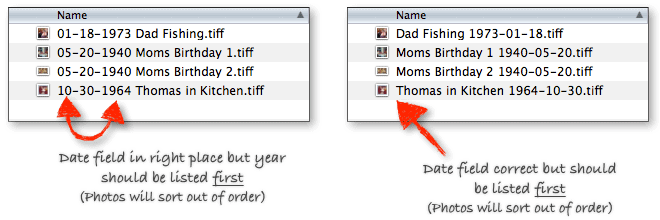

The methods in the first two examples are certainly a step up from just typing in a short description like “Grandma Sewing.” But I'm confident you will benefit more from entering them precisely, as demonstrated in the third example.
If you argue it’s better to put the date at the end of the filename because you would like to be able to sort by the event – the occasion in the photo, such as “Moms Birthday,” I would then add that this is an added benefit to putting the date at the beginning because all of your photos from one event will most likely happen on the same day or two. So not only will date first naming give you a chronological order sort, but you will also get the sort by event capability.
Add Zeros to Single Digit Numbers
Many of us aren’t used to writing extra 0s in dates – for example, when writing the date when filling out a check. We probably write “3-2-2010” or maybe even “3-2-10.” Fair enough.
But when filling in the shoot date for your photos filenames, it’s best to get into the habit of filling in these 0s for uniformity. It will make a much cleaner-looking and easier-to-read column of information.

Use x’s for Unknown Numbers
If you haven't started scanning your collection yet, and you didn't catch what I said before, let me be clearer here. More than likely, you will have a lot of photos in your collection that need to have the date the photo was taken identified anywhere on the print, negative, or slide. And worse, you may have no idea how to begin figuring them out.
Lucky for me, through the years, my Mom has written a lot of information on the back of most of our paper prints. Sometimes she wrote the entire date – month, day, and year. Other times it's “Fall 1974” or “Christmas 1975.” And then there are ones where she wrote much less, “1975” or “Easter.”
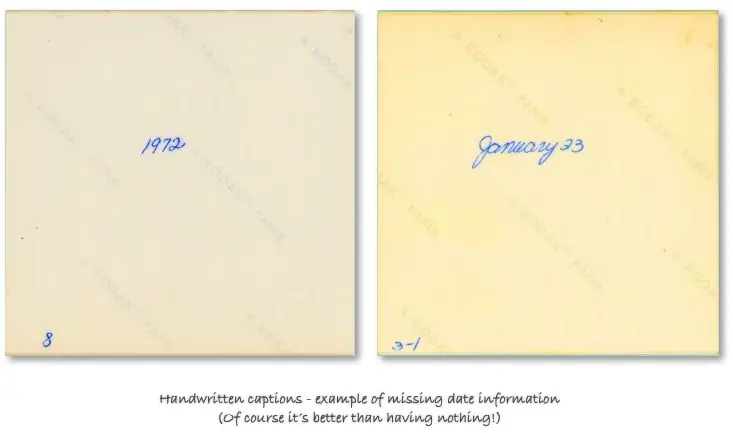
So to solve this problem, I decided to add a lowercase “x” where I wasn’t sure of a number. Doing this will allow you to sort and organize the master files as best as possible while in the “investigative phase” of this particular image. What's important is to get as much of the date into the filename as soon as possible.
When you find additional numbers later, you can always modify the filename – even if it’s being managed inside an image manager like Picasa or iPhoto.
Here is how you would deal with the various date information commonly found written on the back of your photos:
| Date Info Found | Enter This | Reason |
|---|---|---|
| Fall 1974 | 1974-xx-xx | Fall is in the later months of the year, but there is no way of knowing the month and day from just this bit of information. |
| Christmas 1975 | 1975-12-2x | You could put 25 instead of 2x, but “Christmas” could mean Christmas Eve or a couple of days around it. |
| 1975 | 1975-xx-xx | Since no month or day is listed, this is all you can enter. It's possible something in the photo itself can give you a clue. |
| Easter | 197x-xx-xx | Easter can happen anytime between March 22 and April 25th. But without knowing what year the photo was taken, there is no way of knowing which month and day. In the photo this example was taken from, I could tell I was only a few years old, so I know it was in the 1970s sometime. |
| January 1965 | 1965-01-xx | All I need to know now is what day the photo was taken. |
Don’t Guess on Numbers
This is a really important tip. If you aren’t almost 100% sure about the accuracy of a missing number, don’t guess and put a number you think is correct. Believe it or not, you will be far better off working with an “x” until you are sure you will be with a number you guessed.
Why?
You need to establish from the beginning that any information you type into the filenames of your master images is based on fact and not an assumption.
For example, if you have narrowed down a set of photos to have been taken in either July or August of a particular year, it's not in your photos' best interest to guess August until you are completely sure it's not July. If you were to type in August now and revisit this file next year, you would assume it's a fact this photo was taken in August because, more than likely, you won't remember your uncertainty.
You might allow yourself some exceptions here and there. You must decide how far you will allow yourself to stray.
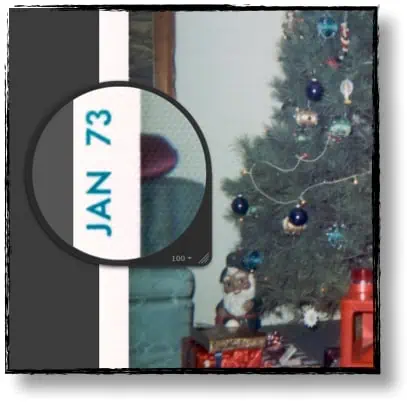
For example, I have a lot of photographs in our collection from the 1960s and 70s printed on 3.5×3.5” paper with white borders around them. Often, a month and year is “burned” into the left-hand border in a nice shade of aqua blue. This isn’t the date the photo was taken. It's actually the date the paper photo was printed.
It makes sense. I mean, how would the developer have known when each photo was taken when she was only just handed a roll of film?
I usually allow myself to use this date information in my filename because I know my Mom, and she is not a patient woman when it comes to “surprises.” If I mail her a Birthday card and it arrives in her mailbox a couple of days early, it will be opened almost immediately!
And she was the same way years ago. After a big event, if there were a few unexposed frames left on the roll in her camera, she would shoot pictures of the dogs sleeping around on the carpet so she could get the film off to the developer as soon as possible! If the photo was printed with the date “May 1976,” it was most likely shot in May of 1976.
So that's it! That's all there is to add in the shoot date, which makes up “Part 1” of my naming formula.
In Part 2 of this series, I'll be going over how to describe what's actually in the photo so someone unfamiliar with it or anyone in the shot will know all about it. Also, I will explain why “Dad Fishing” or “Mom's Birthday 1” isn't an adequate description for your filename.

Loved this 3 part series!!!
Please recommend some free photo editing soft ware.
(I was directed to GIMP – but way too sophisticated for me.)
Thanks!
I’ve been adding titles to my scanned pictures by putting YYYYMMDD and that works well for those pictures that are dated. I’ve substituted “x”s in place of anything missing, such as Dec 1982 as 198212XX. I was hoping that would place the picture in the sequence of other pictures in Dec 1982, but all of the photos with “x”s in the title are grouped together. Is there any other way to title them so that they fall in the sequence with those that have the exact date?
I name my photos as ‘YYYY-MM-DD (Type) People, Event, Location’, where Type van be used to indicate T for Date Taken, E for Date Estimated, or U for Unknown, etc…. What do you think?
Very good description. This file naming convention is what I have advocated at work since 1990. One modification. For even more concise file names, I use YYMMDD instead of YYYY-MM-DD. Saves four characters in the file name. There is really no need for the century – in most cases. 450524-Topic-Subtopic.jpg may seem a little awkward at first, but with minimal training, people get used to it. It means the same as 1945-05-24. In most cases people will know the century. 1845 – George Eastman was just born and photographs were noticeably different. 2045 is not here yet. So people can be pretty sure that the image is from 1945 – with just a little thinking. The future – we are in the digital age and meta-tagging will help us confirm the century if it is in question. File name sorting? Yes, a minor shift happens once a century as it did for me in 2000.
For clarity, in the method above I use zeros, not “x’s” if there is an unknown. For instance, 450500 means I don’t know the day in May of 1945. The sort does not work right if I were to use 4505xx. The sort sees it at 4,505 not a variant of 450,500.
Bruce, I have posted this previously, but….my main consideration is: how will my successors/heirs be able to identify the photo(s) ten years after I have passed away. I have tried to make it as simple for them as possible. They probably won’t care much beyond what year, who is this, where is this, what is this. Just a thought.
John
John,
Fully understand. There are tradeoffs. I have considered this and, in fact, used to use a yyyy-mm-dd format. I offer this as an option for those exploring options. I found that typing yymmdd was much faster to type and provided a shorter filename. Man-seconds add up when you process a large number of items. I do genealogy work in my spare time – which there is not much of – so I too am sensitive to passing things along.
Having a logical and efficient system is probably the most important thing. People can figure out other people’s systems if they have one. I have had to do a lot of it myself.
Family tree maker file name displays for media items cut off at about 20 characters. Can’t see the end of the file names. YYYY-MM-DD takes up 10 characters. YYMMDD takes up 6 characters. I chose to leverage those 4 extra characters for other file content description info.
Again, as in everything, there are tradeoffs. People should do what works for them.
Thanks for the reply.
Thanks, this information will in handy when uploading thousands of pictures of my dog.
awesome! thanks
Stacy,
Here are some other sources to learn about Lightroom. Scott Kelby books are very helpful for importing and organizing photos in Lightroom, but 3/4 of the books are about editing your photos. Adobe has some free videos that might be helpful: https://helpx.adobe.com/lightroom/tutorials.html. Another one is Lynda.com. Some public libraries have subscriptions to Lynda.com, and if you are a member of the library, you can access the classes using your library card. The Lightroom CC Essential Training (2015) class looks like it would be very helpful, especially the first few sections about importing and the catalog.
One thing some first time users get confused about with Lightroom is the catalog. They think their photos are copied into the catalog when they import them. During import the catalog builds an entry for the photo that contains the file name, file path, metadata, and other information. The photos stay on your external drive. Once the photos have been imported into Lightroom it is important that any file renames or movement of photos should be done within Lightroom. If you rename the name of a photo in Lightroom, it will also rename the photo on your external hard drive, and likewise if you move a photo in Lightroom, it will move the photo on your hard drive. If you do any of these actions outside Lightroom, it will lose track of the photo. It has tools to relink to the photo, but if you don’t notice that Lightroom has lost track of a photo until months later, it could take some time to relink to it.
I hope this is of some help.
Gary
Thanks Dave. Sorry for being a pain. One more question. Since I don’t have Lightroom yet (and especially if it’s expensive and I can’t get it for a bit), if I take the time to do all the titles and people naming and tags in Windows Explorer, when/if I do get Lightroom will all that info transfer to that program or will I have to do it again?
The metadata fields are all standardized. Once you enter the data into the jpeg or tiff file, it will be available to any program that can read the metadata, including LIghtroom. The only thing that I’ve found confusing is that different software programs may refer to the the same metadata by a different name. For instance, when you enter data into the Title field using Windows Explorer, it will be displayed in the Caption field in Lightroom.
So the work you do today will carry over into the future, whatever software you end up using.
Ok now I feel like I’m doing redundancy —
Filename – 2014-03-22 – Beach
Title – 2014-03-22 – Name of Beach – people in picture (if there are any)
Tags – Beach, name of Beach
Yes?
The answer is yes and no. The information you include in the filename is helpful whenever you want to browse through a directory of filenames. It lets you quickly recognize what the picture is without having to actually view it. Starting with the date in the format you are using lets you quickly sort pictures chronologically in almost all photo viewing software.
Having the date in the Caption/Title may be somewhat redundant, but there is nothing wrong with it. Since viewing software often can display the Caption/Title when looking at the picture, it will easily let you see the date. There is a specific metadata field for the date the image was taken. This is automatically filled in with most digital cameras. If you are scanning old photos, you will need to fill this date in manually.
Tags/Keywords is a different story. If you want to retrieve photos based on specific tags, then you should place your desired tags in the tags/keywords field, separated by a semicolon. You should do this even if that information appears elsewhere. That way you know your tag searches will always be accurate. You won’t have to depend on generalized metadata searches.
Ok Dave I got lightroom. I’m trying to understand it all. So there’s a Title field and a Caption field in Lightroom. Do you use both?
Filename – 2014-03-22 – Beach
Title – 2014-03-22 – Name of Beach?
Caption: people in picture (if there are any)??
Tags – Beach, name of Beach:
Sorry I know I’m being anal I just don’t want to keep doing it over and over. It takes sooooo long
Stacy, I personally don’t enter anything into the Lightroom Title field. This doesn’t mean that you should or shouldn’t. It all depends on how you will be accessing and using this data in the future. The topic of metadata is rather complex, since the fields available have their origins from several different sources – EXIF (Exchangeable Image File Format), IPTC (International Press Telecommunications Council), and most recently
XMP (Extensible Metadata Platform). There is occasional overlap of the information contained within these various metadata fields. Let me tell you what I do to give you an example, and then you can modify it to suit your specific needs.
I rename all my photos so they at least begin with the date (1945-12-25 …). If I don’t know the date, I’ll make my best extimate for the year and add an “e” after it so I know it was an estimated year (1938e, or 1938-10e if I know the year but am not sure of the month). For old scanned photos, I’ll also include the Location (ex. Beach, Grams house), Event (ex. Jeff Graduation), and relevant people (ex. Joe Smith, Jeff’s friends) if any of these are pertinent to the photo. No need to get very specific in the file name, because you can add any details when you write the caption. My scanning software will automatically number each scan sequentially. I keep that scan number at the end of the file name. This allows me to have multiple files with the same name, as is often the case when scanning a batch of pictures. They’ll just end with a different sequence number. I do all this renaming in Windows Explorer because I find this the fastest. The primary benefit of this detailed renaming is in organizing your photos after importing them into Lightroom and also to aid anyone who receives a copy of the file. Also, I find it easiest to now change the Date Taken to a more correct value using Windows Explorer in the Details Pane. You can also do this later after importing into Lightroom (top toolbar, Metadata; Edit Capture Time…), but it takes more steps.
When I scan, I try to scan a batch of photos from the same source, such as photos that came from my Mom’s collection or photos from my wife’s Grandmother’s collection. When I import them into Lightroom, I have Lightroom automatically add the source name into the ‘Source’ field. That way I always know the origin of a particular photograph. Along the same line, I will have Lightroom automatically put my name in the IPTC Creator field and if you want to get fancy, you can include other info here, like Creator Job Title of “Scanner and archivist”. That way future generations will know who to thank for all this digitization work 🙂
Once the photos are imported into Lightroom, I will add a Caption. Here I add as much detail as I know, including the names of everyone prominent in the photo. If there was anything written on the back of the photograph, I’ll include that here as well with the notation, From Back: ” … “. I try to add whatever I think might be of interest or helpful for someone exploring their past. As a side note, it’s good to be relatively consistent here when naming things. That way when you search for a particular word or word grouping, you’re more likely to find it. For instance, I can search on “From Back” to find all the photos that had something written on their backs. The reason I use the “Caption” field is that this seems to be a fairly universally utilized field in most photo viewing apps. If you have a favorite photo viewing app that utilizes a different metadata field, such as Title for it’s display, then by all means, enter data into the Title field also.
I’m still learning and tweeking my archival methods as I go along. I haven’t mentioned anything about how I do my keywording. I have tons of pictures left to scan, as well as hundreds of slides to photograph. I’m currently using Lightroom 4, and find it to be a big help. Good luck with your project.
Thank you Dave, for taking the time out of your life to leave such detailed, helpful and “spot-on” information on this website. I couldn’t agree more with everything you’ve said.
Myself and I’m sure anyone else who will come across all of your comments are grateful! Cheers.
Thanks Dave for your great response. I too think of it like the back of the photo where i’d write everyone’s name for posterity :). So I just went into the properties of the picture (in Windows Explorer) and saw the Title area and the Tags area. Thank you for your wonderful examples of the 2. So now a couple questions come to mind:
1) If I put in the title peoples names (aka what I’d write on the back of a photograph) can I search by that. So if I want to see all pictures of Joe Smith will that come up or is the search only for the tags.
2) is there a most efficient way to change all the metadata? I have to look into that Lightroom program that everyone talks about… But right now I’ve been changing all of the “file names” as I mentioned above to “2014-09-19 – Ryan’s baseball game” and I have all events in separate folders for the most part so it’s been easier to batch rename all of the IMG2726 file names to whatever date and event they were. But even that’s been taking a looooooooong time to get through. I’m thinking to “title” and “tag” each individual picture with peoples names and keywords would take forever because I have to go into each individual pictures properties to do so. Just wondering if there’s an easier way to get to that metadata so it’s all easier to enter.
Yes, you can search the Caption/Title field. In Windows, just go to the folder that contains your photos and in the search field (top right) type in “Joe Smith” and it will bring up all the photos that contain Joe Smith in any of the fields. Of course photo management software, such as Lightroom or Zoner Photo Studio will make it easier to find specific pictures. While Windows Explorer searches all the metadata fields, these other programs let you search by any field individually and you can set up sophisticated search schemes. You can also edit your metadata more easily in these photo management programs. For instance, you can select every photo that includes Joe Smith in the picture and then add ‘Joe Smith’ to the keywords/tags for all these photos at once.
FYI, when using Windows Explorer to work with photos, it’s easiest when the Details Pane is visible on the right. If it’s not showing, just press Alt-Shift-P to display it (in Windows 8.1 at least). This will display the title and tag fields for any photo so you don’t have to go into properties to edit them.
I use Adobe Lightroom as my main photo management app. Although it’s rather expensive, it does a lot in both managing a photo collection as well as in tweeking photos to look their best. It took me a while to feel comfortable with it and I found a book by Victoria Bampton, Lightroom the missing FAQ, was very helpful in getting me up to speed. Now it feels like an old friend. I also own Zoner Photo Studio, which can do most of what Lightroom does for less money and has gotten good reviews. I never spent enough time with it to feel as comfortable as I do with Lightroom though.
What is the difference between tagging and metadata? I’m so confused. I don’t want to have to keep going over and over pictures putting in details in different places. I am putting a naming of each picture “2012-12-23 – Mom’s birthday – Joe, Bill Lastname, Michael Lastname”. I want to capture as much data as possible for future generations of who people are. But I don’t want a million peoples names in the file name (at least I don’t think I do). Then there’s the tagging. I can put these peoples names in the tagging (currently only working with Windows Explorer and Picasa – no other advanced programs). Mostly working in Windows Explorer just renaming the files and making sure the dates/titles are there. And then there’s metadata that I’m not sure about at all or where to even start with that.
Stacy, I really like the way you are naming your files – very similar to the way I do it. The nice thing about digital photos is that they can hold more within them than just pictures. Metadata is a generic term for all that additional information that can be stored digitally within the photo file. There are many different types of metadata. Digital cameras will automatically embed the camera make and model, shutter speed, lens aperture, and a whole host of other data about how the photo was taken within the picture file. This is all considered to be metadata. The people that devised the standards for jpeg files and tiff files (www.metadataworkinggroup.com) allow for very specific pieces of metadata information to be embedded within the files.
The metadata types that I find most useful when organizing my old photos are the ‘Caption’ (also known as Description in some programs, and Title in Windows Explorer) and ‘Keywords’ (also called Tags in Windows Explorer). You can think of the Caption/Title field as a free-form area where you can write about the photo. I usually include any relevant history as well as people’s names here. I like to think of it as the “back” of the picture and include whatever I normally would expect to be written on the back of a photograph. This can be as little or as much as you want. Whatever you think will be helpful to future viewers.
The Keywords/Tags field is a bit more structured. It’s main purpose is to allow easy retrieval of desired photos from a large collection. As an example, let’s say you insert the keyword ‘Dog’ for every picture that includes a dog. In the future, if you ever want to find all your pictures that have a dog in them, you just have to do a simple search for the keyword “Dog”. You can have as many different keywords as you want for any picture file, but keywords should be separated by a semicolon. Also, a keyword can contain spaces (‘Disney World’ could be used as a keyword/tag). The key (pun intended) to using keywords/tags is to plan ahead of time how you might want to search for your photos in the future and stick to a well regimented set of specific keywords. Photo management software such as Lightroom and Zoner Photo Studio do an excellent job in managing keywords. I haven’t used Picasa in a long time so I’m not sure about it’s capabilities.
One you’ve taken the time to enter your metadata (Caption/Title and Keywords/Tags) into the picture file, it becomes a permanent part of the file. If you make a copy of the file to give to someone else, the metadata goes with it so future generations will always have the benefit of your hard work.
Hi. I am having trouble getting started. I have the Epson perfection V600 and Picasa that i don’t know how to use much yet.
i feel like there are 3 parts to what im trying to do and im not sure im doing it correctly which i feel is taking up a lot of my time.
1st i am scanning and putting the pictures on an external hard drive for now
2nd im naming which im not sure if i should be doing in windows explorer or if it’s easier in picasa which has me confused
3rd im tagging people in picasa and im not sure if that is the absolute last thing i should be doing?
im overwhelming myself which is making me not get started. i’ve scanned about 37 pictures so far….
Hi Stacy. It sounds to me like you have the idea just fine.
Scanning first and saving them to an external drive is great. And if you were to put them in a nice folder structure that’s well organized, even better! Such as, a folder for each decade, and then a folder for each year etc. And by storing them like this, in folders on your storage drive, you will be able to access all of them in whatever program you would like. So for example, if you ever move up to Lightroom, a more advanced program, you could import all of the same master images in your folders into it (as well) and use either program that you would like concurrently.
Next, you wondered about file naming. In some photo managing applications, it’s best to get a head start and name the filenames as best you can first before importing them. The reason for this is either a) it’s cumbersome to rename each one inside of the photo application or b) the new filename isn’t also written back to (or easily written back to) the master image file. Some programs store this new name in the photo applications’ database, but doesn’t actually rename the filename with the new one UNTIL the photo is exported — and then this copied file version is stamped with the new name upon saving it out.
I just tried “Photo>batch editing>Rename” a photo in Picasa (version 3.9.138.202) on my Mac running OS 10.10 (Yosemite) and it worked just fine. I renamed the photo there inside of Picasa and at the same time, it also renamed the master image stored in the folder on my hard drive. So, you’re good either way then.
If I were you, I would experiment with a few photos and see if you are comfortable making the filename changes in Picasa. If it’s taking you too long to manipulate the name there, then maybe renaming them before you drop them in a folder that Picasa is “watching” (set to always scan in Tools>Folder Manager) would be the better choice for you. And if renaming them one at a time is too difficult, there are some additional “batch-renaming” applications that can be helpful when renaming a lot of similar photos where you want similar names as well.
Tagging people… I think when to do this is up to you and your workflow. If your photos are out of chronological order like most of my family’s photos, then it’s possible as you scan, each day more and more of a special event’s photos will have a likelier chance of becoming complete. So, at the end, all of the photos from a birthday party might only be complete. And it’s possible, bulk-tagging ALL of those birthday party photos at one time might be easier than trying to do them piece meal as you scan them.
So, it’s really up to you. My preservationist side of me would suggest unless you need access to that tagging capability quickly, getting your photos scanned, archived and backed up in a couple places is the most important use of your time. (Just ask anyone that has lost their unscanned original paper photos to a horrific house fire)
With all of this said, I totally understand how you feel overwhelmed. It’s a lot to consider — trying to come up with the best workflow for yourself BEFORE you start your project. So, of course do as much research reading my website and others’, and soul searching as you can before you start so that you feel comfortable moving ahead. But, by all means, don’t wait too long. Many little details can be corrected later in your photo managing application of choice.
Hope some of this helps Stacy! Good luck… it’s so rewarding! Just tell yourself you can. :coffee:
So, I am just starting, literally. Of course, was too busy raising the kids to keep the photos in any order, now in the sweet spot between them grown up and no grandkids yet. My ex is doing the videos, and I am doing the photos, hope to have a good start by Christmas. I am up at my lake cabin in the wilds of northwest Montana, prepared to do a couple of hours a day for the next couple of months, between paid work and fun on the lake.
1. Do you have a “first day what to do” post I can’t find?
2. I have a MacBook Pro, and am keeping my iPhoto library on an external hard drive, which I DO back up 🙂 On your recommendation, I just received an Epson.
3. Out of the box, it crashed repeatedly so I went and downloaded a new driver which seems to work. The epson scan image appears on my computer.
4. I have studied up on the filename thing, resolved to start right. Here are my two problems:
A. Do I save to a folder in pictures, then import those into iPhoto? Can’t I just save right to iPhoto library? How?
B. EpsonScan will not allow more than 12 characters in the filename, after the date info (I was going to do my test scan on a great postcard my son sent to my now-dead mom from Hawaii when he was in college). I have the date, so following your system, wanted to name it “2008-03-27 Spencer’s postcard to June from Hawaii-00001”
EpsonScan will only let me get as far as: “2008-03-27 Spencer postc” Suggestions?
C. While I am at it, how do I do a double-sided thing like the postcard? I want to get his sweet message in his handwriting too, on the back side…?
THANKS for your work on this great subject, and for any comments from anybody. I want to start slow and right
Hi mrlawprof — does that stand for Montana Law Professor?
Congratulations on getting a start with your photo collection! It’s never too late. There’s always someone that will appreciate all the work you will do on it — if not just yourself!
1) I actually don’t have a post what do the first day. I think the main reason for that is that everyone’s first day might be different. Some people choose to scan a few slides the firsts day, others choose to go back into their closets and try and find more boxes of photos, while some spend it organizing their original prints into some kind of order.
I do have a resource page called “Getting Started with Scan Your Entire Life” that you can get to clicking on the “New Here?” link at the top of any page on my website. Here I list many of the posts I recommend visitors read who are in a position like yourself — getting ready to start the entire process. The very first post I list there at the bottom of the page, will talk about what my first week was like starting back scanning photos seriously after being off for a long time. This might appeal to you if you are ready for something this. 😉
2) EXCELLENT! Happy to hear you are thinking ahead for the worst, and keeping a backup of your iPhoto library! That is never wasted time or money.
4A) You actually have to scan your photos, and then save them temporarily to a folder on your computer before importing them into iPhoto. The reason for this is EPSON Scan, the application that you will probably be using the scan your photos in, doesn’t have direct access to your iPhoto library. And iPhoto, doesn’t access to a scanner driver (software that talks directly to your scanner) written into its code, so you are forced to use both pieces of software, with a folder of photos in the middle to go from one to the other.
I just create a folder on my desktop called “Scans” and tell Epson Scan to put all of my new scans to that photo. Then when I am done scanning for the day, I load up my photo manager (Aperture) and import all of the photos from that “Scans” folder into a new project (called “events” in iPhoto) and name then name it “Scans [today’s date].”
All of my prints and slides are out of order (too) before I scan them, and I’ve decided to do all of the organizing in my photo organizing software. So, these scanning projects (events) now become my temporary places inside of Aperture where I keep all of my scanned images before I organize them one at a time into the real events that are properly labeled and dated where they will live forever.
4B) Yes, sadly Epson Scan has not evolved since the year it was first put out (practically, not literally). It hasn’t changed much, so it’s still sort of stud back in the years when our operating systems didn’t allow filenames longer than a dozen or so characters.
I’ve gotten around that by just moving on and using that “prefix” field just to make sure I get my pertinent “step 3” in my naming system taken care of. This is the stuff about my scanner settings that I would forget later if I wasn’t sure to add this immediately. I also add my 5-digit number there as well using the “start number” as the last 3 digits — and the first 2 being the end of my prefix field.
I then manually add the rest of the information to my filenames. You can do this before or after you import them into your photo manager, but usually it’s best to do it before so that the original name is always correct, or as close to correct as possible. (Apple programs like iPhoto and Aperture keep up with both the original and new names, so an as accurate as possible original name is always more useful)
You can do this one at a time — tedious I know, but it works. Or you can use a batch-renaming program that will have a slight learning curve, but once you get the hang of it, they will save you a lot of time by modifying a lot of photos at one time with information that is the same for all of them. You could tell it to add the following text “1972-10-28” to the head of all of the files in one particular folder, and it would do it in a second or two.
One such application that I love that does this is called “Better Rename 9.” But there are lots of others that might be easier to learn but maybe not as powerful. The search keywords are “batch file rename” etc.
4C) 2-sided items get trickier as far as which method is preferred. The more complicated (advanced) the photo software, the more choices you have as well.
The easiest method is to scan both sides separately, and then name them similarly – “2008-03-27 Spencer’s postcard to June from Hawaii – front – 00001” and “2008-03-27 Spencer’s postcard to June from Hawaii – back – 00001”. Whatever works for you like this. You could abbreviate with “(f)” and “(b)” etc.
If it gets messy having lots of “backs” in your events, you could make an event JUST for backs and put them all in there. Then when you are looking at a photo such as “2008-03-27 Spencer’s postcard to June from Hawaii – 00001” and you want to read the back, then you just go to that “back” event and search for “00001” and the back will show up for that image.
Aperture for example, has a cool feature called “stacking” which lets you take multiple photos and make a virtual stack out of them, but have one photo be the image that represents all of them. So you could stack the front and the back images, but the front would be your representative image. Then if you ever want to look at the back, you just open the stack and view that “alternate version” which is the back image! Sweet.
I feel like I could answer your question for hours, coming up with other variations for you. But, hopefully what I wrote out will be a good start for you and will at least give you hope you are moving forward in the right direction. 🙂
Cheers! Good luck and have fun getting that start!
Here is my complete target naming convention if it helps.
I use the embedded metadata where possible for easy searching (except for AVI files which are being converted to MP4)
I make sure not to use spaces in case i need to make media available on a webpage.
19991231-245959-999 (digital camera files with embedded metadata, optional milliseconds used for fast sequences)
19991231-245959_Event_Name.avi (video files that use sidecar XMP metadata, i use the start time of the video)
Now for the many different physical formats:
19991231-N135-999-36 (35mm roll start date, roll number and frame number)
19991231-S135-99-144 (35mm slide carousel/book number and frame number)
19991231-N110-999-12 (110 film roll start date, roll number and frame number)
19991231-S110-99-144 (110 slide carousel/book number and frame number)
19991231-240-999999-40 (APS film -IX240- start date, serial number on the cartridge and frame number)
19991231-4X6-99-999 (dimension of print, Book/Box number and print number)
19991231-3X5-99-999
19991231-1X2-99-999 (wallet prints)
19991231-810-99-999
19991231-99X99-9999 (Anything larger than 8×10)
Ideally all images will have the following types of tags:
Names (“unknown name” tag if i need help)
GPS (“unknown place” if i need help)
Event
Text or signage that stands out (not misc. text that can’t be read in a large thumbnail)
Author tag will correspond to the most likely author
Copyright tag will have my email.
Permissions will either be Restricted or Creative Commons
Timestamps of all images corrected to the nearest month, or down to the second of the capture.
Timestamps of all event videos will use the nearest starting time if possible.
You saved me!! Thank you so much!! I’ve got this mess with scanning medical bills, saving, forwarding by emailing. Been copying and sending by US mail. So far I learned how to scan, name and rename. But, now I’ll go thru & name and/or rename your way. it makes so much more sense.
Next. How to file the bills for easy access: what to name the file, knowing what’s in each file, how to email groups of bills to two different places, and not all of the bills go to both places. Would welcome suggestions on how to save & file them, name the files, and group them to send some but not all to 2 different places.
Maya, so glad I could help you out!
I scan my bills with an old Scansnap S510. It was made just for PC’s, but I found a patch that will make it work on my Mac running Mavericks. I save all of the documents with a (sort of) similar file naming scheme. so for example, I have a folder called “Bills & Statements” and inside of that I have a folder for each company I get correspondence from, named for example: AT&T, DirecTV etc.
A scanned file might look like this inside of the folders: “2014-06-22 Directv — Monthly Statement” or “2014-06-15 Directv — Privacy Policy Statement.” I scan and save all kinds and types of documents from each company. Sometimes, I get so many, I have a folder inside of each company for each year. So inside of “DirecTV” I would have a folder called “2012,” “2013,” and “2014.”
Not sure all of the variables to what you need to send, and how you need to save your documents. Do you need to save them in 2 different places forever? Or can you store them in 1 place, but when you email them, you can send them out only?
You could make a folder on your desktop called like “Send to XXX person.” Then go to your archived folder of companies (maybe similar to what I am doing) and grab and pull whatever you want to email out and copy them into this folder. (Make sure you are making a copy of the document [with a + on the cursor] and you are not moving your only copy) Then you can right (contral if on a Mac) click on the folder and “archive” it — compress it into a zip file. You can email this .zip file of files inside and then the person on the other end can open it up. Or if it’s just a few emails, just attach the files separately in the email without zipping. Then when you are done sending, if you don’t need to archive these files split out in a second group, you can just delete this folder on your desktop because your original documents are archived away in the other location.
Hi – very helpful article. I just have a quick question as to replacing the xxxx-xx-xx format with the following:
yyyy-mm-dd
19yy-mm-dd
1979-mm-dd
1979-08-dd
Would there be a sorting issue with using yyyy-mm-dd in place of xxxx-xx-xx?
Hey Laurie. That’s a good question.
I’ve thought about it for a bit, and I can’t think of a reason yet that would prevent you from using this labeling method. If you sort in order, “newer” to “older”, files and folders starting with numbers will show up at the top. Ones labeled either xxxx-xx-xx or yyyy-mm-dd will show up at the bottom. Both methods sort (basically) identically since they are are unique letters standing out in a folder full of all numbers.
I think the important thing is to pick one method and be very very consistent with it. You would run into sorting problems if you labeled some photos with one method and others with another. Not unmanageable sorting problems, just inconsistent sorting that would slow you down and would therefore be something you would prefer to avoid.
But, if this method is easier for you to type, is less confusing for your brain to “decipher” every time you look it, or just looks more pleasing to you aesthetically, then I say go for it! It’s a nice alternative method Laurie. :thumbs:
Well, I tried using the 194X-XX-XX format for filenames of photos where I didn’t know the exact year. I ran into a few problems that I think I’ve solved. For one, there are few if any photos where just the month or day are known without the year, so having all the extra X’s after the first one are sort of redundant, taking up extra space and time when writing out the file names. So if I’m not sure of when a photo was taken, but am pretty confident of the decade, I’ll just start the file name with 194X without all the extra X’s. If perchance I do have a month or day known without the year, I’ll just include that information in the caption field.
Most modern Windows operating systems perform file name sorts by treating a sequence of digits as a number rather than as individual characters. The file beginning with 196X will be placed before a file beginning with 1943 since it sees that 196 is less than 1943.(This is different than early DOS days and for Windows versions prior to XP, where name sorting was done purely as characters): Hence, if I name my files using the XX method, they would be sorted by most photo viewing programs the following way:
19XX
189X
200X
1926-04
1932-06-28
1962
This is not how I want to have my photos sorted. I realize that some programs can sort by the “capture date” assuming you’ve set this date in all your picture metatdata. I’d rather not rely on this, so I’ve devised a slight variation on the XX method of photo file naming. For the dates shown above, I would rename them as:
1920ee
1890e
2000e
1926-04
1932-06-28
1962
When name sorted by Windows, they would now show up as:
1890e
1920ee
1926-04
1932-06-28
2000e
This is a much more useful sort order for me when viewing the pictures. The letter “e” after the year alerts me to the fact that those corresponding digits are Estimated and should not be taken as factual values. By default, I’ll use a zero for any Estimated digits, but there is no reason why I can’t take my best guess and use that number. I still can easily see that it’s estimated by the “e” that follows. I would then fill in the rest of the file name with the event – location – people data as discussed in these excellent blogs.
Very nice Dave! I like your creativity to make my method your own. Hey I never meant to imply my way is the ONLY way. It just happens to work best for me and solve all of my problems that I was currently aware of.
For example, a problem I still have is that my personality needs to have consistency and order to function contently. It’s a low form of OCD I am sure. So, I need all of my columns of information to line up evenly like a nicely ordered Excel/Numbers spreadsheet. So your way of labeling dates comes very close to working for me and my “problem,” but falls just a little short, only because the second “part” of the naming with the “description” information will then not always line up evenly on the “left margin” of it if you were to look at a vertical column of all of these filenames. By my adding the “xx’s” in every filename, it keeps the second column even (therefore consistent) and makes it easier for my eyes to read columns of filename information.
But again, your solution doesn’t need to be as “orderly” as mine. For you it just needs to convey that you either have all the information and its complete, or whatever you know so far is present and it’s possibly estimated if you’ve added an “e”. Yes, it’s all about finding what works best for for each person. 🙂
All that being said, I’m liking your idea to add an “e” for estimated. I could even add something like yours to mine and still keep it consistent. So if I was only sort of sure a photo was taken in June of a certain year, I could make it “1932-06-xx (e)”. And if I knew the date was for sure, or finalized etc, I could make it “1932-06-xx (f)” or something like that.
I like how you’re being creative Dave! Nice. :thumbs:
Curtis I have been pouring over your site, it is amazing. One thought, for new folks who might come across this before they begin (surely would be too much work for you at this point!) but would it work to add additional spaces after the date to accommodate for any possible ‘e’s so that you would not lose justification of the 2nd column? For example…
1922 Jean Burns birthday (5 spaces follow the date)
1920e Jean Burns birthday (4spaces follow the date since there is an e)
1900ee Jean Burns birthday (3 spaces follow the date)
I have a brand new scanner (Epson v600) that just arrived and is set up and sitting next to me, but I am spending a few hours reading your site before I dive in. It is exactly what I need to move forward with ease and confidence!
Curtis,
thanks for your extensive website – so much considered information, and great contributions from Dave, Art et al.
I’ve been in country Australia scanning the beginning of my family’s extensive photographic collection, and had been pondering a naming system to use once I returned to the city.
I too had settled on the YYYY-MM-DD prefix, as a start.
However, I’ve been considering a further variation on this after reading Dave’s commments, for the following reasons.
I’ve been thinking that (when the project is complete) copies of the archive will be shared to family members. The majority of people view photos on screens, and particularly, on their large screen TVs now, where the detail in original tiny wallet photos is finally revealed. I want the TOTAL archive (either in one folder or decade/’era’ folders) to be viewed in a slide show in chronological order, and thus the ‘narrative’ underlying the show will be the timeline that contrasts what various arms of the family are doing during the same period, by showing them contiguous with one another.
Of course, dates are largely missing, and must frequently be estimated to slot them in – with a best guess – in the timeline. As a further take on Dave’s ‘e’ suffix, I’m considering the following:
*Start with a basic date prefix ‘framework’ of “____-__-__”, instead of “XXXX-XX-XX” or “YYYY-MM-DD”.
The “_”underscores place-hold in the same way as the “XX” do(keeping our columns, Curtis, lined up, letter widths not withstanding :), but perhaps scream ‘missing information’ more. They could even be pencilled into the space, when working on, say, a printed file ist.
*Estimating dates where possible allows the photo to be massaged into a suitable spot in a chronological slide show, and tells future archivists you’ve had a considered guess at dating the image.
*Replace, from the left, any of the “-” with ‘e’ (for estimated) or ‘f’ (for fact), as appropriate. So….
~an estimated decade would appear as “189_e__-__” (1890’s)
~an estimated year would appear as “1967e__-__” (c.1967)
~a known day and month in an estimated year would appear as “1967e04f01” (eg. opening presents on an obvious birthday morning)
~and a complete file name would appear like this:
“189_e__-__(subject)(series no.)(version no.)(code no).(filetype)”
Windows appears to sort these examples correctly, (while putting an estimated date, just ‘earlier’ than a factual one.
189_e__-__
196_e__-__
196_f__-__
1967e__-__
1969e__-__
1975e__-__
1975e08f__
1979e__-__
1979e06e__
1979e08e__
1979e08f28f
1979f08e__
1979f08f__
1979f08f28f
1979f09f__
1980e__-__
1980e05e__
I’m keen to get readers’ thoughts on whether they think this works, and what problems they may think I may face, (whether OS, program-specific, logistical or clarity ones)?
I’ll have to think about your format a little more, but your idea has made me review what I’ve used. I have been using a combination of what I use for my digital pictures and Curtis’s “x”s. My date format has been yyyymmdd and using “x”s for the unknown fields, which as you and Dave point out doesn’t provide a chronological order in Windows. I’ve been scanning and trying to make the dates and who/what/where information in the filenames as accurate as possible without looking at the chronological order. I’m at a point where I should revisit the date format.
One thing you have to do is document this format so your grandchildren or children understand it years from now.
You mentioned viewing the photos on a TV. I’ve seen that a lot of people aren’t using Windows or Mac to display photos on TVs. They are using media streaming apps like JRiver, Plex, and others. I’m not familiar with them, but you might want to check to see if they use the filenames or metadata for the display order.
Gary
(Gary – please see reply, following Dave)
Wombat62, that’s an imaginative naming scheme that should work well for you. It’s a little more complex than I desire. I figure these files will be viewed by all sorts of people of varying technical skills and want to keep the file name as simple as possible while still conveying key information about the photo. Any specifics I want to include I’ll just put in the description field. This would include any information from the back of the photo, such as a partial date. As an example, if “July 14” was written on the back, I’ll include in the description field- (From Back “July 14″). If there is a lot written on the back, I just go ahead and scan the back too and use the same file name as the front of the photo, but including the words ” – back of photo”. I figure the info on the back, particularly if handwritten, can be as historically interesting as the photo on the front.
Gary brings up a very interesting point as to how future people will be viewing these picture files. We have no idea what viewing software or display devices will be used. I’m still trying to figure out the best way to disseminate my future scanned photos to all my relatives who might be interested. A web based scheme would be best. Then I could just email out links to the appropriate albums/folders. Two contenders for me right now are Google Photos and DropBox. Ideally, I’d like my relatives to be able to view the photos and add any missing info about a photo directly on the website. I have yet to find the ideal web based site. Maybe there is another free or low cost photo storage web site out there that is more metadata friendly.
Dave & Gary (& Dawn, tho I can’t see your reply on the site), thank you all so much for your prompt replies and thoughts – it’s great to know there are people engaged with this useful site and willing to offer up their thoughts 🙂
——————————————————————————————————-
Further ideas on File Name > Caption & Metadata > Slideshow relationship
——————————————————————————————————-
Dave & Gary, I should have added in my post, that I have been scanning the backs of photos when they have personal touches and ALSO using the Caption/Description/Title field for adding detailed information via the IPTC metadata writing capabilities of the community-created XnView photo management software. I’ve found it to be excellent. (Before I dive in further with this particular project I MAY hone (back) up on Adobe Bridge, which I have, or even invest in Lightroom, for further metadata work).
It seems (for me anyway) that the two main drivers are (imagining);
*By what means the photos will be viewed in the future, and therefore
*How people will be able to extract my hard-thought-or-won information….
Caption/Description/Title fields seem to be staying the distance, so I will put ALL information in there, but if I get quick at data entry, may also copy the various information components into the relevant (& possibly faster-searched) fields.
I think I’ll create a simple template of pointers to cut ‘n paste into the Caption/Description/Title field, to give me both a prompt and create some unity for the viewer.
YYYY-MM-DD: (particularly useful if I go with the ‘____f__e__e’ date explained earlier.
File name:
Handwritten on rear:
Printed on rear:
Subject:
L>R:
Photographer:
Image type:
Original Collection:
Current Holder:
ID No:
Restored:
(I notice that a photo I’ve received from the Australian War Memorial has ONLY used the Description field, and in this way. Surprised me they weren’t using all the IPTC fields.)
XnView has been great for full screen browsing, instant slideshows & group photo-viewing, with the ability to hit the “i” button and display Caption/Description/Title fields (or whatever you pre-determine) overlaid on the photos…
*A couple of questions to the group:
–Is this common on all good photo management software in full-screen browsing modes?
–Do such modes limit the content length (characters) of the Caption/Description/Title field?
(In XnView, i can tweak the size of the font to give me some leeway, before I begin. In a few instances, I’ve created a blank black *.jpg with a contiguous file name and inserted extra data in the Caption field, as a way of making a lot of extra related info, quickly viewable.
Gary, I will definitely include a “read_me.txt” in a shared photo folder, as well as a *.jpg title card (named/dated 1800-01-01_read me. (!) to appear at the front of a chronologically-viewed folder of images. No children, but plenty of nieces and nephews & theirs will need to be reminded.
And yes, I’ve wondered about how NAS drives, their photo sharing apps, and media streamers allow photos to be displayed. It seems there are no limits to the questions one must ask before embarking on – and hopefully future-proofing – this task. (Sigh)
Thanks everyone. W
I am just getting started on my project. At the moment, I am using file names like this:
“1907 Paternal Grandfather Wedding Notice” or “1971 Christmas at Broomall PA”.
For me (at age 76) it is enough to know just the year and I suspect my heirs will find that true also. In some cases, where I am unsure of the exact year, I think it better to make my best guess based on the factors you suggest (instead of using 19xx). I am using the Keyword/Tag field (using IrfanView) to add info about who is in the picture. IPTC has a lot of other data fields that can help a future viewer narrow down the who, where, when info. I do appreciate the posts you are making here, very helpful.
Hey John! Excellent! What you are doing with your filenames are just fine. 🙂 As much as I probably sound pretty stern in some of my posts that there’s apparently only one right way to do some things, my true belief with all of this is that this stuff is HARD and it’s time consuming, and it all comes down to the love we have for these photos and for our families that we want to cherish them some day as well. So, you’re right, just putting the year could very will be enough for you and your family. Some people might try and do much much more with their filenames, but then stop a month into the work because they just couldn’t live up to the task. It’s better to find the “sweet spot” for you and just keep to it! 🙂
And please don’t take this at ALL as me being patronizing to you, but since you brought this up, I want to compliment you on your determination to take this on. I honestly don’t think I can name off many — if any really — 76 year olds who could even tell me what IrfanView or IPTC metadata is! I’m usually just told, “Well I didn’t grow up with computers. They are just too foreign too me.”
So, you’re very welcome for the posts — I’m so glad to hear they have been so helpful for you. Keep up your project! Your heirs are going to love you some day for all of your hard work.
Cheers!
Because of my problem with numbers could I just rename the pictures with the date in full & the people/places in them?
Julie, I think that will work out just fine!
You’re basically suggesting just using part 1 and part 2 of my three part series here. So yes yes yes. Part three, really is for people with as I like to call it “advanced goals.” It’s for people who really want a lot of control over their collection and will sleep better at night knowing they have labeled and identified a great deal of the data that could be recorded about how a photo was scanned.
And even though I do think there are a LOT of amazing benefits to recording a 5-digit number that associates a scan with a digital file, but by no means is it necessary to produce a digitized photo collection that you will enjoy. The date and people/places it the most important thing.
NOTE: For anyone reading this who might still be deciding whether or not to add that 5-digit “barcode” type number, something to keep in mind is that it will be a LOT harder to add it later if you decide you wish you had done it, than it will be to create and record the number as you scan and save your digital files.
I have a unique issue with Aperture and scanning. When you import images that were scanned, Aperture uses the metadata from the date the images were SCANNED, not the date of the actual trip or event of course. But new devices like the new iphone photo gallery now automatically sort your photos by date and location, and so while I had a few dozen trips in the last ten years, I have thousands of images now showing up as March 3, 2008, the date I had my old slides and photos scanned. Aperture has a menu item to ‘change date and time’ and you can select further to apply to the original files, but it doesn’t work consistently. I haven’t been able to figure out why it gets hung up, but on about 1/4 of my images, the date change doesn’t stick and they revert back to March 3, 2008 (and yet many of the others in the same batch process will work). There are a lot of blog posts about this, so I think it’s a bug, but one that has been going on for years. I also bought a few EXIF converter programs to export the files out and change the dates and bring them back, and that also is not consistent. Wondering if you have any suggestions on this one? I really felt I could live with it until I got a new iphone which now sorts automatically my images by date…!
Hi Steve. I’ve been trying to change the dates to my scanned photos in Aperture, and I don’t seem to be having any problems — which is good for me, not so helpful for you since I can’t seem to reproduce the problem. And you say you’ve found others are having the same problem? Hmm… interesting.
Yeah that’s alarming that you are suggesting that the problem is that it reverts BACK to another date, even when you change the date in a 3rd party program and then bring it back in. That either imply that Aperture is overwriting the correct date in the date field, or the third party program didn’t change the date in the proper field that Aperture uses to base the date on. I have seen this before with a program or two. But, the fact that you can’t even get Aperture to overwrite the bad date with the correct date inside of Aperture, and have it stick.. that’s not good. (I have 2 programs I use sometimes to batch date files – “Photo Batch” and “Better Rename 9” — both in the App store I believe)
I’m sorry I can’t be of much help here. I just can’t get mine to -not- write the correct date and keep it. Have you tried creating a new “photo library” file and then importing a small batch of your photos in there to see if it sticks there? Could it be a corruption of your library file somehow? Or is what you are reading in forums elsewhere that this is a known bug and many photographers/users have pointed out it’s definitely a bug and not corruption.
iOS7. Yes. They make it more convenient for many, but make hardships for others — like those with old photos they are syncing to their phones without the correct “taken on” dates. So the Photos app in iOS7 seems to show the photos in order in the “Photos” tab at the bottom with the new way of organizing bulk amounts of photos. What about when you view them in the “Albums” tab view at the bottom right. Are they still in an order not in your liking? (I haven’t tried syncing scanned photos back to my iPhone in iOS7 yet so I’m not sure yet what happens).
I did find out the hard way that aperture seems to not like “dots” as in 2003.05.09.125
Upon exporting…it did not export with the dots…just changes it to something else…so I’ve spent A LOT of time retyping file names…
and yes, I know that I can batch change them…but I haven’t figured out quite yet…how to get the exact numbering sequence I want w/o aperture tagging on a few numbers.
argh.
Nancy, I was about to quickly say that was an OSX issue, where OSX wouldn’t allow dots. But, I just tried exporting a filename with dots from Aperture, and it seems to be working for me.
Here’s what I think may be happening. When you are in Aperture, and you change the filename of the image, you are changing what Aperture calls the “version name.” This is a working title for that image that is now different from the “File Name” which was the original name the file had before you just changed it. So, I think what happened was when you went to export an image out, you told it to export out using the “original” name and not the newer “version name” with the dots. Is that possible? If so, try it again, but make sure you choose “Version Name.”
Now whether using dots is a good idea is up in the air. If it works in OSX, you may be okay. And if it’s aesthetically pleasing to you, you may want to continue using it over dashes or nothing at all. But, if you ever want to move these images to a Windows environment, it’s possible it may not work. I haven’t tested dots in Windows so I am not sure if they will work or not. Just something to keep in mind.
Love this article and your suggested naming conventions! Question on the dates: I’ve been using, e.g., “20130519” instead of “2013-05-19” to help shorten file names. Is there a reason to include the hyphens other than readability?
Thanks Bill!
You know, I’ve been racking my brain for the last day or so trying to think of a possible reason why you have to add a hyphen, and I can’t think of one. So, yes, I believe the hyphen is just there for readability.
I almost said it might make a difference with searches, but I just tried it in Aperture and if you search for “2013”, it finds a project called “20130519” just as it does “2013-05-19.”
So I think you are good to go with your method! I’ll let you know if a reason why you shouldn’t wakes me up in the middle of the night some day. 😉
Thank you so much! I’ll let you know if I experience any issues as well.
Hi Bill and others,
I have followed the eight digit number followed by text naming convention for years now and it has saved my bacon many times when trying to find a particular photo. My identifying numbers use year (4 digits)+month (2 digits) +day (2 digits) (Australian convention :-)) in the form of 19870319 without hyphens, dots, spaces etc.
The great advantage of this for me is that it enables immediate time line sorting. I’m still using WinXP. It is also one of the most elegant of numbering systems and avoids any of these hassles when using proprietary software that have their own little peculiarities, such as “I don’t like dots” etc.
I use the text following the number to indicate content. Eg Bill, cat, dog, Foster, Sydney, Mary, Onyx and then use a little program called “Search Everything” to keep an eye on things. This latter program is by far the fastest program have used for finding files and folders. With it I can type in say dog, Sydney and Onyx and all files with those keywords will instantly appear.
I like the idea of adding XXs for unknown data. Aesthetically though I would rather use asterisks to make say 1965*2** but I have not tried that yet. Has anyone else?
cheers, Erik in OZ where it is about 33 degrees C at the moment and about 40 in Sydney.
First, I do like this idea of naming and dating the photos this way. I started organizing my digital photos that way a couple of years ago instead of by subject, etc. I’m just starting to archive all the photos my mom has. As we are taking them out of the albums (which, by the way, I hate those old “magnetic” albums–the photos stick to the pages), she is telling me who is in the pictures, etc. Most of the ones we are doing now are the real old ones–her family photos and my dad’s family photos. Some are dated and/or have captions to help identify them, but several don’t. The problem is she can’t always narrow down the date enough to come up with a year. So that’s causing me to have a lot of photos with “19xx-xx-xx” as the date. . There aren’t really any other family members who will know the answer so I doubt if the dates will ever be completed. Any suggestions as to how to handle situations like this so I don’t have a long list of “19xx” photos? Thanks for your help.
Patty, congratulations on starting your archival project — that’s awesome! (I grew up in the 80’s, I think I can still say that)
I just wrote an entire post with photo examples answering your question. It’s justly called:
How to Date Photos When Even Your Family Can’t Remember Them!
Thanks for the question!
Great tips. I have struggled with this for years. From this point on all my scanned images will be organized this way. The only other issue I have to address is images that I have already scanned (not using this method) that have been imported into iPhoto are sorted by (incorrect) date because they have the scanned date. Does anyone have suggestion on how to get iPhoto to sort when we don’t know the exact day or even year? P.S. One other thing that I do when scanning (this is a time consuming process) is that I also scan the back (almost always) whenever there is a handwritten description/date on back. I then increase the canvas size (using Photoshop) of the scanned image so that the back and front of the picture are shown side by side or top over bottom. You then get the feel of still looking at the picture of Grandpa fishing with Grandma’s handwritten caption. In some cases if the caption is only the year or just a few words I may actually just superimpose it on the bottom or top of the image if it won’t adversely affect the look of the picture. Takes a bit more time but adds a personal touch.
Andrew ~ I appreciate your comment! I too have scanned many backs of photos just because I couldn’t bare the thought of losing that precious handwriting that a family member took the time to write.
If you were ever to upgrade to Apple Aperture, a cool thing you can do is make a “stack” out of a group of photos. So one thing I have done so far with my scanned backs is made a “stack” using the scanned photo and then the scan of the back. (It basically just hides anything else in the stack — in this case the “back” image) I made the photo be the top image that shows when viewing the folder of photos. If I ever want to see the “handwriting” (caption) scan, I just open up the stack and it’s safely stored.
iPhoto Sorting – You have an option to sort mainly by title, or keyword or date. So you have some options. You CAN actually change the date taken of a scan once it’s in iPhoto. Highlight a photo, then go up to “Photos” in the top menu and choose “Adjust Date and Time.” You probably also want to check “Modify original files” so that it will change your master image file as well as the “version” you are working with in iPhoto. After doing this with your photos in question, you should be able to sort by Date.
If you don’t know the day or year, it’s tough. What I do is create a folder of photos by the decade in Aperture, and then a folder inside of it for each year. If I don’t know what specific year it is, I put it at the top in a folder that is just miscellaneous photos from that decade until I can get a family member to help me narrow down the date.
I love that you appreciate your family member’s handwritten captions. Having searchable text is great, but it still doesn’t beat that real personal touch of someone’s real handwriting! 🙂
Hi Curtis,
Although my current priority is to be able to match physical photos to digital files, so I don’t use the exact same naming technique, your advice is sound and clearly stated – much appreciated! However, I might also add that some might consider using yyyy-mm-dd. I was myself at one time using xxxx-xx-xx, but a fellow genealogist (and more experienced as I only dabble), suggested that using x’s does not solve the problem of people discerning appropriate dates. I noted in my article that something with “12-xx-19xx could mean December something 19something OR the 12th DAY of some month, 19something. Instead I use the above, because when portions of the date are uncertain (I agree about not guessing!), by using yyyy-mm-dd, you are being crystal clear which section designates month and which section designates date. I am also in complete agreement about leading zeros as a way to maintain a consistent length for that particular section of your filename.