
The DPI You Should Be Scanning Your Paper Photographs


When scanning anything with your scanner, one of the most important decisions is choosing what dpi (“dots per inch”) to scan with.
And specifically for this post, what is the best DPI to use when scanning and archiving your 8×10″ and smaller paper photographic prints — which, for most people, make up most of our pre-digital collection.
Making this decision was very challenging for me and certainly a huge part of my 8-year delay. The reason for this is that dpi (sometimes also interchangeably referred to as PPI for “pixels per inch”) is the critical variable in determining several important outcomes for your scanned digital images:
- Detail – how much image detail you will extract from your photograph
- Image Size – how much resolution in pixels you will have to work with (e.g., 2400 x 3000 pixels)
- File Size – how large the file size will become (e.g., 64.9 MB or 64,878,462 bytes)
It's a decision you want to make before you complete your first scan. Trust me, you don't want to get halfway through your collection and realize you scanned too high, your computer is running sluggishly, and your image quality looks weird — soft and pixelated. Or worse, you find out you could have been extracting more image detail from your prints if you had just chosen a slightly higher dpi to begin with.
Finding a Manageable Scanning DPI Game Plan
When trying to decide which dpi to scan and archive your photos with, the “big picture” that you want to keep in mind is the following:
What dpi should we scan our paper photographs with that will capture as much detail stored in them as we possibly can, will create a manageable file size, but will also produce enough image resolution should we choose to do some radical cropping, print them out to an average-sized enlargement on photo paper, or display them on high-definition monitors and televisions.
If you study the routine of a professional photo restorer, you will learn they tend to see each photograph as a separate unique challenge — like a doctor attending to an ailing patient for the first time.
It's a laborious investigative process for them. They may even scan each print several times with varying dpi's, carefully comparing each image until they find the most appropriate dpi for the photo's personalized workflow.
Because you probably have anywhere from hundreds to thousands of photos in your family's collection, it's not practical or even reasonable for me to suggest we would ever want to attempt such perfectionism. So, to make things manageable, I wanted to come up with scanning dpi values that we could all use that would be easy for all of us.
The Best Scanning DPI for Your Paper Prints
Most everything you will need to know to decide which DPI to scan your photos with, including my recommended dpi value(s) you should use, is discussed in the special video right below here.
The video is a section taken from one of my lessons on scanner settings in my video training course on scanning and organizing photos. Until now, you needed to be a Member, but for a limited time, I've made this particular section on “The Best Scanning DPI for Paper Prints” available for those who are free subscribers to my email list too.
Think of this as a Mini-Lesson on learning the best way to set your scanner DPI setting for your photo collections!
Start Here With This Mini-Lesson
Additional Information:
And here are some other important points that aren't mentioned in the video above that will also help you understand how your scanner works and how the dpi selection will affect your family's photo collection.
Problems When Choosing a DPI Based on the Time Required to Scan
One of the biggest mistakes I find people make when choosing the dpi is allowing the length of time it takes to complete the scan to influence their decision. Those new to scanning may be surprised to learn that the higher the dpi, the longer it takes for the scanner to make its capturing pass and for the computer to process the information. I've recorded for you the time it takes the Epson Perfection v600 flatbed scanner to complete scans with various dpi's set.
Scanning Times for a 3.5"×3.5″ Print on an Epson Perfection V600 Photo
| DPI | 150 | 300 | 400 | 600 | 800 | 1200 | 2400 | 3200 | 4800 |
|---|---|---|---|---|---|---|---|---|---|
| Time Elapsed (mins:sec) | :11 | :12 | :14 | :18 | :31 | 1:02 | 2:34 | 3:53 | 6:37 |
You can see there is, in fact, a vast difference in the amount of time required to scan at one of its lowest settings (150 dpi) and scanning with one of its highest (4800 dpi). But more importantly, I want you to notice the time it takes to scan between the range of 300 dpi through 800 dpi. It's relatively almost the same length of time. With this model, we are only talking about a difference of 19 seconds. And specifically between 300 and 600 dpi, it's only a measly 6 seconds.
If you're about to purchase a new scanner and you're looking for an affordable flatbed scanner, I would highly recommend either the Epson Perfection V550 or the Epson Perfection V600.


All scanners scan at different speeds, so your scanner may or may not be slower than this model. But if it is, chances are the percentage of time between each of the dpi settings will be very similar. Regardless, if you think you are going to be one of the ones waiting impatiently for your scanner to work its magic on a higher dpi, I would like you to remember this. Scanning and archiving your family's photo collection is an investment. It's going to be an investment of your time and energy, and for that reason, more than likely, you will only want to do this project one time.
I believe it's worth a few extra moments to ensure your image quality isn't being compromised by rushing the process. Open wounds need time to heal, baking dough needs time to rise, and photo scanners need time to scan. See where I'm going here?
To fill the extra time, consider taking an extra-long sip of your nonfat mocha latte, play solitaire, have a television on next to your scanner, or better yet – lightly dust off your next photo to be scanned with a lint-free cloth!
Are You Looking for the Fastest Flatbed Scanners?
However, if you are shopping for a new scanner and you really want the fastest model, then I would recommend either the Epson Perfection V800 or the Epson Perfection V850.


Optical Resolutions vs. Digital
The really high resolutions, however — 2400, 3200, and 4800 dpi — are really intended for capturing really small and highly detailed sources like film negatives and slides.
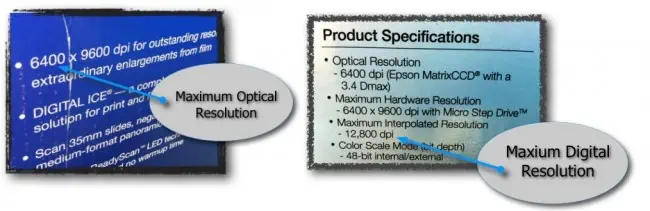
If you want to experiment with these resolutions, just make sure you stay away from the “digital” ones. On the box your scanner or printer/scanner combo came in, you will see a rating with two numbers. The Epson Perfection v600, for example, is rated for 6400 x 9600 dpi of resolution. The first number is the highest “optical” resolution your scanner is capable of and, therefore, the highest dpi you should ever scan with. The second number is often the highest resolution it's capable of scanning digitally — faking the results by interpolating the data. Thankfully, some scanning software now won't even let you select the digital dpi's from the list.
In the case of the Epson Perfection v600, the maximum “digital” resolution is actually 12,800 dpi, much higher than the second number given. So you may need to consult your specifications printed on the box or find them in the printed or .pdf manual if you are curious about your scanner's digital capabilities.
The Advantage of Having All of This Archived Image Resolution
In the end, there won't be any benefit to having our entire collection in a digital format if we aren't able to make paper prints from them like we can with our film negatives. Just like we need a certain amount of “dpi” to capture images into the computer, we need a certain amount to print them back out to paper. The larger the piece of paper you want to print on, the more image resolution you are going to need in your digital files.
Printers today need, on average, between 200 and 300 ppi (dpi) of image resolution information to print a high-quality image on high-quality paper. And I am going to make the assumption that most of us seldom print out a photograph larger than 8×10 inches. This is good because almost all of the printers out there won't even print larger than 8×10 inches!
I know you probably hate math as much as the next person, so don't worry – I'll do it for you. What this means is that in order to print out a photo on an 8×10″ piece of paper, we need up to a 2400 x 3000 ppi (dpi) image. Here's my work:
(8 inches x 300 ppi) x (10 inches x 300 ppi) = 2400 pixels x 3000 pixels
Given a choice, without a doubt in my mind, it's better to scan too high than to scan too low.
And if you don't want to take just my word for it (grin), when I started learning all about scanning years ago, I found great comfort in this quote from Wayne Fulton of scantips.com and kept going back to it:
It is true that if the image might be resized after the scan, it's always much better quality to resize to reduce the image size rather than to resize to increase the image size. If you aren't sure what your future intentions for the image might be, and won't be able to scan it again, then it's probably best to err on the large side (if storage space allows, up to reasonable amounts anyway). Resizing to be smaller discards excess pixels. But resizing to be larger must create (or fake) new interpolated pixels which were not in the original scan. There is no additional detail possible in interpolated pixels, even if the image is larger. The results are not at all the same as scanning at the higher resolution.
Conclusion
Alright, again, if you haven't watched the special video above, I would highly recommend you watch it. Most of the information you need to know is in this easy-to-follow mini-lesson.
After watching the video and reading this article, has this made you change your mind one way or the other? Tell me what you think about all of this in the comment section below. I'd love to hear your thoughts.

Hi…….I’ve joined the email group and find I still can’t watch the mini lesson video on dpi…..resolution. I can’t type my email address in. Do you not offer it anymore ? If possible send me a link via email…..rysnikj@comcast.net
I think that it might be helpful to explain that dpi or ppi is totally meaningless unless associated with a “print size” or “document size” (even if you’re not actually going to print the image.) I always do flatbed scans at 100 percent, to make it easy to really know what resolution I am getting.
Curtis, how do you feel about the quality of scans with the Plustek ePhoto?
Guess I’ve been spoiled for years with my high resolution, but discontinued, Pixma MX922. This all-in-one is not compatible with my new mesh wifi network and can’t find another all-in-one that matches both the maximum print (9600 x 2400 dpt) and scan (2400×4800 dpi) resolution. Because I don’t have room for a separate scanner, I’m at a loss. Primarily scan old family photos and I have a huge number. Also am the family historian and have some old books of photos dating back to 1800’s to scan and publish. Can you help me find a replacement device? Would appreciate any suggestions.
Hi,
Is the Epson Perfection V600 still one of your top scanner choices?
Absolutely! The V600 is a “workhorse” scanner that’s been around this long for a good reason. 😉
I planned to scan my entire photo collection years ago and after much research I bought the Canon 9000F. At the time, it was the highest rated flatbed scanner out there. I would love one of the Epson’s mentioned but I already have the Canon and I can’t see spending tons of money on a newer scanner. Is this okay? Will I still get quality scans according to your program?
Like you I have a Canon 9000F but when Cannon no longer provided drivers for my MacBook I had little or no choice but upgrade my Scanner to Epson V600
Hmm Roger, I might have suggested before if you truly wanted to keep your Canon going on your MacBook, to look into purchasing a copy of VueScan or VueScan Pro which provide “life” into aging scanners on new operating systems with their own drivers. But, I think you’ll be very happy with your new Epson V600 even though I know it was an added expense you likely didn’t want to spend at the time.
I second the suggestion to use Vuescan Pro. Very complete and flexible. Ed Hamrick (ex-NASA) and his son run the company and are always updating their software and scanner drivers even for hardware that has been discontinued for many years. I’ve been using Vuescan Pro for over a decade on numerous scanners, most of which were professional models that I bought discontinued for a dime on the dollar knowing that connectivity and software would never be a problem. Even scanners that don’t have “official” versions for Mac can run with VueScan.
I recommend rating and comparing scanners ONLY by the hardware itself, not on the software bundles that come with them, the latter of which will rarely if ever be used used unless you’re talking about something like Silverfast.
Patti, yes, I think you’ll be fine. As long as this scanner is still working on your current computer and you’re still producing good scans on it, then you should find that the course lessons in my membership program will work just fine for it. I think you’ll find the quality of your scanner compares very closely to what Epson offers with the Epson Perfection V600 Photo.
I found this article in the middle of scanning a photo at 3200dpi. All of a sudden I wondered, “Is this really necessary?” and stumbled on this article. Great help! Thank you! I canceled the scan and went to 600dpi. (I’m using an Epson Perfection V19, by the way–only about $70 when I bought it 7/2020– and I’m quite pleased with it!)
Excellent, Andrea! Glad to hear you found this article JIT — just in time. 😉
Hi, I haven’t read all the comments, I’m about to bite the bullet and scan my photos. Just wanted to suggest the Epson FF-680W which scans at 600dpi in 3 seconds, 300dpi in 1 second, via a feeder without damaging the photo. Good luck.
Thanks for your suggestion, Michael! Yup, the Epson FF-680W is a nice little compact scanner, and I do recommend it for many people that can afford it. To make up for its compromises, it has several benefits that are very enticing for those with more “basic goals” with their photo collections. If you bought for those features, you’ll likely love it. 🙂
However, the more advanced your goals are, and the more types of photos you have in your collection (such as a variety of small and thin fragile prints, thicker Polaroids or film like slides and negatives), the less I would recommend it to people to do the heavy lifting for the bulk of your entire photo collection.
Epson basically took a scanner meant for scanning (office) documents and then worked with the software so that it could also do a decent job scanning photographs as well. And unfortunately, to get an image sensor in an area in that tight of space, they had to settle on a lesser quality type of sensor instead of the high quality ones they are able to fit in their “roomier” Perfection flatbed line of scanners. The compromises to obtain this type of speed while scanning will be a sticking point for a lot of people with mid to advanced level goals who are particular about how they want their scanned collection to turn out.
Congrats on getting a start on your photo collection. Cheers to your new project, Michael!
Hi, thanks for all the information here. I have an Epson Perfection V600 Photo, but I can’t get to scan my photos beyond 2400 at 48 bit because a message would pop up asking me to reduce resolution. According to the EPSON website: “EPSON Scan Professional Mode has a maximum pixel count of 21000 x 30000”. Is there any way around this so hat I can scan at 4800 with 48-bit? Maybe another software? In case there isn’t any, I guess is better to reduce resolution than to switch to 24-bit, correct? Thank you in advance!
I want to scan some old photo’s and I scanned them at 600 dpi on my HP photosmart premium printer/scanner. the picture sizes range from 2×3 upo to 5×7., and just a few at 9×10’s.
I this a good setting. I don’t expect when reprinting the photos to enlarge them beyond 5×7’s in the future.
Secondly, I have some very very old photos dated back to 1800’s and early 1900 and I am having a problem scanning them in with reasonable quality,
Looking at a slightly different problem. My mother has 15 print albums, each with at least 50 pages. Each page has a variable number of pictures on it. They are glued in place, and encased in a plastic overlay. It is impractical to remove the pictures and scan each individually. The WHOLE PAGE scans well even with the plastic overlay.
BUT, I then have to crop each individual picture into its own file, and “blow it up” to a reasonable print size. For example, one page might hav3 3 2×2 pics and one 5×7. Other pages might have 6 2×2’s and another might have one 8×10.
So far, I’ve experimented with 1200ppi and the cropped images work out reasonably well. BUT, as you note, the scan time and the file size are long/large.
I’m thinking there is no general solution, but I’m loathe to set & forget at 1200, and MORE loath to analyze each of the 750 pages I need to scan. I think the quality loss at 600 is too much for the smaller pictures, unless I just abandon ever expanding the small ones into bigger prints (or monitor displays).
Any ideas?
Pete A
Are you using the scanners supplied software to scan? My HP scanner has an option to scan multiple photos on one page and crops them itself – it first of all scans a quick preview image and then suggests photos it has found – you can edit the areas or add new areas to any photos it hasn’t detected correctly, it then scans each individually. This scanner is about 10 years old and the software of similar age, so I would of preumed new scanners have such a feature?
Hope this helps
very helpful thanks
Thanks this was helpful
Dear Curtis,
Hello! I found your article above to be very helpful…Thanks! But I had a question I was hoping you could help me with before I invest in a photo scanner (I’ll probably buy the one you use).
After scanning in slides and negatives, will they appear as a regular photo and much larger on the computer screen, or will the images remain super tiny, true to life size? My family primarily wants to just view photos, slides, & negatives on our computers.
Thanks so much and have a great day!
Sincerely,
Chris
Chris, glad to hear you found this article helpful!
When you are scanning in your slides and negatives, you will have the option of how “large” your images will display on your computer monitor based on what settings you choose in your scanning software. It’s actually a mathematical equation (that thankfully you won’t have to know 😉 ) using data such the size of your image area and various settings such as the DPI, that will determine how large in pixels your scanned image will turn out to be. So, really it’s just a matter of choosing the settings based on your long term goals for your collection.
But, the simple answer is yes, if your settings are adequate, your images will appear to be much larger on your screen than the true to life size of your film frames. If you are unsure of how to set all of these settings on your scanner, be sure to check out my membership program. I have step-by-step, really in-depth tutorials that will teach you everything you need to know before you start.
What you really don’t want to happen is get mostly through scanning your collection and decide you’ve scanned using the wrong settings.
Cheers to your new scanning project!
You are right – you are terrible at math. You have a units problem in you calculation. You calculate the total number of pixels, NOT dpi or ppi. The “i” (inch) in dpi/ppi goes away when you multiply by photo size in inches. But you lead the reader to beliece that is the resolution they should scan at (i 2400 x 3000).
It would be helpful to relate the various scan resolutions to equivalent megapixels. For your example, the scanned 2400×3000 pixel image is equivalent to taking the picture with a 7.2 megapixel digital camera. People can relate to that better
That’s a good catch. I certainly didn’t mean to lead anyone on. You’re right, I should not have added “pixels per inch” in the results end of my equation near the end of this post. I’ve just corrected it so it’s clear I meant the results were in the number of pixels and not “pixels per inch”.
And that’s an interesting idea to relate the final pixel resolution of a scanned image to the equivalent of the megapixel count of a digital camera. It would be helpful to some, especially photographers.
Though I suspect, since the most popular and only camera many or even most people use today is their smart “telephone” in their pocket, the importance of being aware of what a megapixel is anymore is very small. I’m not really sure the general population really relates to the term “megapixels” anymore. The workflow of taking photos on a smartphone really makes knowing how many megapixels their photos are a thing of the past. Most people who wouldn’t identify themselves as “photographers,” probably were only aware of the term megapixel back years ago when they were at a store trying to decide between two point and shoot cameras, and they were using the number of megapixels as a gauge of which was better for their money.
But still, let me think about it. This post is due for a revision, so I could possibly include this idea.
By the way, I never said in this article I was terrible at math.
Some people have no class at all, do they Curtis. Thanks much for the valuable info.
Thanks, Regis. I appreciate that. 🙂
Curtis,
Thanks for a fantastic post. Over the past few years, I have been thinking about this project, scanning old photos & capturing over 25 years of family activities. Now that I am ready, I had several wondering thoughts and questions, and this post just put all of them to rest. I also wanted to let you know of the good scanner I found, plustek ePhoto, 600PPI that is reasonably fast and easy to use.
Axel.
Fantastic Axel. Happy to hear this post helped you so much. Good luck on your project! Go for it!
Just remember… baby steps. It’s all about one photo at a time. And before you know it, you will have scanned thousands of them!
“Fantastic Axel” would be a good band or album name.
I noticed that you only use flat scanners. Have you ever used a self feeding scanner? I don’t want to sit by my scanner all day. Please reply!
Hi Anne. I have used some self-feeding scanners. And I am not completely opposed to them. I think there’s a place for them in some people’s workflow. I generally just don’t gravitate to them, because of the results you most often get from many of them.
Many if not most of them, cut corners to make the process cheap and fast. They use the cheap quality scanning mechanisms that are required in order to fit into these tiny machines, and therefore they don’t produce near the quality of a flatbed. I spoke with a representative from a very well-known company, and he said their feed-scanner model has such a “noisy” scan (read as bad quality in the simplest of terms), they had to write new software to try and digitally enhance the image once the scan has been completed, so that it looked decent when compared to the results of a flatbed.
And then there is the issue with many of your prints not feeding through straight so you have to redo them. Or they get cropped and part of your image gets cut off. Or with all of the ones I’ve tried, you get white streaks (lines) through a fair portion of your scans attributed to the fact that your prints won’t be perfectly clean going in, and the rollers and the scanning optics inside are not immune to a buildup from this foreign residue.
And then the scary part, is you have to consider the fact that any one of your prints going in, is susceptible to a jam. I don’t care what they tell you. It is possible. And a jam could mean damage to your irreplaceable one of a kind print — especially the really old thin ones. You can be really careful and try and watch and guide them as they feed through, but eventually, you might take your eye off one and it might go in a bit crooked and the power of the motors might bunge it all up.
So again, I’m not opposed to sheet-fed scanners. And when I find one I really like, I will definitely list it with the other products I recommend on my resources page. But generally, I like to focus my attention on what I know will give people great results consistently. Most people only want to do this project once, and be extremely happy with the results. Some might be happy with an inexpensive but decent sheet-fed scanner in the $400-$600 range (higher-end sheet-fed photo scanners are $1500+). Others though, are willing to put in a bit more time to get better results from their time. The trick Anne, if you go the flatbed route, is to use the time while the flatbed is working, to do something else with your scanned files that you will be doing at some point anyway. Then it won’t feel like you are just “sitting by your scanner all day.” 😉
I am ecstatic to find this information; it’s exactly what I was looking for – thank you!
Happy to hear! Thanks for letting me know you enjoyed it Serafina.
Curtis, I am afraid I have to say that your article “The DPI You Should Be Scanning Your Paper Photographs” is horrible. You lose yourself in theory using over 6000 words! Even if you cut out all the nonsense you would still leave your readers to trial and error learning. I suggest you try writing a concise guide on scanning different kinds of photos, a cook book as it were, on how to get excellent/optimal results depending on source. Max 1000 words. I could say it in less than 100 words. Good luck!
Where’s this 100 word article you speak of Nils? I’d like to check it out. You’ve had about 3 years to work on it…
Hello is it possible to scanning a paper document in A4 format in 4800 dpi with the Epson Perfection v600 please ? Thank you
Hi Curtis,
I stumbled upon your article since I am begining on my own journey to scan some old photos. Thanks for writing this super insightful article! I am slowly going over the other contents of your website. 🙂
I’m curently scanning with a Canoscan 9000 with Vuescanf. Forgive me if these questions have already been answered elsewhere but in terms of image size, is it a good idea to scan them bigger? eg. if I have a 4×6 print, should I scan it at a 8×12 size? Does it make a difference?
Also in scanning photo prints, is there any difference scanning in 24bit or 8bit? I ask because when I scan I tested one scan at tiff 24bit, but when I open it in Photoshop under Image/Mode/ it’s in 8bits/Channel? Not to mention that the 24bit Tiff is 226MB in file size compared to the jpg of the same photo at 14.5MB
Thanks so much for the info. Researching desktop scanners to scan boxes and boxes of 4×6 (mainly) photo prints. Any recommendations?
Hi there. Great article, thanks. I have an additional question: I need to scan some 4×6 photos that may be used as exhibits in a meeting, so I want to be able to blow them up to 16×24 or 32×48 – something big enough to put on an easel. I have a printer that will scan at 600dpi. I’m considering getting a Canon Lide 220, which says “Providing a maximum optical resolution of 4800 x 4800 dpi2, its vivid 48-bit color depth is capable of producing over 281 trillion possible colors.” Will this make any difference? Or if i’m just scanning a regular quality 4×6, should i just use the 600dpi i have.
Hi Aleca. Do you have the negatives to the photos you wish to enlarge? If you do, I would certainly scan the negatives instead and use that as your master image to produce your enlargements from. Unless it’s okay that the images appear really soft (blurry).
The problem you will experience is all of the image quality you need, at that possible size (16×24 or 32×48), is really being stored in the negative. Once a 4×6 print is made from the negative, there’s much less image quality (detail) stored in this version. Most agree that a 4×6 scanned and then printed, will really only yield a decent 8×10 or so.. anything larger than that, and it’s really pushing how sharp the printed image is going to come out. The detail that is there in a 4×6, is really only between 100-400 dpi or so. Above 400 dpi (especially in older color prints from generates past), this extra DPI is really just helping to make the image size larger — but probably not any more detailed because it’s just not there in the print to begin with.
Curtis, as I am in the market for a good quality scanner, the Epson V600 is one I’m looking at. My main interest is scanning 8×10 and smaller b/w (and color) photos of U.S. Navy ships from originals (NARA, etc.) and other sources for use in ship model building. Details are extremely important. This article has been very helpful in this research. Thanks for clearing up various terminology used that most of us “thought” we understand (DPI vs pixels, etc). Do you notice any distortion in the output aspect ratio if you rotate photos 90 deg. when you scan them?
Thanks for an excellent scanner report!
Really helpful article. Particularly fixed my confusion about the difference between ppi and dpi. But the whole focus of article and comments is on printing photos. My interest in scanning is to share old photos on various genealogy websites or where my tree is posted, where I understand they can or should (?) be scanned at very low resolution. But I also want to share with family, and newly found cousins, who might want to make prints. And of course I want to make just one scan to satisfy all needs. Should I scan for printed and assume it will work for websites? And one final question: If a scanner says “600 x 1200 dpi (optical) 19,200 x 19,200 (interpolated)” and one is to consider only the first number — does it only scan up to 600? Thanks in advance if you can help.
Your article is incredibly helpful–thank you! Here’s my question though. Before getting started with my photos, I am experimenting with one photo at different settings. I have found that the scan of my photo (about 3.25 x 2.75) at 600 dpi is a little sharper than at 300 dpi, but still is not very sharp, and has small white lines across it in a few places that are not in the original (and not on the glass–it’s been cleaned). When I choose the “higher quality” option on my scanner, those lines are gone, but it’s still not a sharp picture, compared to an uploaded recent photo taken on a smartphone. The picture I scanned is an old black and white, and I am seeing these white lines when I open the picture on my computer.
Is this due to my scanner (it’s an HP 4500 All in One)? Will I see a big difference if I invest in one of the scanners you recommend? Or is it the settings I am choosing?
Thanks for any help!
It probably is your scanner. For most paper photos any new scanner will work. You want the fastest one. If it is film, I would probably not use a flatbed scanner. The photos will never look as good as even a cheap smartphone photo from a flatbed scan, maybe 6 megapixel. A good film scanner can get 20-25 megapixel images (or more). But you are talking a 400-500$ investment and learning how to use scanning software. If the film was mostly done by a hobbyist, a flatbed will be ok. If it was slide film taken and processed by someone into photography with good lenses, a film scanner would be the better way to go. You’ll need a good computer for the large file sizes and resolution. Plustek and Pacific Image are the few companies that still make slide film scanners. I haven’t been impressed with the All-In-One scanners but they might be getting better.
This is a paper photo, not film. Still wondering why I can’t get the scan to be very sharp, and whether it is the All-in-One, or just because the original is an old photo (from the 1940s).
Does anyone have any thoughts? Thanks!
Sue, I have scanned many paper print photos from the 1940’s or earlier at 300 dpi and gotten good results with several different scanners. I normally use an Epson V37, but I have a 10 year old HP 4180 that still does a good job. May I suggest that you take a photo or two to one of the copy stores (e.g. FedEx) and have them make a scan for you on their machine to compare to your scanner. Take a thumb drive with you to capture their scan.
If you scan a “blurry” photo at more than 300 DPI, this is just simply a waste of time, memory and disk space.
However scanning a “sharp” photo at 300 DPI, you’ll be losing detail.
Look at your photos. Separate them into groups (300 DPI, 600 DPI) then scan each group individually.
Scan high, downconvert lower later if necessary.. Higher Is always better.
For the most part, I completely agree. There is a point where it’s high enough, or even too high. You don’t want to scan prints with high DPI’s meant for film. But, your sentiment, basically that it’s better to scan high and be safe, than scan low and later be sorry… is something I also agree with.
Higher is not always better! Why agree with that without explaining the pitfalls?
Thank you!! The article is really helpful specially for beginners like me. Explained in full detail the above article notes the difference between choosing a low 150 dpi and the 9400+ dpi. I think this guy did a good job explaining how a scanner can be used to get the most of it.
I am finally going through my basement storage and have a whole bin of old photos to scan. I hadn’t thought about balancing timing versus dpi – thank you. I have an old Canon 9000F but it still works well.
:heart: Thank you so much for all this information. I have been scanning pictures for over 10 years even having to rescan the paper photos at times. I have over 12000 photos if not more and you have helped me so much.
Thank you so much for all this great information. You helped make sense of all the choices – wish I had read this a couple years ago. But glad to have read it now! Thanks again for taking the time to research/write/post this article.
Tremendous website first of all!
Should you use the scanner’s built in image adjustments or disable all adjustments and simply use a photo editor?
Hi Curtis,
SO Many comments! Bravo! Great job. I’m glad you’re filling this niche.
I didn’t read Every comment here, so perhaps someone already mentioned this. If so, I apologize for the repeat.
But consider that in many cases of these marvelous photos we scan in for others to use someday– many might be used in an iMovie-type of slide show– such as a memorial tribute, shown on a large screen at the front of a room. So I agree– don’t skimp on the dpi/ppi.
Case in point, within the last year, my 1st husband (Norm) passed away (damned cancer). Even though we’d been divorced for many years, we were still dear friends. When he passed, his 26 year old son (from a 2nd marriage) felt like a “deer in the headlights,” and was clueless how to handle all the details and preparations. Since he is like my surrogate son in some ways, I offered to help him. He took me up on it. So I helped him raise money for the arrangements and I planned the memorial.
I began searching all over for any & all photos of Norm I could lay my hands on. I even put out a call on Facebook to all his friends for any they might have! He had not been much for hanging on to these things. He had recently inherited his mother’s house, so there were a few in her collection. I had many from our good old days. I scrounged what I could. My Mom has done several iMovie slide shows for groups she belongs to, so I enlisted her help to learn the process.
She had initially been just automatically scanning in everything at 300 dpi, forgetting to adjust. I had asked for higher dpi, but she forgot (it was her scanner we were using– so her house, her rules! haha). But then on a few of them, 300 dpi was awful!! So we bumped it up to… I think it was 1200 dpi for several of them (keep in mind, viewing on a large iMac screen).
The improvement was so drastic that we went back and re-scanned several others (between 600-1200 dpi, depending). HUGE improvements! So you’re definitely right on– sometimes you need to experiment with it.
We set it to just the right music and the slide show was a success. I ended up posting it on YouTube and many people have thanked me. It was a labor of Love.
So you just never know how these scanned photos will be used– maybe at a tribute of some sort. SO yes, spend the time to do your very best with the endeavor!
Hi Curtis …
I’m really getting a lot of direction from your site and it’s been very helpful as I try to upload the family “archives.” Thank you.
I have a question which I haven’t seen addressed here. The Epson V600 provides options to scan: specifically 48 bit colour (which I’m using for my colour prints) and 16-bit greyscale. (I’ve already determined that “black and white” produces an inferior scan.)
In your opinion (or that of your other talented followers), which is the best “image type” to scan old black and white photos from the turn of the century through the 1950s (you know the type)?
And, if you scan using 48 bit colour, would you use the colour restoration feature on all (which eliminates the sepia/discolouration) or reserve editing in another program?
(I am not “editing” — I have Photoshop — at this point; instead, trying to get as many of our “loose” photos scanned, saved and identified as possible.) I’m also following your advice and uploading to SmugMug (it’s amazing!) to share with family members. As you note, perfect isn’t as important as gettin’ ‘er done!
Thanks!
Cathy
Great info & all together. Your site is invaluable & I recommend it to friends.
One thing I wanted to add is that I do not muck about with inkjet printers anymore – the ink alone will bankrupt you, get dried out and wasted. I get much better prints by taking the files to a print shop (FexX/Kinkos) and using their excellent laser printers. 1000 prints x .15 a print is only approx. $150 now, which I could blow on 3 sets of ink cartridges and I get the improved dpi/ppi of the professional color laser printers.
Miso, I think you’re really onto something as well. I kind of gave up buying the latest and greatest home “inkjet” scanner as well for printing photos. This isn’t to say they aren’t great, but, just keeping up with technology, and making sure I had full ink cartridges… became too much when I wanted to print out a fair amount of prints. I too really enjoy just ordering them from my favorite place and letting them take care of making them look great with the newest tech.
And thank you so much for enjoying my website and wishing to share it with your friends. I really appreciate that Miso. :beer: Cheers!
Full knowledge of DPI is very necessary for photo scan if there are little bit problem we have to face big harm. I have got knowledge about very necessary facts through this post. I am sure that whoever follow this info of DPI will never get any problem.
Very useful article. Thank you
This article was exactly what I was looking for and more. I cannot even explain how helpful this has been. I am going to have to check out the rest of your archive now and see what other gems of information I can find. I’ve never fully understood how this all worked together, but i’m pretty content now.
HI. Perfect article, thank you! I was thrilled to see that I have your same printer, too!
I need to see what the max size I can load into google photos, as I store all on line, not in files. Do you have any comments on that?
Joanna
I also want to buy a canon copier. I want to open a photocopy shop. so I am thinking that firstly I should buy canon copier. I want to get your advise that is it beneficial for me to buy canon copier in starting?
Nicely written. Thanks – areciate you effort.
Thank you, thank you, thank you!
Well hi Debra — you are so so so welcome! Makes my day to hear this helped you out so much. Happy Memorial Day weekend! :coffee:
Really appreciate the definitive info. Am archiving 65 yrs of family photos as well as some from the 1800’s.
What are the best settings for 35 mm slides as well as the 2 x 2?
thank you so much.
What the hell are you talking about. I want to set a default setting for resolution on my scanner for mostly documents mostly black and white and some in color for Emailing but usually printed in black and white. (I am to cheap to use color ink). please give me a single setting or, if necessary, the minimum. Thank you for you patience dealing with someone who is to lazy to constantly change settings.
Thank you for this site!!! I love it… though I don’t understand it all… but you are a very good writer and these instructions are invaluable. I am just embarking on scanning my family’s photos on a V750…
Hi
Very interesting. The Silverfast software seems to be the standard to go by, even the entry level one, is that right ? I have two Epsons, one a Perfection, one an Expression, neither is listed on their website as supported so not fully functional. Is that likely to be decisive, so far as you know, or else is their in fact some other software that is recommended. Until now, I should say that I have done ok with the Epson software and graphics editor programs (paint.net with filters, and the gimp)
Thanks
I have found that for transferring 35mm transparent slides, using a digital single lens reflect (DSLR) with an inexpensive attachment is much better and faster than trying to use a scanner. A 6 mega-pixel DSLR camera can capture a slide at sufficient DPI. My Canon 9000f scanner was way too slow for scanning 35mm slides.
Also, it seems if you don’t intend to do much cropping for a final image, that the UHD resolution is sufficient – 3840 pixels by 2160 pixels, which is OK for an 8″ x 10″ landscape print.
What is the best DPI for Negatives? the highest you can get is probably best. my problem is money. I need to buy at least a 4 tb hard drive (probably a 6 tb hd) to store my collection of 7700 frames of negative film at 7200 DPI 64Bit HDRi TIFF format. Which at the time of this writing costs about $200. Storage in binder pages is $62.15, plus all the box binders at $40 a pop and I’d probably need 3 of them. so that’s $120 in binders. Silverfast HDR software is about $400 adobe photoshop is only subscription so it’s a monthly charge, which in my opinion blows. It means you never stop paying them. plus the cost of the scanner about $500 plus $2000 for a new computer because my computer is too old to run silverfast HDR.
Probably overkill but I usually scan at 1200 with wallet and standard size prints and 600 with the bigger sized photos. May not make much difference quality wise but id rather be on the safe side if I want to enlarge later.
Very helpful site, but before starting scanning ancestral monochrome photos I’d be grateful if you could check my thoughts. I have prints ranging from 2″ x 1″ to 10″ x 7″. I plan to produce DVDs for the family to view on HD TV. So it seems to me that there is no point in scanning at a dpi greater than will produce a file more than 2.07Mb (1920 x 1080 pixels for HD TV, presumably regardless of screen size). This assumes dpi = pixel (for b&w pictures) = byte.
So to scan a 6″ x 4″ print 300 dpi would be sufficient. For 12 x 8, 150 dpi; hut for 1″ x 2″ I would lose at anything less than 1200dpi, and would have to buy or find a better scanner!
For poor quality prints, I could dropped the dpi, presumably.
Finally! Can you suggest how to scan or save the scans so that the image, regardless of photo size, will automatically fill the TV screen as much as possible?
With many thanks
Hi Patrick. If you’re only goal is to scan the photos exclusively to display at HD television size, then it makes sense that scanning for more pixels isn’t too beneficial at all. But, if you also want to extract out as much quality as possible from some of your higher quality prints, and if you want to preserve higher quality and higher resolution images for other purposes, then it makes sense to me to scan a bit higher and archive those version away. Then using a photo managing program, you can select all of the photos you want to use for an HD slide show, and export them out selecting “1920 pixels” as a maximum width setting (1080 for portrait shots) and the software will produce a second set all reduced the the pixel size you currently need.
Some day, 4K monitors will be as standard in people’s homes as HD televisions are now. So, your time might be well spent just scanning a bit higher to eek out any additional/potential quality and resolution during the scan.
And yes, for really poor quality prints, I’m not suggesting scanning higher will achieve higher quality digital files. There is only so much information in that print to begin with. But, overall, the DPI settings I recommend work well globally as a setting where one doesn’t have to constantly be worrying about which DPI is the best. Sometimes the DPI is overkill to extract image quality, other times that extra DPI is very useful when there is that added quality in the print.
Great article.. from 2011 and it is still relevant for many of us.
I haven’t read all the comments… just adding, and correct me if I’m wrong, but same logic here for scanning can be applied to your digital camera resolutions.
If you want to have prints of your picture in the future.
You will be on the safe side to have higher resolution so the prints will be nice…
Or even to see then in different devices. e.g. tablet, big digital screen mobiles, TV, etc
I do have multiple resolution on my pictures… original (biggest size), very small with watermarks to share with friend/family, and for my mobile so I can show my family pictures with a good resolution without eating up my mobile space or cloud space.
I definitely will stick on this site.
Before reading this article, I used an Epson V600 to scan my parent’s black & white 5×7 wedding photos taken in 1960. I used 3200 dpi. As expected, each scan took in excess of 5 minutes, and my Mac struggles to process the files. Even Lightroom operates slowly. Can I *safely* resize the resolution without having to rescan? I’d be willing to rescan the entire project in the interest of preserving these photos in the best way possible. Thanks!
Thank you for this helpful information. I’m going to try for 600. I was using 200-300 before I read this.
You’re so welcome Heather. 🙂 I don’t think you will be disappointed if you scan with 600. It just gives you more resolution later to work with.
I have been reading your article on the best DPI to scan photos. Your advice appears sound, however I am worried about future display technology. I really only want to scan my collection once (approximately 5 thousand 6×4 photos) so want to get this right before I start. My concern relates to 8K displays, I know they are not available now, but will definitely be released within the next year. I think these will be extremely expensive, but by 2020 the olympics will be screened in 8k in Japan, which I expect by this time 8k displays will be shipping in their millions. In fact i think Japan looks well kitted up for the emerging 8k market. Many Japanese manufacturers are making calls to skip 4k and adopt 8k, which is the maximum resolution the human eye can decern from a couch sitting distance. In light of this I have decided to skip 4k and buy an 8k display as soon as they hit the $5000 price mark (thats normally my budget for a TV every 10 years or so) I expect to have a screen size of between 75 inches and 100 inches. With all this in mind what DPI would you recommend scanning photos in? I guess 1200 DPI upwards, but just how far would you go? I am not worried about hard drive space as I have just purchased an 8TB drive, and if necessary I am happy for my photos to take up all of this space. But the problem is regardless of hard drive space there becomes a point when the information is no longer there on the 6×4 photos to scan. Do you know what point that would be? Would 1200 DPI be a good setting or should I go higher with 8k in mind?
Curtis: Very helpful information–thank you! I wondered, though, about an earlier post by Tom on December 31, 2013 to use iPhoto for file management. What will happen a few years in the future when iPhoto is obsolete–even now it is replaced by Photos? I use iPhoto, but I archive pictures in a reference, and not a managed, file application, so I scan first to a regular file system and then import to iPhoto.
All my new ‘photos and videos from my cameras are imported twice 1) to iPhoto, and then 2) archived to a reference file system using a PC and external hard drive. All are backed up, of course, and I also back up to CrashPlan. Which raises another point: Since iPhoto is a single (huge) managed file; it would be a nightmare to recover from an iPhoto crash from a remote storage location, like CrashPlan–it would take a month or more to recover a large file with my ISP’s file transfer rate, I think.
Any thoughts about how to best archive and manage pictures and videos?
Hi Chris! Your other option, which it doesn’t sound like are doing unless I misread, is to use iPhoto/Photos using a referenced library. Have you read the post I made about referencing photos in iPhoto? There’s a setting in the preferences that controls where photos are stored when you import photos — either inside or outside of the library file. So, depending on how that setting is set right before you import the files, determines where the photos are stored. So, one library file can have photos that have some managed photos, and some photos that are being referenced.
https://www.scanyourentirelife.com/iphoto-imported-photos-iphoto-library-managed-referenced/
So, you could start over with a new iPhoto or even Photos library… and then import all of your photos (again) but set to referenced. This way, you wouldn’t have to have your collection in two separate places, taking up twice the space. (Though, backups are always good… so I just mean that your primary collection location is only in one place.. you aren’t managing two separate collections of the same images as your primary)
As far as an offsite backup facility like CrashPlan or Backblaze (the one I use), it would take some time to download an entire library file. It’s possible though, given a tragic situation like this, you could open up the package contents on their servers (like you can on yours), and go into the folder and pick out individual master images and download them separately. It’s “advanced” and I wouldn’t suggest very many people try this. But, in a desperate situation when you need something downloaded quick, this could be an option.
Alternatively, you could also pay to have a hard drive of your backup sent to you. I know Backblaze does this for a fairly reasonable price. (You get to keep the drive)
Curtis: Many thanks for the helpful information and link. I reviewed the video too and found it most helpful in explaining the benefits vs drawbacks of both methods. I think the idea of importing to one place as a referenced library should work well for me–I would continue to use Time Machine and CrashPlan (offsite) as backups. CrashPlan does offer the hard drive option too.
I will test it by creating a new iPhoto library, as you did in the video.
Such a great post! Why didn’t I bother to do a little research on this topic before scanning things willy-nilly? Oh well. At least I know now.
I’m an amateur genealogist and de facto family historian. My family is lucky to have thousands of photographic records, and I’ve carried on the tradition with my own life. My scanner is a CanoScan 8400F, and it will scan negatives and prints.
I offered to scan the family collection for our family, and it’s a big responsibility. Thanks for the advice, because I’d have hated to have scanned everything – this is years’ worth of work – only to find out that I should have done it differently!
Many, many thanks!
Linda
I don’t know if you’re still replying to comments. I hope so. You see, I’ve scanned over 4000 images over the last couple of years (all my mom’s photographs along with many from grandparents) and have edited a lot of them, although I still have a lot to do. I don’t remember what I started searching for, but I eventually stumbled across this page and now I’m wondering if I should try to get the pictures back and rescan/re-edit them all. They all were scanned at 300dpi and saved as .jpg. Some of them have been edited 2 or 3 times. They still look ok to me, but it concerns me a bit.
I have no intention of ever printing them, although who knows what someone in the future may do. I was hoping you could give me your opinion about if I should scan them all again with a higher dpi or if they’ll be fine the way I’ve done them.
Hello anon74. I have also followed this site and benefited from Curtis’ experience and that of others who share their experience. Just to say what I think re your question. My family history scanning project was not quite as large as yours, just 1500 paper photos. And I have scanned most of them at (only) 300 dpi and as .jpg. I did substantial testing with various resolutions and settled on 300 as the best compromise. My thinking is that the future is digital and I too have no plans to make further prints. If one of my inheritors wants to make, say, large prints or something, the original photos I have are still extant and will be as long as one of them keeps the albums after I am gone, and they can re-scan to their heart’s content. I have carefully identified the who, where, when information for all the digital images and their original print (with a printed label on the back of the photo). All the paper prints are now in plastic pocket pages in albums so folks should be able to find what they want. So I did the hard part (I am the last of my generation in my family who would know most of this info). I have no plans to re-scan these again myself.
One more thought: you said you edited yours ‘2 or 3 times’. When I did my (actually limited) editing on the .jpg images, I made sure I resaved the photo in a lossless manner. Each time you resave a .jpg it can lose some quality (depending on what you did in the edit). I use IrfanView which has options to try to retain the original jpg quality, and they look fine.
Hope this was helpful!
Great site, Curtis. Your extensive and detailed replies amaze me.
I have an unoriginal thought/question for you:
Instead of using a scanner, what are the pros/cons to taking a digital photo of the actual printed photo in order to digitize it?
I can see this taking much less time, especially if you had a station set up with a camera mounted facing down, set to, say, 5×7 when you’re “scanning” that size pictures, and just sliding them against an L-shaped frame to get the picture in the right position and snapping a photo of the print. Even if you had to place a piece of glass over it to flatten the print, I could see this taking maybe 20 seconds per picture…
Keep up the nice work.
Marty
Marty,
I do this when I am in a hurry–an iPhone 6 works quite well. One problem I find is in the reflection–maybe using non-reflective glass might solve this? Another problem is avoiding my shadow. Scanning seems to work better for me.
Chris
Thanks for the article. I have a question. I just got a Canon MG7520 because it is wireless, scans, prints, makes copies. However, I scanned a 4×6 and no matter where I saved them they came out about 3/4 inch by 1/2 inch. How do I get them bigger? Will changing the dpi to a larger number allow me to enlarge the prints?
Hi Jackie. Yes, raising the DPI will scan to be a larger image. Your Canon looks capable. Max. Resolutions Optical:2400 x 4800 dpi7 Interpolated:19,200 x 19,200 dpi7. Try increasing the DPI and see if it changes the results.
Jackie, when you say ‘they came out’, are you referring to the size you saw on your computer screen or the size you saw when you eventually printed the photo? Most scanners have a setting to either automatically recognize the actual size of the original on the scanner glass, or allow you to set the size of the photo to be scanned.
Hi Curtis. I am continuing with my own scanning project. I have noted a couple of ‘wrinkles’ regarding the dpi for scanning that have confused me a little. I am merging my scanned images with those sourced from digital cameras or phones. So, in a particular Windows folder, I will have images from both sources in the same folder, which is fine with me. This keeps all images for, say, one of my kids in the same folder regardless of source.
I keep track of the resolutions I use to scan various photos and so have the column heading in Windows File Explorer for ‘Horizontal resolution’ set to display. One thing I noticed was that the ‘resolution’ shown for images that originated from *cameras* were vastly different from the resolution numbers exported from my scanner. For example, my scanned photo might have a resolution of 300 dpi or 600 dpi. But the camera based images almost universally have resolution numbers like 72 dpi, or 96 dpi. I did some internet research on this, and the consensus seems to be that the resolution exported by a digital camera is a meaningless number. Most sources say that the camera makers had to put some number in there and chose 72, 96, or something else just to fill the resolution field. They say the only meaningful values are the pixel dimensions.
Most of the posts on this site relate to Mac or iPhoto or Picasa, none of which I use. But I imagine you can see the resolution of your camera based photos in those environments as well. I would like to know if you see the same results (regarding resolution reported from cameras) in your environment.
Thanks,
John Hanley
P.S. I have a second perplexing item on resolutions to ask about, but will wait until I see what you think about the camera resolution issue.
You can always change the DPI of your image later by using this free online tool
http://convert.town/image-dpi
and you won’t need to install any software.
Absolutely Brilliant. I had my spread sheet set up and I was on google comparing DPI, cost, whether it did negatives etc but the real issue is not understanding what I really needed. I have always been the one taking photos and I have boxes and boxes. I looked at having them done via a company which ended up being way way to expensive. I go round in circles and give up for a bit and then start my search again. Your article has given me the information I need to make the get started. Do you have a preference in scanner?. Thanks again. Julie
Hi Julie — thank you for the wonderful compliments! Happy to hear I have helped to motivate you begin your project. And I’m with you. I think my collection was a little over $7,000 to be scanned by a scanning service when I originally priced them out with the higher DPI and TIFF files that I really wanted. That’s when I decided I was going to tackle this project on my own.
I do have a preference with scanners, and have found a line of flatbeds that are easy to use, and have a range of prices and features to match anyone’s collection and budget. I actually just created a 7-page Ebook that will tell you my Top 6 Favorite Tools I use, and my scanner recommendations are on the first page. You can download this free from this page here:
https://www.scanyourentirelife.com/my-top-favorite-tools/
And beyond the scanner, maybe there are some other items in the guide that can help make your project a little easier on you. 🙂
This is an awesome site, thank you. Any thoughts on 16bit vs 24bit etc TIFF files? What is a happy level to avoid huge file bloat?
Hi Jamie, so glad you like the website.
I actually think if you follow reasonable DPI settings, such as the ones in the chart above per the given print size, you won’t experience file size bloat at all whether you use 24bit or 48bit setting (sometimes referred to as 8bit and 16bit [per color channel]). Almost every computer today can easily handle a 75MB (more or less) file without any issue. Most of my prints even at 48bit come in around 50MB’s a piece, slides a bit more.
Not every print has 48bits worth of tonal range, and not every scanner has good enough optics to make the best use of capturing this many bits. But, if you have advanced goals for your collection, and plan on doing restoration work on your photos to improve their look, and your photo scanner is high quality, then it can’t hurt to scan with this many bits. You can always down-convert to 24bits later if you need to (but not the other way around).
To save time and energy, I’m wondering if it would work to scan 3 or 4 photos a the same time (as they are in the photo album now.) I would arrange them on the screen and save them at 600 dpi. Could you give me pros and cons of doing this? I have so many albums of photos, I’m concerned it will take me forever to scan each one separately. My purpose in scanning is to give my kids each a CD or each photo album. I would appreciate your input. Thanks!
Wow, this is making me rethink the photos Ive scanned prior to finding your site! Thats overwhelming. On another note however, I have a question this brings to mind, I think I know the answer but want your opinion. When it comes to studio photos, where there are many many MANY copies and duplicates in all various sizes ranging from little wallets to 8x10s, is it best to scan the 8×10? Do all of these copies (being from the same studio mind you) have the same dpi in the paper photos? As a time saver I behooves me to choose a smaller size as to scan multiple photos in one go as possible, however, if the largest print will indeed give me more detail, I would be more than willing to scan that one instead…
Hi Elise. Try not to be overwhelmed. If it helps, focus on the real goal which is just to have your entire collection digitized. Once you have finished scanning all of your photos, and if you still have the energy and desire, then consider going back and re-scanning photos you wished you had scanned another way.
At least, this is the quote I hear I’m supposed to start living by. 😉
I’ve run into the same issue with my prints with all of my school photos and Olan Mill’s family portrait photos. I think it’s fair to say all of the printing has the same “dots per inch” printed on the respective photo paper, which means the 8″x10″ has more dots (of information) provided to you. If you’re only scanning one version, I would definitely scan the 8″x10″ over the wallet unless there is visible damage to it.
I personally take it a step further and scan a representation of all sizes — scanning the best physical quality of each. I scan the 8″x10″ and at least one of each of the other sizes I find so that I am taking advantage of archiving options for the future. For example, there may be an imperfection in the 8″x10″ that you didn’t notice in haste while scanning. Having another copy saved gives me peace of mind knowing that I have it “just in case.”
If the thought of maintaining multiple versions makes your eyes roll, and assuming they are all the originals (not reproductions) printed the same way at the same time, by the same printers on the same paper stock etc., then just scan the largest size you have.
I have many old photos (black and white) to be digitized this week. I have an Canon CanoScan 9000F MKII which I think the best for the job. I’m planning to adjust the dpi to whichever suits for each photo.
Yup Gabe, that scanner will be great for that job! And good plan on adjusting the DPI depending on the size of your photo.
Whatever settings you decide on, keep a written list so that you can continue to use these same settings for another day later on. It’s amazing how quick you will forget what you set your scanner at if you don’t write things down. 😉
Hello Curtis,
I am scanning family photos. My family had a photo processing plant back in the day, so you can image the number of photos I have to scan.
I have a Brother HL-2280 Multi-Function that can scan to 1200 dpi – but only 24-bit I plan to use a software package that will allow me to scan and autocrop multiple images at once. My questions:
1. Do you think the Brother MF is adequate to do the job? Should I break down and buy a separate scanner? i really don’t want to spend a fortune.
2. Anyone prefer any of these software packages and why? Irfanview – Vuescan – Autosplitter – Silverfast
3. Once these are scanned, it will be huge files. Only way to distribute them is passing along a hard drive to each family member to download to their computers?
Thanks for the advice in advance!
Personally, I wouldn’t use a multi-function for scanning. That’s just me. Here you can read about bit differences: http://www.shomler.com/30bit.htm I am using Silverfast. I like it and think the company knows their stuff. The version I have came with my scanner. It doesn’t auto crop and save the images after scanned, but I think it is available in upgrade available for purchase. I pre-scan multiple photos – select (outline) each and then batch scan. You could distribute them amung hard drives, or flash drives, or even on the internet (cloud) – like Microsoft OneDrive etc…
I am disappointed. I had an OfficeJet 7620 all-in-one. When upgrading to a new computer, we upgraded the printer/scanner/fax – or so we thought! Newer should be better, right? Our old scanner was capable of 1200dpi. The new one, HP OfficeJet Pro 8520, only 300dpi. As I read this post, it still should be sufficient as I’m not a professional, just interested in preserving family photos as best I can. Am I correct?
Stella, are you sure that’s the right model number? I couldn’t find it on HP’s website, or the internet. I’d be surprised if it could only scan at 300 dpi in today’s world. Their lowest end models available (8000 series) show up to 1200×1200 dpi.
HP Officejet Pro 8620. It offers 75, 100, 200, 300. Purchased at Costco. Your comment makes me think it was a special purchase just for Costco distribution without all the usual capabilities….
Correction. Not purchased at Costco.
There must be settings/options you are not seeing. I found that model (8620, not 8520) – it shows scanner optical resolution
1200 dpi.
Another correction. Yes, model 8620.
The specs for this scanner (all in one) looks like it should be capable of up to 1200 dpi scanning.
Maybe you are trying to ‘copy’ instead of ‘scan’?
Thank you for all your efforts, Tony. Problem solved but NOT easily. The higher resolution is only available when the “always scan from glass” option is chosen! The other option is “use document feeder if loaded”. It seemed a no brainer to me but evidently not HP! If there’s nothing in the document feeder, it would seem obvious the glass was being used. I don’t like the “always” option. One way or another, it is available but certainly not a user-friendly scanner!
Thanks for the great information in your site.
I’m not clear on the reason for using a high DPI for smaller photos.
Does this imply that small photos have a higher original and inherent level of detail per inch than larger photos?
Or is it for some other reason?
I would have intuitively expected that both larger and smaller photos would have the same original level of detail, and therefore the same DPI should be used when scanning. But maybe I’m wrong here?
Curtis, please correct me if I’m wrong – Calum, try thinking of DPI as a type of zoom. The higher the DPI used to scan an image, the larger the outcome. If the picture is too small, and scanned with an aggressive DPI setting, the picture will distort.
My question might not have been clear enough. My question was not about the concept of DPI itself, but rather about the fact that Curtis recommended a higher DPI for smaller prints. For example, he recommends 1000 DPI for 2.5×3.5″, and 600 DPI for 5×7″. I’m wondering why he makes this recommendation.
Before I start scanning (and I’d better start some time soon…), I want to check the DPI which I should be using, to make sure I don’t make a mistake on 100’s of prints. And I want to understand the criteria for Curtis’s recommendation, so I can judge for myself.
Here are some possibilities which come to my mind:
A) If a smaller print generally has more detail per square inch than a larger printer, then this is certainly a good reason to use a larger DPI for smaller prints.
B) If small and large prints generally have the same level of detail, then there are two possibilities:
B.1) Scanning at 1000 DPI is overkill for small prints, as this is beyond the level of detail actually contained in the original print. This would mean that 1000 DPI is not capturing any more detail than 600 DPI, so it would be pointless to be scanning at 1000 DPI.
B.2) Scanning at 1000 DPI for small prints captures actual detail in the prints.
In this case, I am presumably losing some potential detail when scanning my larger prints, because I’m using a lower DPI which does not capture all of the detail.
There can be some valid reasons to take this approach of using a lower DPI for larger prints. For example:
1) Using a higher DPI on larger prints results in larger file sizes – I think about 2.77 times bigger. For bigger prints, this can be quite significant, especially if you are using TIFFs.
2) For smaller prints, 600 DPI does not allow you to subsequently print at 8×10″. Using 1000 DPI allows you to do this. For larger prints, 600 DPI is sufficient for subsequently printing at 8×10″, so the same issue does not exist for larger prints.
So I’m wondering which of A, B.1 or B.2 is the reason for Curtis’s recommendation to use a higher DPI for smaller prints.
Or is there some other reason that I’ve missed?
I can’t speak for Curtis. The DPI determined at scan time does not relate to the photo’s content, but rather its size. Scanning a small photo at a larger DPI will produce a larger scanned image, allowing you to adjust and/or use the image in a variety of ways. Example: scanning a small photo at a larger DPI would allow you to have a printable version 8×10. Or you could re-size it (smaller) to use for other options. The larger the scan (DPI), the more flexibility/options you’ll end up having. That goes both ways – smaller photos scanned at a greater DPI – the outcome will be a much larger digital copy. The caveat – scanning a large photo with a greater DPI will produce a gigantic (file size/ect.) digital copy. You’ll want to take into consideration the original photo size and adjust the DPI for a more versatile digital copy for use afterwards.
ok I read through most of this and I’m not very technical so i didn’t follow all of it.
my question is this: I have some photos from various discs of digital photos, etc. If you have a photo say in jpeg format and you have the original print of the photo would you scan it in using the 600dpi tiff format so you have that instead of the jpeg? I don’t want to make more work for myself but if I’m scanning anyway…. Just wondered yours or others thoughts. I had sent a bunch of photos to a scanning “service” that did a horrible job but I do have the pictures they did on disc. I believe they would be jpegs which means id probably have to rescan all of the ones i sent to them
Also I believe I kept the negatives to a lot of my photos. I’ve never scanned negatives but I bought the epson v600 and it comes with something to scan the negatives so I’m thinking I can do that last — you know in a few years when I’m done scanning the millions of other pictures i still have (since I just started this endeavor). What dpi on the epson v600 would you use to scan negatives?
I don’t think it means you have to rescan all of your photos that were scanned for you and saved as a .JPG file. As a purest who is teaching people how to secure as much quality as possible from our photos as each of our abilities and hardware allows us, I suggest for people to save as an uncompressed .TIFF file when given the choice because it rules out having any quality being tossed out from the process of compression.
.JPG and .TIFF are both very viable formats to save your photos, they just compliment two types of separate goals — one more for those with basic goals (“Well that looks good enough to me!“), and one for people with more advanced goals (“I can’t stand the thought of any image quality loss with my photos!“).
If it makes you feel any better, know that most scanning services like you sent your photos to scan and save them as .JPG files with all of their basic packages, and you will have to pay more for each scan if you want it saved out as a .TIFF file. For most of their customers, .JPG files offer the easiest file format for them to do whatever they want with it without any other knowledge of their computer or software on it.
For example, if all scanning services scanned in 48-bit uncompressed .TIFF file, and sent their customers these 50-80 MB images for all of their analog photos, it’s very possible their customer support numbers might start to light up with people wondering why they can’t directly post these massive files onto Facebook!
But, for those inclined to learn a couple more steps in the archival workflow, the uncompresseed .TIFF offers a whole lot more room to store and edit your master images with the highest amount of quality and detail as possible.
If you still feel this company did a horrible job with this batch of photos, and you will be mad at yourself for not taking the time to archive these photos as high quality .TIFF files, my personal suggestion (and opinion) would be for you to scan the rest of your collection from here on out and save them as uncompressed .TIFF files. (I keep saying uncompressed because there are versions of .TIFF that save as compressed — so if you have the option, you want to make sure you have it set as uncompressed). Then, when you are finished scanning the rest of your collection and you’re done, THEN if you still want to rescan the first photos you saved as .JPG, then rescan them then.
The most important thing is to get digital copies of all of your analog photos as soon as possible and then back them up preferably in more than one physical location (Ask anyone who’s suffered from fire or flood damage in their home). So, by finishing the scanning first, you’re putting the longevity of your photo collection first, before your personal goals of having all of them saved at the highest quality.
Why yes, your Epson v600 does have the ability to scan film — slides and negatives. This truly makes the scanner stand out from cheap all-in-one printer/scanners that can’t handle these transparencies. I haven’t exactly done a post yet on scanner DPI’s for film like I did this one for prints. But, I do have a Q&A post about scanning negatives that should answer the question for you quite nicely. 😉
Q&A: What’s the Best DPI or Resolution to Scan Your Film Negatives?
Mr. Bisel –
Ya know how it is when you can be trolling around the internet forever, then finally have the great fortune of wandering into a treasure trove of information that is succinctly put forth in a friendly fashion?
That would be your “fault,” and I thank you for the wealth of information on the PPI balancing act.
I work in audio, and the sample/bit rate arguments never stop.
Mind you, if we “back-purpose” our needs from what is possible from both the (a) presentation and (b) perception perspectives (referring to audio), we could save a lot of drive space!
That said, I am with you: space is relatively cheap, and I’m a proponent of getting it right in the first place.
Thank you again, and I now know where to turn when I have queries about my bucket list of photo archive creation.
Best,
Paul
Why thanks Paul — I really appreciate those kind words. :coffee:
In some respects, I think it’s just a matter of settling on a ppi that you won’t want to look back and think, “Man I wish I had actually done it at xxx dpi on my scanner instead.” And that can be tough to know for sure. But, in my mind, drive space should have nothing to do with the equation anymore now that expense for a roomy drive isn’t an issue.
Instead, I think it really should be about finding that line between having a high enough resolution to be able to do with your digital images as you wish later (blowups, extreme crops etc) and not going with too high of a DPI where your are starting to notice the textures of the paper coming through with prints for example, or too much grain in the film stock showing up in your images when you scan film.
So glad to be of help to you. Cheers!
Sorry, also see Selecting the Scan Size section down page from the Selecting Scan Resolution section, see ‘Target size’ settings.
Unfortunately, my current scanner (Epson Perfection 3490-3590) scans only the original size. I do wish I could scan at a predetermined size from the scanner, instead of going into Photoshop to do it!!
When in Professional Mode. See Selecting the Scan Resolution section in link above.
Unfortunately, my current scanner (Epson Perfection 3490-3590) scans only the original size. I do wish I could scan at a predetermined size from the scanner, instead of going into Photoshop to do it!!
Hi Dawn, I did a quick search. Looks like your scanner uses Epson Scan software? If yes, there are options to change the ‘Destination’ settings. https://files.support.epson.com/htmldocs/pr349p/pr349pug/scan1_5.htm#S-00700-00500-00400
Hi Curtis,
I have learned so much from these Q & A’s thank you so much for all of the time you’ve spent educating the masses. I probably missed this but what should be selected in the target size pull down menu. Is this the size that you might want to print the image out in the future, or the actual size of the image being scanned ?
I’d imagine “target size” is Output, so it’d be a combination of both actual size and what your intent for future use is.
I have 6×4’s to scan and want to be able to print them out as 8x10s so I should select 8×10 as target size. Would hate to spend the time and do it incorrectly. Thanks for your response
You could scan it, then open the picture in your picture editing software, or Internet Explorer (etc…) for viewing. If an application, select View and if available, Actual Size and/or Print Preview. If opening in a browser you could click the picture (magnifying icon on hover will show if picture is downsized in browser) to show actual size. You should be able to measure on screen to ensure the desire size was scanned. In a graphics application – there should be options that show actual size in Inches also.
Also, you’ll want to keep in mind – just because you can scan to enlarge a smaller picture does not necessarily mean it will turn out great quality. It depends on the actual picture size and how much larger you scan to, and orientation. Since I’m no seasoned pro, I’d guess your 6×4 should scan to 8×10 but considering which edge is enlarged, it may not (hence orientation). Trial and error.
Very good article, thanks for posting it.
One question though;
If 1000 DPI (or even 1200) is the highest resolution recommended why pay $200 for an Epson V600 with 6400 x 9600 resolution when the Epson V370 at $100 gives you 4800 x 9600 resolution, still way more than needed?
I’m thinking of going a different route. I think somewhere in this thread someone listed a link to the Smithsonian’s practice of scanning for 6000px on the long edge.
I worked the DPI I would have to scan various length photos at to get to 6000 px on the long edige:
1″ photo @ 6000 dpi
2″ photo @ 3000 dpi
3″ photo @ 2000 dpi
4″ photo @ 1500 dpi
5″ photo @ 1200 dpi
6″ photo @ 1000 dpi
7″ photo @ 857 dpi (round to 900)
8″ photo @ 750 dpi
9″ photo @ 666 dpi (round to 700)
10″ photo @ 600 dpi
My rationale for scanning at a high DPI:
-All photos could be re-printed at 8×10″
-Can save a copy at a lower DPI if needed.
-Can be viewed on higher resolution screens which I think will be the predominant way scanned photos will be viewed. 4K (3840 x 2160) is likely to replace HD monitors. And following that 8K (7680 x 4320) could replace 4K.
So, a 1″ x 1″ scanned at 6000 dpi would be 6000 px X 6000 px. It would be 3680 px taller on an 8K screen, but that would leave some room for zooming in (if needed).
Due to the increased file size of scanning at high resolution, I’m thinking of scanning at 24-bit colour vs. 48-bit colour.
Does any of my rationale make sense or am I, in fact, going to wind up with worse quality photos by scanning at higher resolution than what may be in the original scan? Will I regret 24-bit vs. 48-bit?
Thanks for any feedback. It is tough making these decisions that you don’t want to regret after scanning thousands of photos.
I applaud you for thinking this through so carefully and with such concern for the monitors of the nearby future. I myself am lusting after the thought of owning a couple 4k monitors soon, and know I will immediately be disappointed how small certain things like low resolution images are going to look. So, I’m with you in the thoughts of how to anticipate this desire for an adequate amount of pixels.
If these are working specs the Smithsonian uses to archive their cherished works, then I certainly don’t want to be the one that stands up and says they are wrong. And I’m sure in most cases, the items they are archiving probably deserve the most careful and highest quality of preservation that money can buy.
That being said and considered, I feel I can safely add that the consensus of everyone else I read up on before I chose how I wanted to scan my photographs, all felt a much lower DPI for those image sizes was much more suitable. Between 3000 and 4000 pixels is a pixel count on the longest side that I’ve read often. This is a bit more conservative than your 6000 pixel route.
One of the guys I read up from when I started was a guy named Ctein — yes, just Ctein. In his book “Digital Restoration from Start to Finish,” he states “There’s no harm in scanning at unnecessarily higher resolutions, but it expands our file size dramatically.”
I don’t think drive space is an issue at all anymore. You can probably scan almost any family’s entire photo collection at 48-bit and a really high DPI and get it to fit on today’s 4 TB drives (And 6-8 TB’s are already here if you’ve got the money!) Nor do I think we should scan low quality just because our computer we are currently using is ancient and runs slow. We are scanning for the future, and computers are only getting faster and hard drives are only getting more spacious for less and less money.
I think one of the important things though to weigh into your decision which numbers to use, is the fact that scanning at a DPI higher than a certain point usually won’t get you any more detail from a print. Certain black and white prints hold more than many color ones, but overall many prints are are of such poor quality that 600 dpi – 800 dpi is about the point where you won’t be able to extract any more out. Some will be even lower — possibly down to 300 dpi. Film will carry more details than a large print. And in the same manner, a large print will usually carry more detail than a smaller print. So, as long as you understand higher DPI at some point doesn’t mean better quality — more details… sharper etc.
But, this doesn’t mean that going higher doesn’t have it’s benefits — as you’ve already realized and pointed out yourself. Going higher certainly gives you greater chances of being able to print out an 8×10 photo from a smaller print with less pixelation. And know there are ways to digitally enlarge an image inside photo editing programs without loosing much to any quality if done correctly. So in the future, viewing images on a 4k+ monitor may have easy “settings” that will enable us to easily view them larger on the screen without sacrificing that nice sharp look.
Overall, the real concern I think we all should have is making sure we’ve “harvested” all of the detail from the source (our film or prints) to begin with so that we are starting from the best place possible when manipulating them digitally later.
Downsides for scanning really high for you might be hardware limitations. If you’re going to scan that high of a DPI, you really should be sure you are using a scanner that can optically achieve these without resorting to “digitally blowing” them up (interpolating). I don’t see a point of scanning and saving from an interpolated range of dpi’s knowing that digitally blowing up your image is something that is achievable in every image manager/editor after the fact.
And also, you will need to experiment with scanning your photo collection this high to see if at some point, you are starting to record too much of the detail of the print (or slide/negative) itself. What I mean by this is are you starting to see too much of the fibers that make up the paper stock in the print, or the “noisy” film grain coming through too much in your film. I have some old bumpy prints from the 70’s that I find often look better scanned at a lower DPI because it softens out these harsh physical anomalies in the image. So, do some testing and zoom into your scanned images a bit and compare a lesser DPI scan to the higher one and see if your are content with the differences in their details extracted from the imperfections of the source.
The lower bit rate issue is a bit more troubling for me to recommend you use in a “globally used” workflow because you obviously have advanced goals for your collection and by scanning at 24-bits (8-bits per channel), you are eliminating the possibility of capturing that extra bit of color differences in your photos that do have that extra bit of range. Not all photos will have it, but I like to scan all of mine at 48-bits so that that extra data is always there when I’m doing my restoration work on the photo later. You can always down covert the data later to 24-bits if you want or need to, but you can’t get that information later without redoing all of the scans. Just something to think about.
Hi Curtis,
Thanks for the detailed reply! You’ve pretty much covered my reasons and concerns with going my route of high DPI scanning.
I am scanning with an Epson V600 so I think the DPI is achieved optically. I had an all-in-one printer/scanner that didn’t have a high enough optical DPI so I bought the Epson V600. Very happy with it. Wish the platter size was a bit bigger to fit more prints on it at once.
I haven’t looked too closely at the scanned images to notice the fibers and bumps, etc. That would be a concern that I am, in fact, highlighting the flaws in the original print by scanning at a high DPI. I’ll take a look for that. I don’t expect to get more information out of the photo but I don’t want to make it worse.
In going with the high DPI scan times are longer and when 48-bit is added scan times seemed to get really long. The file size isn’t too big of a concern (no pun intended) but keeping the overall storage size manageable I think is important.
I think I’ll either continue scanning at a high DPI and go with 48-bit or reconsider and go with the recommended (and well reasoned) DPI with 48-bit. Alternatively, I may scan 48-bit on photos that I know will need a lot of restoration.
I’ll do a few tests to compare an image at 24-bit and 48-bit and see the difference first hand.
Thanks again for the detailed response! Being the one(s) to preserve thousands of photos is a big responsibility!
Thank you, Curtis, for affirming what I’ve believed and been doing for years, but had absolutely nothing except my own beliefs to back me up!!
You’re so welcome Dawn! So glad to hear this has given you peace to carry on with your workflow! Cheers! :coffee:
Just wanted to thank you for this extremely detailed and elaborate article. I was exactly trying to figure out which dpi settings I should use to scan my old photos and I found here on this article not only a satisfying answer but also tons of information along with it. And in very enjoying read also. Thanks again for the great article, sir.
Oh thank you! I really appreciate hearing that. Especially after someone left a comment one day that I wrote too much in this article and he didn’t want to have to read through it all just to get to the good part at the end — the “Cliff Notes” chart I provided. 😉
So thank you for taking time out of your day to let me know you enjoyed it. :coffee:
I’m glad I found this page….Question for you: I’m trying to scan a couple of old 3.5×5.5 (I think that’s their size) photos to print out as 8×10’s. I have the dpi in the scan settings set to 600. But when I open the file in Photoshop and Bridge, the resolution is only saying 72. Please help, this is starting to frustrate me! : ) PS. I have the Epson v600. Thank you so much!
Hi Lindsay. I could be wrong, but I believe the 72dpi that you are seeing in Photoshop probably correlates to the dpi of the document (size) that you are building, not the dpi that was used to produce the scanned image. I know, it’s very tricky, and just plum complicated at times.
Here’s an example that might help you, if my assumption above is true.
If you take a normal sized photo that you scanned at like 600dpi, it might now have the a resolution of 3500×2300 pixels. If you take this into Photoshop and then you set the “document size” to display this image as 72dpi, then it will take all of those pixels in that 3500×2300 resolution photo, and will lay them out, displaying them at 72 dots per inch. This will create a document (canvas size) that is approximately 48 inches by 32 inches. (Basically a poster sized printout if your printer can print this big of a piece of paper)
Now, if you take that same resolution image, and set your document size in Photoshop to have a much denser dpi, like 300dpi, then it will display (or use up) more of those pixels in each inch. So the math works out that the document size will be a lot smaller — 11.5 inches by 7.5 inches (approximately), since you are using up more of the dots in each and every inch. (It’s much denser)
So, if I am not mistaken, the 72 you are seeing in Photoshop isn’t the scanned image’s resolution, but the dpi setting of the document that you are creating that is made up USING the image that has a resolution that was created using a DIFFERENT DPI setting that you set when it was scanned.
Does any of this make more sense of it all for you? Or are you even more confused now? :-/
haha…it IS confusing, but I do see what you are saying….I checked the image again in canvas size and it does say 600, so I think I’m still ok. Thank you so much for you quick response! : )
I’m thinking about buying the scansnap ix500 with a document feeder. It has 600 dpi in “normal mode,” and in “excellent mode” it will scan 7pp at 1200 dpi. I keep reading reviews that people think that this is too low of resolution for pictures. According to your article it would be perfect. I like this scanner because it is so easy to use and fast. I can also use it for documents. What are your thoughts on this scanner and the quality I will receive from it. I’m not worried about the pictures being damaged…i’ve tested it and it seems to be very gentle on them. I really enjoyed your article! thanks for your help.
Hi Stacey. The Fujitsu ScanSnap line is really nice. I have an older model — the S500 — and use it all the time to scan my documents. The OCR function is tremendous how you can later search your PDF files for text.
I believe how we should scan our photo collections depends on what our goals are. The the more basic the goals, the more compromises we can make during the scanning, labeling and editing process. But those with advanced goals, or those who think they or anyone else in their family may eventually have advanced goals should treat the entire process with more care and with greater quality to ensure you have more options along the way.
I would consider scanning photos in a fast document scanner to be fairly low and down in the “basic goals” scale. I haven’t actually tried scanning photos with my S500, but if I tried, I would be surprised if the quality was even as good as an Epson V300 (entry level) flatbed scanner. Fast is normally isn’t a good thing when it comes to image quality on a consumer level scanner if when is important. This saying probably applies: “Your photos can be scanned fast, cheap and with high quality…. but you can only have 2 of these, not all three.”
I just watched their promotional video on the website for this scanner, and they don’t even show off scanning prints, which tells me they aren’t really pushing this model of scanner for this purpose — even though they are proud of this GI chipset that apparently helps improve the quality of images.
Another reason this is for those with basic goals is that the scanner only seems to offer scanning to PDF of JPG. JPG is compressed, so your scanned images will automatically be saved with less detail than had they been able to be scanned and saved with a lossless format — like TIFF or even PNG. Those with more basic of goals for their collections may not have problems settling for JPG scans, but many others may not want to make that compromise with such a big (“one time only”) project like scanning ones entire photo collection.
Unless I am reading the Fujitsu page wrong, the specs show that it can scan up at 1200 dpi (excellent mode), but only in grayscale mode, which is black and white, not color. So, you are locked in at 600 dpi and lower (probably 300 dpi or 600 dpi) 600 DPI is adequate for many prints (like 4″x6″ etc). But, if you want to scan really small ones like wallet sized prints and really want a good archival scan, 1000 – 1200 DPI is usually a really good setting.
So, without trying this scanner out myself, I can’t say for sure how this scanner will work out for photos. Technology is amazing and is changing fast, so I don’t want to judge it for sure until I’ve seen what it can really do. But, I suspect if you really want good quality scans, with good tones from the lights to darks, where the images aren’t possibly cut off (if they get misaligned going through the scanner), you might want to consider using this just for documents. It might also be good for photo scans you just want to post on social networking sites like Facebook, or for other images where archival-quality isn’t excepted.
If it turns out the photos are only decent looking compared to a good flatbed, and you think you will be satisfied with that compromise, then this could be a cost-saving option for you.
And Stacey you said you feel the ix500 is gentle. My S500 is “strong.” The feeder pulls paper through fast and steady. So, maybe just in case, I would be very very careful sending delicate photos through a document scanner like this. I would be sure to use the “protective sheet” that probably comes with it that has has a clear page that covers the photo and protects its integrity as it goes through.
So if we do want to blow up our scanned photos later, say to a 24 x 36 size, what is the desired dpi setting?
Hi Samantha. It’s kind of hard for me to give you a one-size-fits-all dpi setting because it all depends on the size of the original that you are scanning.
But, lets say you want take a 4×6 print and print out an enlargement at 24×36 (without enlarging the size inside of a photo editor). First, you need to figure out how much resolution you need to print at 300 dpi:
(24 * 300) by (36 * 300) = a resolution of 7200×10800
Now if you take the larger number, the 10800, we can figure out the minimum dpi we would need to scan it to achieve this number.
10800 / 6 = 1800 dpi
So, if I am not too tired right now, and am thinking clearly, 1800 would be the DPI you would need to scan your 4×6 print to have enough resolution to print it out that large. Now, this may not be the best method of scanning if this high of a DPI produces a scan that doesn’t look very good. Sometimes when you scan a print this high, you might see too much detail in the actual texture of the paper the image was printed on! So, you might want to just try one out and see how your scan looks. If it can handle going that high then go for it. If not, you might want to scan with a lower DPI and try and instead increase the “canvas” size of your image inside of an image editor.
Curtis,
Like you, I’ve been doing this since scanners came out. And like yourself, have found out through trial and error what works best. I find in your post a 2 year old article that is as relevant today as when you wrote it.
By chance I’ve got a background in professional photography, both shooting and lab work. I was trained by and worked for the head of the PPA. I find it ironic that the beginning of your post speaks to the time intensive process it takes a “restorer”. For this is exactly what I was doing boxed up in a tiny room with the lab printer.
Last year I undertook a project to make a photo show for my father’s 90th Birthday. I managed to enlarge a 1 1/2″ x 2 1/2″ tintype to about 8×10. Just kept on scanning at higher levels until the image was not in focus. I did this for over 300photos. I highly endorse this method to your readers if there is a item they really want to archive at it’s best.
*** Some technical tips for today that were not out 3 years ago in any practical price point.
1st – Buy if possible an Epson LED scanner. (Largest you can afford)
2nd – Buy a used Mac and dedicate for editing & scanning.
3rd – Buy a 2nd screen and use to display scans as you go.
Great article!
Doug
Very cool Doug! A couple comments. imho Mac’s aren’t as significant as they once were due to the blurring and advancements made overall with technology of today. PC’s are just as capable, easily. I agree with using an Epson scanner, it’s the best decision I’ve made thus far (and I haven’t even started)! It (Epson Expression 11000XL), bundled with LaserSoft® Imaging SilverFast® Ai and IT8 Target is awesome! It allows me to actually create new, different perspective, photos from the original with the ability to pick and choose what gets scanned. It is remarkable.I’ve got the transparency lid, allowing me to scan slides/transparencies/negatives – I can zoom/scan selected areas + select resolution. Allowing more creativity along the way. My setup isn’t for everyone, and I’m fairly competent with graphics/technology. My last hardware purchase/suggestion is to invest in a 2HDD RAID1 solution (Caldigit VRmini 2 http://www.caldigit.com/VRmini2/ – hopefully available in July this year). The last thing anyone would want is to have your computer/hdd crash after nearly finishing the project. Poof, gone. Disaster recover should be highly considered. A simple RAID1 solution will create copies during the process and in the event of disaster (HDD failure), can be replaced and replicated.
That looks like a really nice Caldigit drive Tony. I’m also waiting for one of theirs that is supposed to come out Q3 this year — the CalDigit T4 R that will help me manage a massive amount of video that I will be editing. Can’t be released soon enough for me!
I’ve read up on its younger sister, the T3. Very nice! I have no Thunderbolt (thus my USB 3.0 choice), otherwise, the specs look great!
I feel like I waited a lifetime to get something as nice as thunderbolt. I’ve been sporting Firewire 800 for the longest time as my fastest connection. Now it’s like I’ve finally caught up with everyone by getting this nMP with USB 3 and of course this fancy thunderbolt. You and I shall wait patiently together on CalDigit — come on July/Q3!! :beer:
Wait patiently? Is it July yet! Hurry up and wait…
Still waiting. No word on their website or anything! I’m guessing they’d rather push their T3 first, but seriously? It is September already and no VR Mini2 !!
Yeah, I’m growing quite impatient as well. The T4-Raid I want said quarter 3, so I suppose I have a little over 3 more weeks to wait until they are technically late. And then there’s always the fear of do we really want to buy one of the first ones off the line while they are still perfecting the assembly process. I’m not sure I could wait much longer though! Haha
That’s it! I just fired off an e-mail to Caldigit and questioned the availability. We’ll see what response I get. I wouldn’t worry too much about the quality vs. new product (in my case anyhow) – all that’s being updated is the connectivity type (USB 2.0 to USB 3.0). Should be (hopefully) a no-brainer.
Yes!! Here’s Caldigit’s reply:
“Hi Tony,
The VR Mini 2s will start shipping next week. If you signed up for the waiting list, you will be notified as soon as they are available.
Best Regards,
Sales Department | CalDigit Inc.
sales@caldigit.com
714-572-6668″
Alright — you won’t be waiting much longer! Wahoo! :beer:
Ok, so I did not receive an email as stated above, even though I provided Caldigit with my email address a long while back. I go to the website and it says “NOW SHIPPING!” and the page has been updated with the new specs. If I click to purchase, it says they are “Out of Stock”. What a let down. Disappointing. :/ Guess I’ll have to wait another month or more. Good grief.
Well, looks like I was viewing the wrong product. Turns out, I was viewing the VR 2 and not the VR Mini 2 page. Looking at the VR Mini 2 page – nothing mentioned about availability. The product purchase page doesn’t even have a VR Mini 2 section. I re-e-mailed Caldigit again and questioned the availability. Their reply now:
“Hi Tony,
I believe the preorder should be opening up in a day or two and they should begin shipping next week.
Best Regards,
Sales Department | CalDigit Inc.
sales@caldigit.com
714-572-6668″
:/ We’ll get there eventually…
Thanks Doug! I really appreciate the compliments of my post. I do try really hard to make my posts “evergreen” to the best of my ability. So, I’m thrilled to hear from people when something I have written years ago is still helpful to someone. :coffee:
Wow, you scanned and rescanned 300 photos like that — impressive! I think I could learn from you in this situation since I have pretty much taken on more of a “preset” DPI for my collection based on the size of the original and not really that of a sliding “experimental” one for each one. Did you find over time with your 300 photos that you didn’t really need to keep scanning each one higher to find the “sweet spot” — that there as consistency with certain sized prints? Or did you really discover that each one was unique and did in fact require individual experimentation to find the best dpi?
Fantastic! Thank you for taking the time to write your thoughts/experiences for all to read. I’m nearly ready to scan hundreds of precious family photos for archiving, but haven’t yet achieved the necessary enthusiasm for getting started. I’ve contemplated many things as you’ve experienced already. I’ve sorted all photos by year, some by family relation etc… I’ve created a small studio to work from and recently been searching for a better performing (larger, newer) scanning solution for easier processing. I’m uncertain as of yet – but, I’m considering an Epson Expressions scanner (large format scanner; Scan Area: 12.2″ x 17.2″). Currently I have a very old CanoScan (10 years old) like mentioned in a previous post, which I’m thinking is worth upgrading before getting serious and beginning my archive adventure. Your Picture Size/Scan DPI chart fills the last void in my planned workflow perfectly! Thanks again!
So great to hear my chart has filled the last void Tony! It’s been a couple weeks, are you any more motivated yet? :coffee:
When I am unmotivated, with anything, it’s usually because I sense a lot of stress (making hard decisions) or boredom ahead. What I do is I jump ahead an do a chunk of a part of the “project” or whatever it is, that is fun! So with scanning, if the amount of work ahead of you is way too daunting, that you don’t even want to get started, just grab a group of photos you love — even if they are completely out of any kind of order you thought you would scan in — and scan them!
So for instance, grab a chunk of your old photos where you were playing with your favorite toys of all time! Or ones from a vacation that you still think about to this day. Scan them and get them into your computer and your image manager of choice. Start to label them and add captions and maybe even do some color correcting if you are ready for that. Then maybe even email a couple of your favorites to family members and let them congratulate you for sharing such great memories. All of this will inspire you and will help you visualize what your collection is going to become some day and how fun and useful it’s going to be once it’s all together and in some kind of order.
10,000 photos to scan seemed like an impossibility when I started. But, doing 30 a day, within no time, I was in the thousands and I was seeing photos I’d never seen before. It really started to get fun!
Ha! Not motivated enough, unfortunately – but it may be a blessing in disguise. Visualizing the workflow, I’ve decided to get with the times even more so. Looking at PC’s now. I can’t imagine having to work with tens of thousands of photos! You’re right about the stress and how it can skew the line. Your suggestion to process tiny batches to get going is on mark as is picking favorites (you should see the quality/coolness of my 70’s red/white/blue tricycle!). I’ve selected/scanned some pictures and shared with friends/family on fb. Their positive reactions are a great for motivation while the project idles for hardware. Our scenarios for having/wanting to scan large amounts of photos may differ (my mom passed and these are her photos), but the end goal is the same (quality archiving).
Excellent! Glad the family reacted well to your photos on Facebook. :coffee:
Yeah I would love to see your tricycle! I don’t think you can attach it in the comments here. You could email it to me though through my contact form. 😉
Hope you are able to come to a hardware decision that feels right — I know there are a ton of choices out there, especially if you are buying a (Windows) PC.
Hi, I’m really not savvy when it comes to anything technical, so I’m hoping you can clarify a few things for me.
1. Why would someone want to invest in a scanner such as the Epson Perfection v600 (rated for 6400 x 9600 dpi of resolution) when, if I understood correctly, you are suggesting that we may never need to scan higher than 1000dpi?
2. I’m completely misunderstanding the following statement: “What this means is that in order to print out a photo on an 8×10″ piece of paper, we need up to a 2400 x 3000 ppi (dpi) image.” I read that and then I read your chart suggesting 600dpi for an 8×10 print and I say to myself “I’m obviously not understanding something here”. I’m understanding your statement to suggest scanning at 2400dpi and your chart to suggest scanning at 600dpi. Can you clarify what I missed here?
Thanks for your patience and understanding. I’m in a situation where I moved to a very humid island and my printed photos are getting covered in mold and mildew. I’m trying to figure out which printer to buy, so I can digitalize my photos before they’re destroyed with the weather. I found an all-in-one printer with 1200dpi, but don’t know if I should invest in a machine with a higher dpi. Do you think an all-in-one printer would suffice for this project or is it necessary to invest in a separate scanner?
Thanks again
Hi pinootie,
Have you written to me before — a long time ago? Your situation of moving to a humid island with mold on your prints sounds very familiar to me. Or it could just be someone else who happens to be in the same situation which is very possible as well.
To answer your first question, the reason to invest in a higher quality flatbed scanner is because I imagine in most situations, the more you pay the more likely you will get better quality hardware. When it comes down to it, a scanner is a camera on a motorized arm that photographs your photographs. The more you spend the more likely that all of these parts will do a better job at producing a higher quality scan. All in one printer/scanners probably do a decent job at scanning, but the money you spend on them also goes to pay for the part that prints, and faxes. And it’s likely, the scanner quality just has to be good enough to scan documents well, but not necessarily good enough to pull a lot of contrast in colors out of aging photographs.
It’s hard to say though without testing though whether your all-in-one is as good as a higher quality photo scanner. There are so many makes and models, and I don’t have access to enough scanners to test with to really come to a conclusion I feel safe standing on to tell people definitively. If you know someone with a nice scanner, I would take a couple photos and scan them on their scanner, and then scan it on your scanner (with the same settings) and compare the two by zooming in closely. See how they look side by side. Often cheaper scanners will show less detail in the “shadows” in darker places.
As far as the 6400 x 9600 example you gave. I think I mentioned this in the post here that most companies inflate their maximum dpi ranges to sound impressive to buyers who feel comfortable when buying items with the highest “number” of anything when comparing. (A car that goes 120 miles per hour must be better than one that can go only 100 miles per hour right?) When in actuality, these numbers in DPI are most often referring to the “interpolated” (fake and useless) numbers when scanning.
Have you ever zoomed into an image or a web page on a computer so far that all you are doing is making the pixels bigger and “fuzzier”? In the simplest of terms, this is what interpolating is doing. It’s just “zooming” in further than you should to make the numbers higher. You never want to scan (for archival purposes at least) higher than the optical resolution that your scanner will go up to. And often, this is 1200 dpi for average scanners. Which happens to be as high as you would really ever need to go for most prints. If you are scanning film, an area that is very small, then you need to go much higher, and better flatbed scanners that can scan film can do so.
Your second question… ah that’s the part where I knew I would confuse people. That’s why I listed out the mathematical equation there everyone could see how I came up with those numbers. So what I wrote was that most printers that you print photos out with on your computer, need up to about 300dpi of resolution (to print in high quality). So if you want to print an 8×10 at a printers 300dpi, you need a photo with a resolution of at least 2400 x 3000. You multiply 8 (the first number of 8×10, and the shorter size of the photo) by 300 and then the longer side, 10, by 300 and you get a scanned image with an image resolution of 2400 x 3000.
I think you are interpreting this number to mean this is the DPI in which you set your scanner to scan, and in actuality, this number is the resolution of the photo. Have you heard of people referring to their computer displays, or high definition televisions as being something like “1920×1080″? A common laptop screen resolution is 1366×768 (pixels). So in our case above, in order to print out a high quality photo, we need 2400 pixels high of resolution in our digital photo, and 3000 pixels wide, to have enough pixels to print 300 pixels per inch on our piece of photo paper.
So truly, if we were scanning an 8″x10” photo, 300 dpi is all that you may need to scan and have enough resolution to print a nice copy. But, in my chart, I went ahead and listed 600 dpi because I am conservative when it comes to archiving. I would rather tell you to scan a little bit higher than you need than tell you too low, and you regret it later. Some 8×10 photos, especially the b&w ones, have a lot of image detail in them, so scanning at a higher resolution (600dpi) in this case, could possibly help in pulling out more of that detail inside the photo.
I know all of this is complicated. In a perfect world, none of us wouldn’t need to know any of this, you could just hit a scan button and the computer does everything. In fact, one of my commenters on this post here told me I explained way too much, and all I should have really listed was the “cheat sheet” DPI chart at the end of the post. I think there are a lot of people out there that want me to “show my work” on how I came to the “answers,” so you can come to your own conclusions of how conservative or aggressive you want to be with your DPI settings. So, I am confident I did the right thing in this post. but, please don’t feel bad if this is still way too complicated for you. The most important thing is that you find the adequate/preferred DPI settings I’ve listed, or that you’ve found elsewhere that you feel comfortable with, and you close your eyes, take a deep breath, and just do it — scan your photos. It’s so easy to doubt yourself and never do it, and then you will never reap the benefits of having a complete digital collection.
Hope this helps you pinootie. Cheers!
Excellent explanation! You clarified all my doubts. You are correct in that I was interpreting resolution to be DPI. Oh, and I really appreciate that you have taken the time to break everything down in your post and explain things in detail. I know one of your other commenters preferred simply the cheat sheet, but I’m the type of person that likes to try and understand things from beginning to end so that I can come to my own conclusions. Lastly, you asked if I’ve written to you before…I have not. It must have been some other poor soul in a similar situation as mine 😉 Thanks again – this really was incredibly helpful!!
Fantastic! So glad this was helpful to you. :coffee:
I’m so happy to have found this site. Thank you so much for all the great information. I have been trying to get my head around these conversions for a photography class that I’m taking. We’re creating collages in Photoshop that can be printed 8.5×11, and must use scanned print photos. I have everything from old 2×3 Polaroid snapshots up to 5×7, and I wasn’t sure about the best settings for each. Since I will be cropping and editing, I will have to enlarge some features in some of the small ones, so that I can copy them into the larger photos. I am hoping not to lose too much information, or pixilate them when I do that. If I understand you correctly, you suggest to scan small snapshots 1000-1200 and 600 as an average for everything else. I had thought it was better to scan at the highest resolution possible for everything, but how can you tell what is too high?
Hi itsizzi,
You’re so welcome for the information. I’m glad to hear it’s helping you. :thumbs:
Yes, generally really small photos like the old “wallet” sized photos, I like to scan around 1000 dpi and up to 1200 if there’s a lot of detail in them — like some of the black and whites. And 600 is a great DPI overall for most others. My EpsonScan has a 720dpi preset that I use a lot too.
I have read in places before to scan at the highest resolution for everything in different places. Usually, they also specify though that you need to only scan at the highest “optical” resolution that the scanner will go up to (Often if the scanner literature says 1200×2400 dpi for example, the first number “1200” is the optical resolution). Do not scan any higher than this though using the digital resolutions. This is just blowing up the image digitally and you aren’t gaining anything from it. But, I think at some point, scanning at the highest optical dpi that your scanner will go up to doesn’t have any real advantages for most people.
You’re in a case where you are scanning for a class where you need to so specific things with them. If you really need to zoom in extremely tight and crop out an area and print it large for example, you require needs that an archived photo collection of thousands of photos may not require. For archiving photos, just scanning at a high enough resolution to get all the details you can pull from the photo, and then with enough pixels to print out a decent 8×10 is all most people might want to achieve from the scans on this massive scale.
You can go too high of DPI if 1) you need to use them right now on a computer that isn’t fast enough to deal with the large file sizes that it might produce. Your computer can really crawl to a halt if it’s an older model that can’t handle it. And 2) if your DPI is set so high that it starts picking up things in the photo that you don’t want to see when viewed really closely — like cropping in really tight later in post-processing. You might start to see the texture in the paper that the photo was printed on etc. At this point, you might want to scale back and scan at a lower DPI.
So itsizzi, just do some tests with scanning at different DPI’s if you will feel safer going higher and see how your photos look when you zoom in on them closely. Choose whichever DPI that will make you sleep better at night. Don’t have regrets. 🙂
Thanks!!!
Thank you for a great article
I am planning start scanning my own collection and wanted to ask you if it would be worth investing in a new scanner as far as picture quality is concerned, as the one I own supports 1200dpi and would therefore be enough.
(Canon CanoScan N1240U USB flatbed, at least 10 years old)
I understand the newer ones are faster, but is the picture quality difference really noticeable?
Hi Curtis thank you for your reply.
I decided to go for the more expensive one in the end…..I am really happy with it, scans the old photos beautifully in just under a minute which I think is ok! Also prints photos really good quality photos which is a bonus!
Although I totally underestimated the work involved in doing a photo book, I’ve been at it for ages now…nearly there though!
Thanks again! 🙂
Great! You’re so welcome. I’m glad you were able to justify the more expensive one, if for no other reason than now you can sleep at night knowing that all of the scanning you are doing, is the best quality that you could have achieved. What I mean is, 15 years from now you can’t say, “Gosh I wish I had spent $50 more way back when and gotten the better one. Just maybe the digital images would look a bit better!”
And you are So right! Digital photo books are incredibly under appreciated for how much time they take. They are so much work. You certainly can’t bang out a good one in a few hours. It’s a lot of time.
Happy things worked out for you! 🙂
Hi Rolf! Congratulations on your plan to start scanning your collection! I want to be frank and admit you’ve pointed out a very embarrassing fault I currently have with my website, and that is I don’t have any proof one way or another whether a 10-year old flatbed scanner is as good as a new flatbed scanner. Or whether scanner model “X” is as good as model “Y.” Frankly, my excuse it that I don’t have the funds or time to do as good as a job of this as say a large company like CNET.com could do with all of their staff and financial resources.
But, the honest truth is that I could at least borrow or even buy a couple other scanners and just give them a try and see what I come up with with simple and basic testing. And I assure you I will be doing this sometime soon. But, I know that doesn’t help you right now as you want to move forward with your collection.
Your current scanner, even though it’s old in computer years, is still rated at 1200dpi. As long as that is an optical resolution and not interpolated (digitally zooming in), 1200 dpi is totally enough resolution to scan paper prints. In the chart I created at the bottom of this post, you will see that I never recommended a DPI higher than 1200. So, you are totally fine until you want to scan something that is tiny – I mean like as small as a frame of negative. And most people don’t have print photos THAT small.
Now a possible downside, other than speed as you pointed out (which isn’t an issue if you are patient and can do other things while it’s scanning), is that this is more of a multi-purpose scanner and was probably meant to scan paper documents just as much as paper photos. Flat-bed “photo” scanners like the current Canon and Epson line have models that are meant primarily to scan paper prints as well as film — slides and negatives. So, if you have any of those, you will need to buy a standalone dedicated film scanner, another flatbed capable of scanning film, or send them off to a scanning service. Additionally, a 10-year old scanner may not work on a computer running the latest operating system if Canon hasn’t updated the drivers.
But, if none of this is an issue, the only possibility you still may need to be concerned with is just if the camera system inside — the lens (optics) etc. — have improved a drastic amount in 10-years in a scanner at this price point of a scanner. And that’s hard to know without doing some direct comparison with that actual model. Maybe you could scan 1 or 2 photos in your scanner, and then scan the same images in a friend’s more recent scanner (with the same scanner settings set the same) and see if you can see any noticeable differences.
But, if deciding just from the specifications, 1200dpi is plenty to scan your paper prints with.
Thanks for your reply.
The scanner says, 1200x2400dpi, so according to your info the 1200 should be optical resolution. I am out of work, so I have much time and little money and therefore decided to just get started with it.
At first I had trouble with the drivers, but then tried with VueScan and everything just worked flawlessly. I guess the old scanner lacks image enhancement-technology, but that can be done manually later with Photoshop if needed. Realistically I will only be cleaning up the best pictures and leave the rest as an archive.
So far I find the quality to be amazing and the photo look better on my computer than on the prints 🙂
If I ever get an opportunity to check out a better scanner, I will do a comparison and report on the results here
Cheers!
Rolf — excellent! Glad to hear VueScan came through for you. I was a bit worried about the drivers — 10 years old gets pretty dicey when it comes to drivers. But, Ed Hamrick certainly seems dedicated to keeping his software working with just about every scanner made.
And isn’t that interesting when you find that your photos look better on your computer screen than the prints in your hands? It’s not always the case, but more than not this tends to be an exciting surprise!
Yes! Please check back in should you ever get to do any kind of comparison. Any of your experiences you’d like to share will always be welcome here. :thumbs:
Sorry ive just realised that the dpi I have given is actually the print dpi…. The canon pixma mg6450 is £100 and the scan dpi is 1200 x 2400….the canon mg7150 is £150 and the scan dpi is 2400 x 4800….I really want to know if its worth paying the extra £50 for the higher dpi? Will it produce better results for my old photo prints?
Thanks to anyone who can help, I just want to be told what to buy!! 😉
Hi Emma. It’s hard buying an all-in-one isn’t it? So much to know. So many specs that’s hard to compare and know what is the best printer/scanner for your.
In this case, when you are asking about scanning, I would just focus on the first set of numbers before the “x.” So the two scanners have a difference of 1200 dpi (cheaper model) vs 2400 dpi (more expensive). With these “all-in-one” printer/scanners, you aren’t able to scan slides and negatives like you can with the dedicated photo scanners with extra hardware features that allow for this. So, we are really just talking about scanning paper prints.
If you look in my chart at the bottom of this post here, you will see I scan all of my various prints sizes anywhere between 600 dpi and 1000 dpi… sometimes a little higher if they are tiny black & white prints (like wallet sized) where it seems there is a lot of image detail in them. But, just know that above 1200 dpi is really to scan tiny objects (like film) to “enlarge” them into a larger (higher) resolution in your digital file. For example when you are scanning slides, you want to scan anywhere between 2000-3000 dpi (some people scan up to 4000 dpi).
So I think you will be fine with the lower model that just does 1200 dpi for scanning prints. So really you just need to decide if the more expensive model has any other features that may make you want to choose it instead. That’s a question you will have to decide based on your printing etc needs. Hope this helps you. 🙂
Cheers!
Hi lots of great info here, but I’m afraid I’m not that technically minded and wondered if you could advise please? I’m looking to buy an all in one printer but I have lots of old photos mainly 4×6 and 5×7 size….I want to scan photos to my pc and archive them all and make a photo book as a 60th birthday present….I’ve seen a few canon all in ones but not sure wether to get the 4800 x 1200 dpi one or the more expensive 9600 x 2400 dpi one….I’m a complete novice so any help would be greatly appreciated!!
Thank you 🙂
This website is amazing! I currently am scanning in lots of old, mostly smaller B&W’s picts on my Epson v-500. I use most everything that I have learned on this site; (dpi settings, naming convention, etc).
However, I do have a concern, I begin by pre-scanning in small picts (example- 2×3 at 700 dpi), then setting print size to 4×6, then doing final scan. How do I ensure that I will not get cropped picts when I upload to Walgreen & pick up? This does not happen always, mostly when you really do not want it to happen. I have read most everything on your website, along with reading lot of info on scantip.com site. Any help would be much appreciated.
You are amazing! Thankyou so much for publishing online your lessons learnt from scanning – you have saved me hours!!
Jane, you’re so welcome! Thank you for letting me know I’ve made a difference for you. 🙂
Curtis- quick question (I think)– My parents are now both deceased.. the framed photographs on the wall of their home/ i.e parents at various events with other VIP’s (white house, Congress, Lincoln Memorial etc…)- was thinking of taking them out of the frame and having them scanned (jpeg) for family members. Not sure if I want them printed also, but maybe; Some of the photos are black and white; we do not have the negatives. Do you have a recommendation re dpi? I came across this company http://www.memoryhub.com/convert/photo-scanning Since I don’t know what I’m doing and some of these photos may go into a book, what do you think.. just go for 1200 dpi or is 600 enough? Thanks. Sharon
Hi Sharon. Sounds like you have some cool photos on your hands! 🙂
If these are the only copies, I would scan and them save the master images as something other than a JPG (compressed) file. I would save it as a TIFF (uncompressed) or PNG file (uncompressed). That way, you are sure to have digital copy at the highest quality. Then, if you want to give them away to others (email etc), then you can send them out of a program like Picasa or iPhoto etc that will turn those TIFF/PNG files to a smaller JPG file that will be easier to send. This process is usually called “Export” in a photo manager — sometimes “send.”
You didn’t say what size your photos are you want to scan, and that’s the best indicator of what DPI you want to scan with. For example, I might scan a wallet sized print at 1000dpi but an 8×10″ print between 300-600dpi. At the bottom of this post here where you left your comment, I wrote up a chart that shows you a good idea of what dpi to use with different sized prints. Be sure to check it out. You can go with these or even a tiny bit higher if you want. Just know the higher the scan doesn’t necessarily mean you are going to capture more detail from the print. The print only has so much detail from the developing. And often you will find B&W prints have more detail to record to you can safely scan a little bit higher of a DPI.
But to answer your question, 600 dpi is usually enough for prints 4×6″ or so. Most scanning companies scan at 600dpi if you want the “pro” or “advanced” services, and 300 dpi for basic. If you want, go up to like 800 dpi. I think 1200 dpi is too much unless you are scanning a really small print — like wallet sized.
Hope this helps Sharon! 🙂
Thank you Curtis. Have a great weekend. Sharon
The best site about scanning photos! I have been doing exactly what you suggest, and I am happy with my collection of photos on my computer!
Thank you — I really appreciate that! :thumbsup:
WOW! Where have you been all my digital life? What a great website! —- It took me a LOT of time to come up with the truisms and good advice you have so clearly condensed here to a form useable by those of us seeking to preserve old pictures. My digital collection already includes 10s of 1,000s of images so I feel quite good that you have validated many of my scanning practices. I know I have much yet to learn and your website I think is going to be a real help to me going forward with archiving and cataloging my ever growing collection which starts in the 1880s. —– THANKS!!
Thanks Tom! I really appreciate all the compliments! :thumbs:
And wow… you said you have 10’s of thousands of digital images. Is that including those taken with digital cameras, or have you scanned that many?
And yeah, it does take a LOT of time to come up with a workflow where you feel confident you are moving forward correctly. It feels like such a leap of faith at that moment when you finally just tell yourself you know enough to start up the “scanning machine.” I just knew I had to start with what I had learned at the time or I NEVER would have done anything!
Thanks for joining my mailing list Tom. Keep in touch and I hope I can help you out with your collection in the future. 🙂
Curtis:
You well deserve the complements, especially since you are selflessly offering up your knowledge to the benefit of others. That effort in itself is a major undertaking. I just think its cool to connect with a fellow like you. Thanks!
You ask about how many photos in my digital collection were scanned from print versions. Don’t know. I think in another post on your site (How can I search for an old post?) I remarked that I paid a local photo shop 10¢ per slide and I took in 7,000 slides. But I’ve not paid anyone to scan all the 1,000s of paper photos now in my digital collection. Once I get started, I can crank out a lot of images.
I just checked and I’ve got 10,972 images in one of my iPhoto libraries for which I scanned most from prints. I presently manage 9 iPhoto libraries using iPhoto Library Manager. Love that program! Most of the libraries contain a lot of scanned images.
This is a great time of year for me to scan. It’s cold here in Wisconsin right now so I’m more inclined to stay inside and scan. In fact, I might do another batch later this week. Before I do though I’m going to review a few of your tips.
Of immediate interest will be your postings on date changes and naming convention. I’ve changed some of the dates for my scanned images, but in most cases I have added the correct date to the metadata for each image by inserting it in the iPhoto description. WIthout changing the actual date of the image, I’m limited to manual date sorting. Not what I want. … I DO know how to batch change. Might go that route.
I’m also struggling with naming, so I’m hoping to get some good tips there. My original scans which I keep separate from iPhoto are named using an album and page #, or slide box location. In some cases though I’ve scanned a bunch of loose photos and that is just a mess. Seems I ought to be posting this kind of stuff to another part of your website.
Anyway, thanks for your reply. You’ve motivated me!
Tom, thank you again for the wonderful compliments. SYEL has been a major undertaking turning this website into what it’s become in just a few short years — but it’s so rewarding. I just want to keep making it bigger and bigger as I hear from people all over the world who want to learn and share their passion to build the best photo collections. Since there isn’t one way to do everything, it’s so cool to learn from others what processes they have found works best for their collections.
I realize so quickly how complicated even some of the simplest tasks can be for someone as I try to explain them in short posts here on the website. I start out thinking I can crank out a nice post how to do something in 500-800 words in an afternoon, and invariably it always ends up taking me several days when I realize how involved all this is!! The posts end up being 3000-5000 words and take me sometimes about 20 hours once I create all the photos, charts, spell check etc. But, these posts will be around forever hopefully, so it’s so worth putting in the time to make them the best they can be for the long haul. 😉
So I had typed out a long reply message for you not too long after you left this message for me a couple weeks or so ago, and I went to hit “post comment” and my internet service had gone out while I was composing and I LOST the entire message!!! By the time ATT fixed my service, I was down with “viral bronchitis.” (I seem to contract something every year traveling over the holidays in airplanes) I’ve been out cold and completely useless ever since then so I’m just getting around to get back to people like yourself that deserve a lengthier reply from me. And now, as I type this now, I can’t even remember some of the things I had written. (Ugh)
That’s interesting you use iPhoto Library Manager to manage your multiple iPhoto libraries. I’ve been recommending it a LOT to people having problems with corrupt libraries for it’s “rebuilding” capabilities. But, I haven’t investigated it enough to know what it can do for multiple libraries above and beyond what iPhoto can natively do with “Switch to Library” in the File pulldown menu.
Can you give me an idea what it does for you and how you like to use it? I haven’t used it enough to know all of the benefits. (Could make an interesting post maybe?)
There are lots of ways I’ve heard people like to name photos, but I tried to write up how I finally decided to label all of my scans in this 3-part post you might be interested in if you haven’t found it already:
https://www.scanyourentirelife.com/what-everybody-ought-know-when-naming-your-scanned-photos-part-1/
This covers how I like to label my filenames. But, I also am very active in trying to also update the EXIF metadata as well so that the “shoot date” is embedded in the image as well. As you pointed out, it makes it much easier to sort files in a program like iPhoto. Not to mention, if you share this file with friends and family, most likely they might not be using a program that displays the “description”/Caption or even the filename. Instead the EXIF shoot date info is pulled for sorting and organizing etc.
Overall though, I’ve decided to spend most of my time updating just filenames now, and worrying about the EXIF updates later. I would rather use my time now to have my parents help me label and identify photos first while they are still around. Then, once I get all of my collection digitized and organized, batch adding dates in events/projects can go quickly and smoothly because I can do a whole event at a time instead of a shot or two at a time while I am scanning and adding my unsorted/unorganized print and slide collection into Aperture.
Anyway.. just some of my thoughts on how I’m doing it. 🙂 Please feel free to share with my anything you’ve learned and works for you. Feel free to use the “contact” page to email me if you want also!
Sorry it’s taken so long to get back with you here! And thank you for telling me I’ve motivated you. That means a lot Tom. :beer:
Cheers!
Curtis
Curtis:
There are several directions I could go in following up to your nice note, but I will limit myself to one. I’m very glad to share what I know about iPhoto Library Manager. It has helped me a lot, but I haven’t used everything offered by iPLM.
1. When I started using it, there was no option to switch iPhoto libraries like there is nowadays. While that change in iPhoto was a definite plus, I still find great worth to iPLM
2. I like it because, with my huge volume of photos, I’m able to keep each of my iPhoto libraries to a somewhat manageable size. The largest of my nine iPhoto libraries is somewhere between 11,000-12,000 pictures. I’ve got the latest speedy iMac, but I’ve found that smaller libraries respond quicker than larger ones.
3. As you suggest, iPLM does resolve corrupted iPhoto libraries. I can personally vouch for that since several years ago I successfully used it to rebuild one of my libraries. What a relief to know I didn’t lose it!!
4. I use iPLM to move photos from one library to the other. It also allows moving of entire albums or events between libraries.
5. Opening iPLM one can see the contents of each library (photos, albums, slideshows) without opening iPhoto.
6. iPLM links with Flickr. I’ve not used this, but I recently reinitiated my connection with Flickr and I intend to post more photos there.
7. iPLM has a duplicate photo finder and offers options for handling them. I’ve not yet used this feature, but it is on my radar as I know I’ve got duplicates because I’ve scanned many loose, uncatalogued photos.
Here is a review for iPLM
http://www.macworld.com/article/2033400/mac-gems-iphoto-library-manager-lives-up-to-its-name.html
Hope this adds value to the overall discussion. As I’ve said before, thanks for your hard work on Scanyourentirelife. I’m definitely benefitting.
Tom
Tom, thank you for all that! Excellent.
Those ARE all great reasons to use iPLM, and certainly enough reasons I need to take a closer look at it for a future post and additional recommendations to people in need of help with their libraries. Especially the part about being able to move photos from one library to another.
I just had someone ask me how to keep one library in sync with another library stored as a “backup” an external drive as she’s added photos to the original one over the recent months. This still sounds like meticulous work to make sure she’s copying the right events/photos, but with iPLM, at least it now sounds doable. The alternative (of course) is to just grab the library and re-copy it over the old copy on the external drive. But apparently it’s pretty big, so she is trying to avoid the transfer time(s).
Curtis
TL;DR
WAY too much information. Perhaps offer a “skip to chart” link at the top so we can save all that theory and just get the answer we came for?
: )
just saw this!
Curtis?
I’m gonna let you sort Naya’s question out! : )
Hi Nancy!
Happy to find your site! I am new to scanning and I just started buying old polaroid cameras and of course producing/keeping polaroid photos. I live in the tropics and the photos last up to three months then it all turns blue (due to the humidity) unless I keep them in the dry box. My Brother MFC-260C scanner (actually fax, scan, print, copy- er) says it scans 600×2,400dpi optical. You have an option to use 1,200dpi when scanning. Makes me confused which is my highest dpi. The one on the info (600dpi) or the one in the scanning option (1,200dpi).
Also, I have read a book that say’s for polaroid photos scanned on 300dpi on image size set to 8×8 inches, is a great size for making prints. Dunno what size is “great size” they are talking. But I saw that they (the author/s) printed a 40×30 inch size photo. I wonder if this size is from 300dpi scan or even 600dpi (which my scanner have). My brother scanner does not have an image size 8×8 option so I use an image size of 4×6 or 5×7. Am I doing it wrong?
To make the story short (Tadah!! haha!), I would like to scan my polaroid photos. And be able to print it into A3 (or double of that size), 40×30, 40×40 image. Is 600dpi (optical – because that’s what it say’s on my scanner) enough or should I get a Canoscan lide 210 scanner that has 4800x 4800dpi? Money is not an issue. I have saved money if I need to buy the canoscan.
Would be very happy to hear your advice/ tip.
Thank You in advance! 🙂
Sorry got confused with the comments. This message is for Curtis ^^
Please ignore me addressing it to Nancy. But hi to you Nancy anyway and to all who made the previous comments!
*I’m pinching myself with this mistake I have done* Hahaha! 😀
thank you both!!!
I appreciate the responses…and the encouragement that I seem to be headed in the right direction.
I just wanted to make sure I wasn’t doing harm…by increasing the percentages…(wasn’t sure if it was the same thing as what you get when you go to the high dpi numbers…the scanner advertises).
I originally saw that each time I increased the percentage on mostly wallet size prints…they looked so much more detailed than just at 100%.
And…regarding my .tiff vs. .jpg debate…
I’m becoming more convinced to just switch to .tiff.
I select it when scanning…so I never get the “save as” option…although I do know what you both were talking about.
…but am I reading this right…that even right after the scan straight to jpg…info gets lost?
I never use the original scan…
I make a duplicate and edit it…or use it for blog posting or printing.
It’s just frustrating to spend all that time…only to have, yes Costco, edit it back down on a digital upload. I guess the way to go is to take it in on a disc.
As of late…I’ve been using jpgs for scans that I think I will never print + lots of borrowed photos…mainly to just get thru them and return
…but I’m doing both a tiff and a jpg for prints that I want to last FOREVER. (mostly cabinet cards and really good prints)…
but you all are right…hard drive space is cheap and what does it hurt.
I’m going to have to move onto that post about the best ways to resize/resample these huge files down for internet use…so I can share them with family.
thanks again!
Nancy — that’s great to hear you’re non editing your master files, but duplicating them first and working from them. If you’re not using a non-destructive image manager (Picasa or iPhoto are good ones to start with), that’s definitely the best way to work.
And yes, you are in fact reading that right.If you scan and then immediately save that scan as a .JPG file, you are indeed losing some detail and quality. How much you lose is dependent on what program you are using and how much compression is applied with the setting you choose.
The thing is, the .JPG file format was created as a means to take beefy image file and make it smaller. The smaller the image, the more of them you could save on smaller hard drives and the easier it was to transmit them, whether it be websites or via email. It’s meant for convenience over quality.
That being said, if you save a .JPG with the “highest quality” setting, it’s amazing how good they can look. You may have to zoom in really close before you could even notice a difference from an uncompressed file. But, as we’ve been talking about it, it’s compounding “compression” that you really have to worry about. And if the thought of any compression bothers you at all (easily visible or not), I would try and avoid it as much as you can by using a file format like the uncompressed .TIFF. (There is such a thing as a compressed .TIFF is why I differentiate it)
You’re so welcome!
Glad to hear you’re making your collection a priority!
Love it!
Hi Curtis,
Sorry I beat you to responding to both of Nancy’s comments but I checked my email last night, saw a note about your newest post and two other notes (re her comments) so I read the new post, checked the other notices, and responded to each of them. It was pure coincidence that I happened to see and respond to them first. Thanks for your confidence in me as shown in your response to her.
Art
Not worries at all Art! And you’re so welcome. 🙂
The best websites/blogs I frequent have a wonderful family — a community — that all work together to solve each other’s problems. I am SO happy to see that starting to happen here. 🙂
Hi again, Nancy,
Pushing the percentage to 200-300% and increasing the resolution to 600 dpi is a good way to gain detail in your scans, even though it does significantly increase file size. It’s much better to increase an image’s size in the scanner than to scan at its actual size and try to enlarge it in editing software. To see this, take any sample image you wish, scan it at actual size, at 600 dpi. Save the file with a distinctive name. Now, scan the same image again, but this time increase the percentage to 200% or 300%, your choice, also at 600 dpi. Save this scan with a different name. Look at the two scanned files at the same viewing magnification, preferably 1:1 or Actual Size, and compare the visible detail and sharpness. You’ll see more of the first scan on any given size monitor when your view size is set to Actual Size than you will see of the second scan when it’s viewed at Actual Size since it’s either 2 or 3 times bigger than your first image. For further proof, print each file to fit an 8.5 x 11 inch piece of paper, even if you just use a black and white laser printer and plain copier paper. Examine the detail and sharpness of both prints. There’s no need to use expensive photo paper or color ink for this simple experiment. If you want to scan a small original, especially a postage stamp or even a ‘wallet size’ print but be able to print it to 8 x 10 inches, increasing the percentage before you scan is the best way to get a suitable size of file to print at larger sizes.
Art Taylor
“It’s much better to increase an image’s size in the scanner than to scan at its actual size and try to enlarge it in editing software.”
Totally agree with you there! It’s a good point to keep making. We can all never hear that too much.
Scan high now so you don’t regret it later.
thanks for the chart.
Looks like I’m in the ball park on most of what I’ve been scanning.
My canoscan 9950 can manually set the dpi and also has a scan at % …which on small prints…I’ve noticed if I scan at 600 dpi and push the percentage to 200-300%…it gives me more detail and a larger file.
Is this helping or hurting…??
Hey Nancy — you’re welcome for the chart. Hopefully it made you feel a little better that you were on track with the consensus. 🙂
If you’re the type of person that is worrying about scanning at the “right” DPI, then this means you care about the outcome. And when that’s the case, I would suggest you lean towards the liberal side and scan “high”. Disk space is cheap now.
300 DPI for standard sized prints is on the conservative side. Especially for some of those prints that really DO have a lot of detail in them — like some black and white ones from the 60’s and 70’s.
I rarely ever scan below 600 DPI, but I rarely ever scan higher than 1000 (for prints). I use 1000 or sometimes a little higher for tiny wallet size photos.
As far as scanning too high though, there is a limit to where the benefits no longer outweigh the burden. I think many professionals would probably agree with what I wrote above in my article:
“In most cases, you won’t do any harm scanning at unnecessarily high resolutions. Just don’t fool yourself into thinking the higher up you go, the more detail you will extract – because it probably isn’t there to begin with. If you had this much detail, it would be in your original film negative or slide – not in the print.”
Hello Curtis and Art, thank you so much for your in depth answers, they have helped me a lot. I very much appreciate your time in responding and your advice. Keep up the excellent work!
Thanks Paul! You’re so welcome. So glad we could be of help. 🙂
Hi Paul,
I also am glad we were able to help. After my last comment, I realized you are considering producing fine art prints. Depending on whether you plan to print them yourself on an inkjet printer, preferably one designed for photo printing, or get them printed by a professional copy/print shop, you might encounter a problem with your 1,000 dpi files clogging up the printer and not printing. If you encounter this problem, just resample to a lower resolution as mentioned earlier and try again. If you’re working with a commercial printing establishment, ask the technician what resolution is best for your desired output size, using their equipment, then resample accordingly.
Perhaps surprisingly, larger print sizes don’t require as high a resolution as smaller prints. Why? An 8×10/8×12 inch print is generally viewed from about 2 feet or less so needs a fairly high resolution to appear sharp. Since larger prints, especially 16×20/16×24 inches or bigger, are generally viewed from a greater distance, they don’t require such high resolution. If you ever decide to print or have printed, a wall-sized mural, assuming your original photo is sharp enough, you would probably need less than 100(one hundred)dpi for an acceptably sharp print. In this extreme case, definitely be guided by a professional technician who uses the equipment on a regular basis and will know the best resolution for your project.
Art Taylor
Hello,
I have found your site a useful tool for us newbies entering the world of archive scanning. A mistake that I have fallen into is to scan lots of photos then research what resolution I should have used afterwards. I have scanned all my photos in at 1200dpi, apart from disk space, does this extra high resolution produce any further disadvantages to my scans? I don’t wish to re-scan them all to a lower resolution if I don’t need to. I hope to eventually use these to print off copies at a later stage and maybe even blow them up for wall art. Please help. All my best.
Hey Paul. Thanks for the compliments. 🙂
Be glad that your “mistake” was possibly scanning too high instead of scanning too low! Most make that one instead. So, consider yourself lucky.
I wouldn’t worry about your 1200dpi scans that much. Yes, some of them could be really large as far as disk space — especially if you scanned prints 5″ x 7″ or bigger. But, as long as your scanner scanned at 1200 dpi optically and not “digitally”, then I think you are fine. (This article you just commented on explains the difference)
Before I settled on my DPI’s of choice, professionals that I read basically stressed scanning at lower DPI’s because there is no reason to scan high. Most of their time was spent explaining that most printed photographs just don’t hold enough “detail” information to warrant scanning with high DPI’s — so you’re just wasting your time and hard drive space going above a reasonable number… usually 600 dpi is given — sometimes lower. With film — slides — pros often site that scanning too high of a dpi will bring out too much film grain in your scans. So, if you have scanned film, check some of your scans to see if you see too much of a grain pattern as you zoom in with your image manager/editor of choice.
Personally, I scan small wallet-sized prints at 1000 dpi so that I have enough resolution to work with later for whatever reason. And that is close to your 1200 dpi. Maybe that will make you feel better. 😉
Thanks for the comment and stopping by!
Curtis
Hi Paul,
As has been mentioned earlier in comments above, the higher resolution will let you crop a smaller portion of the scanned image. Why would you want to do that? One example would be a landscape format shot (wider than tall) that would benefit, in terms of photographic composition,from being cropped to a portrait format shot (taller than wide). This would help eliminate distracting objects in the shot and help focus the viewer’s attention on the main subject. Another example would be changing a portrait format shot into a landscape shot, again to eliminate distractions. A few months ago, a friend gave me a faded black-and-white print, showing a group of men outside a small hut. There was a lot of clutter and brush/shrubs in the foreground and a lot of white sky above the group in the photo which was shot in portrait format. I was able to scan the print with the cropping selection set to the landscape format to get rid of much of the sky and the junk in the foreground, while maximizing the optical resolution of the scanner on the important part of the image. Eliminating the mass of white sky also helped me improve the overall exposure since the histogram wasn’t being distorted by excess white in the image. Since you’ve already done your scanning, you might eventually decide to go back and examine your scans to see if any might benefit from similar cropping.
If you find the file size of your scans too large for specific uses, you can always resample specific image files, using Photoshop Elements or other software, to reduce the file size to be appropriate for a specific use, such as on a web site. Notice, I said ‘resample’ and not ‘resize’. When a program ‘resamples’ a file, it changes the resolution. When a file is ‘resized’, usually the resolution stays the same (as does the amount of disk space needed to store the file) and only the image dimensions change. If this explanation isn’t clear, take any sample file from your collection, save a copy of it under a different file name to avoid damaging your original, then use your photo editor to ‘resample’ from your original 1,000 dpi to maybe 600 dpi, and save the resampled file with a new name, showing the 600 so you know in the future what has been done to it. Go back to your 1,000 dpi original, ‘resize’ it to say, 6 inches by 4 inches for example, while retaining the original proportions. Save this file with ‘resize’ in the file name. Now, go back to your editor, open each of these two images in turn or, ideally, side by side, and view each at ‘Actual size’ or 100% zoom, and look at the image dimensions and image resolution. Also check the ‘size on disk’ for each file. DON’T compare them at the same screen size (‘fit to screen’) because the monitor has a fixed dpi resolution of either 72 dpi or 96/100 dpi, to display any image. If you look at them at actual size (100%), you’ll most likely see different portions of the images unless you scroll either horizontally or vertically or both directions. This simple exercise should help you decide what you need to do to your original scanned files to use them for specific purposes, such as email or web site use.
As Curtis mentioned in his reply to your comment, at least you erred on the ‘right’ side by scanning at a very high resolution. It’s always better to resample down (reducing resolution and file size) than to resample or resize up by artificially increasing resolution, as you’d need to do if you’d scanned at 72 dpi or other low resolution.
Art Taylor
Excellent suggestion Art to keep “Resampling” in mind if file size becomes an issue. 🙂
Hi Curtis,
In general, I agree with your scanning resolutions for prints, assuming you will never want to print them larger than 8 x 10 inches, and then use the full frame without any cropping. True, only a relatively few, expensive inkjet printers will print larger than 8 inches, although some will print up to 8 x 44 inches (Epson R380, for example), but places like Staples offer poster printing up to at least 20 x 30 inches for less than $30.00 CAD per poster. Thus, it’s entirely possible that one might wish to have a number of images printed at larger sizes.
As you mention in one of your responses, if an image is to be cropped significantly, a higher scan resolution is recommended. If possible, scan the full image at an appropriate resolution for the largest conceivable desired print size and save as a separate file, then crop to the desired portion in the scanner’s preview and rescan just the cropped portion at the appropriate resolution and save as a second file. While I haven’t scanned many prints that I have the copyright for, when I scan my own slides or negatives, I set VueScan’s output size to 11 x 17 inches, 2400 ppi, 48-bit color, DNG+JPG. This usually works out to between 270 and 300 ppi for the scanned file. My reason for choosing this print size is that I might someday want to submit some of my files to magazines for reproduction and I want to provide them with something they could reproduce as a double-page spread on 8.5 x 11 inch pages.
Incidentally, the 9600 ppi/dpi optical resolution on the V600 is only relevant for transparent media, slides and negatives. The 6400 ppi/dpi is the optical maximum resolution for reflective media (prints, newspapers, etc.)
Art
in order to print out a photo on an 8×10″ piece of paper, we need up to a 2400 x 3000 ppi (dpi) image. Here’s my work:
(8 inches x 300 ppi) x (10 inches x 300 ppi) = 2400 x 3000 pixels per inch
The result of the equation is actually 2400×3000 pixels, not 2400×3000 pixels per inch. So to print the image at that size with 300 dpi without interpolating (stretching the image), the original scanned picture will have to have been one of the following:
1. 8 inches x 10 inches at 300 dpi
2. 4 inches x 5 inches at 600 dpi
3. 12 inches x 15 inches at 200 dpi
Basically, like you said originally, you can’t get more quality out of a picture than it had to begin with. Scanning at excessively high DPIs will not make the 8″x10″ printout higher quality.
Great article. I learned a lot.
Thanks Mark! Glad it helped you!
Thanks for the detailed posts on photo archiving. I was looking for some tips on naming conventions, and was reading a few of your posts. Lots of good info with given reasoning. I was going to scan at 300 for normal, and 600 for particularly good photos, but think I will shoot for 600. I may need to pick up another drive at some point.
Hey Mel! You’re welcome for the posts! So glad you found them helpful.
Yeah, I think just the fact you are now considering scanning all of your prints at 600 tells me you will be happier that you did. It really doesn’t take the scanner that much longer to scan at the higher resolution, and later down the road you won’t ever have the possibility of kicking yourself saying, “Man! Why didn’t I just go ahead and scan at 600. Silly of me.”
I am scanning all of my prints at 48-bit and between 600 dpi – 720 dpi. I always do 720 for the smaller 3″ x 3″ type square photos. 600 is my minimum for all normal sizes that we are accustomed to. Some of the really tiny wallet size prints I go even higher. And like I was pointing out in the article on DPI that you read, it’s not always about trying to obtaining more detail stored in the print. It’s about getting the resolution high enough that it makes it easer to do tight crops and enlargements should I ever want to.
It also keeps a nice uniformity of resolution across all of your prints. For example, with devices like Apple TV’s where you can display your photos on your large screen television in the living room, it’s nice to have that large amount of resolution to fill up the screen.
As far as buying another drive — you may or may not have to. (I would certainly make sure you make at least 1 backup at all times, maybe even more depending on how paranoid you are!) 😉 My prints come out to be about 40-50 megabytes (MB’s) a piece on average, and my slides that I am scanning at 3200 DPI and 48 bit come out to be about 80 MB’s a piece. So it’s very possible if you have a collection of 3000 photos, your collection (at these sizes) could reach the 300 gig range. I know with 9000+ photos on my end (prints+slides combined), I will need at least 1 terabyte (1000 gigs) of space. But, drives this big can easily be had for $100 or less now, so I consider it a wise investment to obtain such “roomy” resolutions!
Curtis
I’m confused about bit rate. 24 bit vs 48 bit. And internal scanner bit rate vs external scanner bit rate. You don’t explain bit rate much in the article. You seem to think it’s a good idea to use 48 bit. But, is this for internal and external. I have an old Canon Canoscan Lide 60 with 1,200 x 2,400 dpi (which seems to be enough dpi to scan my family photos according to this article). It’s also 48 bit. But looking more closely at the specs, it’s 48 bit internal and 24 bit external. I’m confused by this. Do I need to get a new scanner that’s 48 bit internal and external? Your opinion on this is appreciated. Thanks.
THis is a fantastic site. I have been wrestling with all these issues and your ste is by far the best of any information that I have found – you are answering exactly the same questions that I have
Thank you!
Thanks Peter! I really appreciate the warm compliments.
It really has been a bit of a challenge to put myself back in my earlier “shoes” when I was just starting out scanning my own collection. I have been trying to remember all of these questions I had and eventually found answers to either from the help of others or by trial and error myself. I know this is the best way I can help people right now until this site starts getting a lot of interaction.
So I really appreciate your feedback that I have in fact been hitting some of the right issues. It’s great motivation for me to keep it up! 😉
Keep us informed how your scanning is going!